
Introduction
This manual provides comprehensive instructions for the installation, operation, maintenance, and troubleshooting of your MekedeTech Android Car Stereo Head Unit. This unit is specifically designed for VW Golf 7 MK7 models manufactured between 2013 and 2018, featuring an 8-Core CPU with 4GB RAM and 32GB ROM. Please read this manual thoroughly before installation and use to ensure proper functionality and to maximize your experience.

Image: The MekedeTech Android Car Stereo seamlessly integrated into a VW Golf 7 MK7 dashboard, displaying its user interface.
Setup and Installation
The MekedeTech Android Car Stereo is designed for a direct fit in VW Golf 7 MK7 vehicles (2013-2018). The package includes a frame kit and a plug-and-play wiring harness to simplify installation and retain factory steering wheel controls.
Installation Steps:
- Preparation: Ensure the vehicle's ignition is off and the battery is disconnected before beginning installation.
- Remove Factory Radio: Carefully remove the existing factory radio and trim panels from your VW Golf 7 MK7. Refer to your vehicle's service manual for specific instructions on panel removal.
- Connect Wiring Harness: Connect the provided plug-and-play harness to the vehicle's factory wiring. Ensure all connections are secure.
- Mount the New Unit: Install the MekedeTech Android Car Stereo into the dashboard using the supplied frame kit. Secure it firmly.
- Reconnect Battery: Once all connections are made and the unit is securely mounted, reconnect the vehicle's battery.
- Initial Power-On: Turn on the vehicle's ignition and power on the stereo. Perform initial setup as prompted on the screen.
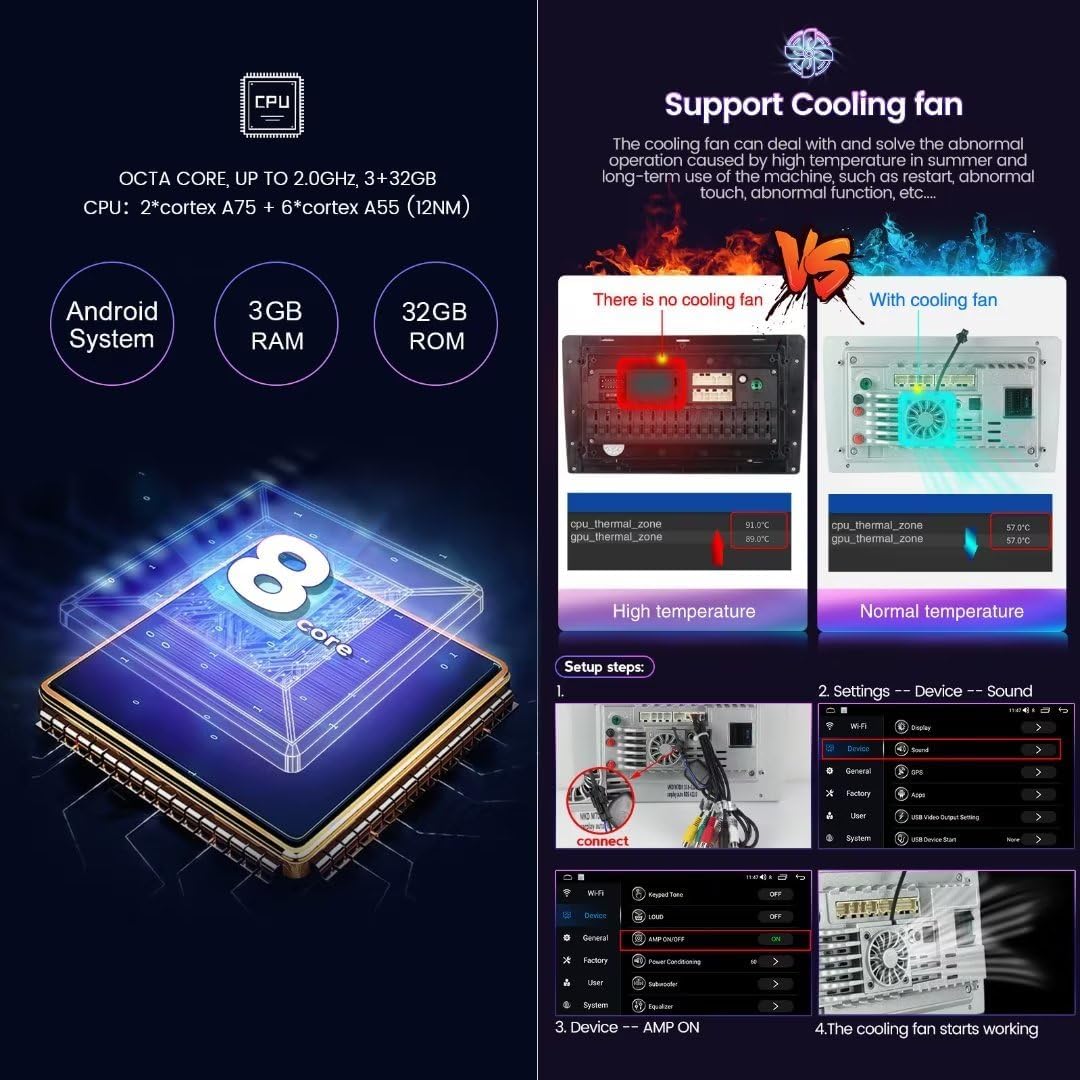
Image: A visual comparison demonstrating the dashboard before and after the installation of the MekedeTech Android Car Stereo, highlighting the display upgrade.
Cooling Fan Installation and Activation:
The unit supports an external cooling fan to manage temperature during extended use. Follow these steps to ensure proper cooling fan operation:
- Connect Fan: Connect the cooling fan cable to the designated port on the stereo unit.
- Access Settings: On the stereo's display, navigate to Settings > Device > Sound.
- Enable AMP ON: In the Device settings, locate and enable the AMP ON option.
- Verify Fan Operation: The cooling fan should activate automatically when needed. You can monitor CPU temperature in the system information.

Image: Detailed view of the cooling fan, CPU specifications, and a step-by-step guide for enabling the cooling fan through the device settings.
Operating Instructions
Your MekedeTech Android Car Stereo runs on Android 12 OS, providing a familiar and intuitive interface. The 10-inch IPS touch screen offers clear visuals and responsive control.
Basic Functions:
- Power On/Off: Press and hold the power button (usually located on the front panel) to turn the unit on or off. A short press typically mutes audio or puts the unit into standby.
- Touch Screen: Navigate through menus and applications by tapping, swiping, and pinching on the touch screen, similar to a smartphone.
- Volume Control: Adjust volume using the physical buttons on the unit, steering wheel controls, or the on-screen interface.
- Steering Wheel Controls: The unit supports factory steering wheel controls for functions like volume, track change, and mode selection. Configuration may be required in the settings menu.
Wireless CarPlay and Android Auto:
The unit features built-in wireless CarPlay and Android Auto, allowing seamless integration with your smartphone for navigation, music, calls, and more.
Wireless CarPlay (iOS System) Connection Steps:
- Connect Bluetooth: On your iPhone, go to Bluetooth settings and pair with the car stereo's Bluetooth device.
- Open Car Link App: On the car stereo, open the "Car Link" application.
- Wait for Connection: The system will automatically connect to CarPlay. (Connection can also be established via USB cable).
Wireless Android Auto (Android System) Connection Steps:
- Connect Bluetooth: On your Android phone, go to Bluetooth settings and pair with the car stereo's Bluetooth device.
- Open Car Link App: On the car stereo, open the "Car Link" application.
- Wait for Connection: The system will automatically connect to Android Auto. (Connection can also be established via USB cable).

Image: Visual guide detailing the connection process for both Wireless CarPlay and Android Auto, including interface examples.
4G LTE and WiFi Connectivity:
The unit supports 4G LTE connectivity via a SIM card and WiFi for internet access.
- 4G LTE: Insert a compatible 4G SIM card into the designated slot (typically located on the back of the main unit or via an external slot). This allows direct internet access without needing a phone hotspot.
- WiFi: Connect to a WiFi network by navigating to Settings > Network & Internet > Wi-Fi. You can also use your smartphone's hotspot.
GPS Navigation:
The unit comes with built-in GPS navigation and pre-installed maps. You can also download and use other navigation apps from the Google Play Store when connected to the internet.
Audio and Video Playback:
The stereo supports various audio and video formats. Use the built-in media player apps or download third-party players. Connect USB drives for media playback.
Maintenance
- Screen Cleaning: Use a soft, lint-free cloth to clean the touch screen. For stubborn smudges, slightly dampen the cloth with water or a screen-safe cleaner. Avoid harsh chemicals.
- Software Updates: Periodically check for system updates in the settings menu (Settings > About device > System updates). Ensure a stable internet connection during updates.
- Cooling System: Ensure the cooling fan (if installed) is free from obstructions to maintain optimal operating temperature.
- General Care: Avoid exposing the unit to extreme temperatures, direct sunlight for prolonged periods, or excessive moisture.
Troubleshooting
If you encounter issues with your MekedeTech Android Car Stereo, refer to the following common problems and solutions:
- No Power:
- Check all power connections and fuses.
- Ensure the vehicle's battery is properly connected and charged.
- No Sound:
- Verify volume levels are not muted or set too low.
- Check speaker connections.
- Ensure the correct audio source is selected.
- Touch Screen Unresponsive:
- Restart the unit.
- Ensure the screen is clean and free of debris.
- GPS Signal Loss:
- Ensure the GPS antenna is properly installed and has a clear view of the sky.
- Check GPS settings in the system.
- CarPlay/Android Auto Not Connecting:
- Ensure Bluetooth is enabled on both the phone and the stereo.
- Verify the "Car Link" app is open on the stereo.
- Try restarting both the phone and the stereo.
- Ensure your phone's operating system is up to date.
- Slow Performance:
- Close unnecessary background applications.
- Clear cache for frequently used apps.
- Consider a factory reset as a last resort (this will erase all user data).
If these steps do not resolve the issue, please contact customer support for further assistance.
Product Specifications
| Feature | Specification |
|---|---|
| Operating System | Android 12 OS |
| CPU | 8-Core A53 1.8GHz |
| Memory (RAM) | 4GB |
| Storage (ROM) | 32GB |
| Display Size | 10 Inches |
| Display Resolution | 1280x720 IPS |
| Touch Screen Type | Capacitive |
| Power Output | 4*50W |
| Connectivity | 4G LTE, WiFi, Bluetooth, Wireless CarPlay, Wireless Android Auto |
| GPS | Built-in GPS navigation and Maps |
| Audio Format Support | APE/FLAC/WAV/MP3/WMA etc. |
| Video Format Support | MKV/RMVB/AVI/MP4/MDV etc. |
| Picture Format Support | PNG/JPEG/JPG/GIF/WBMP/BNP etc. |
| Human Interface Input | Buttons, Keyboard, Touchscreen |
Warranty Information
This MekedeTech Android Car Stereo Head Unit comes with a 1-Year Warranty from the date of purchase. This warranty covers manufacturing defects and malfunctions under normal use. It does not cover damage caused by improper installation, misuse, accidents, unauthorized repairs, or normal wear and tear.
Please retain your proof of purchase for warranty claims. For detailed warranty terms and conditions, refer to the documentation provided with your product or contact MekedeTech customer support.
Customer Support
For any questions, technical assistance, or warranty claims regarding your MekedeTech Android Car Stereo, please contact MekedeTech customer support. You can typically find contact information on the manufacturer's official website or through your point of purchase.
When contacting support, please have your product model (8-Core 4+32G) and purchase details ready to facilitate a quicker resolution.