
Introduction
This manual provides instructions for the installation, operation, and maintenance of your MekedeTech Android Car Stereo Head Unit, model 8-Core 4+32G. This unit is specifically designed for VW Passat B5 vehicles manufactured between 2000 and 2005, offering an upgrade with modern features such as a 10-inch touch screen, Android operating system, wireless CarPlay, and Android Auto.
Important Compatibility Note
Please Note: If your VW Passat B5 vehicle is equipped with a factory seat heating function, this head unit cannot be installed. Verify your vehicle's console configuration before proceeding with installation.

This image illustrates a VW Passat B5 dashboard. The red circles highlight the seat heating control buttons. If these buttons are present in your vehicle, the MekedeTech head unit cannot be installed.
Setup and Installation
The MekedeTech Android Car Stereo Head Unit is designed for a direct fit and includes a frame kit and plug-and-play harness for simplified installation in VW Passat B5 models (2000-2005). This allows for retention of factory steering wheel controls.
Pre-Installation Check
- Ensure your vehicle does not have factory seat heating controls, as this unit is incompatible with such configurations.
- Gather necessary tools for car stereo removal and installation (e.g., trim removal tools, screwdrivers).
Installation Steps
- Carefully remove the existing factory radio from your VW Passat B5 dashboard. Refer to your vehicle's service manual for specific removal procedures.
- Connect the provided plug-and-play wiring harness to the vehicle's existing wiring. Ensure all connections are secure.
- Integrate the new head unit into the provided frame kit.
- Carefully insert the new head unit assembly into the dashboard opening. Secure it in place using the appropriate fasteners.
- Test the unit's basic functions (power, audio, touch screen) before fully reassembling the dashboard trim.
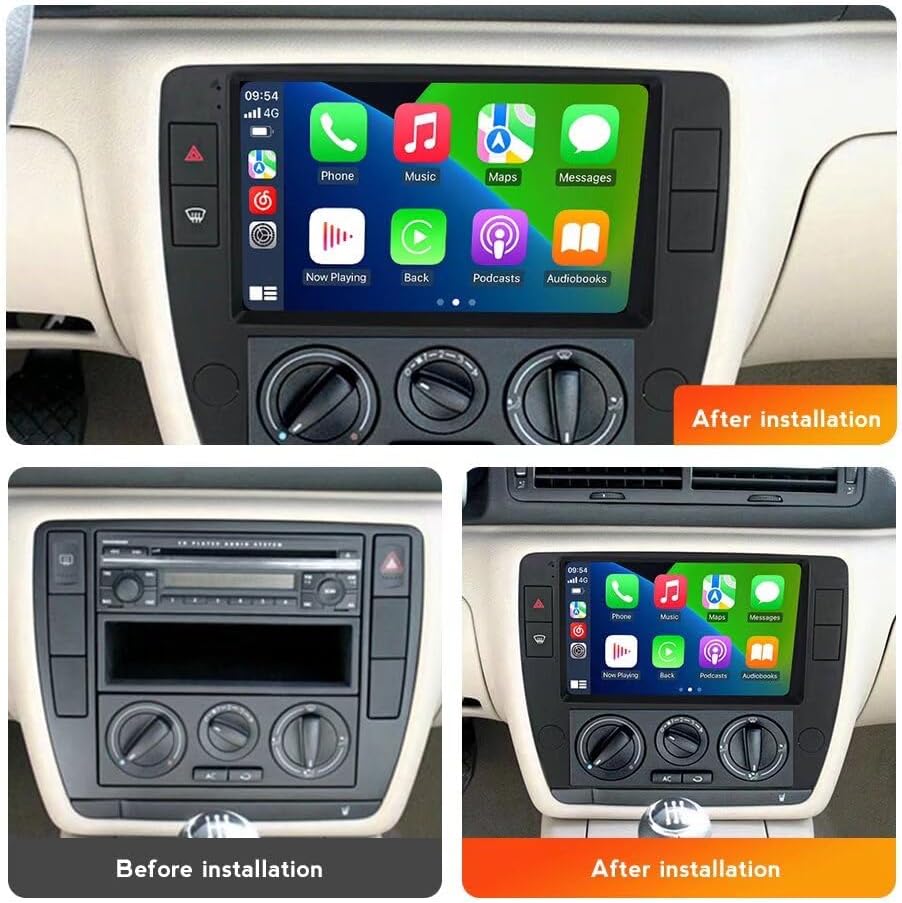
This image displays the dashboard of a VW Passat B5, showing the original radio setup on the left and the new MekedeTech Android head unit installed on the right, demonstrating the visual upgrade.
Operating Instructions
Your MekedeTech Android Car Stereo operates on an Android 12 OS, providing a user-friendly interface similar to a tablet. The 10-inch IPS touch screen allows for intuitive control of all functions.
Basic Operation
- Power On/Off: The unit typically powers on with the vehicle's ignition. A power button may also be present for manual control.
- Volume Control: Adjust volume using the physical buttons on the unit, steering wheel controls, or the on-screen interface.
- Navigation: Access built-in GPS navigation and maps directly from the main menu.
- Radio: Utilize the AM/FM tuner for radio broadcasts.
- App Management: Download and install applications from the Google Play Store when connected to the internet.
Wireless CarPlay and Android Auto
The head unit features built-in wireless CarPlay and Android Auto, allowing seamless integration with your smartphone for navigation, music, calls, and messaging.

This image shows the user interface for Wireless CarPlay (iOS system) and Wireless Android Auto (Android system) on the head unit, along with the connection steps.
Wireless CarPlay (iOS System) Connection Steps:
- On the head unit, navigate to the CarPlay/Android Auto application.
- Enable Bluetooth on your iPhone and pair it with the head unit.
- Once paired, select "Car Link" or the equivalent option on the head unit to initiate the CarPlay connection.
- Follow any on-screen prompts on both your iPhone and the head unit to complete the setup.
Wireless Android Auto (Android System) Connection Steps:
- On the head unit, navigate to the CarPlay/Android Auto application.
- Enable Bluetooth on your Android phone and pair it with the head unit.
- Once paired, select "Car Link" or the equivalent option on the head unit to initiate the Android Auto connection.
- Follow any on-screen prompts on both your Android phone and the head unit to complete the setup.
Note: For initial setup or troubleshooting, a USB cable connection may be required.
4G LTE and Wi-Fi Connectivity
The head unit includes a built-in 4G LTE module and Wi-Fi, allowing internet access directly from the unit. This eliminates the need to constantly use your phone's hotspot.

This image displays the internal 4G LTE module with SIM card slots and a visual representation of the Digital Sound Processor (DSP).
Connecting to 4G LTE:
- Locate the 4G SIM card slot(s) on the unit (one on the back of the main unit, one on the RCA cable).
- Insert a compatible 4G SIM card into the slot.
- Navigate to the network settings on the head unit to enable 4G LTE and configure APN settings if necessary.
Connecting to Wi-Fi:
- Go to the "Settings" menu on the head unit.
- Select "Network & Internet" or "Wi-Fi".
- Turn on Wi-Fi and select your desired network from the list.
- Enter the password if prompted and connect.
Maintenance
Regular maintenance ensures the longevity and optimal performance of your MekedeTech Android Car Stereo Head Unit.
- Screen Cleaning: Use a soft, lint-free cloth slightly dampened with water or a screen cleaner specifically designed for electronics. Avoid harsh chemicals or abrasive materials.
- Software Updates: Periodically check for system software updates through the unit's settings menu. Keeping the software updated can improve performance and add new features.
- Ventilation: Ensure the unit's ventilation areas are not obstructed to prevent overheating. The unit features a cooling fan system to manage internal temperatures.
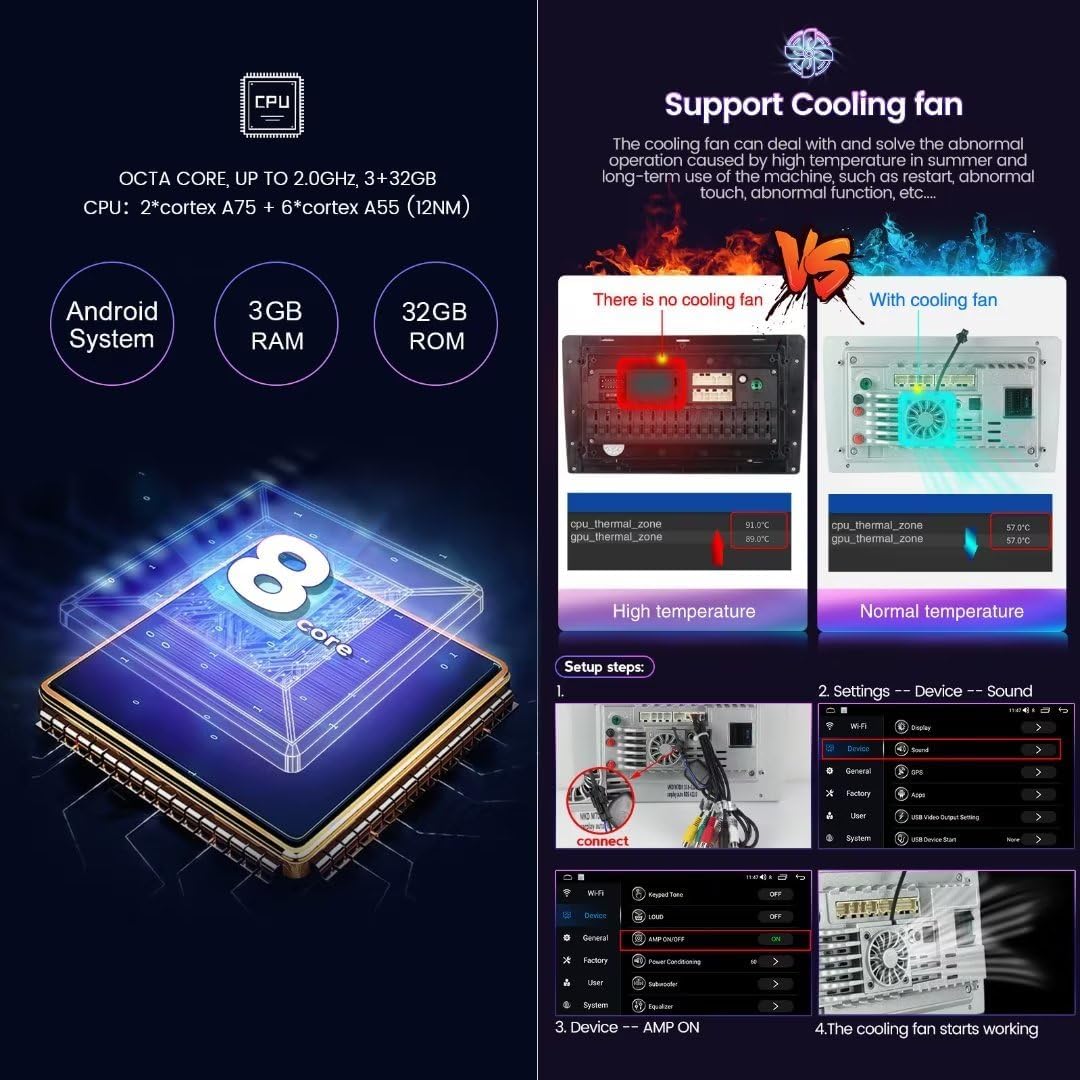
This image highlights the cooling fan system integrated into the head unit, demonstrating its role in maintaining optimal operating temperatures and preventing overheating.
Troubleshooting
This section addresses common issues you might encounter with your head unit.
Common Issues and Solutions
| Problem | Possible Cause | Solution |
|---|---|---|
| Unit does not power on. | Loose power connection, blown fuse, vehicle ignition issue. | Check all power connections. Inspect vehicle fuses. Ensure vehicle ignition is on. |
| No sound from speakers. | Incorrect wiring, volume too low, mute activated, speaker issues. | Verify speaker wiring connections. Increase volume. Check if mute is active. Test with different audio sources. |
| Touch screen unresponsive. | Software glitch, screen calibration issue. | Restart the unit. Perform a factory reset if necessary (Note: This will erase all user data). |
| CarPlay/Android Auto not connecting. | Bluetooth not paired, Wi-Fi interference, app issues. | Ensure Bluetooth is on and paired. Try connecting with a USB cable first. Restart phone and head unit. Update phone OS and apps. |
| GPS signal weak or inaccurate. | Antenna obstruction, poor satellite reception. | Ensure GPS antenna is properly installed and has a clear view of the sky. Move vehicle to an open area. |
Specifications
The following are the technical specifications for the MekedeTech Android Car Stereo Head Unit (Model: 8-Core 4+32G).
- Operating System: Android 12 OS
- CPU: 8-Core A53 1.8GHz
- Memory: 4GB RAM + 32GB ROM
- Screen Size: 10 Inches
- Display Resolution: 1280x720 IPS Touch Screen
- Power Output: 4*50W
- Connectivity: Built-in 4G LTE, Wi-Fi, Bluetooth, Wireless CarPlay, Wireless Android Auto
- Special Features: GPS Navigation, AM/FM Radio, DSP Sound System, Steering Wheel Control Support
- Audio Formats: APE/FLAC/WAV/MP3/WMA etc.
- Video Formats: MKV/RMVB/AVI/MP4/MDV etc.
- Picture Formats: PNG/JPEG/JPG/GIF/WBMP/BNP etc.
- Human Interface Input: Buttons, Keyboard, Touchscreen
Warranty and Support
Your MekedeTech Android Car Stereo Head Unit comes with a manufacturer's warranty and support options.
Warranty Information
The product includes a 1-Year Warranty from the date of purchase. This warranty covers manufacturing defects and malfunctions under normal use. Please retain your proof of purchase for warranty claims.
Customer Support
For technical assistance, troubleshooting, or warranty inquiries, please contact MekedeTech customer support. Refer to the contact information provided with your product packaging or visit the official MekedeTech website for support resources.
Additional protection plans may be available for purchase:
- 2-Year Protection Plan
- 3-Year Protection Plan