
ActivPro SD11
ActivPro Smart Dock SD11 User Manual
4-in-1 Wireless Charging Station, Clock, Bluetooth Speaker, Lamp
Introduction
Thank you for choosing the ActivPro Smart Dock SD11. This versatile 4-in-1 device combines a fast wireless charging station, a digital alarm clock, a high-quality Bluetooth speaker, and a multi-functional lamp. This manual provides detailed instructions for setup, operation, and maintenance to ensure you get the most out of your new device.
Note: Before initial use, connect the device to a power supply for five minutes before turning it on.
Product Overview
The ActivPro Smart Dock SD11 features a modern, minimalist design that complements any interior. It offers convenient wireless charging, a clear digital clock display, immersive sound, and adaptable lighting options.
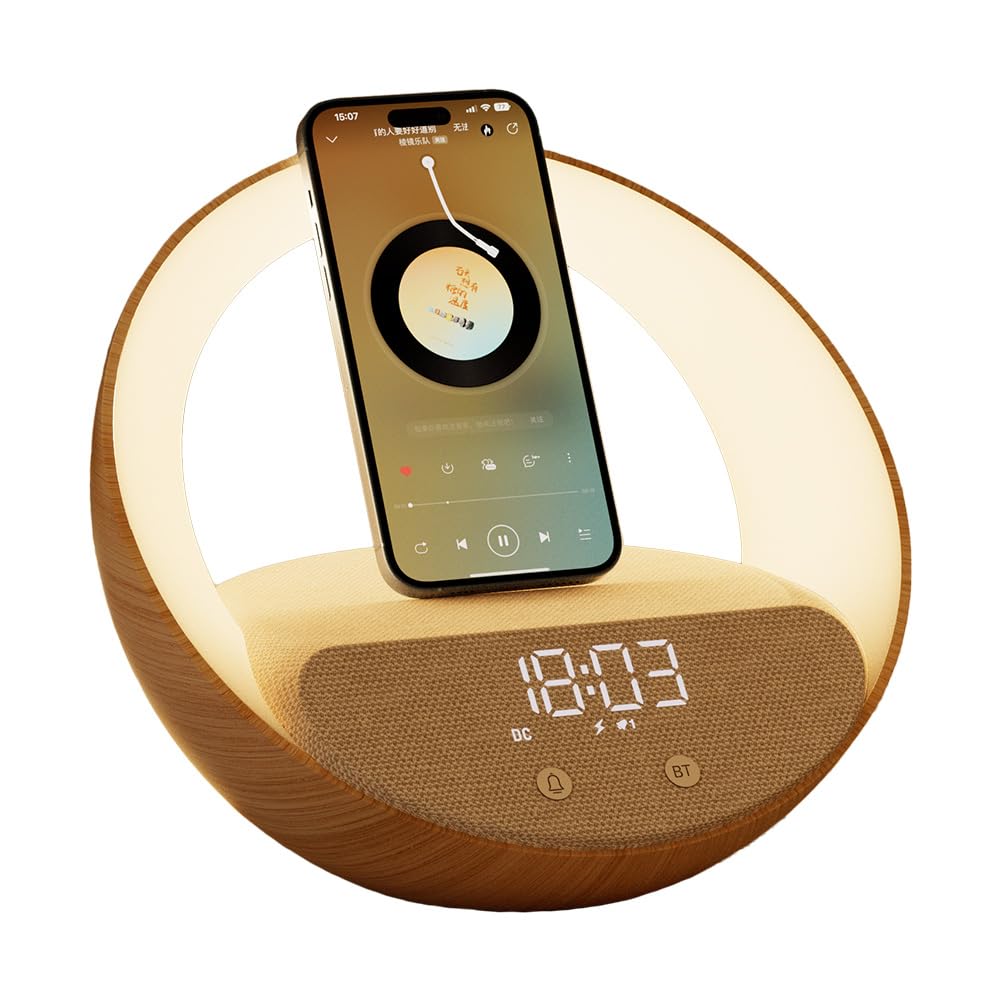
Image: The ActivPro Smart Dock SD11 shown with its packaging, highlighting its multi-functional features.
What's in the Box
- ActivPro Smart Dock SD11 Unit
- User Manual
- Charger Cable
- USA Plug
- 2 CR5 Batteries (pre-installed or included for clock backup)
Setup
- Unpack the Device: Carefully remove all components from the packaging.
- Connect Power: Insert the charger cable into the USB Type-C port on the back of the Smart Dock and connect the USA plug to a power outlet.
- Initial Power-On: Allow the device to connect to power for at least five minutes before attempting to turn it on. This ensures proper initialization.
- Placement: Place the Smart Dock on a stable, flat surface, such as a bedside table or desk.

Image: The Smart Dock positioned on a wooden bedside table, displaying the digital clock and illuminated ring light.
Operating Instructions
1. Digital Clock Display
The Smart Dock features a clear digital alarm clock display. You can adjust its brightness to suit day and night use.
- Setting Time: Refer to the physical buttons on the device, typically labeled with clock or alarm icons, to enter time setting mode. Use '+' and '-' buttons to adjust hours and minutes.
- Adjusting Brightness: Use the dedicated brightness control button (often indicated by a sun icon) to cycle through brightness levels.
- Alarm Function: The device supports alarm settings. Consult the physical buttons for alarm setup and activation.

Image: A close-up view of the Smart Dock's digital clock display, showing the time 15:03.
2. Fast Wireless Charging
The integrated wireless charging pad allows you to effortlessly charge compatible smartphones and other devices.
- Ensure the Smart Dock is connected to a power supply.
- Place your wireless charging compatible device (e.g., iPhone, Samsung, Android phone) directly onto the charging pad located on the top surface of the Smart Dock.
- The device will begin charging automatically. A charging indicator may appear on your phone screen.
Note: Some protective cases may interfere with charging performance. Remove thick or metallic cases if charging issues occur.
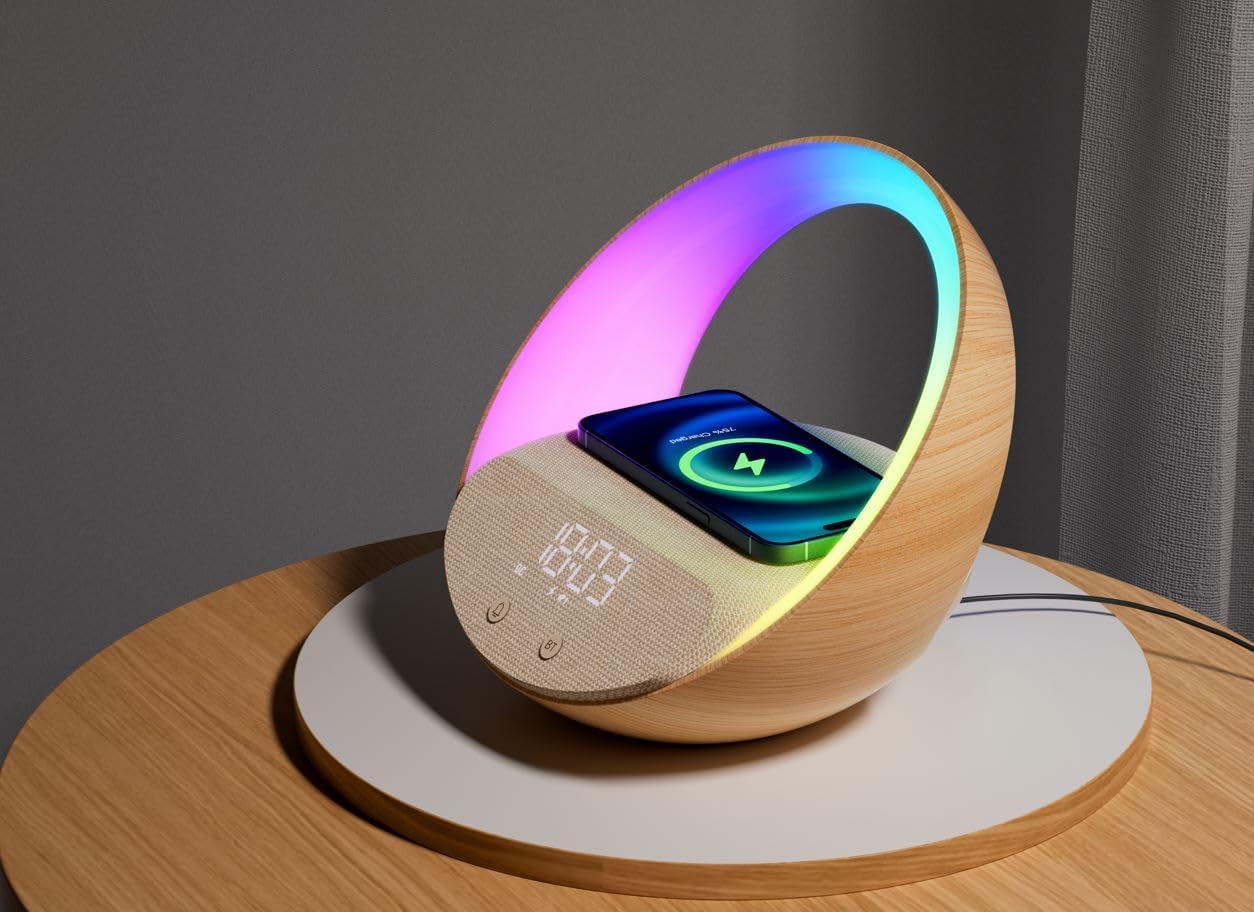
Image: A smartphone placed on the Smart Dock's charging pad, indicating active wireless charging, with the device's light ring displaying RGB colors.
3. Bluetooth Speaker
Enjoy high-quality audio by connecting your device via Bluetooth. Perfect for playing music or podcasts.
- Activate Bluetooth: Press the Bluetooth button (labeled 'BT') on the Smart Dock to put it into pairing mode. The display may show a Bluetooth icon flashing.
- Pair with Your Device: On your smartphone or other Bluetooth-enabled device, go to Bluetooth settings and search for "ACTIVPRO Smart Dock" (or similar name). Select it to pair.
- Play Audio: Once paired, you can play audio from your device, and it will output through the Smart Dock's speaker.
Note: While the speaker provides clear audio, it is optimized for light music and podcasts rather than high-fidelity audio for critical listening.

Image: A smartphone displaying a music player interface, positioned on the Smart Dock, which is actively playing audio.
4. Night Lamp & Mood Lighting
The Smart Dock features an integrated lamp with adjustable white illumination and vibrant RGB mood lighting.
- Turning On/Off: Use the lamp control button (often indicated by a light bulb icon) to turn the lamp on or off.
- Adjusting White Light: Press the lamp control button repeatedly to cycle through different white light brightness levels.
- Activating RGB Colors: Long-press the lamp control button to switch to RGB mood lighting mode. Subsequent short presses may cycle through different color modes or effects.

Image: The Smart Dock illuminating a dark room with its rainbow LED light ring, showcasing its mood lighting capabilities.
Maintenance
- Cleaning: Use a soft, dry cloth to wipe the exterior of the device. Do not use liquid cleaners or abrasive materials.
- Power Disconnection: Disconnect the power adapter from the wall outlet and the device before cleaning or if the device will not be used for an extended period.
- Avoid Moisture: Keep the device away from water and high humidity environments.
Troubleshooting
| Problem | Possible Cause / Solution |
|---|---|
| Device does not power on. | Ensure the power cable is securely connected to both the device and a working power outlet. Verify the outlet has power. Allow 5 minutes after connecting power for initial startup. |
| Wireless charging is not working. |
|
| Bluetooth speaker not pairing. |
|
| Clock display is too bright/dim. | Use the dedicated brightness control button (sun icon) to adjust the display intensity. |
| Lamp light is not changing colors. | Ensure you are in RGB mood lighting mode. Long-press the lamp control button to switch modes, then short-press to cycle through colors/effects. |
Specifications
| Feature | Detail |
|---|---|
| Model Number | SD11 |
| Product Dimensions | 8.66 x 1.5 x 7.6 inches |
| Item Weight | 1.63 pounds |
| Power Input | 9 Volts (DC) |
| Wireless Charging Wattage | 15 watts |
| Connector Type | USB Type C |
| Total USB Ports | 3 |
| Compatible Devices | Android Phones with Wireless Charging, Samsung, iPhone |
| Color | Wooden + Beige |
| Batteries | 2 CR5 batteries required (included) |
| Manufacturer | ACTIVPRO GLOBAL UK |
Warranty & Support
ActivPro products are thoroughly tested and designed for reliability. For any questions, technical support, or warranty inquiries, please contact ActivPro customer service. Refer to the product packaging or the official ActivPro website for contact details.
"If you have any questions or need support, we're here to help!"
Product Demonstration Video
Video: An official demonstration of the ActivPro Smart Dock, showcasing its various features including light modes, wireless charging, Bluetooth speaker, and alarm clock functions.
Ask a question about this manual
Ask about setup, troubleshooting, compatibility, parts, safety, or missing instructions. Manuals+ will review the question and use this page’s manual context to help answer it.