
Fockety Q12
Fockety Q12 Digital Camera User Manual
Model: Q12 (Fockety98ig7rcxfy-11)
1. Introduction
This manual provides detailed instructions for the safe and effective use of your Fockety Q12 Digital Camera. Please read this manual thoroughly before operating the device and retain it for future reference.
The Fockety Q12 is a compact digital camera designed for ease of use, featuring a high-resolution CMOS sensor for up to 50MP photos and 4K video recording. It includes a 2.4-inch IPS color screen and 16x digital zoom, making it suitable for capturing various moments.
2. Package Contents
Verify that all items listed below are present in your package:
- Fockety Q12 Digital Camera
- USB-C Charging Cable
- Lanyard
- Memory Card (Optional, pre-installed if included with your specific purchase)

Image: The Fockety Q12 Digital Camera, accompanied by its USB-C charging cable and a black lanyard, laid out on a flat surface.
3. Product Overview
3.1 Front View

Image: Front view of the Fockety Q12 Digital Camera, showing the lens, flash, and "4K MEGA PIXELS" branding.
- Lens: Captures images and videos.
- Flash: Provides illumination in low-light conditions.
- Microphone: Records audio during video recording.
3.2 Rear View

Image: Rear view of the Fockety Q12 Digital Camera, displaying the 2.4-inch IPS screen and control buttons.
- IPS Display Screen: 2.4-inch screen for viewing photos, videos, and menu options.
- Zoom Buttons (W/T): Adjusts digital zoom (Wide/Telephoto).
- OK Button: Confirms selections and takes photos.
- Menu Button (M): Accesses camera settings.
- Playback Button: Enters playback mode to view captured media.
4. Setup
4.1 Charging the Battery
- Locate the USB-C port on the camera.
- Connect the provided USB-C charging cable to the camera and a compatible USB power adapter (not included) or computer USB port.
- The charging indicator light will illuminate during charging and turn off when fully charged.
- A full charge typically takes approximately 2-3 hours.
4.2 Inserting a Memory Card (If applicable)
The camera requires a memory card (not included with all versions) to store photos and videos. It supports standard SD cards.
- Locate the memory card slot on the side or bottom of the camera.
- Insert the memory card with the metal contacts facing the correct direction (refer to the diagram near the slot).
- Push the card gently until it clicks into place.
- To remove, push the card again until it springs out slightly, then pull it out.
5. Operating Instructions
5.1 Power On/Off
- To Power On: Press and hold the Power button (usually located on the top or side) for a few seconds until the screen illuminates.
- To Power Off: Press and hold the Power button again until the screen turns off.
5.2 Taking Photos
- Ensure the camera is in photo mode (indicated by an icon on the screen, typically a camera symbol). If not, use the Mode button (if available) or navigate through the menu to select photo mode.
- Frame your shot using the IPS display.
- Use the W/T buttons to adjust the 16x digital zoom.
- Press the OK button halfway down to focus (if autofocus is active).
- Press the OK button fully to capture the photo.

Image: A person holding the Fockety Q12 Digital Camera, taking a selfie, with the camera's screen visible.
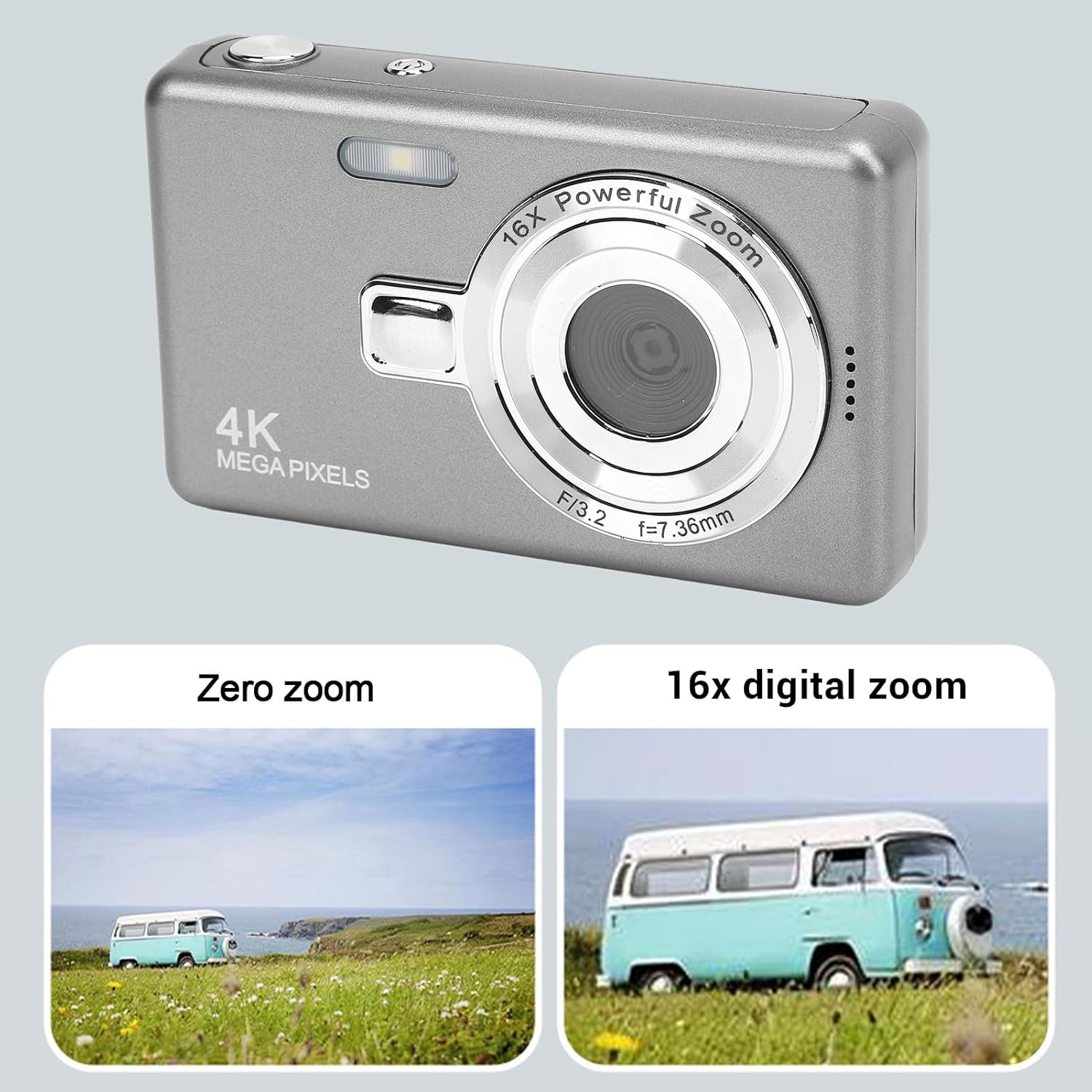
Image: A visual comparison demonstrating the effect of zero zoom versus 16x digital zoom on the Fockety Q12 Digital Camera, showing a distant object appearing closer with zoom.
5.3 Recording Videos
- Switch the camera to video recording mode (indicated by a video camera icon).
- Press the OK button to start recording. A red dot or recording timer will appear on the screen.
- Press the OK button again to stop recording.
5.4 Playback Mode
- Press the Playback button to enter playback mode.
- Use the navigation buttons (often the zoom buttons or directional pad) to scroll through your photos and videos.
- Press the OK button to view a video or a larger version of a photo.
- Press the Playback button again to exit playback mode.

Image: The Fockety Q12 Digital Camera with its screen displaying a vibrant beach scene, suggesting its use for travel and family moments.
6. Maintenance
6.1 Cleaning the Camera
- Use a soft, dry, lint-free cloth to clean the camera body.
- For the lens and screen, use a specialized lens cleaning cloth and solution. Avoid abrasive materials.
- Do not use organic solvents or strong chemicals.
6.2 Storage
- Store the camera in a cool, dry place away from direct sunlight and extreme temperatures.
- If storing for an extended period, ensure the battery is partially charged (around 50%) and remove it if possible (though this camera has an internal battery).
- Keep the camera away from dust and moisture.
7. Troubleshooting
| Problem | Possible Cause | Solution |
|---|---|---|
| Camera does not power on. | Battery is depleted. | Charge the camera battery using the provided USB-C cable. |
| Cannot take photos/videos. | No memory card inserted or card is full/corrupted. | Insert a compatible memory card or delete unnecessary files. Format the card if corrupted (this will erase all data). |
| Images are blurry. | Lens is dirty; insufficient light; camera shake. | Clean the lens. Ensure adequate lighting. Hold the camera steady or use the flash. |
| Screen is blank or frozen. | Software glitch. | Try powering off and on. If unresponsive, allow the battery to drain completely and then recharge. |
8. Specifications
| Feature | Detail |
|---|---|
| Model | Q12 (Fockety98ig7rcxfy-11) |
| Screen Size | 2.4 Inch IPS |
| Maximum Photo Pixels | 50MP |
| Maximum Video Resolution | 4K |
| Digital Zoom | 16x |
| Sensor Type | CMOS |
| Battery | Li Battery, 800mAh (Internal) |
| Connectivity | USB-C |
| Dimensions | 12 x 8 x 6 cm |
| Weight | 188 g |
| Country of Origin | China |
9. Warranty and Support
For warranty information or technical support, please refer to the contact details provided with your purchase or visit the official Fockety website. Keep your proof of purchase for warranty claims.
Ask a question about this manual
Ask about setup, troubleshooting, compatibility, parts, safety, or missing instructions. Manuals+ will review the question and use this page’s manual context to help answer it.