
ZWXYVUT K36-Retro
ZWXYVUT K36-Retro Handheld Game Console User Manual
Model: K36-Retro
1. Introduction
Thank you for purchasing the ZWXYVUT K36-Retro Handheld Game Console. This device is designed to provide a portable gaming experience with a wide selection of classic games. Featuring a 3.5-inch IPS screen, an open-source Linux system, and a 3200mAh battery, it offers hours of entertainment. This manual provides essential information for setting up, operating, maintaining, and troubleshooting your console.
2. Product Overview
The K36-Retro console combines classic design with modern features, including dual 3D joysticks, a D-pad, and dedicated action buttons. It comes with a 64GB TF card pre-loaded with games and supports game saving and loading functions.

Figure 2.1: K36-Retro Handheld Game Console and included accessories (TF card, USB charging cable, HDMI cable).
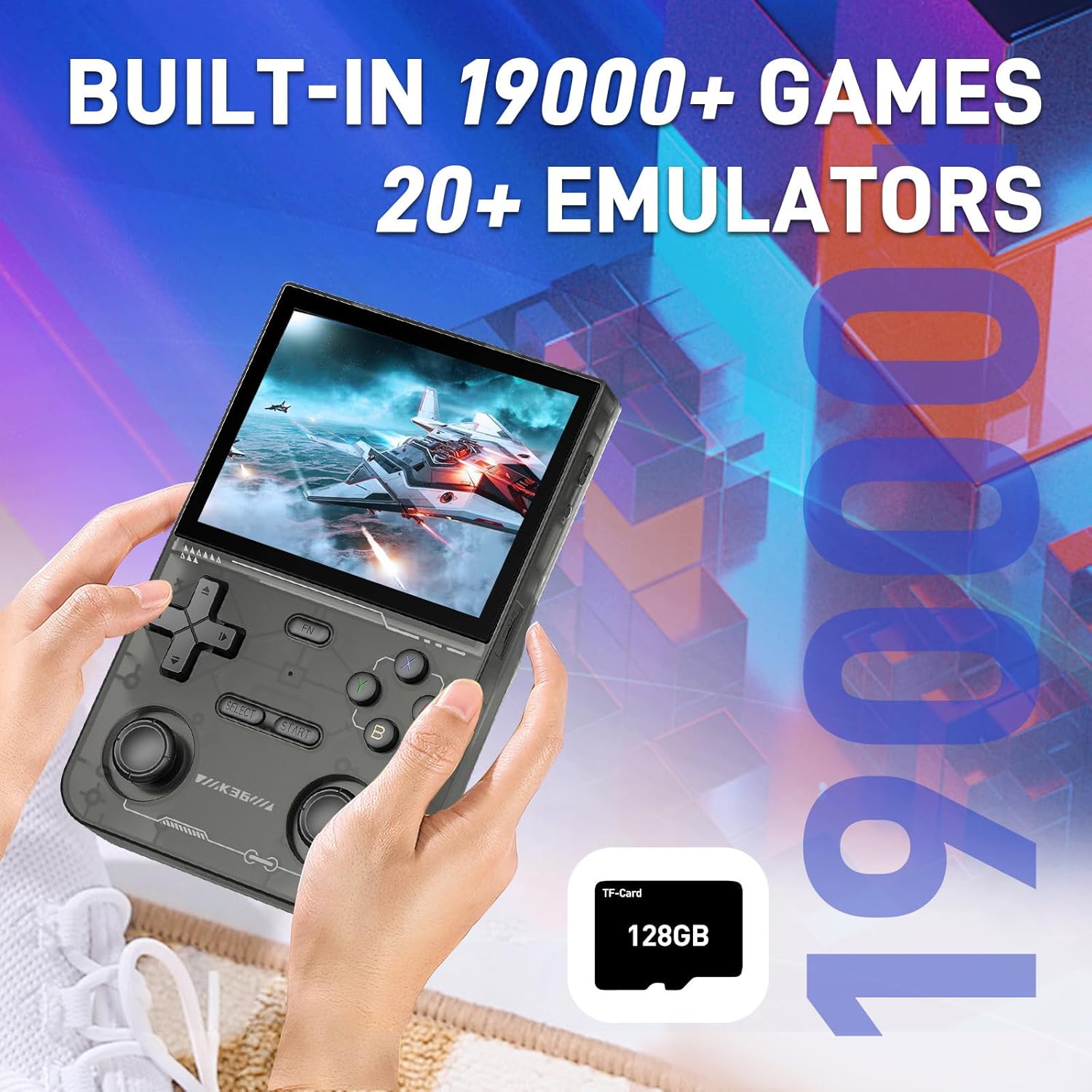
Figure 2.2: The K36-Retro console in hand, highlighting its ergonomic design and screen.
2.1 Key Features
- Display: 3.5-inch IPS screen, 640x480 resolution, 500 nit brightness.
- Controls: Dual 3D joysticks, D-pad, ABYX buttons, SELECT, START, FN, and upgraded RL shoulder buttons.
- Storage: 64GB TF card (pre-installed).
- Battery: 3200mAh rechargeable battery.
- Operating System: Open Source Linux System.
- Connectivity: Micro USB for charging, HDMI-compatible output.
- Additional Features: Custom key mapping, game save/load, multi-language support.

Figure 2.3: Details of the 3.5-inch IPS screen with 640x480 resolution.
3. Setup
3.1 Charging the Console
Before first use, fully charge the console. Connect the included Micro USB charging cable to the console's charging port and the other end to a compatible USB power adapter (not included) or a computer's USB port. The charging indicator light will typically show charging status and turn off or change color when fully charged.
3.2 Inserting/Removing the TF Card
The console comes with a 64GB TF card pre-installed. If you need to access or replace it:
- Locate the TF card slot on the side or bottom of the console.
- To remove, gently push the card inward until it clicks, then release. The card will spring out.
- To insert, align the TF card with the slot and push it in until it clicks into place. Ensure it is fully seated.
3.3 Initial Power On
Press and hold the Power button (usually located on the top or side) for a few seconds until the screen illuminates and the system starts up.
4. Operating Instructions
4.1 Power On/Off
- Power On: Press and hold the Power button.
- Power Off: Press and hold the Power button until a power-off menu appears, then select 'Power Off' or continue holding until the device shuts down. A quick press usually puts the device to sleep.
4.2 Navigation and Controls
Use the D-pad or the dual 3D joysticks to navigate through menus and games. The ABYX buttons are for actions, while SELECT and START buttons perform various in-game or menu functions.

Figure 4.1: The console features dual 3D joysticks for enhanced gaming control.

Figure 4.2: The dual-layer cross keys and separate ABYX buttons provide precise input.
4.3 Game Selection and Launch
From the main menu, navigate to the game library. Select your desired game using the D-pad or joystick and press the 'A' button (or equivalent) to launch it.
4.4 Saving and Loading Game Progress
The K36-Retro supports saving and loading game states:
- To Save: During gameplay, press SELECT + R1 simultaneously. This will typically bring up a save state menu or save the current progress directly.
- To Load: To continue from a saved point, press SELECT + L1 simultaneously during gameplay. This will load your last saved state.

Figure 4.3: The console allows users to save and load game progress at any point.
4.5 Custom Key Mapping
The console allows for custom key mapping. Access the system settings or emulator-specific settings to reconfigure button assignments according to your preference. This feature is useful for optimizing controls for different games.
4.6 Language Settings
The K36-Retro supports over 30 languages. To change the system language, navigate to the system settings menu and select the 'Language' option. Choose your preferred language from the list.
4.7 Connecting to a TV (HDMI Output)
To play games on a larger screen, connect the console to a TV using the included HDMI-compatible cable. Locate the HDMI output port on the console and connect it to an HDMI input on your television. Switch your TV's input source to the corresponding HDMI port.
5. Maintenance
5.1 Cleaning
Use a soft, dry cloth to clean the console's exterior. For stubborn smudges, slightly dampen the cloth with water. Avoid using harsh chemicals or abrasive materials, as these can damage the screen or casing.
5.2 Battery Care
- Avoid fully discharging the battery frequently.
- Charge the console regularly, even if not in use for extended periods, to maintain battery health.
- Do not expose the console to extreme temperatures.
5.3 Storage
When not in use, store the console in a cool, dry place away from direct sunlight and excessive dust. Consider using a protective case to prevent scratches and damage.
6. Troubleshooting
- Console will not power on: Ensure the battery is charged. Connect the charger and try again. If still unresponsive, perform a hard reset by holding the power button for an extended period (e.g., 10-15 seconds).
- Games are not loading or running slowly: Check if the TF card is properly inserted. Ensure the game file is compatible with the console's emulators. Some larger games may require more processing power and might experience occasional slowdowns.
- Screen is unresponsive or flickering: Try restarting the console. If the issue persists, ensure the console has not been exposed to physical damage or extreme temperatures.
- Buttons are not responding: Check for any physical obstructions. Restart the console. If specific buttons consistently fail, contact customer support.
- No sound: Check the volume settings on the console. Ensure headphones are properly connected if in use.
7. Specifications
| Feature | Specification |
|---|---|
| Model | K36-Retro |
| Display Type | 3.5-inch IPS LCD |
| Resolution | 640x480 |
| Memory Storage Capacity | 64 GB (via TF card) |
| Battery Capacity | 3200 mAh |
| Power Source | Battery Powered |
| Material | Plastic |
| Form Factor | Handheld |
| Product Dimensions | 7.5 x 3.1 x 1.3 inches |
| Manufacturer Recommended Age | 4 years and up |
8. What's in the Box
- 1 x ZWXYVUT K36-Retro Game Console
- 1 x Game Pad (Controller)
- 1 x Micro USB Charging Line
- 1 x HDMI-compatible Cable
- 1 x Packing Box
9. Warranty and Support
ZWXYVUT products are manufactured to high-quality standards. For warranty information or technical support, please refer to the documentation included with your purchase or contact the seller directly. Keep your proof of purchase for any warranty claims.
Related Documents - K36-Retro
 |
R36S Handheld Game Console User Manual Comprehensive user manual for the R36S handheld game console, covering setup, features, game data, connectivity, and troubleshooting. Learn how to use your retro gaming device. |
 |
R36S RGB 20S Handheld Game Console User Manual Comprehensive user manual for the R36S RGB 20S handheld gaming console. This guide covers functional descriptions, button layouts, special instructions for power and memory card usage, warning notices, charging procedures, technical specifications, and configuration details. |
 |
M18 Retro Games Console User Manual Comprehensive user manual for the M18 retro games console, detailing technical specifications, package contents, functions, operation, and important warnings. This portable video player features a 3.5-inch screen and Linux system. |
 |
R36XX Manual: User Guide and Specifications Comprehensive user manual for the R36XX handheld retro game console, detailing its features, combination key descriptions, charging instructions, and technical specifications. |
 |
KINHANK K36 Handheld Game Console User Manual - Features, Specs & Operation Comprehensive user manual for the KINHANK K36 retro handheld game console. Learn about its specifications, button layouts, RetroArch hotkeys, system settings, game management, and troubleshooting. |
 |
WDXSKY XF43 Retro Handheld Game Console - User Manual and Specifications Detailed user manual and specifications for the WDXSKY XF43 retro handheld game console, featuring a 4.3-inch IPS screen, RK3128 CPU, and support for numerous emulators. |