1. Introduction
The ZUCWO 2-in-1 Mini Wireless CarPlay Adapter is designed to convert your vehicle's existing wired CarPlay or Android Auto system into a wireless connection. This compact device offers a seamless and clutter-free experience, allowing you to access your smartphone's features directly on your car's display without the need for cables. It supports both Apple CarPlay and Android Auto, providing enhanced convenience and functionality for a wide range of vehicles and mobile devices.

Image: The ZUCWO 2-in-1 Mini Wireless CarPlay Adapter, a compact device designed for wireless connectivity.
2. Important Compatibility Notice
This adapter is specifically designed for vehicles that come with factory-installed wired CarPlay or Android Auto systems. It functions by converting these existing wired connections to wireless functionality. Please ensure your vehicle meets these requirements before use.
- Vehicle Compatibility: Compatible with over 800 car models manufactured in 2016 and newer that feature wired CarPlay or Android Auto.
- Phone Compatibility: Requires mobile phones running iOS 10+ for Apple CarPlay or Android 11+ for Android Auto.
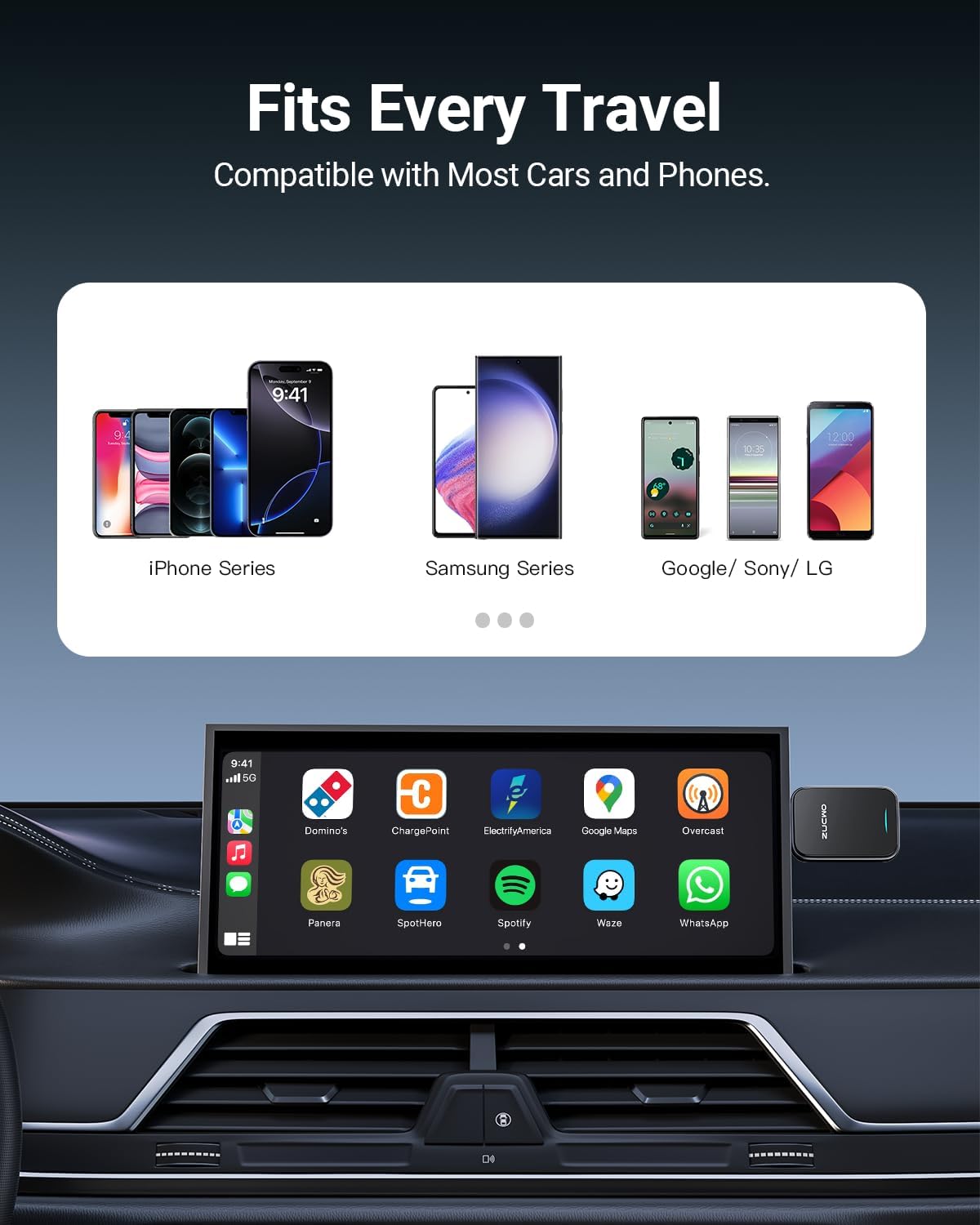
Image: Visual representation of the adapter's broad compatibility with various car brands and smartphone operating systems.
3. Setup Guide
Follow these steps for initial setup and connection:
Step 1: Plug in the Adapter
Insert the ZUCWO wireless adapter into your car's USB port. The adapter is designed to be compact and discreet, fitting well in tight spaces. It includes both USB-A and Type-C extension cables for versatile use with different car ports.
Step 2: Enable Bluetooth and Wi-Fi on Your Phone
On your smartphone, navigate to your settings and ensure both Bluetooth and Wi-Fi are turned on. Then, search for available Bluetooth devices and select the ZUCWO adapter to pair. The device name will typically appear as 'Auto-BT-XXXX' or similar.
Step 3: Confirm Connection on Car Display
Once paired via Bluetooth, your car's display will prompt you to allow and use CarPlay or Android Auto. Confirm the connection. The system will automatically activate the wireless CarPlay/Android Auto interface.

Image: A visual guide illustrating the simple three-step installation process: plug into USB, pair Bluetooth/Wi-Fi, and confirm on car screen.
4. Operating Instructions
After successful setup, the adapter will automatically connect to your phone every time you start your car, typically within 3 seconds for daily usage. The car's display will mirror your phone's CarPlay or Android Auto interface, allowing for hands-free operation.
- Navigation: Use your preferred navigation apps (e.g., Apple Maps, Google Maps, Waze) directly on the car's screen.
- Music & Audio: Stream music, podcasts, and audiobooks from apps like Spotify, Apple Music, or others.
- Calls & Messages: Make and receive calls, and handle messages using voice commands (Siri, Google Assistant) or the car's touchscreen/buttons.
- Voice Control: Utilize voice assistants for various functions, ensuring focus remains on driving.
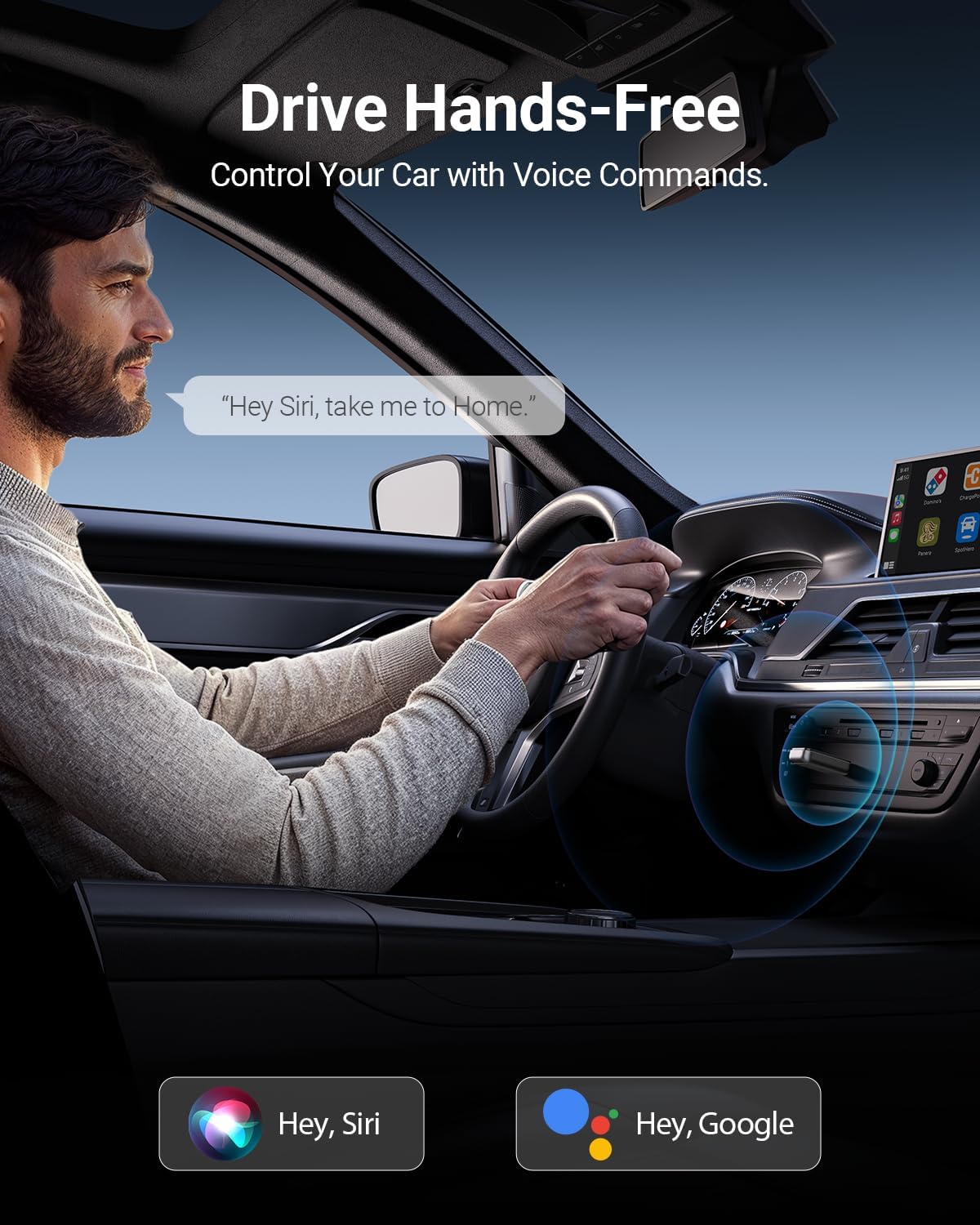
Image: A driver interacting with the car's system using voice commands, demonstrating hands-free operation.
5. Key Features
- Lightning-Fast Connectivity: Equipped with 5.8 GHz Wi-Fi, Bluetooth 5.3, and a next-gen chip, the adapter achieves initial connection in approximately 10 seconds and auto-connects in about 3 seconds for daily use. Transmission speeds are up to 3 times faster than other adapters.
- Stable Connection: The cable-free design eliminates common issues such as broken cables or disconnections caused by vehicle movement. Automatic wireless CarPlay/Android Auto activation occurs every time the car starts.
- Durable and Practical Design: Features metal edges for improved heat dissipation, preventing overheating during extended use and protecting your car’s USB port. Tested for over 10,000 insertions to ensure a stable, wobble-free connection. Its compact size (50% smaller than some alternatives) allows for discreet placement.

Image: An internal view highlighting the A7 chip, emphasizing its role in providing stable and lag-free wireless connections.
6. Specifications
| Attribute | Value |
|---|---|
| Product Dimensions | 0.39 x 2.6 x 1.46 inches |
| Item Weight | 1.13 ounces |
| ASIN | B0DR8GTBKZ |
| Item Model Number | US-ZC91-G |
| Date First Available | December 23, 2024 |
| Manufacturer | ZUCWO |
| Country of Origin | China |
| Compatible Devices | iPhone 6+, Smartphone |
| Connector Type | USB Type C, USB Type A |
| Color | Gray |
7. Troubleshooting
If you encounter issues with your ZUCWO Wireless CarPlay Adapter, consider the following common solutions:
- No Connection:
- Ensure your car has factory-installed wired CarPlay or Android Auto.
- Verify that Bluetooth and Wi-Fi are enabled on your phone.
- Check if the adapter is securely plugged into the car's USB port.
- Try restarting your car's infotainment system and your phone.
- Delete previous Bluetooth pairings for your car and phone, then re-pair the adapter.
- Lag or Delay:
- Ensure your phone's operating system is up to date (iOS 10+ or Android 11+).
- Minimize background apps on your phone that might consume resources.
- Check for any potential Wi-Fi interference from other devices in the vehicle.
- Intermittent Disconnections:
- Ensure the adapter is not obstructed and has clear line of sight to your phone.
- Verify the USB port is providing stable power.
- If using an extension cable, ensure it is fully seated and not damaged.
- Features Not Working:
- Confirm that the specific app or feature is supported by CarPlay/Android Auto.
- Check your phone's permissions for the CarPlay/Android Auto app.
8. Maintenance
To ensure the longevity and optimal performance of your ZUCWO Wireless CarPlay Adapter, follow these maintenance guidelines:
- Cleaning: Use a soft, dry cloth to gently wipe the adapter. Avoid using liquid cleaners or abrasive materials, as they may damage the device.
- Storage: When not in use for extended periods, store the adapter in a cool, dry place away from direct sunlight and extreme temperatures.
- Handling: Handle the adapter with care. Avoid dropping it or subjecting it to strong impacts, which could damage internal components.
- Port Protection: Ensure the USB port in your vehicle is clean and free of debris before inserting the adapter to prevent damage to both the port and the adapter.
9. Warranty and Support
For information regarding warranty coverage, technical support, or any other inquiries, please refer to the official ZUCWO website or the documentation included with your product. You may also contact ZUCWO customer service directly through their provided contact channels.
Manufacturer: ZUCWO


