
1. Product Overview
The ZUCWO Wireless CarPlay Adapter is designed to convert your vehicle's existing wired CarPlay or Android Auto system into a wireless one. This device offers a stable and low-latency connection, enhancing your in-car experience by eliminating the need for physical cable connections to your smartphone.

Image: The ZUCWO Wireless CarPlay Adapter, a compact black device with a USB-A connector, featuring the ZUCWO logo.
Key Features:
- Converts wired CarPlay/Android Auto to wireless.
- Fast plug-and-play setup.
- Stable and low-latency connection.
- Compatible with iOS 10+ and Android 11+ devices.
- Supports original car controls (touch screens, steering wheels, knobs, dials).
2. Compatibility
This adapter is specifically designed for vehicles equipped with a factory-installed wired CarPlay or Android Auto system. It is compatible with over 800 car models manufactured in 2016 or newer.
Supported Mobile Operating Systems:
- iOS 10 and above (for Apple CarPlay)
- Android 11 and above (for Android Auto)

Image: An illustration showing compatibility with iPhone Series, Samsung Series, and other Android phones like Google, Sony, and LG, along with a car dashboard displaying various app icons.
Important Note:
This adapter does not add CarPlay or Android Auto functionality to vehicles that do not already have a wired version installed from the factory. It only converts an existing wired connection to wireless.
3. Setup and Installation
The ZUCWO Wireless CarPlay Adapter features a simple plug-and-play setup. Follow these steps for initial installation:
- Step 1: Plug Adapter into Car USB Port
Locate the USB port in your vehicle that supports wired CarPlay or Android Auto. Insert the ZUCWO Wireless CarPlay Adapter into this port. If your car has a USB-C port, use the included USB-C adapter cable.
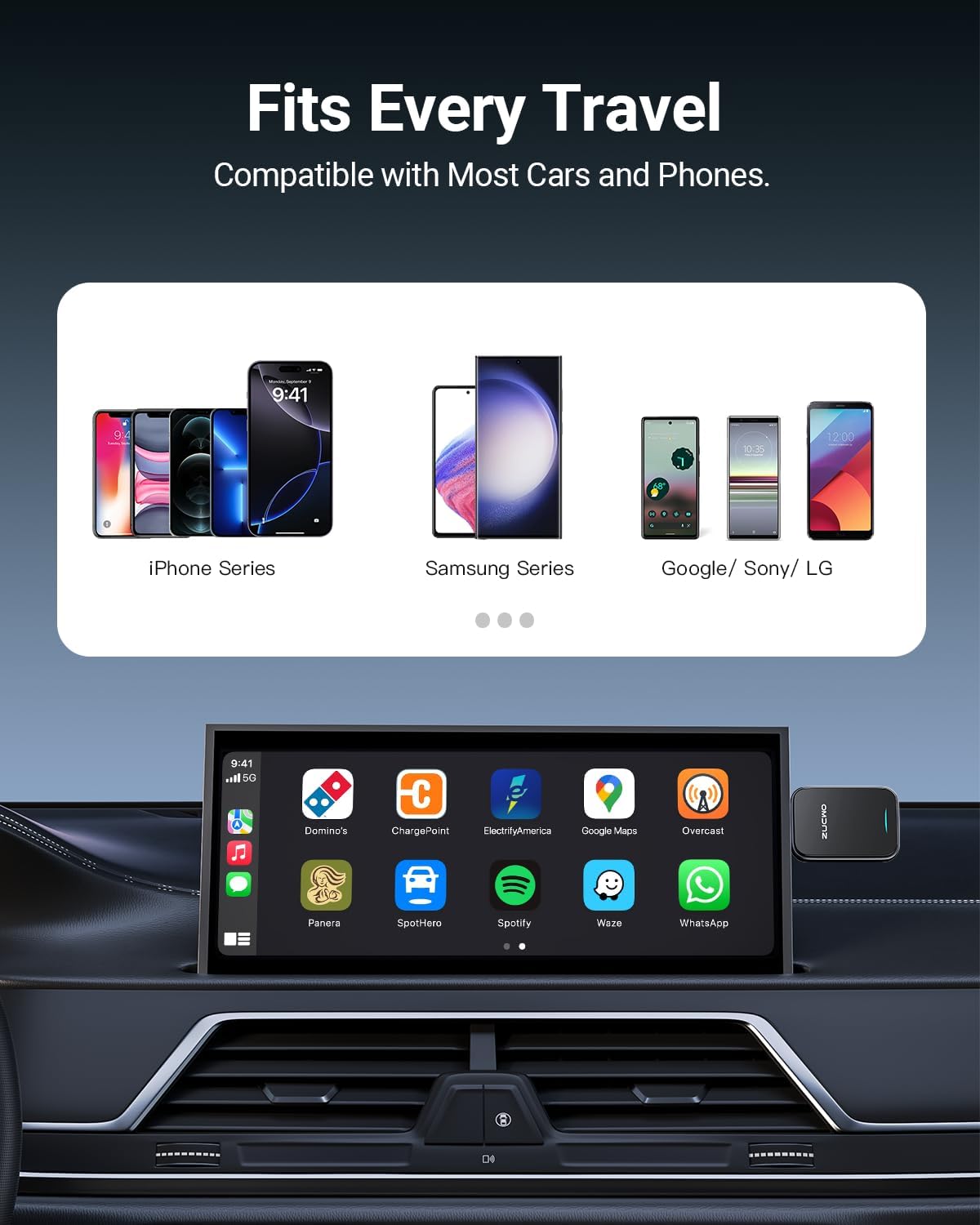
Image: A close-up of a car's USB port with the ZUCWO adapter being plugged in.
- Step 2: Enable Wi-Fi and Bluetooth on Your Phone
On your smartphone (iOS or Android), ensure both Wi-Fi and Bluetooth are turned on. Do not connect to any Wi-Fi networks manually at this stage.

Image: A hand holding a smartphone with the Bluetooth settings screen visible, showing a device named "ZUCWO" available for pairing.
- Step 3: Pair Bluetooth and Allow CarPlay/Android Auto
On your phone's Bluetooth settings, search for and select the device named "ZUCWO" (or similar, as displayed on your car's screen if applicable) to pair. Once paired, a prompt will appear on your phone or car screen asking to allow CarPlay or Android Auto. Confirm the connection.

Image: A smartphone screen displaying a "CarPlay" connection prompt, indicating successful pairing.
The initial setup typically takes 5-10 seconds. After the first successful connection, the adapter will automatically connect to your phone each time you start your car, provided Bluetooth and Wi-Fi are enabled on your phone.
4. Operating Instructions
Once connected, your car's display will show the CarPlay or Android Auto interface wirelessly. You can interact with the system using your car's original controls, including:
- Touch screen
- Steering wheel controls
- Control knobs and dials
- Voice commands (Siri, Google Assistant)
The adapter maintains a stable connection, allowing for seamless navigation, music playback, hands-free calling, and access to compatible apps.
Image: A car's infotainment screen displaying the CarPlay interface, with a smartphone held nearby, illustrating the wireless connection.
5. Maintenance and Care
To ensure the longevity and optimal performance of your ZUCWO Wireless CarPlay Adapter, please follow these guidelines:
- Keep the adapter clean and free from dust and debris. Use a soft, dry cloth for cleaning.
- Avoid exposing the adapter to extreme temperatures, direct sunlight, or excessive moisture.
- Do not attempt to disassemble or repair the adapter yourself. This will void the warranty.
- Handle the adapter gently. Avoid dropping it or subjecting it to strong impacts.
- If the adapter becomes warm during extended use, this is normal. Ensure it is not obstructed to allow for proper heat dissipation.
6. Troubleshooting
If you encounter issues with your ZUCWO Wireless CarPlay Adapter, refer to the following common troubleshooting steps:
| Problem | Possible Cause | Solution |
|---|---|---|
| Adapter not connecting automatically. | Bluetooth or Wi-Fi off on phone; adapter not powered; car's USB port issue. | Ensure Bluetooth and Wi-Fi are enabled on your phone. Check if the adapter is properly seated in the USB port. Try a different USB port in the car if available. Restart your phone and car's infotainment system. |
| Intermittent connection or disconnections. | Interference; weak signal; phone or car system glitch. | Ensure no other strong Wi-Fi or Bluetooth devices are causing interference. Move phone closer to the adapter. Restart both phone and car's infotainment system. Update your phone's operating system. |
| No sound or distorted audio. | Volume settings; audio source issue. | Check volume levels on both your phone and car's audio system. Ensure the correct audio source is selected in your car. Disconnect and reconnect the adapter. |
| CarPlay/Android Auto not launching. | Compatibility issue; software glitch. | Verify your car has factory-wired CarPlay/Android Auto. Ensure your phone's OS is compatible (iOS 10+/Android 11+). Try forgetting the Bluetooth connection on your phone and re-pairing. |
If the problem persists after trying these steps, please contact ZUCWO customer support for further assistance.
7. Specifications
| Feature | Detail |
|---|---|
| Model Number | US-ZC91-G |
| Product Dimensions | 0.39 x 2.6 x 1.46 inches |
| Item Weight | 2.4 ounces |
| Connectivity Technology | Bluetooth, Wi-Fi (5.8G) |
| Power Source | Corded Electric (via car USB) |
| Special Feature | Low Latency |
| Manufacturer | ZUCWO |
| Country of Origin | China |
8. Warranty and Support
ZUCWO provides a standard warranty for this product. Please refer to the product packaging or the official ZUCWO website for detailed warranty terms and conditions.
For technical support, troubleshooting assistance, or warranty claims, please contact ZUCWO customer service through the following channels:
- Email: Refer to your product packaging or the ZUCWO official website for contact email.
- Online Support: Visit the ZUCWO Store on Amazon for FAQs and support resources.
When contacting support, please have your product model number (US-ZC91-G) and purchase information ready.
