
Introduction
This manual provides instructions for the JOYACCESS 2.4G Wireless Keyboard and Mouse Combo. This combo offers a stable wireless connection, quiet scissor-mechanism keys, and an ergonomic design. It is compatible with various operating systems and includes power-saving features for extended battery life.
Setup Instructions
1. Battery Installation
The keyboard and mouse require batteries (not included). Open the battery compartments on the underside of both devices and insert the required batteries, ensuring correct polarity.

Figure 1: Mouse battery compartment and Nano USB receiver storage.
2. Connect the Receiver
Locate the Nano USB receiver, typically stored within the mouse's battery compartment. Remove the receiver and plug it into an available USB port on your computer. No additional software installation is required.
3. Power On
Turn on the keyboard and mouse using their respective power buttons. For the keyboard, press and hold the power button on the right side for 3 seconds to power on or off.
Operating Instructions
1. System Compatibility
The JOYACCESS keyboard and mouse combo is compatible with Windows and Mac OS operating systems.
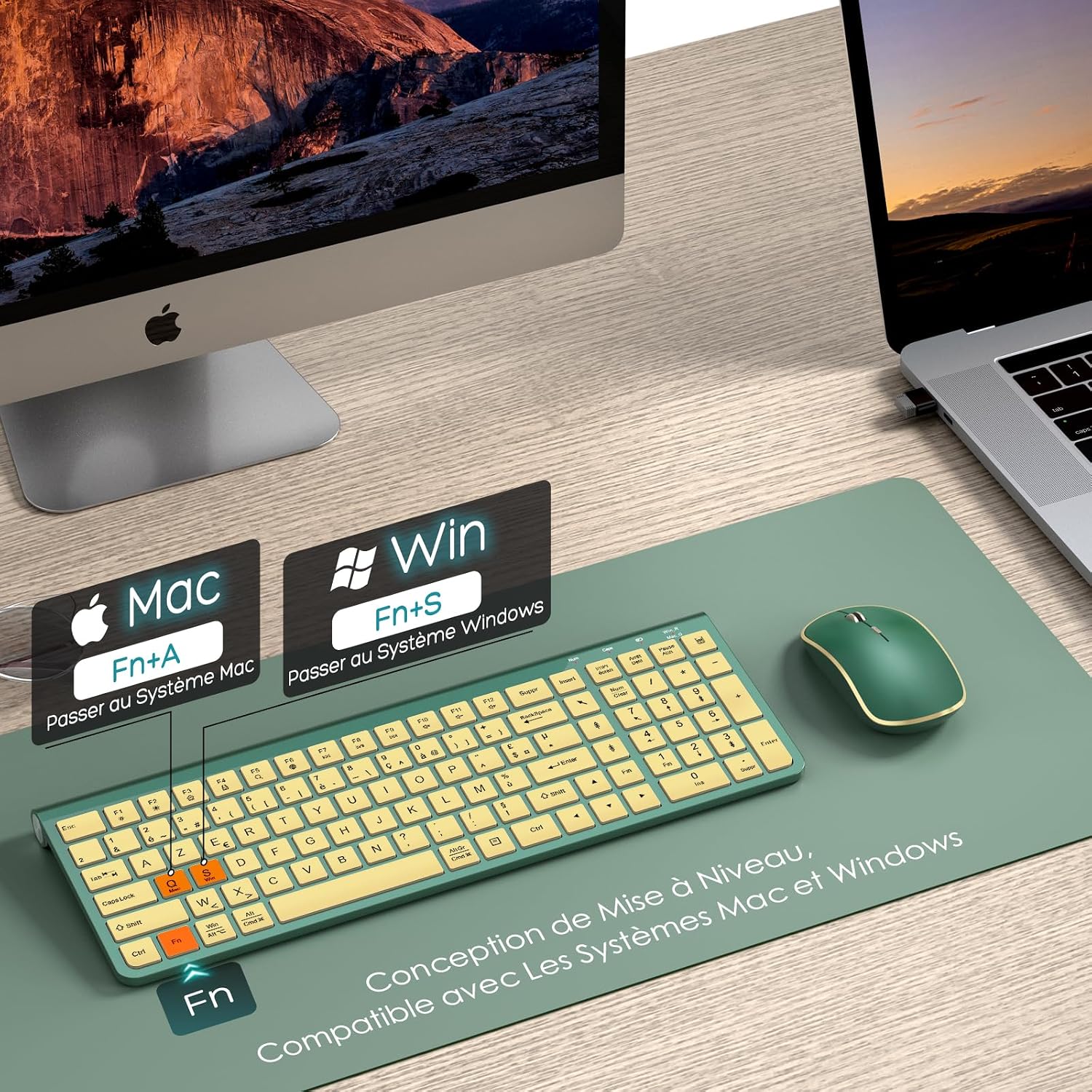
Figure 2: Keyboard compatibility with Mac and Windows systems.
2. Switching Between Mac and Windows Modes
- To switch to Mac OS mode: Press Fn + A.
- To switch to Windows mode: Press Fn + S.
3. Function Keys
The keyboard features 12 function keys for quick access to media controls, volume adjustment, email, and other common functions.
4. Adjustable Mouse DPI
The mouse offers adjustable DPI levels (800/1200/1600/2000/2400) to customize cursor sensitivity. Press the DPI button on the mouse to cycle through the settings.
5. Power Saving Mode
- The optical mouse enters power-saving mode after 20 seconds of inactivity.
- The keyboard enters automatic sleep mode after 8 minutes of inactivity.
- To reactivate either device, simply press any key or button.
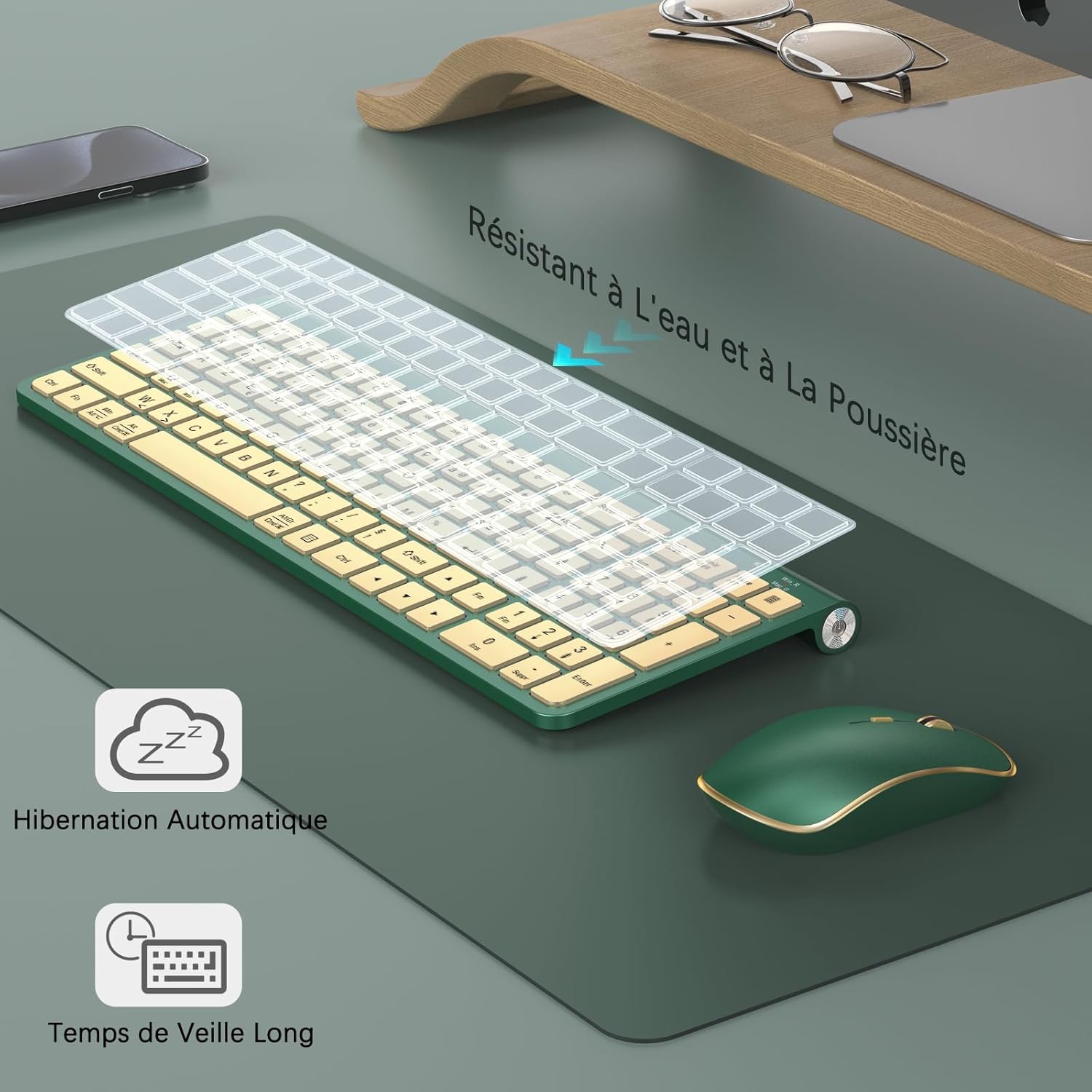
Figure 3: Power saving features and protective design.
Maintenance
1. Cleaning
To clean the keyboard and mouse, use a soft, dry cloth. For stubborn dirt, a slightly damp cloth can be used. Avoid harsh chemicals or abrasive materials.
2. Spill and Dust Protection
A protective film is included with the keyboard to shield it from dust and liquid spills. Ensure this film is properly placed for optimal protection.

Figure 4: Keyboard with spill and dust protection.
Troubleshooting
- No Power/Device Not Turning On: Ensure batteries are correctly installed and fully charged. Replace batteries if necessary. Verify the power switch is in the 'On' position.
- Connection Issues (Keyboard/Mouse Not Responding):
- Ensure the Nano USB receiver is securely plugged into a working USB port.
- Try plugging the receiver into a different USB port, preferably a front-facing or easily accessible one, especially for desktop computers, as rear ports might have signal interference.
- Move the keyboard and mouse closer to the receiver to rule out range issues.
- Check for any metallic objects or other wireless devices that might be causing interference.
- Keys Not Responding or Incorrect Input:
- Ensure the keyboard is in the correct operating system mode (Mac or Windows) using Fn+A or Fn+S.
- Verify the keyboard layout matches your system settings (this product features an AZERTY layout). Incorrect system settings can lead to keys producing unexpected characters.
- Clean under the keys if debris is suspected to be causing issues.
- Mouse Cursor Jumps or is Erratic:
- Ensure the mouse sensor is clean and free from obstructions.
- Use the mouse on a suitable surface; reflective or uneven surfaces can affect tracking.
- Try adjusting the DPI settings of the mouse.
Specifications
| Brand | JOYACCESS |
| Color | Emerald Green |
| Connectivity Technology | 2.4G Radio Frequency |
| Special Features | Wireless, Portable, AZERTY (French Layout), Long Battery Life, Lightweight, Anti-dust |
| Compatible Devices | Personal Computer, Laptop, Television |
| Keyboard Description | Wireless French AZERTY Keyboard |
| Batteries Required | Yes |
| Power Source | Battery Powered |
| Keyboard Layout | AZERTY |
| Compatible Operating Systems | Windows, Mac OS |
| Manufacturer | JOYACCESS |
| Country of Origin | China |

Figure 5: Keyboard and mouse dimensions.
Warranty Information
This JOYACCESS product comes with a 1-year warranty from the date of purchase. This warranty covers manufacturing defects under normal use. Please retain your proof of purchase for warranty claims.
Support
For technical assistance, troubleshooting not covered in this manual, or warranty inquiries, please contact JOYACCESS customer support through the retailer's platform or the official JOYACCESS website. Provide your product model number (B0DR8BPF4K) and a detailed description of the issue for efficient support.
