
Jeazans Jzpad-A10Pro (A10-PRO-BK)
Jeazans Jzpad-A10Pro Android Tablet User Manual
Model: A10-PRO-BK
Introduction
This user manual provides comprehensive instructions for the setup, operation, and maintenance of your Jeazans Jzpad-A10Pro Android Tablet with its accompanying Charging Speaker Dock. Please read this manual thoroughly to ensure proper use and to maximize your device's potential.
Product Overview
The Jeazans Jzpad-A10Pro is a 10.1-inch Android tablet designed for versatile use, from entertainment to productivity. It features an Octa-Core CPU, 64GB of internal storage (expandable up to 1TB), 14GB RAM, and runs on Android 14. The tablet comes with an innovative AI Stereo Speaker Dock that provides charging, enhanced audio, and additional smart functionalities.

Figure 1: Jeazans Jzpad-A10Pro Tablet on Charging Speaker Dock.
The tablet is equipped with an 8MP rear camera and a 5MP front camera, suitable for video calls and capturing photos. Connectivity options include WiFi 6 and Bluetooth 5.3, ensuring stable and fast wireless connections.

Figure 2: Rear View of Tablet on Dock, highlighting the speaker dock's design.
The AI Smart Speaker Dock serves as a charging station and a powerful audio output. It features magnetic contacts for easy tablet placement and wireless charging. The dock also includes ambient lights that can sync with music and offers built-in white noise environments for relaxation. It can function as a digital clock or an electronic cloud photo frame when in AUMI AI OS clock screensaver mode.

Figure 3: AI Stereo Speaker Audio Base features.
Setup Guide
1. Initial Charging
Before first use, it is recommended to fully charge your tablet. You can charge it using the provided Type-C cable or by placing it on the AI Smart Speaker Dock.
- Using Type-C Cable: Connect the Type-C cable to the tablet's charging port and the other end to a compatible power adapter.
- Using Charging Speaker Dock: Place the tablet onto the dock, ensuring the magnetic contacts align. The tablet will begin charging wirelessly.

Figure 4: Charging options for the tablet.
2. Powering On/Off
- Power On: Press and hold the Power button (usually located on the side) until the Jeazans logo appears.
- Power Off: Press and hold the Power button until the power options menu appears, then select "Power Off".
- Restart: From the power options menu, select "Restart".
3. Initial Setup and Wi-Fi Connection
Upon first power-on, follow the on-screen prompts to complete the initial setup. This includes selecting your language, region, and connecting to a Wi-Fi network.
- Go to Settings > Network & internet > Wi-Fi.
- Toggle Wi-Fi On.
- Select your desired Wi-Fi network from the list and enter the password if prompted.
- The tablet supports dual-band WiFi 6 (5G/2.4G) for stable and fast connectivity.
4. Google Account Setup
To access Google Play Store and other Google services, sign in with your Google account during the initial setup or later via Settings > Accounts.
Operating Instructions
1. Basic Navigation (Android 14)
- Home Screen: Swipe left or right to navigate between home screens.
- App Drawer: Swipe up from the bottom of the screen to access all installed applications.
- Notifications & Quick Settings: Swipe down from the top of the screen to view notifications and access quick settings toggles.
- Multitasking: Swipe up from the bottom and hold to view recent applications.
2. Display Settings
The 10.1-inch IPS screen offers 800x1280 HD resolution with vibrant colors and wide viewing angles.
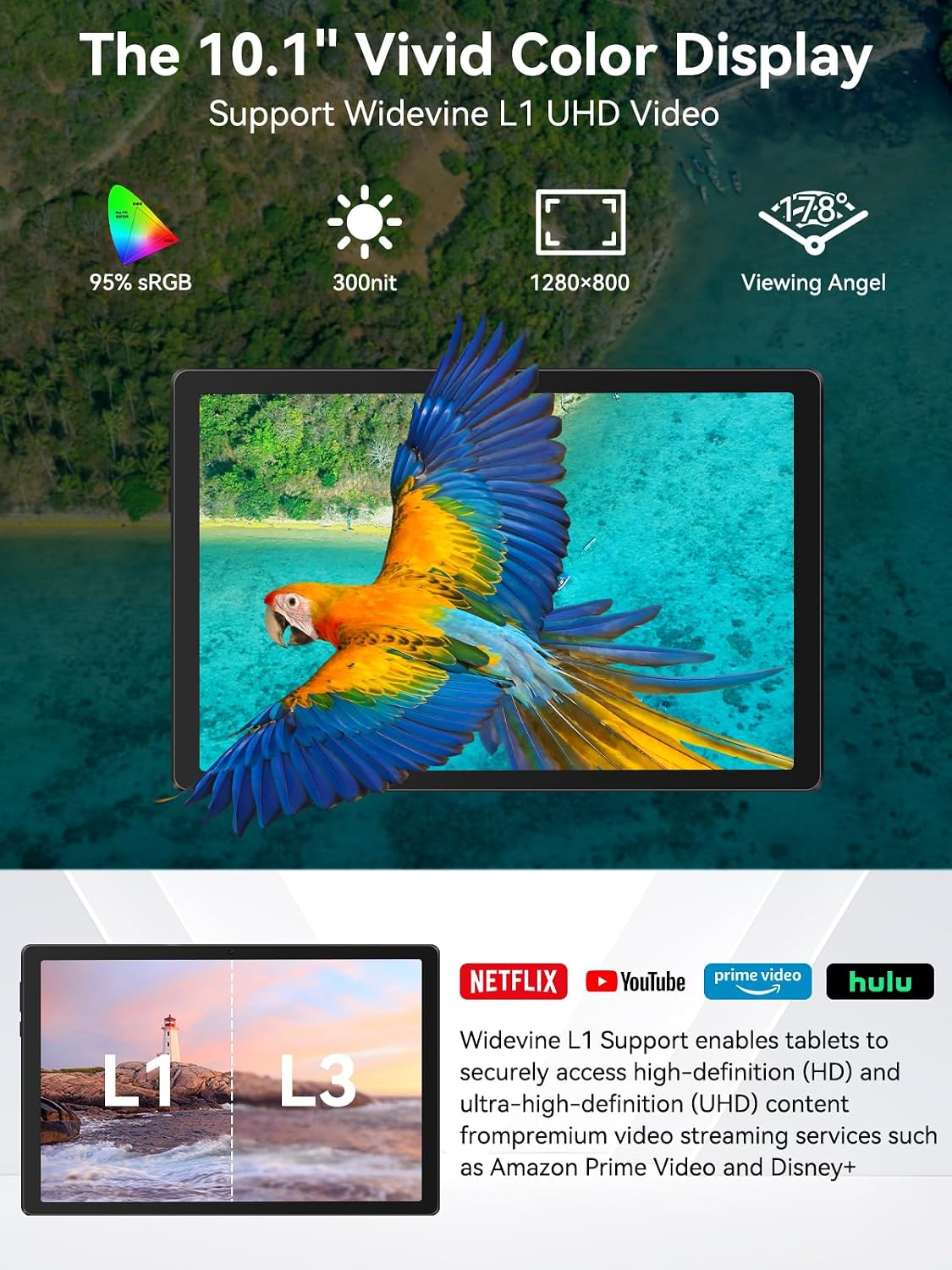
Figure 5: Tablet display features.
- Adjust brightness and screen timeout in Settings > Display.
- Enable or disable adaptive brightness for automatic adjustment.
3. Audio Settings and Speaker Dock Functions
When docked, the tablet utilizes the AI Stereo Speaker Dock for enhanced audio. You can control volume using the tablet's physical buttons or through software settings.
- Ambient Lights: The dock's ambient lights can be turned off. Navigate to Settings > AI Base Mode > Base Settings and locate the icon to disable the lights.
- White Noise Environments: The dock offers 8 built-in white noise environments for relaxation. Access these settings through the tablet's interface when docked.
- AUMI AI OS Clock Screensaver: Configure the dock to display a digital clock or cycle through photos as a cloud photo frame when idle.
4. Camera Usage
The tablet features an 8MP rear camera and a 5MP front camera.

Figure 6: Camera features and usage examples.
- Open the "Camera" application from the home screen or app drawer.
- Switch between front and rear cameras using the camera icon.
- Tap to focus and press the shutter button to take photos or record videos.
5. Storage Management
The tablet comes with 64GB of internal storage and supports expansion up to 1TB via a TF (microSD) card (not included).

Figure 7: Storage and RAM specifications.
- Insert a TF card into the designated slot to expand storage.
- Manage storage usage in Settings > Storage.
Maintenance
1. Cleaning
Use a soft, lint-free cloth to clean the tablet screen and body. For stubborn smudges, slightly dampen the cloth with water or a screen cleaner. Avoid harsh chemicals or abrasive materials.
2. Software Updates
Regularly check for system updates to ensure optimal performance and security. Go to Settings > System > System update.
3. Battery Care
The tablet is equipped with a 5000mAh battery. To prolong battery life:
- Avoid extreme temperatures.
- Do not let the battery completely drain frequently.
- Use the provided charging accessories or certified alternatives.
Troubleshooting
| Problem | Possible Cause / Solution |
|---|---|
| Tablet does not power on. | Battery may be depleted. Connect to charger for at least 30 minutes before attempting to power on. |
| Cannot connect to Wi-Fi. | Ensure Wi-Fi is enabled in settings. Check router and network password. Restart tablet and router. |
| Slow performance. | Close unused applications. Clear cache. Check available storage. Restart the tablet. |
| Speaker dock ambient lights are on/off unexpectedly. | Adjust settings in Settings > AI Base Mode > Base Settings and locate the icon to disable the lights. |
| Bluetooth does not disconnect automatically from dock. | This is expected behavior. Manually disconnect Bluetooth in settings if desired. |
Specifications
| Feature | Detail |
|---|---|
| Model Name | Jzpad-A10Pro (A10-PRO-BK) |
| Operating System | Android 14 |
| Screen Size | 10.1 inches |
| Max Screen Resolution | 1280x800 Pixels (HD IPS) |
| Processor | Octa-Core CPU |
| RAM | 14GB (3GB physical + 11GB virtual expansion) |
| Internal Storage | 64GB |
| Expandable Storage | Up to 1TB via TF card (not included) |
| Rear Camera | 8MP |
| Front Camera | 5MP |
| Battery Capacity | 5000mAh |
| Connectivity | WiFi 6 (Dual-band 5G/2.4G), Bluetooth 5.3 |
| Charging | Type-C Fast Charging, Wireless Magnetic Charging via Dock |
| Dimensions (LxWxH) | 9.64 x 6.45 x 0.27 inches |
| Item Weight | 1.19 pounds |
Warranty and Support
Your Jeazans Jzpad-A10Pro tablet comes with a 2-year warranty. For any questions, technical support, or warranty claims, please contact Jeazans customer service through the retailer where you purchased the product or visit the official Jeazans website for support contact information.
For further assistance, please refer to the contact details provided with your product packaging or on the Jeazans official support channels.
Ask a question about this manual
Ask about setup, troubleshooting, compatibility, parts, safety, or missing instructions. Manuals+ will review the question and use this page’s manual context to help answer it.