
RUIZU THX62
RUIZU 64GB USB MP3 Player with Bluetooth 5.3 and Clip Jam
Model: THX62
Introduction
Thank you for purchasing the RUIZU 64GB USB MP3 Player. This compact and versatile device is designed to provide a high-quality audio experience with features such as Bluetooth 5.3 connectivity, FM radio, voice recording, and line-in functionality. Its clip-on design makes it ideal for active lifestyles. Please read this manual carefully to ensure proper use and optimal performance.
Package Contents
Verify that all items are present in your package:
- RUIZU 64GB USB MP3 Player
- Wired Earphones
- USB Charging Cable
- User Manual

Image: Contents of the RUIZU MP3 Player retail package.
Product Overview
The RUIZU MP3 Player features a compact design with a built-in clip for easy attachment to clothing or bags. It includes a small display for navigation and control buttons for various functions.
Physical Features
- Display Screen: Shows menu, track information, and settings.
- Control Buttons: Play/Pause, Next/Previous Track, Volume Up/Down, Menu, Back.
- USB-A Connector: Integrated for direct connection to computers or chargers.
- 3.5mm Audio Jack: For wired earphones or AUX connection.
- Clip: For secure attachment.
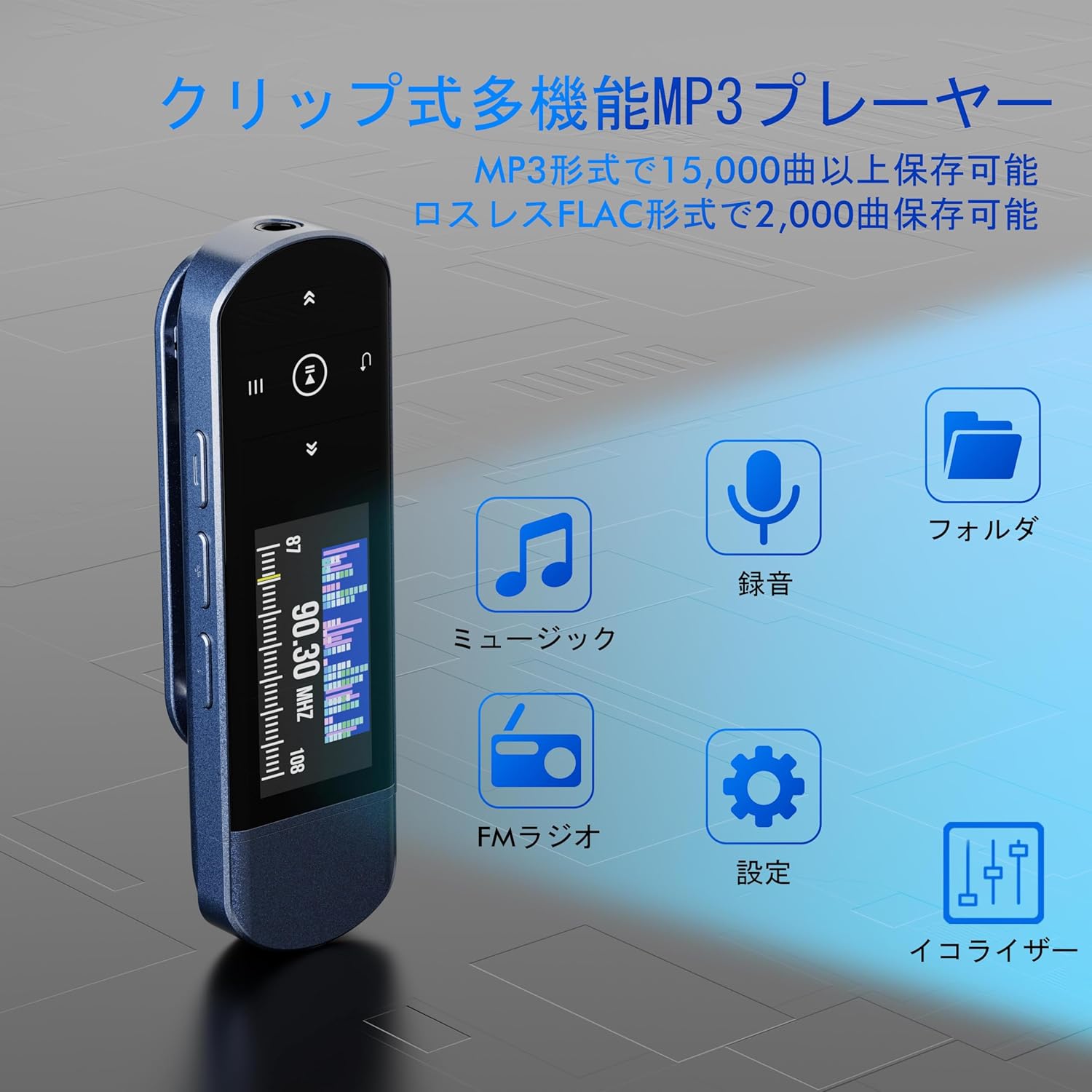
Image: Front view of the RUIZU MP3 Player highlighting its clip and main functions.

Image: Dimensions of the RUIZU MP3 Player.
Setup
1. Charging the Device
Before first use, fully charge the MP3 player. Connect the integrated USB-A connector directly to a computer's USB port or a USB wall adapter (not included). A full charge typically takes approximately 2 hours and provides up to 20 hours of playback.
2. Transferring Music Files
The RUIZU MP3 Player has 64GB of internal storage for your music. You can transfer files using two methods:
- Via Computer: Plug the MP3 player's USB-A connector directly into your computer's USB port. The device will appear as a removable disk. Drag and drop your music files (MP3, APE, FLAC, WMA, M4A, WAV, AAC) into the player's storage.
- Via Smartphone (OTG): Connect the MP3 player to your smartphone using an OTG cable/adapter (not included). Your smartphone must support OTG functionality. Once connected, you can transfer music files from your phone to the player. For optimal performance, transfer files in batches under 1GB.
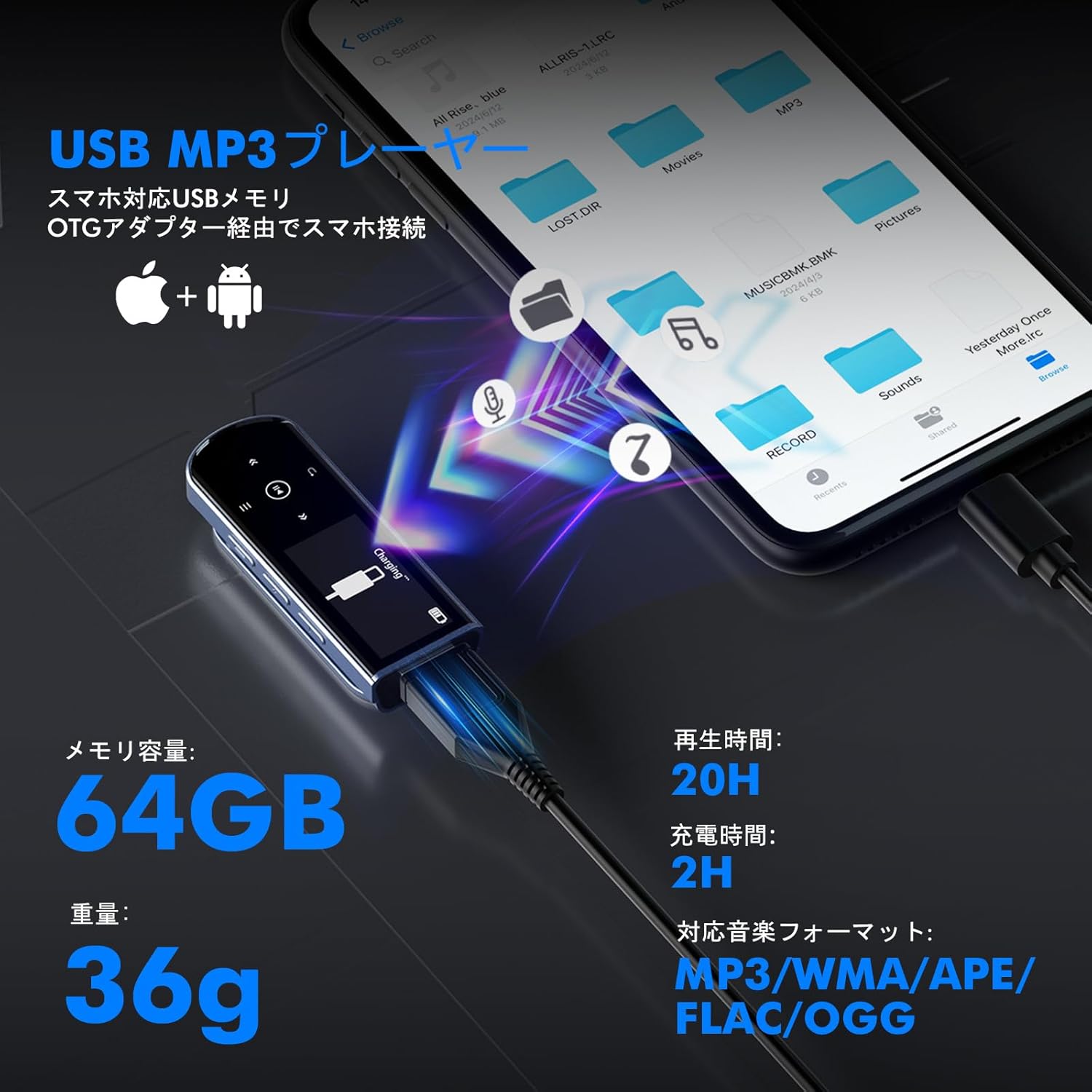
Image: Demonstrating music file transfer from a smartphone or PC to the MP3 player.
Operating Instructions
1. Basic Navigation
Use the control buttons to navigate through menus and control playback:
- Power On/Off: Press and hold the power button.
- Menu/Back: Use the Menu button to access the main menu or go back to the previous screen.
- Navigation: Use the directional buttons (Up/Down/Left/Right) to select options.
- Confirm: Press the Play/Pause button to confirm a selection.
2. Music Playback
From the main menu, select 'Music' to browse and play your audio files. The player supports various playback modes:
- Shuffle: Plays tracks in a random order.
- Playlist Loop: Repeats the current playlist.
- Sequential Playback: Plays tracks in order.
- Folder Repeat: Repeats all tracks within the current folder.
- Single Folder Repeat: Repeats a single track within the current folder.
Supported audio formats include MP3, APE, FLAC, WMA, M4A, WAV, and AAC.

Image: Overview of playback modes and supported audio formats.
3. Bluetooth Connection
The player features Bluetooth 5.3 for stable wireless audio. To connect to Bluetooth headphones or speakers:
- Ensure your Bluetooth headphones/speaker are in pairing mode.
- On the MP3 player, navigate to the Bluetooth menu.
- Select 'Search Device' to find available Bluetooth devices.
- Select your device from the list to pair.
Note: The MP3 player's Bluetooth function is for connecting to audio output devices (headphones, speakers) only. It cannot connect to computers, cars, or smartphones via Bluetooth.

Image: Bluetooth 5.3 connectivity with headphones and speakers.
4. FM Radio
To use the FM radio function:
- Plug in wired earphones; they act as the antenna.
- From the main menu, select 'FM Radio'.
- Use the navigation buttons to scan for stations or manually tune to a frequency (76.0-90.0 MHz).

Image: Using the FM radio function during outdoor activities.
5. Voice Recorder
The MP3 player includes a built-in voice recorder:
- From the main menu, select 'Record'.
- Press the Play/Pause button to start recording.
- Press Play/Pause again to pause/resume, and the Menu button to stop and save.
6. Line-in Recording
Record audio directly from an external source (e.g., another phone, CD player) using the line-in function:
- Connect the audio output of the external device to the MP3 player's 3.5mm audio jack using an AUX cable (not included).
- Navigate to the 'Line-in Record' option in the menu.
- Start playback on the external device and initiate recording on the MP3 player.
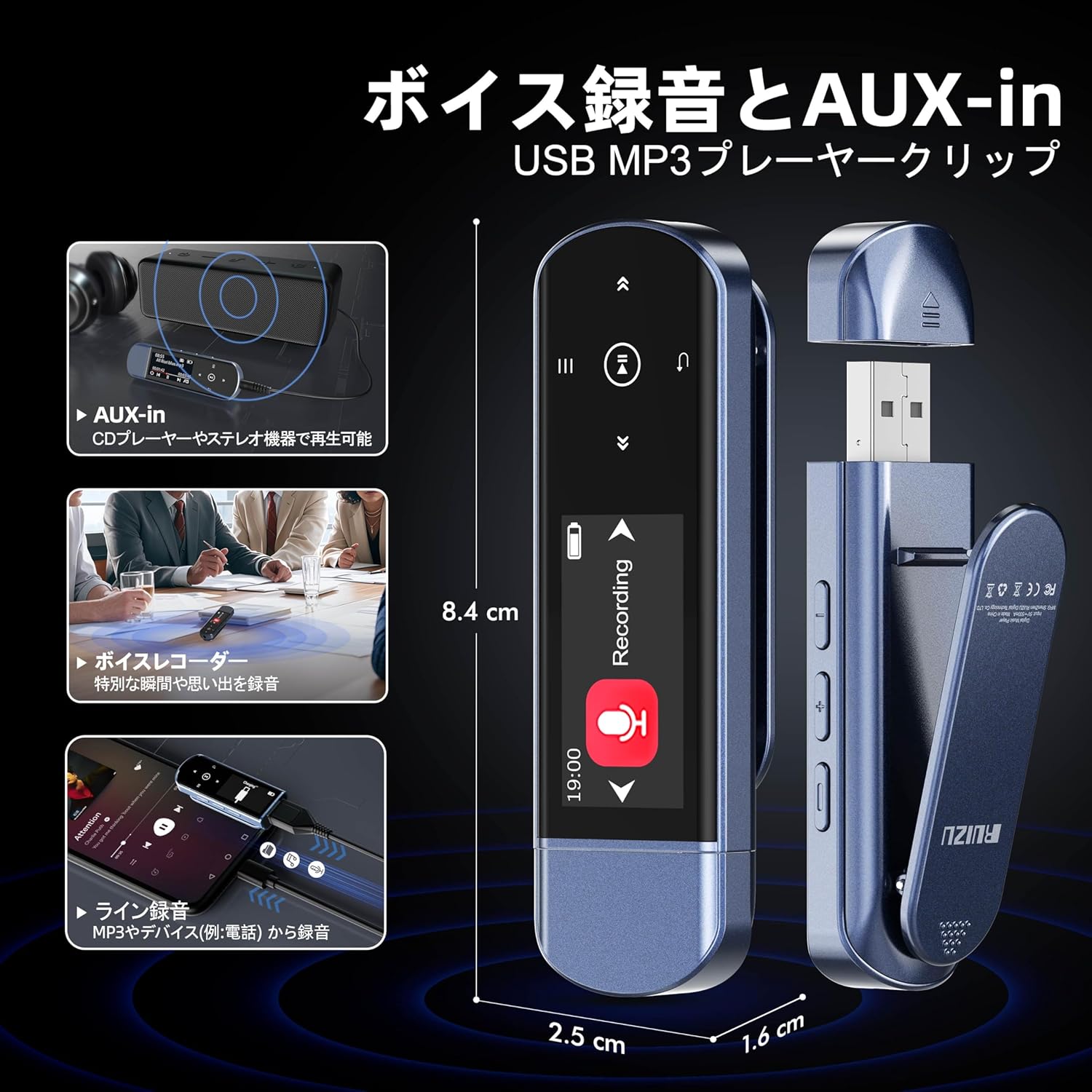
Image: Voice recorder and line-in recording functionality.
7. Car Audio Connection
Connect your MP3 player to your car's audio system:
- Via AUX: Use a 3.5mm AUX cable (not included) to connect the player's audio jack to your car's AUX input for clear wired sound.
- Via USB: Plug the MP3 player's USB-A connector directly into your car's USB port for direct streaming. Ensure your car's system supports USB audio playback.
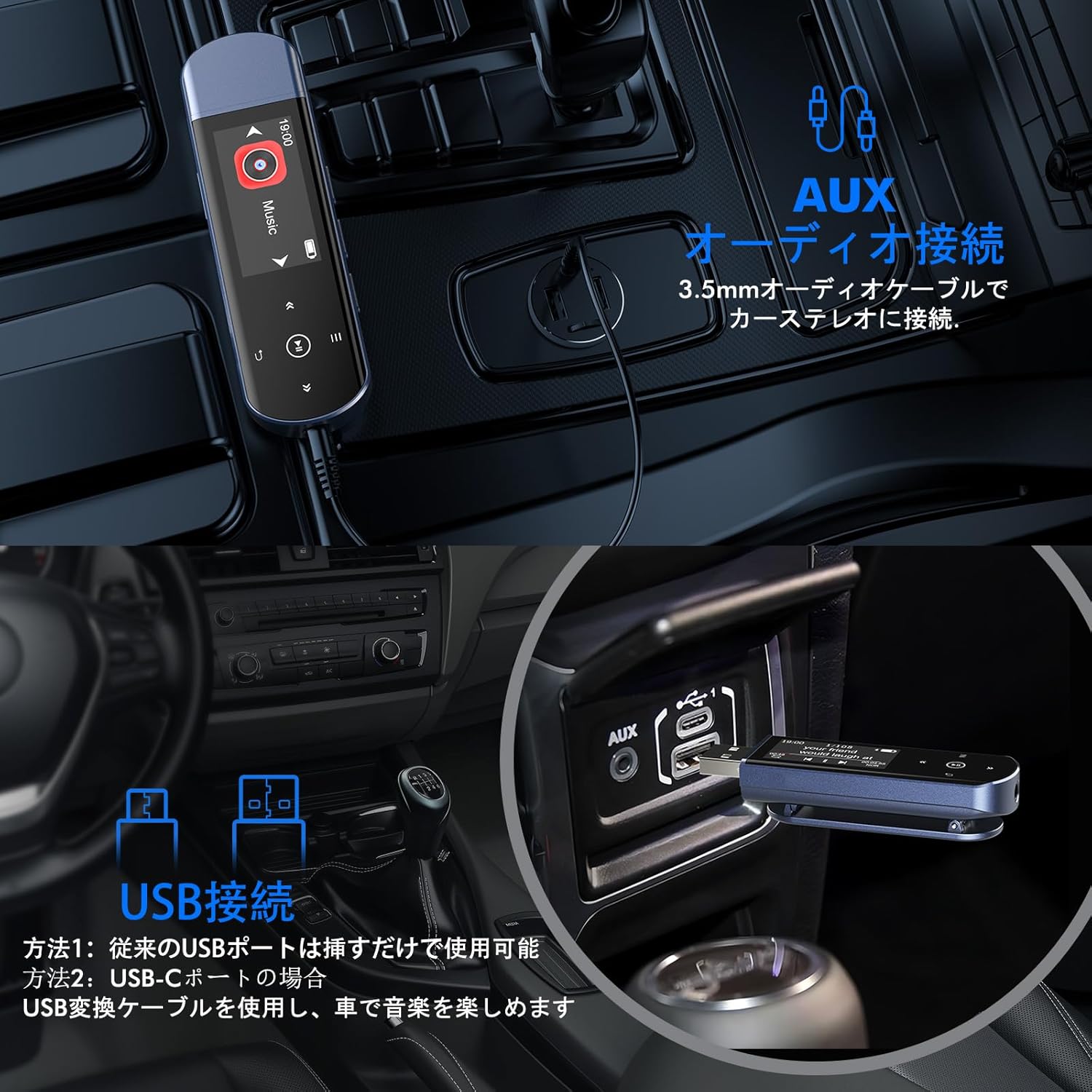
Image: Connecting the MP3 player to a car's audio system.
Maintenance
- Cleaning: Use a soft, dry cloth to clean the device. Avoid liquid cleaners.
- Storage: Store the player in a cool, dry place away from direct sunlight and extreme temperatures.
- Battery Care: To prolong battery life, avoid fully discharging the device frequently. Charge it regularly, even if not in use for extended periods.
- Avoid Impact: Protect the device from drops and impacts.
Troubleshooting
| Problem | Possible Cause / Solution |
|---|---|
| Device does not power on. | Battery may be depleted. Charge the device for at least 30 minutes. If the issue persists, try a different USB port or charging cable. |
| Cannot transfer files to the device. | Ensure the device is properly connected to the computer/smartphone. Try a different USB port or cable. For OTG transfer, ensure your smartphone supports OTG and use an appropriate adapter. Transfer files in smaller batches (under 1GB) for better stability. |
| Bluetooth connection issues. | Ensure the MP3 player and the target Bluetooth device are in pairing mode and within range. Forget previous pairings on both devices and try pairing again. Remember, the player only connects to audio output devices. |
| Music playback skips or stops. | Check if the audio file is corrupted. Ensure the battery is sufficiently charged. Avoid strong electromagnetic interference. |
| Battery drains quickly. | Ensure the device is powered off completely when not in use. Background processes or high volume can consume more power. A factory reset might resolve software-related battery drain issues. |
| Display text is too small. | This is a design characteristic of the compact display. There is no setting to enlarge the font size. |
| Buttons are unresponsive or difficult to press. | Ensure you are pressing the buttons firmly and accurately. Clean any debris around the buttons. |
Specifications
| Feature | Detail |
|---|---|
| Brand | RUIZU |
| Model Number | THX62 |
| Storage Capacity | 64GB |
| Bluetooth Version | 5.3 |
| Battery Life (Playback) | Up to 20 hours |
| Charging Time | Approx. 2 hours |
| Supported Audio Formats | MP3, APE, FLAC, WMA, M4A, WAV, AAC |
| FM Radio Frequency | 76.0-90.0 MHz (Japanese standard) |
| Dimensions | 8.4 x 2.5 x 1.6 cm |
| Weight | Approx. 36g |
| Color | Blue |
Warranty and Support
Your RUIZU MP3 Player is covered by a standard manufacturer's warranty. Please refer to the warranty card included in your package for specific terms and conditions. For technical support, troubleshooting assistance, or warranty claims, please contact the retailer or RUIZU customer service through the contact information provided with your purchase.
Ask a question about this manual
Ask about setup, troubleshooting, compatibility, parts, safety, or missing instructions. Manuals+ will review the question and use this page’s manual context to help answer it.