Introduction
Thank you for choosing the Zwide SA11 Tablet PC. This device is designed to offer a versatile computing experience, combining the portability of a tablet with the functionality of a laptop. Featuring an N150 processor, 12GB RAM, and 512GB SSD, it is equipped for various tasks from office work to entertainment.
This manual provides essential information on setting up, operating, maintaining, and troubleshooting your Zwide SA11 Tablet PC to ensure optimal performance and longevity.

Figure 1: Zwide SA11 Tablet PC showcasing its key specifications on the screen.
Setup
1. Initial Charging and Power On
Before first use, ensure the tablet is fully charged. Connect the provided power adapter to the USB-C charging port (USB-C2.0) on the device and to a power outlet. The charging indicator light will illuminate.
To power on the tablet, press and hold the power button located on the side until the Zwide logo appears on the screen.
2. Initial Windows Setup
Upon first boot, you will be guided through the Windows 11 Professional setup process. Follow the on-screen instructions to configure language, region, network connection, and user accounts.
3. Connecting Peripherals
The Zwide SA11 supports various peripherals. Refer to the interface diagram below for port locations.
- Keyboard: A dedicated keyboard (sold separately) can be connected via the magnetic connector. Bluetooth keyboards are also supported.
- Mouse: Connect a USB mouse to the USB 3.0 port or a Bluetooth mouse.
- External Display: Use the full-function USB-C port (USB-C1) to connect to an external monitor.
- Headphones: Connect 3.5mm headphones to the audio jack.

Figure 2: Overview of the Zwide SA11 Tablet PC's interface ports.
Operating Your Tablet PC
1. Navigating Windows 11
The Zwide SA11 runs on Windows 11 Professional. You can interact with the device using the 10.95-inch IPS touchscreen, a connected keyboard, or a mouse.
- Touchscreen: Tap, swipe, pinch-to-zoom, and use multi-touch gestures for intuitive navigation.
- Keyboard & Mouse: For traditional PC experience, use the optional dedicated keyboard and a mouse.
2. Tablet Mode vs. PC Mode
The Zwide SA11 is a 2-in-1 device. When the dedicated keyboard is attached, it functions as a compact laptop. Detach the keyboard to use it as a standalone tablet, ideal for media consumption or touch-based applications.
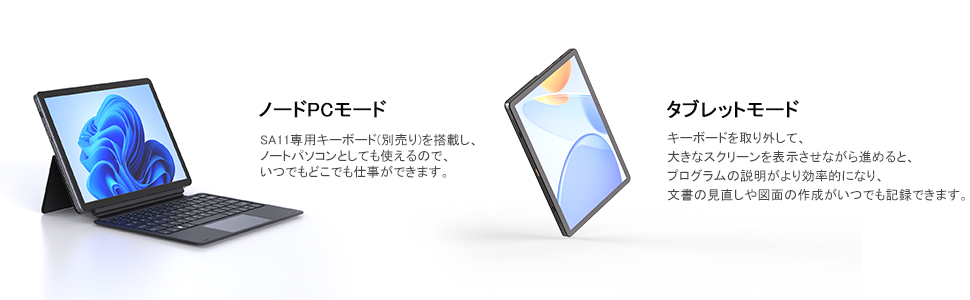
Figure 3: Zwide SA11 in PC Mode (left) and Tablet Mode (right).
3. Display and Sensors
The 10.95-inch IPS display offers a resolution of 1920x1200 pixels, providing clear and vibrant visuals. The tablet features gravity and magnetic sensors, allowing the screen to automatically rotate 360 degrees. Closing the case will put the screen into sleep mode.

Figure 4: Automatic screen rotation and multi-mode usage enabled by gravity and magnetic sensors.
4. Camera Usage
The Zwide SA11 is equipped with a 5MP front camera and an 8MP rear camera with autofocus (AF) motor. This allows for automatic focus adjustment during shooting, producing clear and beautiful images.

Figure 5: Detail of the 8MP AF rear camera.
Maintenance
1. Cleaning the Device
Use a soft, lint-free cloth to clean the screen and body of the tablet. For stubborn smudges, slightly dampen the cloth with water or a screen cleaner. Avoid using harsh chemicals or abrasive materials.
2. Battery Care
To prolong battery life, avoid fully discharging the battery frequently. It is recommended to keep the battery charge between 20% and 80% when possible. Store the device in a cool, dry place if not used for extended periods.
3. Software Updates
Regularly check for and install Windows updates to ensure your system has the latest security patches and performance improvements. Go to Settings > Windows Update to manage updates.
4. Cooling System
The Zwide SA11 features an internal cooling fan to manage heat and extend the device's lifespan. Ensure that the ventilation openings are not obstructed during use to allow for proper airflow.

Figure 6: Internal cooling fan for optimal thermal management.
Troubleshooting
This section addresses common issues you might encounter with your Zwide SA11 Tablet PC.
1. Device Does Not Power On
- Ensure the battery is sufficiently charged. Connect the power adapter and wait a few minutes before attempting to power on.
- If an external USB device (especially via USB-A) is connected, try disconnecting it and then power on. Some users have reported issues with power-on when certain USB-A devices are connected.
- Press and hold the power button for 10-15 seconds to perform a hard reset.
2. Screen Remains Black After Update
- If the screen turns black after a Windows update, do not immediately force power off. Wait for at least 30 minutes to an hour, as the update might still be processing in the background.
- If the issue persists, try connecting the tablet to an external monitor via the full-function USB-C port to see if there is display output.
- Perform a hard reset by holding the power button until the device shuts down, then restart.
3. Poor Battery Life
- Adjust screen brightness to a lower setting.
- Close unnecessary background applications.
- Disable Wi-Fi or Bluetooth when not in use.
- Ensure Windows is updated to the latest version, as updates often include power management improvements.
4. Connectivity Issues (Wi-Fi/Bluetooth)
- Toggle Wi-Fi/Bluetooth off and on in Windows settings.
- Restart the tablet.
- Ensure drivers are up to date via Windows Update or Zwide support website.
Specifications
The following table details the technical specifications of the Zwide SA11 Tablet PC.
| Feature | Specification |
|---|---|
| Brand | Zwide |
| Model Name | SA11 |
| Operating System | Windows 11 Professional |
| CPU Brand | Intel |
| CPU Speed | 3.6 GHz (N150 Processor) |
| RAM | 12GB |
| Storage Capacity | 512GB SSD |
| Screen Size | 10.95 Inches |
| Display Resolution | 1920x1200 Pixels |
| GPU Brand | Intel (Integrated) |
| Connectivity | Wi-Fi (2.4G/5G) |
| Ports | 1x USB 3.0, 1x Full-function USB-C, 1x USB-C 2.0 (Charging), 1x 3.5mm Headphone Jack |
| Battery Type | Lithium Polymer (2 cells) |
| Battery Energy | 25.84 Watt-hours |
| Item Weight | 1.03 Kilograms |
| Package Dimensions | 36.5 x 22.6 x 5.7 cm |

Figure 7: The N150 processor, offering improved performance over previous models.

Figure 8: High-resolution display for immersive viewing and multitasking.
Warranty and Support
For warranty information and technical support, please refer to the documentation included with your purchase or visit the official Zwide website. You may also contact the seller directly for assistance.
Keep your purchase receipt and product serial number readily available when contacting support.


