
1. Product Overview
The Quantum Fiber W1700K WiFi 7 Wired POD is a state-of-the-art networking device designed to deliver high-speed internet connectivity. This wired pod integrates the latest WiFi 7 technology to ensure seamless streaming, gaming, and efficient data transfers. Its compact design allows for discreet placement within any home or office environment.
- High-Speed Connectivity: Engineered with the latest WiFi 7 technology, delivering blazing-fast wireless speeds up to 11 Gbps for seamless streaming, gaming, and large file transfers.
- Wired Option: This pod features a wired Ethernet port for a reliable, low-latency connection, perfect for devices that require a stable, high-bandwidth link.
- Expansive Coverage: Designed to provide robust WiFi coverage throughout your home or office, eliminating dead zones and ensuring a strong signal in every corner.
- Easy Setup: With a user-friendly interface and simple installation process, getting your WiFi 7 network up and running is a breeze.
- Compact Design: The sleek and compact form factor allows for discreet placement, blending seamlessly into your living space or office environment.

This image displays the Quantum Fiber W1700K WiFi 7 Wired POD, a compact white device with a green LED indicator on the front, signifying operational status. The Quantum Fiber logo is visible at the bottom.
2. What's in the Box
Verify that all items are present in your product packaging:
- 1x Wifi Pod (W1700K)
- 1x Power Adapter

This image shows the Quantum Fiber W1700K Wifi Pod securely packaged within its cardboard box, wrapped in protective plastic. The white pod is clearly visible, indicating its pristine condition upon unboxing.
3. Setup Instructions
Follow these steps to set up your Quantum Fiber W1700K Wired POD:
- Connect Power: Plug the provided power adapter into the 'Power' port on the back of the W1700K POD and then into a wall outlet.
- Connect to SmartNID: Use an Ethernet cable to connect one of the '1G LAN' ports or the '10G WAN/LAN1' port on the W1700K POD to an available Ethernet port on your Quantum Fiber SmartNID.
- Observe LED Indicator: Wait for the LED indicator on the front of the POD to turn solid green, indicating a successful connection and operational status.
- Network Configuration: Your Quantum Fiber service provider typically pre-configures the POD. If additional configuration is required, refer to your service provider's instructions or contact their support.

This diagram illustrates the setup of the W1700K Wired POD. It shows the wired pod connected via an Ethernet cable to a SmartNID. The image highlights the simplicity of connecting the wired pod to the existing network infrastructure.
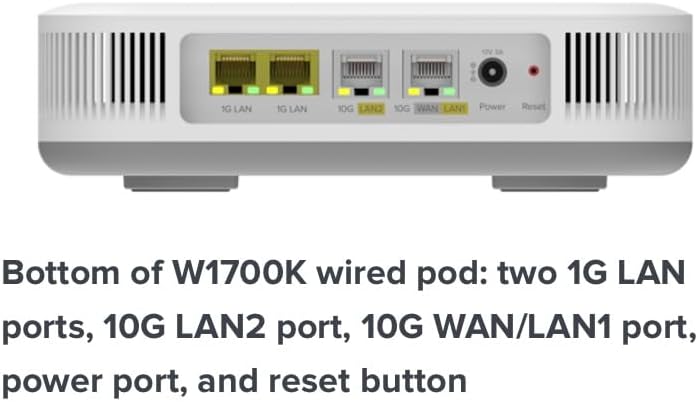
This image provides a close-up of the bottom of the W1700K Wired POD, showcasing its various ports. These include two 1G LAN ports, a 10G LAN2 port, a 10G WAN/LAN1 port, a power port, and a reset button, all essential for connectivity and management.
4. Operating Instructions
Once the W1700K POD is successfully set up, it will operate automatically. The LED indicator on the front provides visual feedback on its status:
- Solid Green: The POD is powered on and connected to the network, functioning correctly.
- Flashing Green: The POD is booting up or attempting to connect to the network.
- No Light: The POD is powered off or experiencing a power issue.
For optimal performance, ensure the POD is placed in an open area, away from obstructions and other electronic devices that may cause interference.
5. Maintenance
To ensure the longevity and optimal performance of your W1700K Wired POD, follow these maintenance guidelines:
- Cleaning: Gently wipe the exterior of the POD with a soft, dry cloth. Avoid using liquid cleaners or abrasive materials.
- Ventilation: Ensure the POD is placed in a well-ventilated area. Do not cover the ventilation holes or place the device in an enclosed space to prevent overheating.
- Cable Management: Keep all cables connected to the POD tidy and free from kinks or excessive bending to prevent damage and ensure stable connections.
- Firmware Updates: Periodically check with your Quantum Fiber service provider for any available firmware updates. Keeping your device's firmware up-to-date ensures optimal performance and security.
6. Troubleshooting
If you encounter issues with your W1700K Wired POD, try the following troubleshooting steps:
- No Power/No LED Light:
- Check if the power adapter is securely plugged into both the POD and the wall outlet.
- Try plugging the power adapter into a different wall outlet.
- No Internet Connection/Flashing Green LED:
- Ensure the Ethernet cable is securely connected between the POD and the SmartNID.
- Try using a different Ethernet cable.
- Reboot the POD by unplugging the power adapter, waiting 10 seconds, and plugging it back in.
- Reboot your Quantum Fiber SmartNID/router.
- Verify that your Quantum Fiber service is active.
- Slow Speeds:
- Ensure your devices are connected to the optimal WiFi band (5GHz or 2.4GHz) if using wireless devices connected through the POD's WiFi capabilities.
- Minimize interference by moving the POD away from other electronic devices.
- Contact your Quantum Fiber service provider to check your internet plan and line quality.
- Reset to Factory Defaults: If all else fails, you can perform a factory reset. Locate the 'Reset' button on the bottom of the POD (refer to Figure 4). Use a paperclip to press and hold the button for approximately 10 seconds until the LED indicator changes. The device will reboot with factory settings.
7. Specifications
| Feature | Detail |
|---|---|
| Model Number | W1700K |
| Brand | Generic (Manufacturer: Quantum) |
| Connectivity | WiFi 7, Wired Ethernet |
| Hardware Interface | Ethernet |
| Data Link Protocol | IEEE 802.11a |
| Data Transfer Rate | 5.8 Gigabits Per Second |
| Color | White |
| Item Weight | 2.95 pounds |
| Package Dimensions | 11 x 9 x 2.6 inches |
| Compatible Devices | Laptop, Smart Home Devices, Smartphones |
8. Warranty and Support
For warranty information and technical support, please refer to the documentation provided by your Quantum Fiber service provider or visit their official website. Specific warranty terms and conditions may vary based on your service agreement.


