
X88 T1-16G-14.0
User Manual: X88 T1 Deluxe Edition Android TV Box
Model: T1-16G-14.0
1. Introduction
Thank you for purchasing the X88 T1 Deluxe Edition Android TV Box. This device transforms your television into a smart entertainment hub, offering access to a vast array of streaming services, apps, and games. Featuring Android 14.0 OS, an H313 Quad-Core processor, WiFi 6, Bluetooth 5.0, and support for 8K AV1 Ultra HD content, this TV box delivers a powerful and immersive viewing experience. This manual provides essential information for setup, operation, and maintenance to ensure optimal performance and longevity of your device.

Figure 1.1: X88 T1 Deluxe Edition Android TV Box and included remote control.
2. Safety Information
Please read all safety instructions carefully before using the device.
- Do not expose the device to water, moisture, or extreme temperatures.
- Avoid placing the device near heat sources such as radiators, heat registers, stoves, or other apparatus (including amplifiers) that produce heat.
- Use only the power adapter supplied with the device. Using unauthorized power adapters may damage the device and void the warranty.
- Do not attempt to open, disassemble, or modify the device. This may cause electric shock, fire, or damage to the device.
- Ensure proper ventilation around the device to prevent overheating. Do not block any ventilation openings.
- Keep the device away from direct sunlight and strong magnetic fields.
- Clean the device only with a dry, soft cloth. Do not use liquid or aerosol cleaners.
3. What's in the Box
Verify that all items are present in the package:
- X88 T1 Deluxe Edition Android TV Box
- HDMI Cable
- Voice Remote Control
- Power Adapter
- User Guide (this manual)
4. Product Overview
Familiarize yourself with the components and interfaces of your X88 T1 Deluxe Edition Android TV Box.

Figure 4.1: Product Interface Indication.
4.1 Device Interfaces
- TF Card Slot: For expanding storage with a microSD card.
- USB Ports: Connect USB devices such as external hard drives, USB flash drives, keyboards, or mice.
- DC/5V: Power input port. Connect the supplied power adapter here.
- HDMI: High-Definition Multimedia Interface output. Connect to your TV or display.
- Reset: Small button for factory reset (requires a pin to press).
4.2 Voice Remote Control
The included voice remote control allows for easy navigation and voice commands. Ensure batteries are inserted correctly.
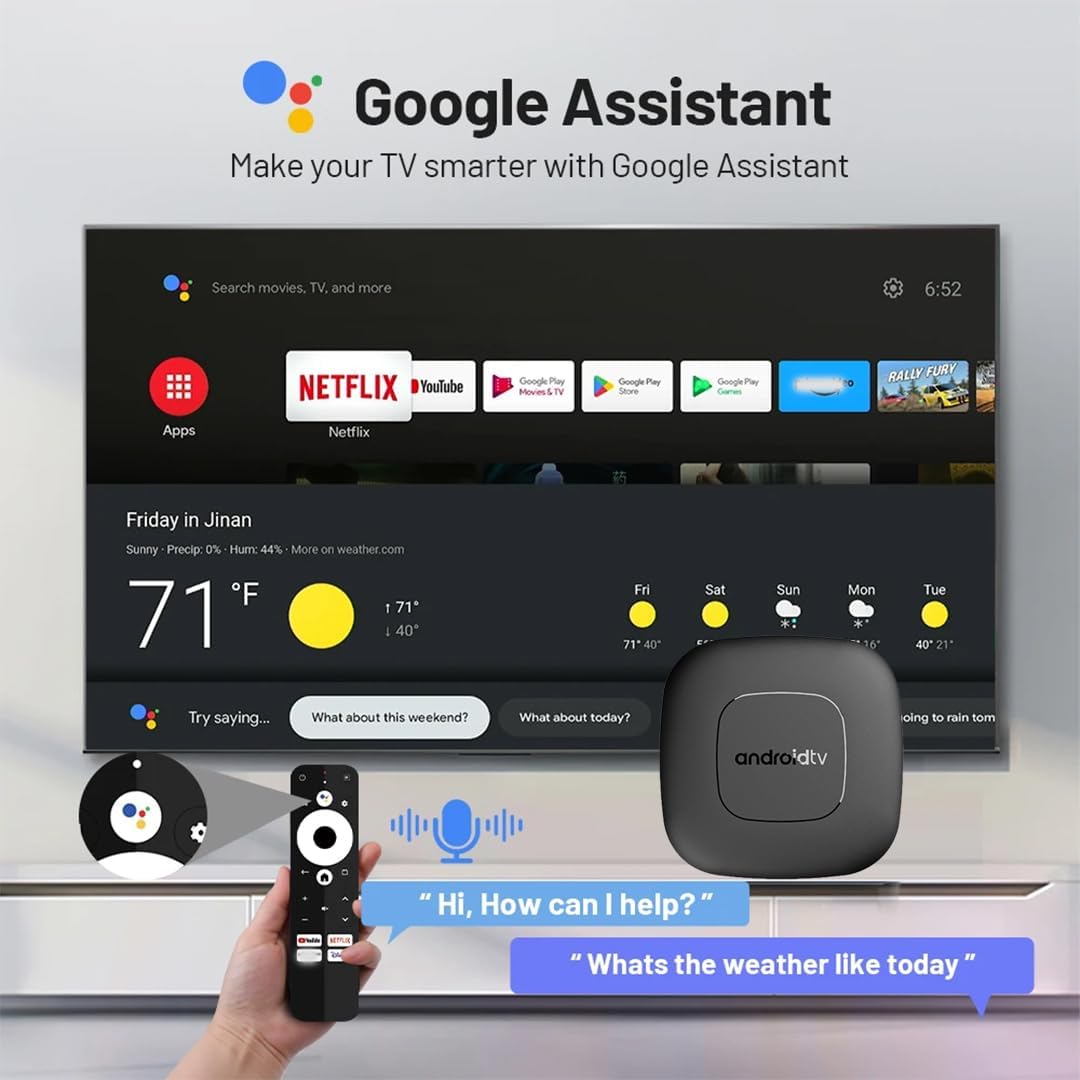
Figure 4.2: Voice Control functionality with Google Assistant.
5. Setup
Follow these steps to set up your X88 T1 Deluxe Edition Android TV Box.
- Connect to TV: Connect one end of the HDMI cable to the HDMI port on the TV Box and the other end to an available HDMI input on your television.
- Connect Power: Plug the supplied power adapter into the DC/5V port on the TV Box, then plug the adapter into a wall outlet. The device will power on automatically.
- Select Input: Turn on your TV and select the correct HDMI input source using your TV's remote control.
- Initial Setup Wizard: Follow the on-screen instructions to complete the initial setup, which includes language selection, network connection (Wi-Fi or Ethernet), and Google account sign-in.
- Connect to Internet: During the setup wizard, select your Wi-Fi network and enter the password, or connect an Ethernet cable to the LAN port (if available on your model). The device supports 2.4GHz/5.8GHz Dual-band WiFi 6.
- Pair Remote Control: If prompted, pair the voice remote control via Bluetooth. Typically, this involves holding down specific buttons on the remote (refer to the remote's mini-guide if needed) until an indicator light flashes, then selecting it on the TV screen.

Figure 5.1: Three simple steps to get started.
6. Operating the Device
Once set up, you can begin using your Android TV Box to access various entertainment options.
6.1 Navigating the Interface
- Use the directional pad (D-pad) on your remote to navigate through menus and select items.
- The "OK" button confirms selections.
- The "Back" button returns to the previous screen.
- The "Home" button takes you to the main Android TV home screen.
6.2 Streaming Content
The X88 T1 Deluxe Edition supports various streaming services and high-resolution content.

Figure 6.1: Netflix TV version certified for optimal streaming.
- Pre-installed Apps: Access popular streaming apps like Netflix, Disney+, YouTube, Prime Video, and more directly from the home screen or through the Google Play Store.
- 8K AV1 Ultra HD: Enjoy stunning visuals with support for 8K AV1 ultra-high-definition content.
- Dolby Vision & Dolby Audio: Experience enhanced clarity, color, and immersive sound with Dolby Vision and Dolby Audio support.

Figure 6.2: 8K UHD support for high-quality video playback.

Figure 6.3: Enhanced audio and visual experience with Dolby technologies.
6.3 Google Assistant & Chromecast
- Voice Control: Press the Google Assistant button on your remote and speak commands to search for content, control playback, get information, and more.
- Chromecast Built-in: Cast content directly from your smartphone, tablet, or computer to your TV screen using the built-in Chromecast feature.

Figure 6.4: Seamless content casting with Chromecast built-in.
6.4 Connectivity
- WiFi 6: Provides stable and fast wireless internet connectivity.
- Bluetooth 5.0: Connect wireless accessories such as headphones, game controllers, or speakers.
- USB: Connect external storage devices for media playback or to expand storage.


Figure 6.5: Advanced wireless connectivity options.
7. Maintenance
Proper care and maintenance will help extend the life of your X88 T1 Deluxe Edition Android TV Box.
- Cleaning: Use a soft, dry, lint-free cloth to clean the surface of the device. Do not use liquid cleaners, sprays, or abrasive materials.
- Ventilation: Ensure the ventilation holes are not blocked to prevent overheating. Do not place the device on soft surfaces like carpets or bedding that can obstruct airflow.
- Storage: If storing the device for an extended period, disconnect it from power and store it in a cool, dry place.
- Software Updates: Periodically check for system updates in the device settings to ensure you have the latest features and security patches.
8. Troubleshooting
If you encounter issues with your X88 T1 Deluxe Edition Android TV Box, refer to the following common solutions.
| Problem | Possible Cause | Solution |
|---|---|---|
| No power/Device not turning on | Power adapter not connected; faulty power outlet. | Ensure the power adapter is securely connected to the device and a working power outlet. Try a different outlet. |
| No picture on TV screen | Incorrect HDMI input selected; loose HDMI cable. | Verify the TV is set to the correct HDMI input. Check HDMI cable connections at both the TV Box and the TV. Try a different HDMI cable or port. |
| Remote control not responding | Low batteries; remote not paired. | Replace batteries in the remote. Re-pair the remote control via Bluetooth in the device settings. |
| Cannot connect to Wi-Fi | Incorrect password; router issues; device too far from router. | Double-check Wi-Fi password. Restart your router and the TV Box. Move the TV Box closer to the router or use an Ethernet cable. |
| Apps crashing or freezing | Insufficient memory; app specific issue; outdated software. | Close background apps. Clear app cache/data in settings. Update the app or the TV Box firmware. Restart the device. |
| Poor video quality / Lagging playback | Slow internet connection; high-resolution content; device overheating. | Check internet speed. Ensure proper ventilation. Reduce video quality if internet is slow. |
If the problem persists after trying these solutions, please contact customer support.
9. Specifications
| Feature | Detail |
|---|---|
| Model Name | T1-16G-14.0 |
| Operating System | Android 14.0 ATV OS |
| Processor | H313 Quad Core Cortex-A53 |
| RAM | 2GB DDR3 |
| Storage | 16GB eMMC (Expandable via TF card/USB) |
| Wi-Fi | 2.4G/5.8Ghz Dual-band WiFi 6 |
| Bluetooth | BT 5.0 |
| Ethernet | 100M LAN Port |
| Video Output | HDMI 2.1a, up to 8K@60fps |
| Video Decoding | 8K AV1, H.265 HEVC, HDR10+ |
| Audio Support | Dolby Vision & Dolby Audio |
| Special Features | Voice Control, Chromecast Built-in, 3D support |
| Dimensions | 3.6 x 3.6 x 0.67 inches |
| Weight | 8 ounces |
10. Warranty and Support
The X88 T1 Deluxe Edition Android TV Box comes with a standard manufacturer's warranty. Please refer to the warranty card included in your package for specific terms and conditions.
Customer Support
If you require technical assistance, have questions about your product, or need to claim warranty service, please contact X88 customer support through the retailer's platform or the official brand website.
When contacting support, please have your product model number (T1-16G-14.0) and ASIN (B0DR6Q45NJ) ready.
Related documentsT1-16G-14.0


Ask a question about this manual
Ask about setup, troubleshooting, compatibility, parts, safety, or missing instructions. Manuals+ will review the question and use this page’s manual context to help answer it.