
1. Introduction
Thank you for choosing the MageGee MK-Box 68-Key Mechanical Gaming Keyboard. This compact keyboard is designed for both gaming and office use, offering a responsive typing experience with its mechanical red switches and customizable LED backlighting. This manual provides detailed instructions for setting up, operating, and maintaining your keyboard.

Image: MageGee MK-Box 68-Key Mechanical Gaming Keyboard showcasing its compact layout, detachable USB-C, linear red switches, LED blue backlight, ABS injection keycaps, 68 keys anti-ghosting, ergonomic design, and 12 multimedia shortcuts.
2. Package Contents
Please check the package for the following items:
- MageGee MK-Box Mechanical Keyboard x 1
- Detachable USB-C Cable x 1
- Blue Keycaps x 12 (for customization)
- Key Puller x 1
- User Manual x 1

Image: The complete packing list for the MageGee MK-Box keyboard, including the keyboard, detachable USB-C cable, extra blue keycaps, key puller, and user manual.
3. Setup
-
Unpack the Keyboard: Carefully remove the keyboard and all accessories from the packaging.
-
Connect the USB-C Cable: Insert the USB-C end of the detachable cable into the port on the back of the keyboard. Connect the standard USB-A end to an available USB 2.0 port on your computer (Laptop or PC).

Image: A close-up view of the detachable USB-C port on the MageGee MK-Box keyboard, illustrating how to connect the cable.
-
System Compatibility: The keyboard is plug-and-play and compatible with Windows (2000, XP, ME, Vista, 7, 8), Linux, and Mac operating systems. No additional drivers or software are required.
-
Adjust Typing Angle: The keyboard features double kickstand feet on the underside. Flip them out to adjust the typing angle for improved ergonomics.

Image: The MageGee MK-Box keyboard shown with its adjustable kickstand feet extended, demonstrating the ergonomic typing angle.
4. Operation
4.1 Key Layout and Functions
The MK-Box features a 60% compact layout with 68 keys, including separate arrow keys and access to F1-F12 functions via the Fn key. This design saves desk space while retaining essential functionality.

Image: A visual comparison illustrating how the 68-key compact layout of the MageGee MK-Box saves approximately 40% more space compared to a traditional 104-key keyboard.
Fn Key Combinations:
- Fn + F1-F12: Access multimedia functions (specific functions may vary by operating system).
- Fn + Ins: Cycle through approximately 16 different LED backlight modes.
- Fn + ← / →: Adjust backlight speed.
- Fn + ↑ / ↓: Adjust backlight brightness.
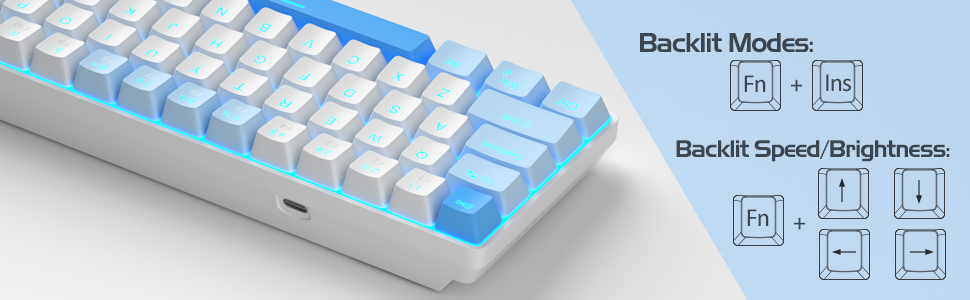
Image: Instructions for controlling the LED backlight modes, speed, and brightness using the Fn key combinations on the MageGee MK-Box keyboard.
4.2 Mechanical Red Switches
The keyboard is equipped with mechanical red switches, known for their linear and smooth keystrokes. They offer minimal resistance and fast action without a tactile bump, making them suitable for both rapid typing and gaming.

Image: A detailed view of a mechanical red switch beneath a keycap on the MageGee MK-Box keyboard, highlighting its linear design.
4.3 Anti-Ghosting
The MK-Box features full anti-ghosting on all 68 keys. This ensures that every keypress is registered accurately, even when multiple keys are pressed simultaneously, which is crucial for fast-paced gaming.
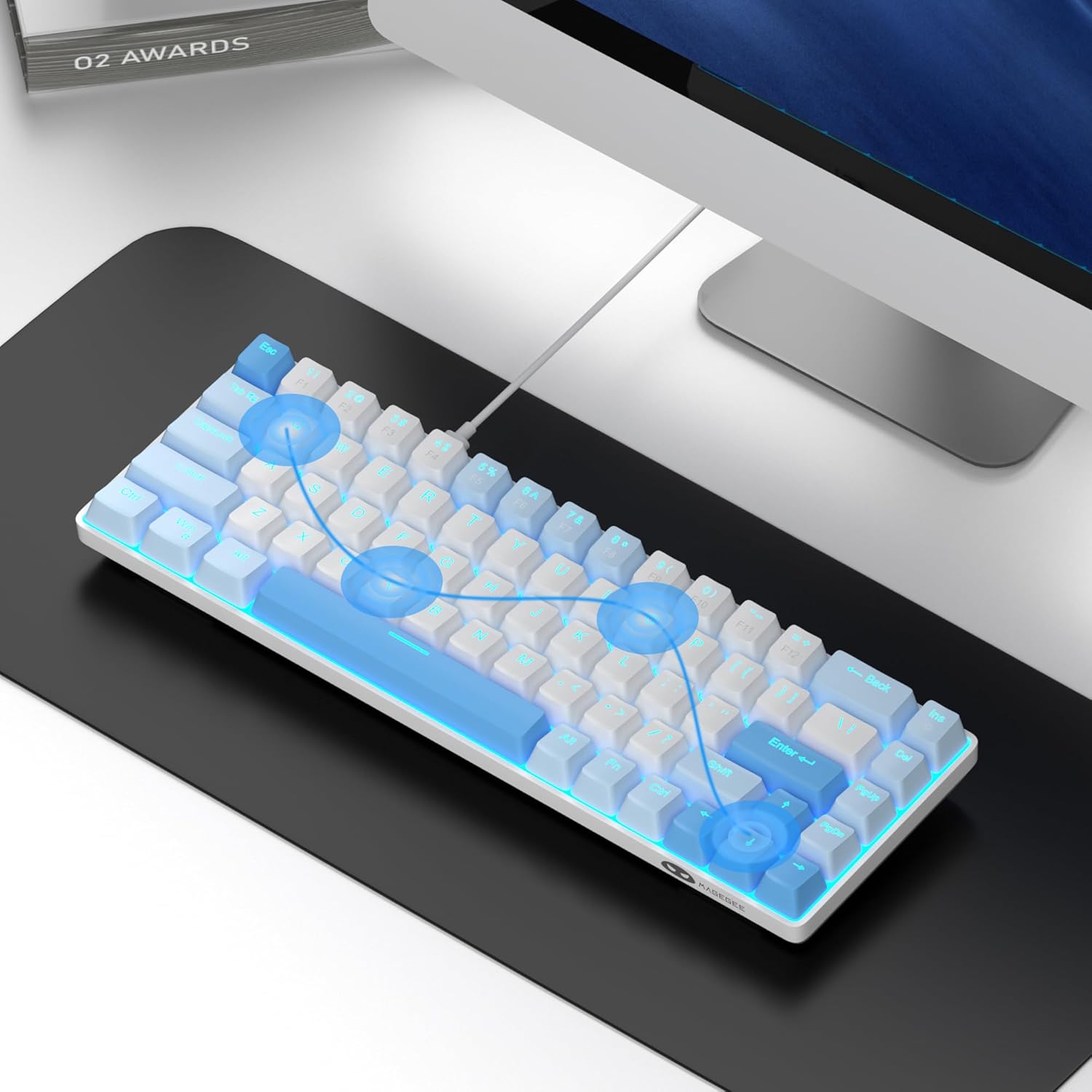
Image: A visual representation of the anti-ghosting capability of the MageGee MK-Box keyboard, showing multiple simultaneous key presses being registered.
4.4 Product Videos
MageGee MK-Box Compact Mechanical Keyboard Review
Video: A comprehensive review of the MageGee MK-Box Compact Mechanical Keyboard, highlighting its features and performance.
3 Top Things About This MageGee Keyboard
Video: A quick overview of the top three features that make the MageGee keyboard stand out.
My Daughter's Light-Up Keyboard!
Video: A demonstration of the keyboard's LED backlighting in use, showcasing its visual appeal.
Why These Keyboards Are So Popular?
Video: A brief explanation of the factors contributing to the popularity of these mechanical keyboards.
5. Maintenance
5.1 Cleaning the Keyboard
- General Cleaning: Use a soft, dry cloth to wipe down the keycaps and keyboard surface.
- Dust Removal: For dust and debris between keys, use compressed air. Hold the can upright and spray in short bursts.
- Stubborn Stains: For stubborn stains, lightly dampen a cloth with water or a mild cleaning solution (non-abrasive) and gently wipe. Ensure no liquid enters the keyboard.
- Disconnect Before Cleaning: Always disconnect the keyboard from your computer before cleaning.
5.2 Keycap Replacement
The package includes a key puller and 12 blue keycaps for customization. To replace keycaps:
- Gently attach the key puller to the keycap you wish to remove.
- Pull upwards with steady, even pressure until the keycap detaches from the switch.
- Align the new keycap with the switch stem and press down firmly until it clicks into place.
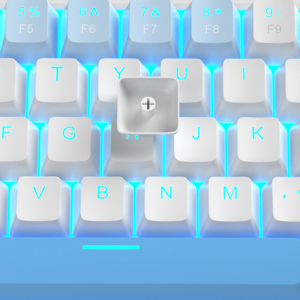
Image: A close-up showing a keycap being removed from a mechanical switch, illustrating the process for keycap replacement.
6. Troubleshooting
| Issue | Possible Solution |
|---|---|
| Keyboard not responding / Not turning on |
|
| Keys are unresponsive or registering incorrectly |
|
| Backlight not working or not changing modes |
|
7. Specifications
| Feature | Detail |
|---|---|
| Brand | MageGee |
| Model | MKBox |
| Keyboard Type | Mechanical Gaming Keyboard |
| Switch Type | Linear Red Switch |
| Key Layout | 60% Compact, 68 Keys (QWERTY) |
| Backlighting | Blue LED Backlit (approx. 16 modes) |
| Anti-Ghosting | Full 68-Key Anti-Ghosting |
| Connectivity | Wired USB 2.0 (Detachable USB-C cable) |
| Compatible Devices | Laptop, PC |
| Operating System Compatibility | Windows (2000, XP, ME, Vista, 7, 8), Linux, Mac |
| Dimensions (L x W x H) | 12.99" x 5.12" x 1.97" (33cm x 13cm x 5cm) |
| Material | Plastic (ABS Injection Keycaps) |
| Power Source | USB Powered |

Image: A diagram illustrating the physical dimensions of the MageGee MK-Box keyboard: 12.1 inches in length, 3.9 inches in width, and 1.6 inches in height.
8. Warranty and Support
MageGee products are designed for reliability and performance. This product comes with a standard manufacturer's warranty. For specific warranty details, please refer to the warranty card included in your package or visit the official MageGee website.
If you encounter any issues or have questions regarding your MageGee MK-Box keyboard, please contact MageGee customer support through the retailer's platform or the official brand website. Our support team is available to assist you with troubleshooting, product information, and any other inquiries.
Online Support: For the latest FAQs, drivers, and support resources, please visit the MageGee Store on Amazon.


