
Tenda MX12-3
Tenda AX3000 WiFi 6 Mesh System Nova MX12 User Manual
Model: MX12-3
1. Introduction
The Tenda AX3000 WiFi 6 Mesh System Nova MX12 is designed to provide a high-speed, stable, and seamless Wi-Fi network throughout your entire home. Utilizing advanced Wi-Fi 6 (802.11ax) technology, this system offers dual-band connectivity with speeds up to 2976Mbps, significantly improving network performance and coverage. It is ideal for replacing traditional Wi-Fi extenders and routers, eliminating dead zones and supporting over 160 devices simultaneously.

Image: The Tenda Nova MX12 Mesh System, featuring three white, hexagonal units designed for whole-home Wi-Fi coverage.
2. Package Contents
Before you begin, please verify that all items are present in your package:
- 3 x MX12 Mesh Units
- 3 x Power Adapters
- 1 x Quick Installation Guide (QIG)
- 1 x RJ45 Gigabit Ethernet Cable
3. Product Overview
Each Tenda Nova MX12 unit is a compact, white hexagonal tower with indicator lights and ports. Familiarize yourself with the components:
- LED Indicator: Displays the status of the unit (e.g., green for good connection, red for issues).
- WAN/LAN Port: One port functions as WAN when connected to your modem/router, and as LAN otherwise.
- LAN Ports: Two additional Gigabit Ethernet ports for wired connections.
- Power Port: For connecting the power adapter.
- Reset Button: Used to restore factory settings.
- Mesh Button: For easily adding new nodes to the existing mesh network.

Image: Rear view of a Tenda Nova MX12 unit, highlighting the power input, three Gigabit Ethernet ports, and the reset button.
4. Setup
Setting up your Tenda Nova MX12 Mesh System is a straightforward process, typically completed within minutes using the Tenda Wi-Fi App or a web browser.
4.1 Initial Setup (Main Unit)
- Unpack: Remove all MX12 units and accessories from the packaging.
- Connect Main Unit: Choose one MX12 unit to be your main router. Connect your modem's Ethernet cable to the WAN/LAN port of this MX12 unit.
- Power On: Connect the power adapter to the main MX12 unit and plug it into a power outlet. Wait for the LED indicator to turn green.
- Download App: Download the "Tenda Wi-Fi" app from your mobile device's app store (iOS or Android).
- Configure: Open the Tenda Wi-Fi app and follow the on-screen instructions to set up your new Wi-Fi network (SSID and password). Alternatively, you can connect a computer to one of the LAN ports or the default Wi-Fi network (found on the unit's label) and access the web GUI via a browser (usually http://tendawifi.com).
4.2 Adding Satellite Units
Once the main unit is configured, you can easily add the remaining MX12 units to expand your mesh network.
- Placement: Place the satellite MX12 units in locations where you want to extend Wi-Fi coverage, ensuring they are within range of the main unit or another connected satellite unit.
- Power On: Connect the power adapters to the satellite units and plug them into power outlets.
- Automatic Pairing: The satellite units will automatically detect and connect to the existing mesh network. The LED indicator will turn green once successfully connected.
- One-Click Mesh: For manual pairing or if automatic pairing fails, press the Mesh button on the main unit and then on the satellite unit within two minutes.

Image: Simple and Quick Setup, showing a Tenda MX12 unit alongside a laptop and smartphone, indicating easy configuration via app or web interface.
5. Operating Your Mesh System
The Tenda Nova MX12 system offers a range of features to optimize your home network.
5.1 High-Speed Wi-Fi 6 Performance
The MX12 leverages Wi-Fi 6 (802.11ax) technology, providing significantly faster speeds and improved efficiency compared to previous Wi-Fi standards. With dual-band operation (2.4GHz and 5GHz), it delivers combined speeds up to 2976Mbps, ensuring smooth streaming, gaming, and browsing.

Image: Speedy Wi-Fi 6 for Better Experience, detailing the dual-band speeds of the AX3000 system.
5.2 Whole Home Coverage and Seamless Roaming
The mesh system provides extensive coverage up to 7,000 sq.ft., eliminating Wi-Fi dead zones. With seamless roaming, your devices automatically switch to the strongest Wi-Fi signal as you move around your home, ensuring uninterrupted connectivity.
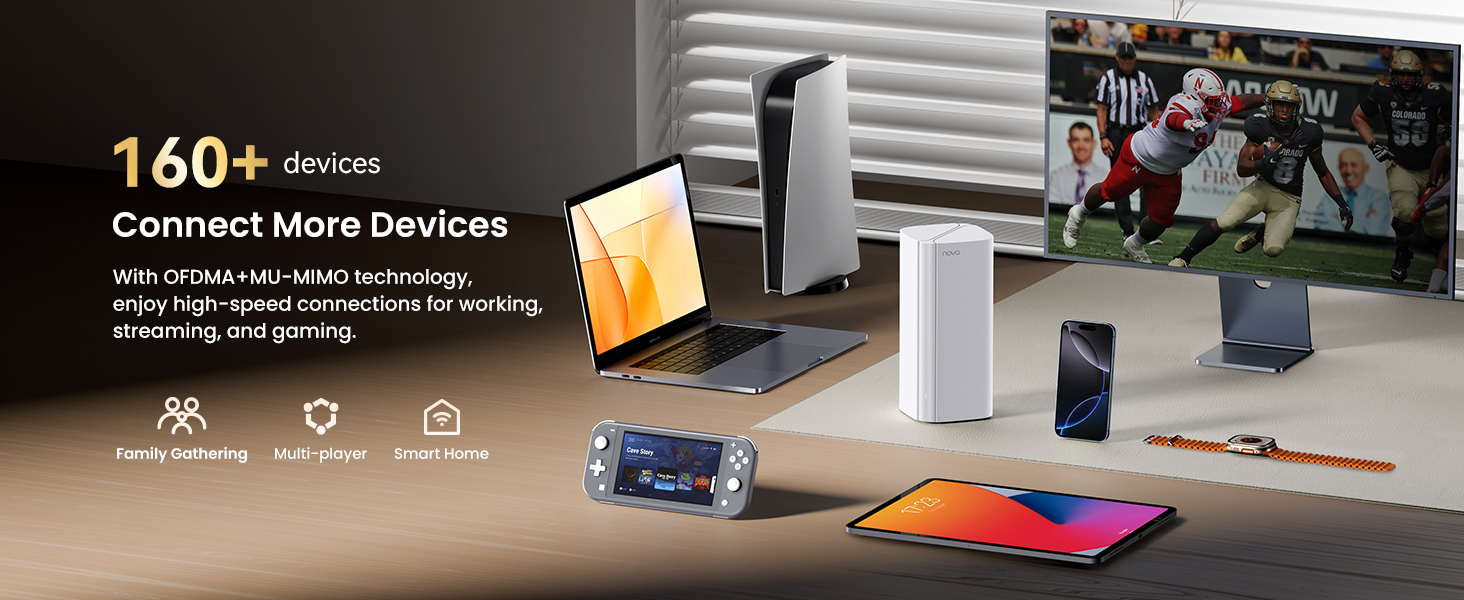
Image: Roam Freely, Stay Connected, illustrating seamless roaming and coverage for 4-7 rooms.
5.3 High Capacity and Efficiency
Powered by a 1.7GHz Quad-Core Broadcom CPU and supporting MU-MIMO and OFDMA technologies, the MX12 system can handle over 160 devices simultaneously, providing a lag-free experience even with multiple users and demanding applications.

Image: Connect More Devices, showing the system's capability to support over 160 devices with OFDMA and MU-MIMO technology.
5.4 Ethernet Backhaul
The MX12 supports Ethernet backhaul, allowing you to connect the mesh units via Ethernet cables for a more stable and faster connection between nodes, especially in larger homes or those with many obstacles.
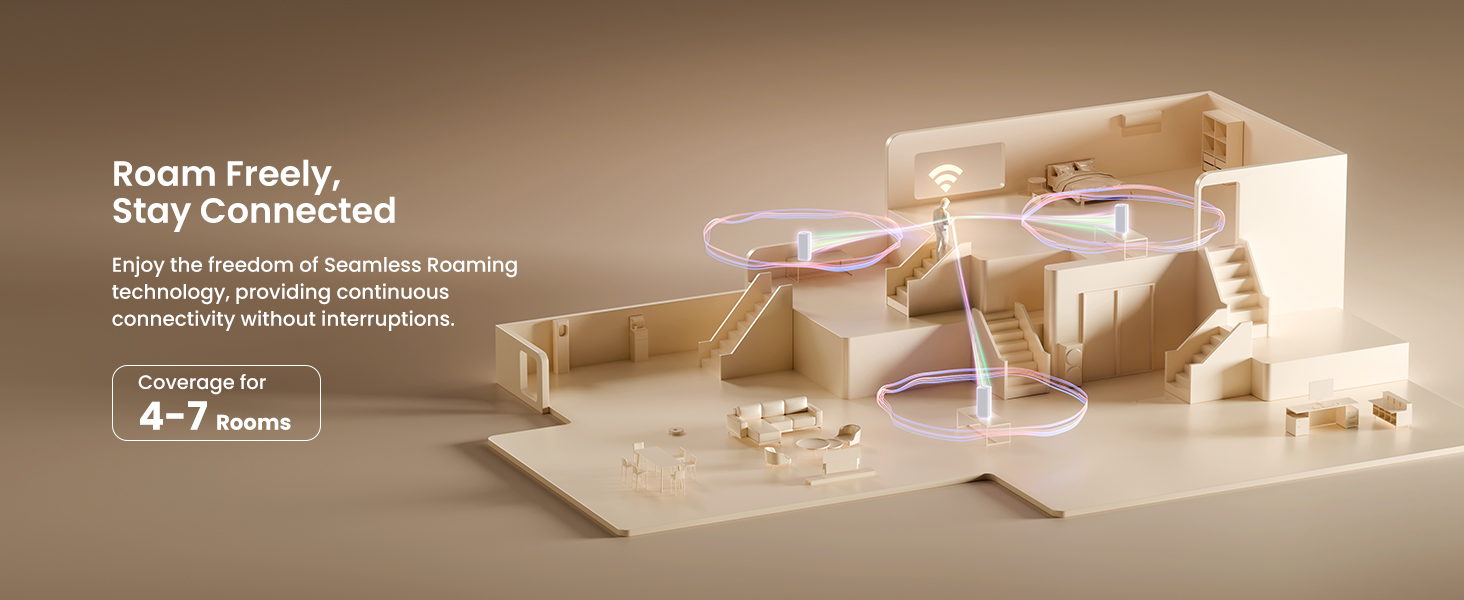
Image: Ultra-speed with 3 Gigabit Ports, demonstrating the wired connectivity options for stable networks.
5.5 Parental Controls
Manage and monitor your children's internet usage with built-in parental controls. You can set internet time limits and filter websites directly from the Tenda Wi-Fi app.
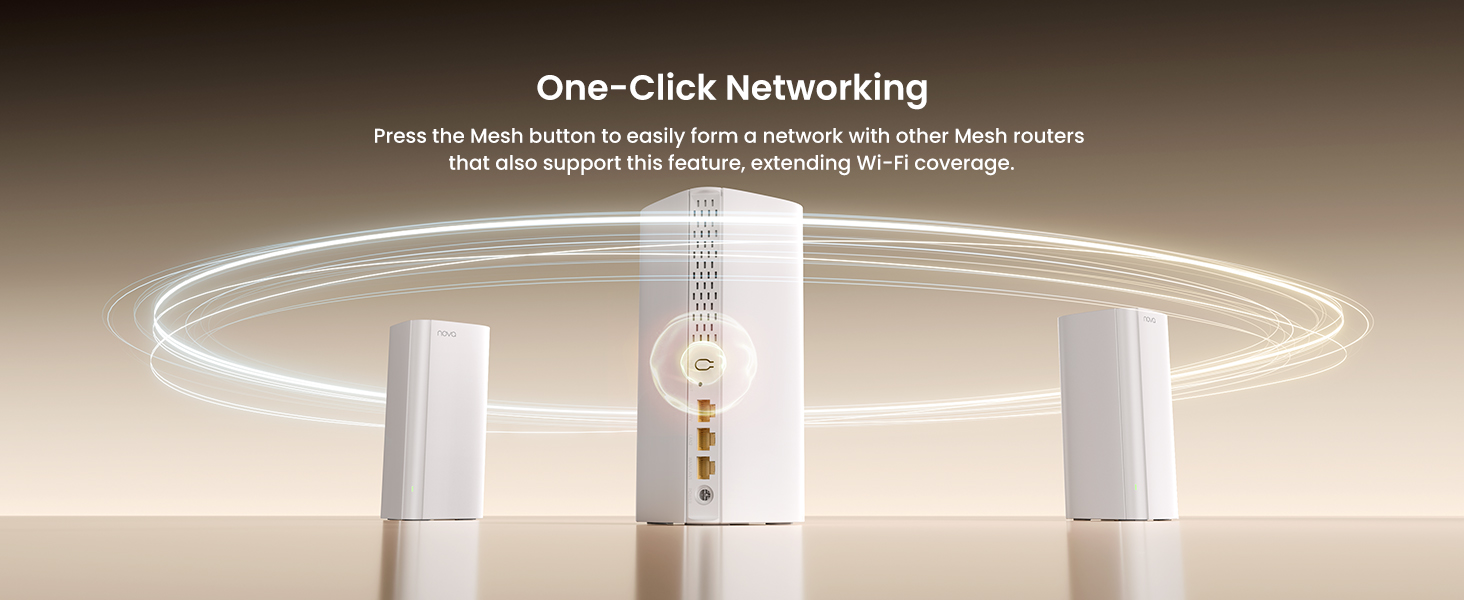
Image: Parental Control, showing features like Internet Time Control, Device Terminal Management, and Web Site Filtering.
5.6 Guest Wi-Fi
Create a separate guest Wi-Fi network to provide internet access to visitors without compromising the security of your main network. You can set a password and even a validity period for the guest network.
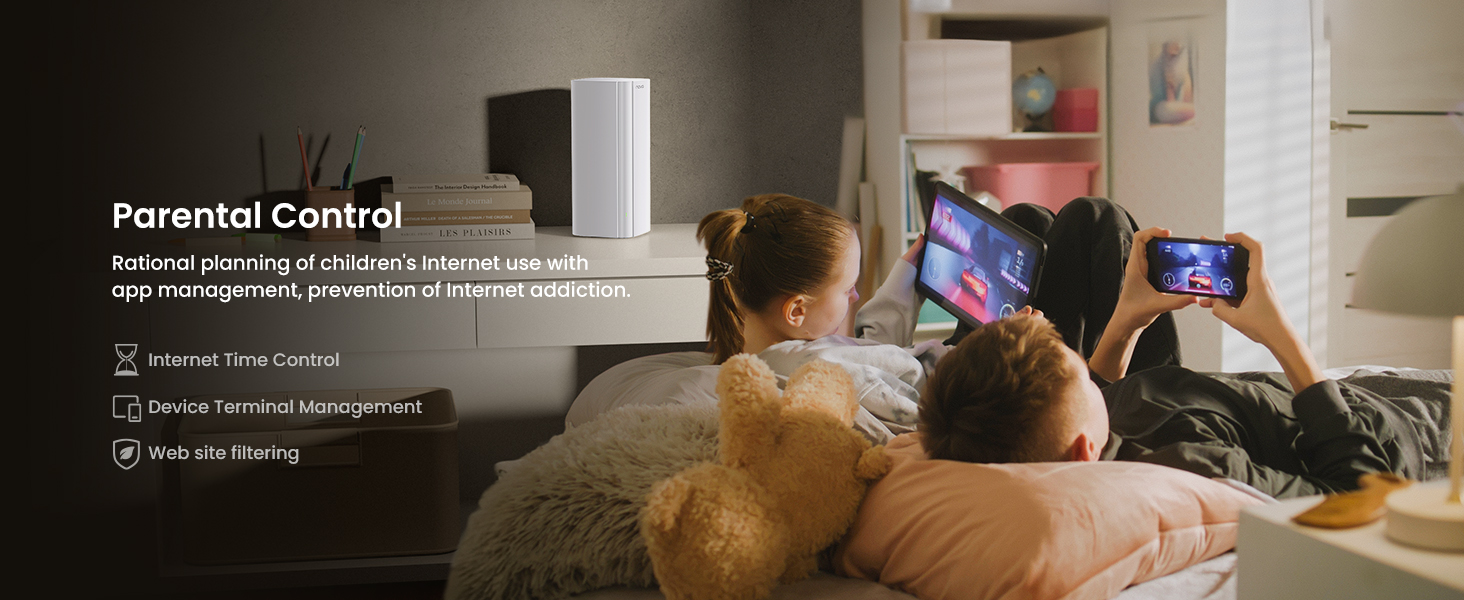
Image: Secure Guest WiFi, demonstrating how to provide separate network access while protecting your main network.
6. Maintenance
To ensure optimal performance and longevity of your Tenda Nova MX12 Mesh System, consider the following maintenance tips:
- Firmware Updates: Regularly check for and install the latest firmware updates via the Tenda Wi-Fi app or the web GUI. These updates often include performance improvements, security patches, and new features.
- Placement: Ensure units are placed in open areas, away from obstructions and other electronic devices that may cause interference.
- Cleaning: Keep the units clean and free from dust to prevent overheating and maintain proper ventilation. Use a soft, dry cloth for cleaning.
- Power Cycle: Periodically power cycle your main MX12 unit and modem by unplugging them for 30 seconds and then plugging them back in. This can resolve minor network issues.
7. Troubleshooting
If you encounter issues with your Tenda Nova MX12 Mesh System, try the following troubleshooting steps:
| Problem | Possible Solution |
|---|---|
| No Internet Access |
|
| Weak Wi-Fi Signal / Dead Zones |
|
| Devices Not Connecting |
|
| Ethernet Backhaul Issues |
|
8. Specifications
Key technical specifications for the Tenda AX3000 WiFi 6 Mesh System Nova MX12:
| Feature | Detail |
|---|---|
| Model Name | MX12 |
| Wireless Standard | 802.11ax (WiFi 6) |
| Frequency Band Class | Dual-Band (2.4 GHz & 5 GHz) |
| Combined Speed | Up to 2976Mbps |
| CPU | 1.7 GHz Quad-Core Broadcom |
| Coverage | Up to 7000 sq.ft (3-Pack) |
| Max Devices Supported | 160+ |
| Ethernet Ports | 3 x Full Gigabit Ports per unit |
| Special Features | Beamforming, Alexa Compatible, Access Point Mode, Internet Security, Parental Control |
| Connectivity Technology | Wi-Fi, Ethernet |
| Item Weight | 4.71 pounds |
| Package Dimensions | 13.46 x 11.14 x 3.7 inches |
9. Warranty and Support
For detailed warranty information, please refer to the official Tenda website or the warranty card included with your product. Tenda provides professional support for its products.
Professional Support Contact: support.usa@tenda.cn
For the latest updates, FAQs, and additional resources, please visit the official Tenda website.
Related Documents - MX12-3
 |
Tenda Nova AX1800/AX3000 Whole Home Mesh Wi-Fi 6 System Quick Installation Guide Quick installation guide for Tenda Nova AX1800 and AX3000 Whole Home Mesh Wi-Fi 6 systems (MX6, EX6, MX12, EX12). Includes setup, troubleshooting, and LED status. |
 |
Tenda Nova AX1800/AX3000 Whole Home Mesh Wi-Fi 6 System Quick Installation Guide Quick installation guide for Tenda Nova AX1800 and AX3000 Whole Home Mesh Wi-Fi 6 systems (MX6, EX6, MX12, EX12). Includes setup instructions, LED status indicators, and troubleshooting. |
 |
Tenda AX1800/AX3000 Whole Home Mesh Wi-Fi 6 System Quick Installation Guide This guide provides instructions for setting up and using the Tenda AX1800/AX3000 Whole Home Mesh Wi-Fi 6 System (models MX6, EX6, MX12, EX12). Learn how to install your primary node, connect to the internet via the Tenda WiFi App or web UI, extend your network coverage with secondary nodes, and find answers to frequently asked questions. |
 |
Tenda AX3000 Whole Home Mesh Wi-Fi 6 System User Guide This user guide provides comprehensive instructions for setting up and managing the Tenda AX3000 Whole Home Mesh Wi-Fi 6 System, covering web UI and app operations, network configuration, and troubleshooting. |
 |
Tenda Nova MX3/EX3 Mesh Wi-Fi 6 System Quick Installation Guide Quick start guide for Tenda Nova MX3/EX3 Dual-band Whole Home Mesh Wi-Fi 6 System. Learn how to connect the primary node, extend your network, and troubleshoot common issues. |
 |
Tenda nova Whole Home Mesh Wi-Fi 6/6E System Quick Installation Guide Comprehensive guide for setting up the Tenda nova Whole Home Mesh Wi-Fi 6/6E System. Learn about package contents, node connection, network extension, LED indicators, and FAQs for seamless whole-home Wi-Fi. |
Ask a question about this manual
Ask about setup, troubleshooting, compatibility, parts, safety, or missing instructions. Manuals+ will review the question and use this page’s manual context to help answer it.