
Introduction
This manual provides instructions for setting up and using your ECONTROLLY BN59-01385B Voice Remote Control. This replacement remote is designed to be compatible with various Samsung Smart TV models, offering voice control functionality and direct access buttons for popular streaming services.

Front view of the ECONTROLLY BN59-01385B Voice Remote Control.
Setup Guide
1. Installing Batteries
The remote control requires two AAA alkaline batteries (not included).
- Open the battery compartment cover on the back of the remote control.
- Insert two AAA batteries, ensuring the positive (+) and negative (-) terminals align correctly with the indicators inside the compartment.
- Close the battery compartment cover securely.
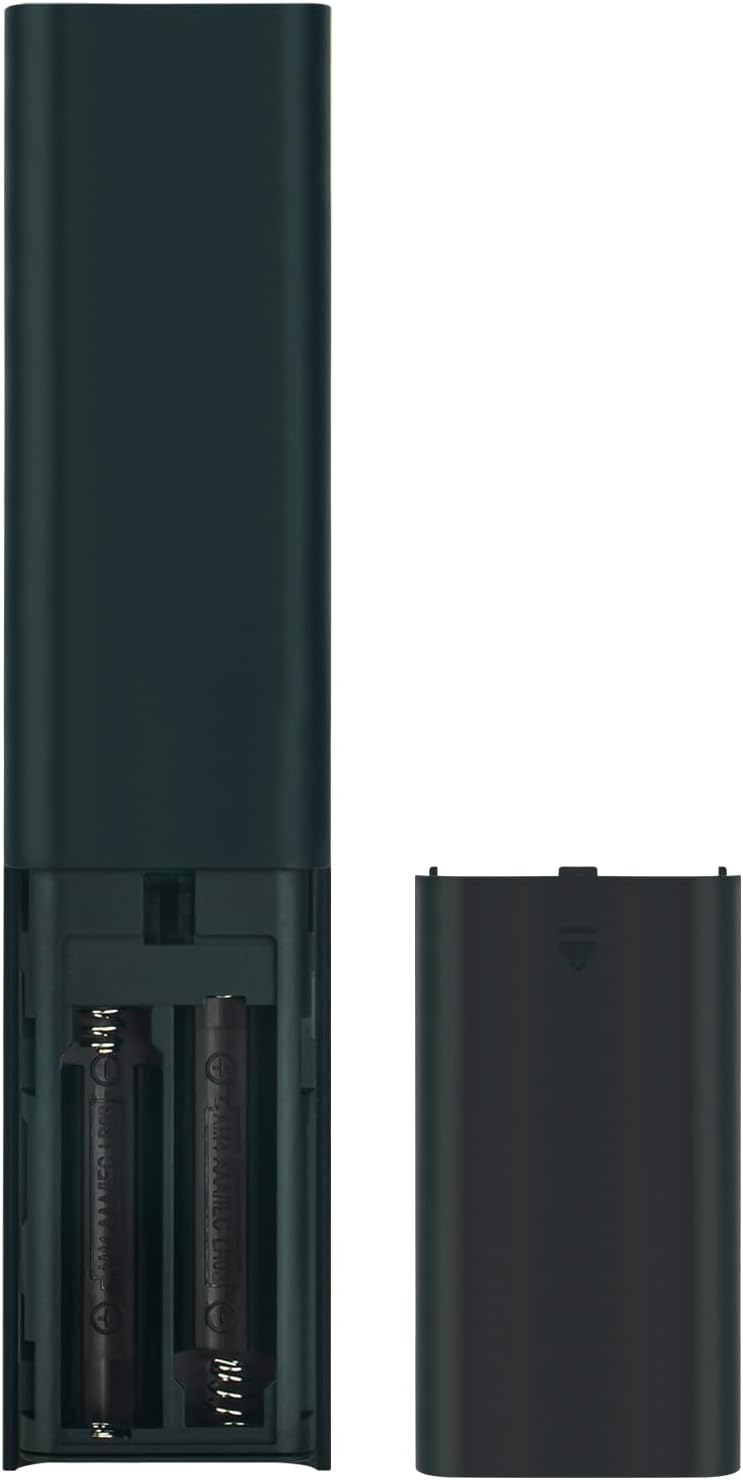
Image showing the battery compartment for AAA batteries.
2. Pairing the Remote Control with Your TV
This remote control uses Bluetooth connectivity and requires pairing with your Samsung TV before use. Follow these steps to pair:
- Ensure your Samsung TV is powered on.
- Point the remote control towards your TV.
- Simultaneously press and hold the Return button (curved arrow) and the Play/Pause button for 3 seconds or more.
- A pairing message should appear on your TV screen, indicating successful pairing.
If pairing is unsuccessful, ensure the batteries are correctly installed and try again. Move closer to the TV if necessary.
Operating Instructions
The ECONTROLLY BN59-01385B remote control provides intuitive navigation and voice command capabilities.
Key Functions:
- Power Button: Located at the top right, typically marked with a circle and a vertical line. Turns the TV on or off.
- Voice Control Button (
 ): Located near the top, marked with a microphone icon. Press and hold to activate voice commands for searching content, changing settings, or controlling smart home devices.
 - Navigation Pad (Directional Buttons & Enter): The large circular pad in the center. Use to navigate menus and select items.
- Return Button: Located below the navigation pad, marked with a curved arrow. Returns to the previous screen or menu.
- Home Button: Located below the navigation pad, marked with a house icon. Accesses the Smart Hub or home screen.
- Play/Pause Button: Located below the navigation pad, marked with a play/pause icon. Controls media playback.
- Volume Up/Down Buttons (+/-): Adjusts the TV volume.
- Channel Up/Down Buttons (up/down arrows): Changes TV channels.
- Quick Access Buttons: Dedicated buttons for Netflix, Samsung TV Plus, Prime Video, and Disney+ for direct app launch.
The microphone button activates voice control for your Samsung TV.
Maintenance and Care
- Keep the remote control dry. Moisture can damage the internal circuits.
- Avoid exposing the remote to extreme temperatures.
- Clean the remote with a soft, dry cloth. Do not use abrasive cleaners or solvents.
- If the remote will not be used for an extended period, remove the batteries to prevent leakage.
- Handle the remote with care to prevent drops or impacts.
Troubleshooting
| Problem | Solution |
|---|---|
| Remote is not responding. |
|
| Voice control is not working. |
|
| Buttons are sticky or unresponsive. |
|
Specifications
- Model Number: PT-BN59-01385B
- Brand: ECONTROLLY
- Connectivity: Bluetooth
- Controller Type: Voice Control
- Special Features: Voice Search, Quick Access Buttons
- Compatible Devices: Samsung Televisions
- Power Source: 2 x AAA Alkaline Batteries (not included)
- Maximum Range: 10 meters (33 feet)
- Material: ABS
- Color: Black
- Dimensions (L x W): Approximately 16.1 cm (6.33 in) x 3.5 cm (1.37 in)
- Weight: Approximately 2 Ounces (56.7 grams)

Physical dimensions of the remote control.
Compatible TV Models
This remote control is compatible with various Samsung Smart TV models, including but not limited to:
- QN85B Series: QA55QN85BA, QA65QN85BA, QA75QN85BA, QA85QN85BA, QA65QN85BAW, QA75QN85BAW, QA85QN85BAW, QA55QN85BAWXXY, QA65QN85BAWXXY, QA75QN85BAWXXY
- Q60B Series: QA55Q60BA, QA65Q60BA, QA75Q60BA, QA85Q60BA, QA55Q60BAW, QA65Q60BAW, QA75Q60BAW, QA85Q60BAW, QA55Q60BAWXXY, QA65Q60BAWXXY, QA75Q60BAWXXY, QA85Q60BAWXXY
- Q70B Series: QA55Q70BA, QA65Q70BA, QA75Q70BA, QA85Q70BA, QA55Q70BAW, QA65Q70BAW, QA75Q70BAW, QA85Q70BAW, QA55Q70BAWXXY, QA65Q70BAWXXY, QA75Q70BAWXXY, QA85Q70BAWXXY
- Q80B Series: QA55Q80BA, QA65Q80BA, QA75Q80BA, QA85Q80BA, QA55Q80BAW, QA65Q80BAW, QA75Q80BAW, QA85Q80BAW, QA55Q80BAWXXY, QA65Q80BAWXXY, QA75Q80BAWXXY, QA85Q80BAWXXY
- QN90B Series: QA43QN90BA, QA50QN90BA, QA55QN90BA, QA65QN90BA, QA75QN90BA, QA85QN90BA, QA43QN90BAW, QA50QN90BAW, QA55QN90BAW, QA65QN90BAW, QA75QN90BAW, QA85QN90BAW, QA43QN90BAWXXY, QA50QN90BAWXXY, QA55QN90BAWXXY
This list is not exhaustive. If your TV model is not listed, please refer to your TV's user manual or contact ECONTROLLY support for compatibility information.

Visual comparison of the replacement remote with an original remote.
Support and Contact
For further assistance or inquiries, please refer to the product listing on Amazon or contact ECONTROLLY customer support.