
1. Introduction
This user manual provides comprehensive instructions for the Headwolf WPad7 Tablet. It covers setup, operation, maintenance, and troubleshooting to ensure optimal performance and user experience. Please read this manual thoroughly before using your device.
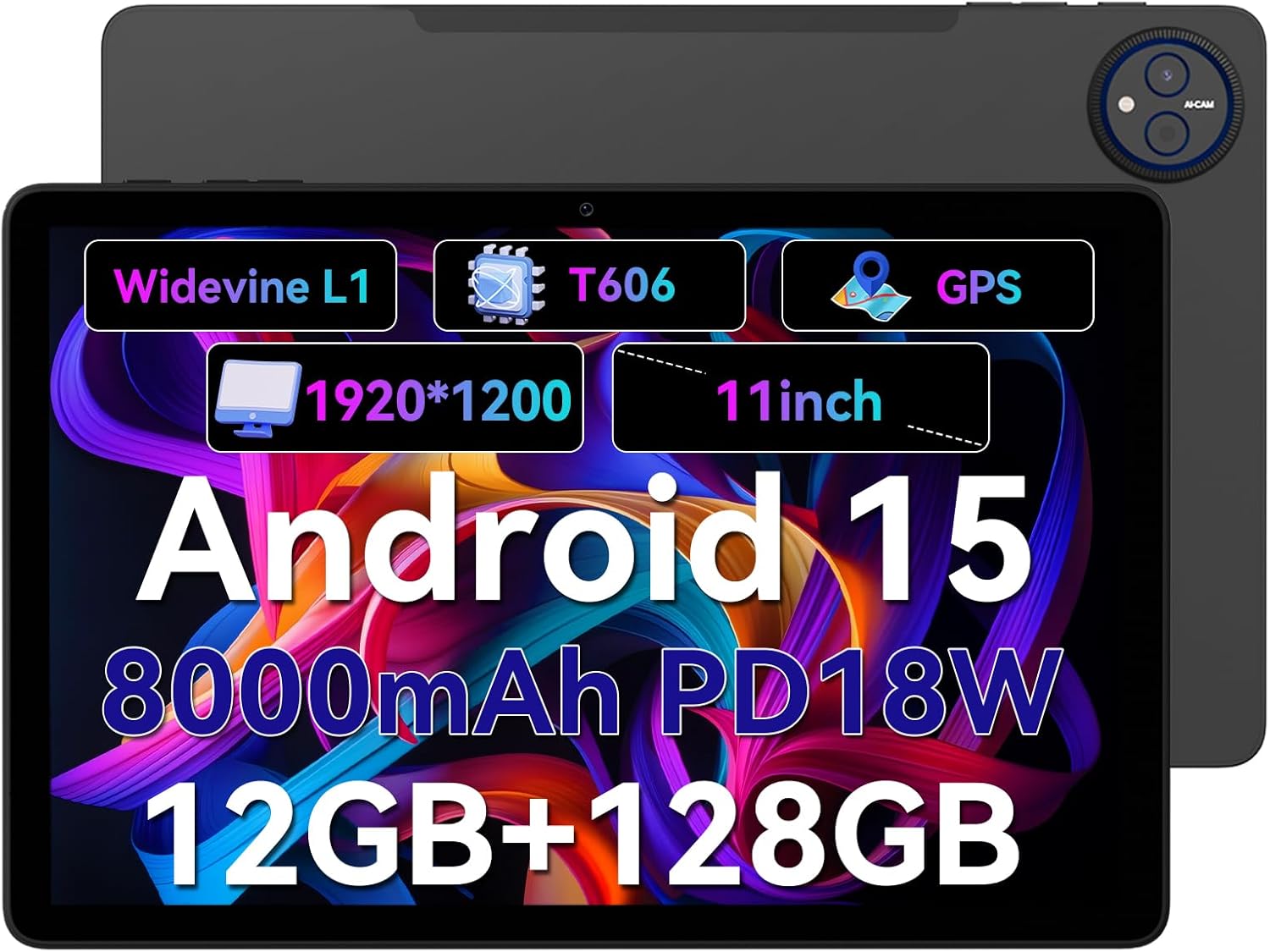
Figure 1.1: Headwolf WPad7 Tablet showcasing its 11-inch display, Android 15, 8000mAh battery, 12GB RAM, 128GB ROM, Widevine L1, T606 processor, and GPS capabilities.
2. Package Contents
Upon opening the package, verify that all items listed below are present and in good condition:
- 1 x Headwolf WPad7 Tablet
- 1 x Charger
- 1 x Type-C Cable
- 1 x Card Pin (for SIM/SD card tray)
- 1 x User Manual
3. Product Overview
3.1 Physical Features
Familiarize yourself with the physical components of your Headwolf WPad7 Tablet:
- Display: 11-inch IPS In-Cell screen with 1920x1200 resolution.
- Front Camera: 8MP, located on the top bezel when held horizontally.
- Rear Camera: 13MP, located on the back panel.
- Power Button: Typically on the side, used to power on/off or wake/sleep the device.
- Volume Keys: Located near the power button, for adjusting audio levels.
- USB Type-C Port: For charging and data transfer.
- 3.5mm Headphone Jack: For connecting wired audio devices.
- Card Slot: For inserting a SIM card (if supported) and a microSD card for expandable storage.
- Reset Hole: A small pinhole for force restarting the device if unresponsive.

Figure 3.1: Physical aspects of the Headwolf WPad7 Tablet, showing its 8mm thickness, 495g weight, 13MP rear camera, 8MP front camera, and 3.5mm earphone jack.

Figure 3.2: Key features of the Headwolf WPad7 Tablet, including Android 15 OS, 12GB+128GB memory, T606-8 core processor, 8000mAh battery, GPS navigation, 1920x1200 FHD display, face recognition, dual cameras, 2.4G/5Ghz Wi-Fi, Widevine L1, and 300nit brightness.
4. Setup
4.1 Initial Charging
Before first use, fully charge the tablet. Connect the provided Type-C cable to the tablet's USB-C port and the charger to a power outlet. The battery indicator on the screen will show charging status. A full charge typically takes several hours.

Figure 4.1: The 8000mAh battery of the Headwolf WPad7 Tablet, highlighting its safety and stability features, and showing typical usage times for processing, video playback, reading, and music playback.
4.2 Power On/Off
- To Power On: Press and hold the Power button until the Headwolf logo appears on the screen.
- To Power Off: Press and hold the Power button until a power-off menu appears. Select "Power off".
- To Sleep/Wake: Briefly press the Power button to put the tablet to sleep or wake it up.
4.3 MicroSD Card Installation
The Headwolf WPad7 supports microSD card expansion up to 2TB. To install:
- Locate the card slot on the side of the tablet.
- Insert the provided card pin into the small hole next to the tray to eject it.
- Place the microSD card into the designated slot on the tray, ensuring correct orientation.
- Gently push the tray back into the tablet until it clicks into place.

Figure 4.2: Details of the Unisoc T606 Octa-core Processor and memory configuration, showing 12GB RAM (6GB physical + 6GB virtual) and 128GB ROM, expandable up to 2TB via SD card.
5. Operating Your Tablet
5.1 Android 15 Features
Your Headwolf WPad7 Tablet runs on Android 15, offering enhanced AI capabilities, improved privacy, optimized performance, and a refined user interface. Explore features like:
- AI Dynamic Adjustment: Adapts to your usage patterns for optimized performance.
- Multilingual Real-time Translation: Facilitates communication across languages.
- AI Automatic Scene Recognition: Enhances camera performance.
- Intelligent Audio Switching: Seamlessly manages audio output.
- AI Battery Saving Optimization: Extends battery life based on usage.
- Screen Split: Use two apps simultaneously side-by-side.
- Face Recognition: Securely unlock your device with your face.

Figure 5.1: Overview of Android 15's intelligent AI features, including dynamic adjustment, real-time translation, automatic scene recognition, portrait mode processing, intelligent audio switching, accurate speech recognition, battery saving, game mode, and document auto summary.
5.2 Connectivity
- Wi-Fi: Supports high-speed AC 2.4G/5G Wi-Fi for stable internet connection. Navigate to Settings > Network & internet > Wi-Fi to connect to available networks.
- Bluetooth: Connect to Bluetooth headphones, speakers, and other devices. Go to Settings > Connected devices > Bluetooth.
- GPS: The tablet supports GPS, GLONASS, BDS, and GALILEO satellite systems for precise location services and navigation.

Figure 5.2: The Headwolf WPad7 Tablet's 2.4G/5G Dual Band Wi-Fi and Bluetooth capabilities, demonstrating its versatility for work, presentations, and video calls.

Figure 5.3: The tablet's Four-In-One Satellite Positioning System, supporting GPS, Beidou, Galileo, and Glonass for accurate real-time location tracking and navigation.
5.3 Camera Usage
The tablet features an 8MP front camera and a 13MP rear camera. Open the Camera app to capture photos and videos. Utilize AI scene recognition for optimized shots.
5.4 Display Features
The 11-inch IPS in-cell display provides vivid colors and deep contrasts. It features Widevine L1 certification, enabling secure streaming of high-definition content from platforms like Netflix, Prime Video, and Disney+.

Figure 5.4: The 11-inch Widevine L1-compatible FHD display, showcasing its 1920x1200 resolution, 224 PPI, IPS incell technology, 300 nit brightness, 1500:1 contrast, and 75% NTSC color gamut, ideal for streaming services.
6. Maintenance
6.1 Cleaning
To clean your tablet, use a soft, lint-free cloth. For stubborn smudges, slightly dampen the cloth with water or a screen cleaner. Avoid using harsh chemicals, abrasive materials, or excessive moisture.
6.2 Battery Care
- Avoid exposing the tablet to extreme temperatures (hot or cold).
- Do not let the battery completely drain frequently.
- Use the original charger and cable for optimal charging and battery longevity.
- If storing the tablet for an extended period, charge it to about 50% before turning it off.
7. Troubleshooting
7.1 Tablet Not Powering On
- Ensure the battery is charged. Connect the charger and wait a few minutes before attempting to power on.
- Press and hold the Power button for at least 10-15 seconds to force a restart.
7.2 Wi-Fi Connectivity Issues
- Toggle Wi-Fi off and on in Settings.
- Restart your Wi-Fi router.
- Forget the network and reconnect, entering the password again.
7.3 Apps Crashing or Freezing
- Close the problematic app and reopen it.
- Clear the app's cache (Settings > Apps > [App Name] > Storage & cache > Clear cache).
- Restart the tablet.
- Ensure the app and Android system are updated to the latest versions.
8. Specifications
| Feature | Specification |
|---|---|
| Brand | Headwolf |
| Model Name | W7 |
| Operating System | Android 15 |
| Screen Size | 11 Inches |
| Screen Resolution | 1920x1200 Pixels (FHD In-Cell) |
| Processor | Unisoc T606 Octa-core |
| RAM | 12GB (6GB physical + 6GB virtual) |
| Internal Storage | 128GB |
| Expandable Storage | Up to 2TB via MicroSD card |
| Rear Camera | 13MP |
| Front Camera | 8MP |
| Battery Capacity | 8000mAh |
| Charging Port | USB Type-C (supports 18W fast charge) |
| Wireless Connectivity | 802.11a/b/g/n/ac/ax (2.4G/5G Wi-Fi), Bluetooth |
| Navigation | GPS, GLONASS, BDS, GALILEO (with A-GPS) |
| Audio Jack | 3.5mm |
| Dimensions (LxWxH) | 11 x 2 x 8 inches |
| Item Weight | 1.98 pounds (approx. 495g) |
| Color | Gray |
| Widevine Certification | L1 |
9. Warranty and Support
Headwolf provides a standard warranty for the WPad7 Tablet. For detailed warranty terms and conditions, please refer to the warranty card included in your package or visit the official Headwolf website.
For technical support, troubleshooting assistance, or service inquiries, please contact Headwolf customer support through their official channels. Keep your purchase receipt and product serial number handy when contacting support.
Online Resources:
