
1. Introduction
This manual provides comprehensive instructions for the setup and operation of your Techkey Bluetooth Adapter 5.3 USB Mini EDR Dongle. This device enables Bluetooth connectivity for your desktop or laptop computer, allowing you to connect various Bluetooth-enabled peripherals.
The adapter features Bluetooth 5.3 + EDR technology, offering enhanced anti-interference capabilities, improved stability, and reduced transmission efficiency loss in the 2.4 GHz frequency band. It supports a transmission rate of up to 3Mbps and a range of up to 30 meters in open areas. Its ultra-small, compact design ensures it can be easily carried and used without obstructing adjacent USB ports.
System Compatibility: This adapter is designed for Plug & Play functionality and supports Windows 11, Windows 10, and Windows 8.1 operating systems. It is backward compatible with Bluetooth 5.2/4.2/4.0/3.0/2.1. Please note: This adapter does not support Mac, Linux, Unraid, TV, car stereo systems, PS4, or Xbox consoles.
2. Setup and Installation
2.1. Disabling Built-in Bluetooth (If Applicable)
If your computer has a built-in Bluetooth module, it is recommended to disable it before installing the Techkey Bluetooth Adapter to prevent conflicts and ensure optimal performance. Follow these steps:
- Right-click on the "This PC" or "My Computer" icon on your desktop and select "Manage".
- In the "Computer Management" window, click on "Device Manager" in the left pane.
- Expand the "Bluetooth" category. You will see a list of Bluetooth devices.
- Locate your computer's built-in Bluetooth adapter (e.g., "Intel Wireless Bluetooth"). Right-click on it and select "Disable device". Important: Be sure to disable it, not uninstall it. A computer cannot use two Bluetooth adapters simultaneously.
- Confirm the action if prompted.
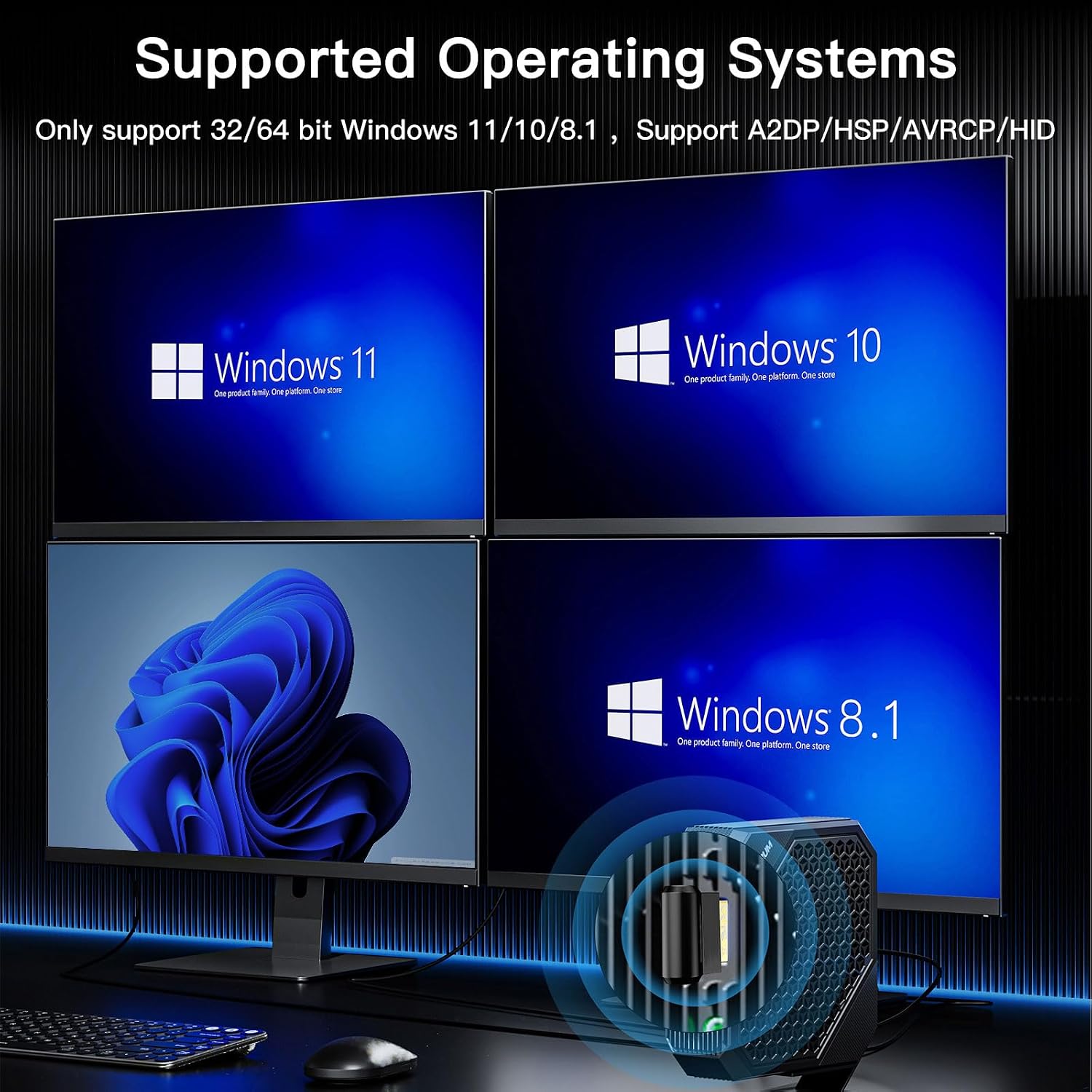
Image: Supported Operating Systems. This image illustrates the Windows operating systems compatible with the Bluetooth adapter: Windows 11, Windows 10, and Windows 8.1.
2.2. Plug & Play Installation
The Techkey Bluetooth Adapter is designed for easy installation:
- Insert the Techkey Bluetooth Adapter into an available USB port on your desktop or laptop computer.
- Allow 3 to 5 minutes for your system to automatically detect, download, and install the necessary drivers. A notification will typically appear once the device is ready.

Image: Plug & Play Installation. This image demonstrates the simple plug-and-play nature of the adapter, requiring no manual driver installation.

Image: Techkey Bluetooth 5.3 USB Adapter. A detailed view of the compact Bluetooth 5.3 USB dongle.
3. Operating Instructions
3.1. Pairing Your Devices
Once the driver is installed, the Bluetooth icon should appear in your system tray (bottom-right corner of your screen). If you cannot find it, refer to section 3.2.
- Right-click on the Bluetooth icon in the system tray.
- Select "Add a Bluetooth Device" from the context menu.
- In the "Add a device" window, choose "Bluetooth" (for mice, keyboards, pens, audio, and other Bluetooth devices).
- Ensure your Bluetooth device is in pairing mode and discoverable.
- Select your device from the list to connect.
The adapter supports connecting multiple devices simultaneously, such as Bluetooth speakers, keyboards, headsets, and mice, allowing for wireless file transfer and audio streaming.

Image: Multi-Device Connectivity. This image illustrates the ability to connect up to 5 different Bluetooth devices simultaneously, including a mouse, headphones, keyboard, and game controller.

Image: Fast Data Transmission. This image highlights the adapter's capability for fast data transmission, enabling seamless music streaming, video playback, and file transfers between devices.
3.2. Locating the Bluetooth Icon
If you are having trouble finding the Bluetooth icon in the system tray, follow these steps:
- Click the "Start" icon in the lower-left corner of your screen.
- Click on "Settings".
- Select "Devices".
- In the left pane, click on "Bluetooth & other devices".
- On the right side, find and click "More Bluetooth options".
- In the "Bluetooth Settings" window, check the box next to "Show Bluetooth icon in the notification area". Click "OK" or "Apply".
4. Maintenance
To ensure the longevity and optimal performance of your Techkey Bluetooth Adapter, please observe the following:
- Keep the adapter clean and free from dust. Use a soft, dry cloth for cleaning.
- Avoid exposing the adapter to extreme temperatures, humidity, or direct sunlight.
- Store the adapter in a safe place when not in use to prevent physical damage.

Image: Mini Compact Design. This image highlights the small and unobtrusive design of the adapter, making it easy to use and transport.
5. Troubleshooting
- Adapter Not Recognized / Not Working:
- Ensure your computer's built-in Bluetooth is disabled (refer to Section 2.1).
- Try inserting the adapter into a different USB port.
- Restart your computer after inserting the adapter.
- Verify that your operating system is Windows 11, 10, or 8.1. Other operating systems are not supported.
- Check Windows Update to ensure your system has the latest updates, which may include necessary drivers.
- Cannot Pair Devices:
- Ensure your device is in pairing mode and discoverable.
- Make sure the Bluetooth function is enabled on your computer (refer to Section 3.2 for locating the icon).
- Move the device closer to the adapter to ensure it's within the 30-meter range.
- Remove any previously paired instances of the device from your computer's Bluetooth settings and try pairing again.
- Intermittent Connection / Poor Audio Quality:
- Reduce the distance between the adapter and the connected device.
- Minimize physical obstructions (walls, large metal objects) between the adapter and the device.
- Avoid interference from other 2.4 GHz wireless devices (Wi-Fi routers, cordless phones).
6. Specifications
| Feature | Detail |
|---|---|
| Model | Bluetooth Adapter 5.3 USB Mini EDR Dongle |
| Bluetooth Version | 5.3 + EDR (Enhanced Data Rate) |
| Backward Compatibility | Bluetooth 5.2 / 4.2 / 4.0 / 3.0 / 2.1 |
| Hardware Interface | USB |
| Data Transfer Rate | Up to 3 Megabits Per Second (Mbps) |
| Transmission Distance | Up to 30 meters (in open areas) |
| Operating System Support | Windows 11 / 10 / 8.1 (32/64 bit) |
| Incompatible Systems | Mac, Linux, Unraid, TV, car stereo, PS4, Xbox |
| Compatible Devices | Headphones, Keyboards, Laptops, Mice, Speakers, Game Controllers, Printers, Smartphones/Tablets |
| Product Dimensions | 1.18 x 0.59 x 0.2 inches (3 x 1.5 x 0.5 cm) |
| Item Weight | 1.13 ounces (0.03 Kilograms) |
| Color | Black |

Image: Upgraded Bluetooth 5.3 + BLE. This image represents the advanced Bluetooth 5.3 chip with Low Energy (BLE) for high-speed and stable signal transmission.
7. Warranty and Support
For warranty information or technical support, please contact the manufacturer, Techkey, or your retailer. Please retain your proof of purchase for any warranty claims.