
BigBlue X60
BigBlue 60W Portable Compact Solar Panel User Manual
Model: X60 | Brand: BigBlue
1. Introduction
The BigBlue 60W Portable Compact Solar Panel (Model X60) is designed to provide a versatile and efficient power solution for various electronic devices. Featuring advanced N-type solar cells, it offers high conversion efficiency and robust performance in diverse outdoor conditions. Its foldable design and multiple output ports make it ideal for camping, hiking, emergency preparedness, and other off-grid power needs. This manual provides detailed instructions for setting up, operating, maintaining, and troubleshooting your solar panel.
2. What's in the Box
Carefully unpack all components and ensure everything listed below is present and in good condition. If any items are missing or damaged, please contact BigBlue customer support.
- 1x BigBlue Solarpowa X60 Solar Panel
- 1x Y-Branch cable (DC5525 to XT60/DC5521)
- 1x USB-C to USB-C Cable
- 1x DC Connector Set (DC5521-DC7909x1, DC5521-DC8020 x1, DC5521-DC35135x1)
- 1x User Manual

Figure 2.1: All components included in the BigBlue 60W Solar Panel package.
3. Setup
Follow these steps to set up your BigBlue 60W Solar Panel for optimal performance.
3.1 Unfolding the Solar Panel
- Place the folded solar panel on a flat, stable surface.
- Unfasten the straps securing the folded panels.
- Carefully unfold the panels completely until they lay flat. The panel measures approximately 921mm (36.26 inches) when fully unfolded.
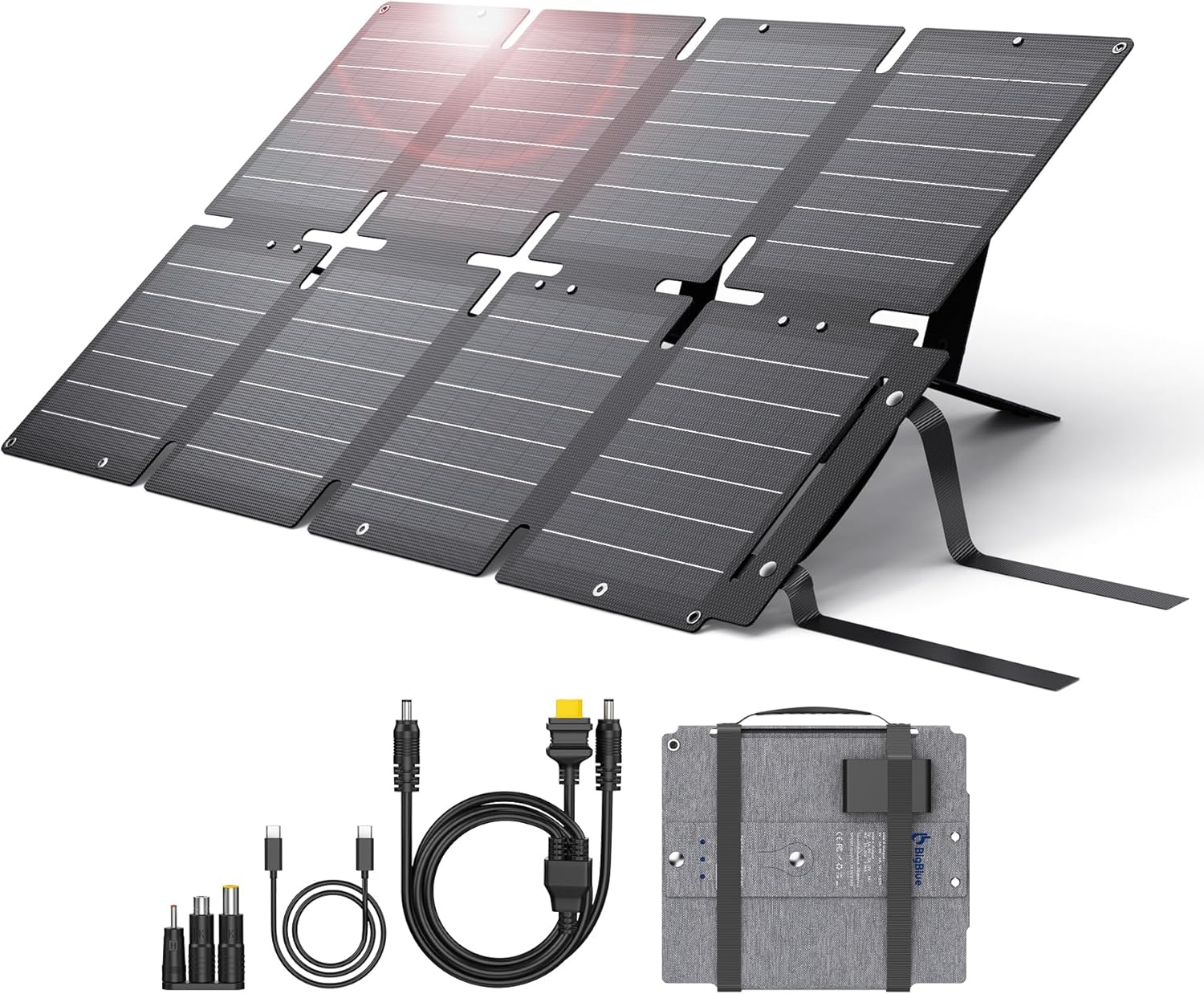
Figure 3.1: The BigBlue 60W Solar Panel in its fully unfolded state.
3.2 Deploying the Kickstands
The integrated kickstands allow you to angle the solar panel towards the sun for maximum efficiency.
- Locate the two foldable kickstands on the back of the solar panel.
- Extend each kickstand and secure it into the designated slots to prop up the panel.
- Adjust the angle of the panel to face the sun directly. For optimal performance, aim for a 90-degree angle between the sun's rays and the panel surface.

Figure 3.2: Proper deployment of the kickstands for sun optimization.
Video 3.1: A demonstration of unpacking and setting up the BigBlue X60 Solar Panel, including unfolding and deploying the kickstands.
4. Operation
The BigBlue 60W Solar Panel offers multiple output options for charging various devices.
4.1 Connecting Devices
The control box on the back of the panel features the following output ports:
- USB-A Port: 20W output for smartphones, tablets, and other USB-A compatible devices.
- USB-C PD Port: 45W Power Delivery output for fast charging compatible smartphones, tablets, laptops, and power banks.
- DC5525 Port: 60W output (23.2V/2.59A) for connecting to portable power stations using the included Y-branch cable and DC adapter set.
To charge a device:
- Ensure the solar panel is unfolded and positioned in direct sunlight.
- Connect your device or power station to the appropriate output port using the provided cables or your device's charging cable.
- The LED indicator on the control box will illuminate when power is being generated and supplied.

Figure 4.1: The control box with various output ports.

Figure 4.2: Compatibility with various devices and power stations.
4.2 Optimal Charging Conditions
For best charging results, ensure the solar panel is:
- Placed in direct, unobstructed sunlight.
- Angled directly towards the sun. Adjust the kickstands periodically as the sun moves.
- Free from shadows, dirt, or debris on the solar cells.
Note: This product does not store electricity. It must be used in direct sunlight while connected to your devices or a power station.
5. Maintenance
Proper maintenance will extend the lifespan and efficiency of your solar panel.
5.1 Cleaning
- Regularly wipe the solar panels with a soft, damp cloth to remove dust, dirt, or debris.
- Avoid using abrasive cleaners or harsh chemicals, as these can damage the panel surface.
- Ensure the panel is dry before folding and storing.
5.2 Storage
- When not in use, fold the solar panel compactly and secure it with the integrated straps.
- Store the panel in a cool, dry place away from direct sunlight and extreme temperatures.
5.3 IP68 Waterproof Rating
The BigBlue solar panel features an IP68 waterproof rating, providing excellent protection against dust ingress and prolonged water immersion. However, please note that the junction box (where the output ports are located) is not waterproof. Ensure the junction box is protected from water exposure.

Figure 5.1: The solar panel's IP68 waterproof feature.
6. Troubleshooting
If you encounter issues with your BigBlue 60W Solar Panel, refer to the following common problems and solutions:
| Problem | Possible Cause | Solution |
|---|---|---|
| No power output / Device not charging. |
|
|
| Slow charging speed. |
|
|
| LED indicator not lit. |
|
|
If the problem persists after trying these solutions, please contact BigBlue customer support for further assistance.
7. Specifications
| Feature | Detail |
|---|---|
| Brand | BigBlue |
| Model | X60 |
| Maximum Power | 60 Watts |
| Solar Cell Efficiency | 24.7% |
| Material | ETFE |
| Product Dimensions (Unfolded) | 921mm L x 522mm W (36.26"L x 20.55"W) |
| Folded Size | 10.16"L x 8.43"W x 2.36"H |
| Item Weight | 5.7 Pounds (approx. 1.95kg) |
| Output Voltage (DC5525) | 23.2 Volts |
| Output Current (DC5525) | 2.59 Amps |
| USB-C Output | PD 45W (5V=3A, 9V=3A, 12V=3A, 15V=3A, 20V=2.25A) |
| USB-A Output | 20W (5V=3A, 9V=2A, 12V=1.67A) |
| Waterproof Rating | IP68 (Note: Junction box is not waterproof) |
| Special Features | Portable, Kickstand, Folding |
| Included Components | SolarPowa X60, Y-Branch cable, USB-C to USB-C Cable, DC Connector Set |
8. Warranty & Support
BigBlue stands behind the quality of its products.
8.1 Warranty
The BigBlue 60W Portable Compact Solar Panel comes with a 2-Year Quality Guarantee from the date of purchase. This warranty covers manufacturing defects and issues arising from normal use. It does not cover damage caused by misuse, accidents, unauthorized modifications, or natural disasters.
8.2 Customer Support
For any questions, concerns, or technical assistance, please contact BigBlue customer support. Our friendly online support team is available to help you. Please have your product model (X60) and purchase information ready when contacting support.
You can also visit the official BigBlue store on Amazon for more information and resources: BigBlue Amazon Store
Related documentsX60


Ask a question about this manual
Ask about setup, troubleshooting, compatibility, parts, safety, or missing instructions. Manuals+ will review the question and use this page’s manual context to help answer it.