
Roinvou Roinvou 7-inch Touch Screen Car Radio 4+64G
Roinvou 7-inch Touch Screen Car Radio User Manual
Model: Roinvou 7-inch Touch Screen Car Radio 4+64G
1. Introduction
This manual provides detailed instructions for the installation, operation, and maintenance of your Roinvou 7-inch Touch Screen Car Radio. Please read this manual thoroughly before using the product to ensure proper functionality and safety. Keep this manual for future reference.
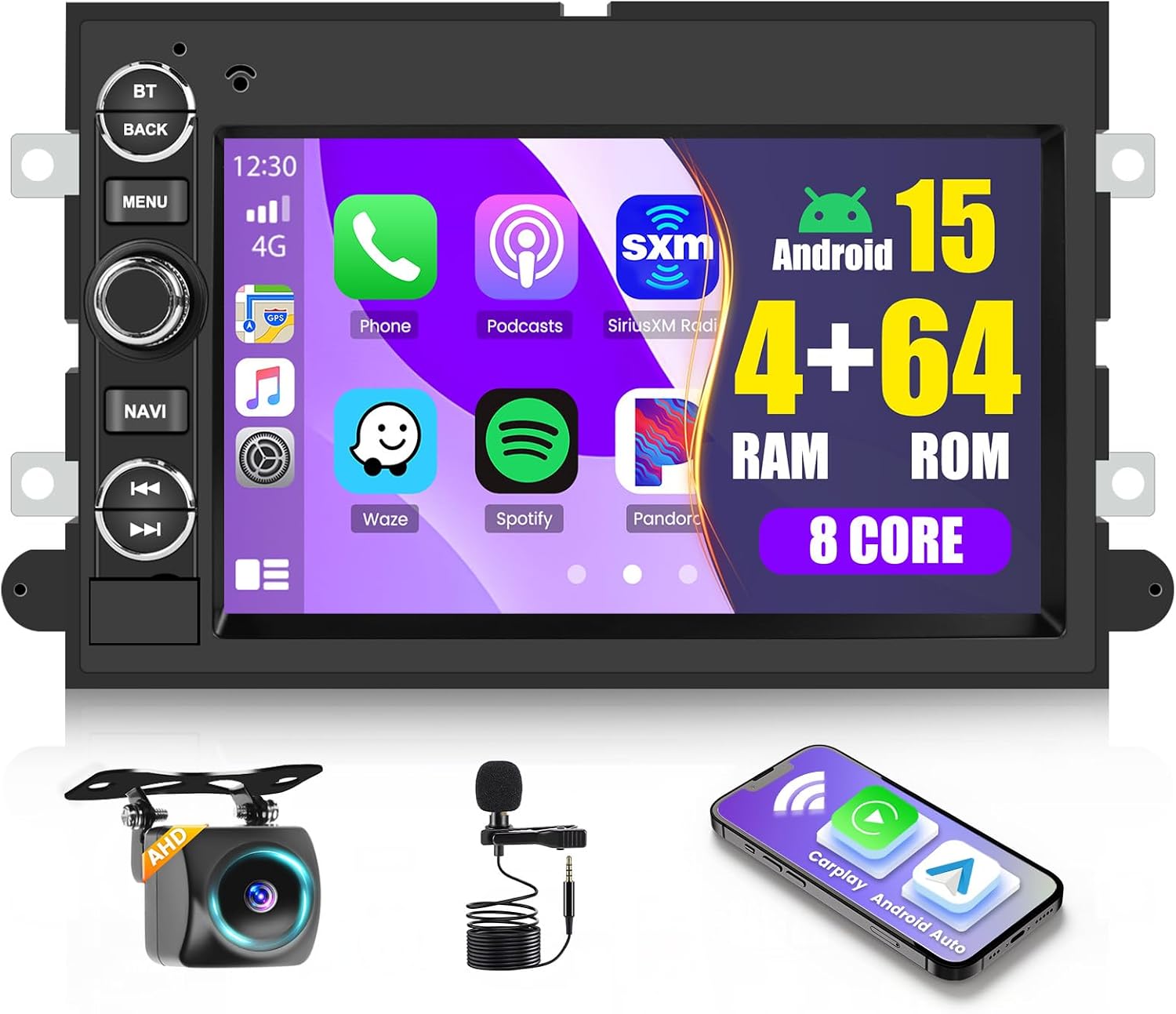
This image displays the Roinvou 7-inch touch screen car radio unit, along with its key accessories: a high-definition backup camera, an external microphone for clear audio, and a smartphone illustrating the wireless CarPlay and Android Auto functionality.
2. Product Overview
2.1 Key Features
- 7-inch HD Touch Screen (1280*720 resolution)
- Wireless CarPlay & Android Auto
- 5G WiFi Connectivity
- Bluetooth 5.0 for hands-free calls and audio streaming
- Built-in GPS Navigation
- FM/RDS Radio with 30 preset stations
- Mirror Link for Android and iOS devices
- Split Screen Functionality
- Steering Wheel Control (SWC) support
- Reversing Camera input with automatic display
- Multiple UI options and customizable wallpapers
- 32-band Equalizer (EQ)
2.2 Compatible Car Models
This car radio is designed to fit various Ford models. Please verify your vehicle's compatibility before installation.
- Ford F150: 2004-2008
- Ford F250/F350: 2006-2014
- Ford E250/E350: 2009-2014
- Ford Edge: 2007-2010
- Ford Taurus/Sable: 2008-2009
- Ford Fusion/Milan: 2006-2009
- Ford Focus/Montego/Freestyle: 2005-2007
- Ford Explorer (U251): 2006-2010
- Ford Escape: 2008-2012
- Ford Expedition: 2007-2014
- Ford MKX: 2007-2009
- Ford Mark LT: 2006-2008
- Ford Mustang: 2005-2009

This image provides a comprehensive list of Ford vehicle models and their corresponding manufacturing years that are compatible with the Roinvou 7-inch car radio. It also shows a 'Before Installation' view of a factory radio and an 'After Installation' view with the Roinvou unit seamlessly integrated into the dashboard.
3. Package Contents
Verify that all items listed below are included in your package:
- Roinvou Car Stereo Unit
- Power Cable
- RCA Cable
- USB Cable
- Instruction Manual
- GPS Antenna
- Camera Input Cable
- Canbus Decoder
- Adapter Antenna
- Rear Camera
- Microphone
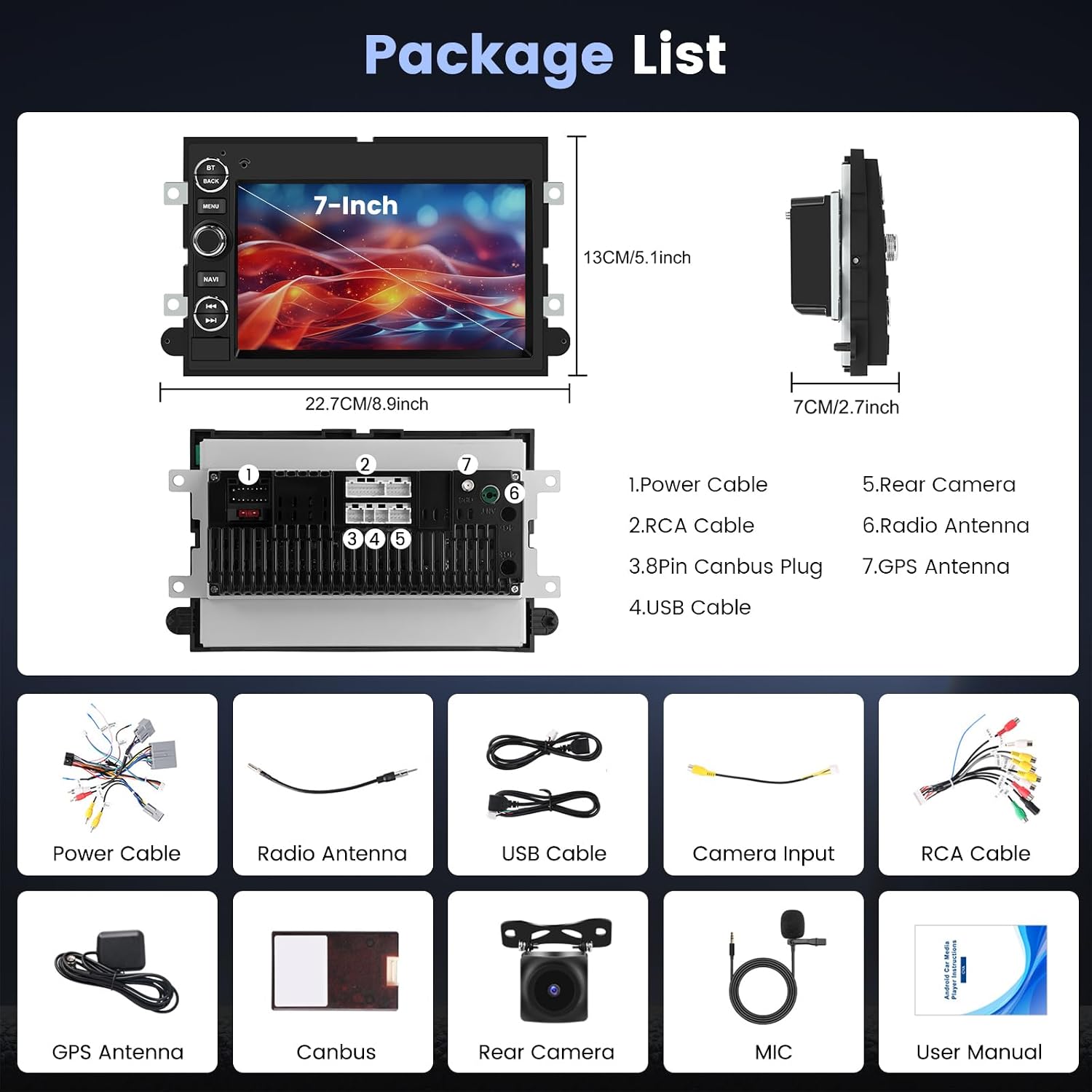
This image provides a detailed diagram of the Roinvou 7-inch car radio's dimensions and a visual representation of all items included in the package, such as the power cable, RCA cable, USB cable, GPS antenna, camera input, Canbus, and the user manual.
4. Setup & Installation
Professional installation is recommended for optimal performance and to avoid damage to your vehicle or the unit.
4.1 Wiring Connections
Carefully connect the provided cables to the corresponding ports on the car radio and your vehicle's wiring harness. Refer to the wiring diagrams for detailed instructions.

This image provides a detailed diagram of the wiring harness, illustrating connections for the AMP control cable, AUX inputs, video outputs, microphone, and subwoofer, along with pin assignments for the 16-pin connector.

This image shows the various connection points on the back of the car radio, including the power cable, RCA cable, GPS antenna, camera input, USB cable, and the Canbus decoder, providing a visual guide for proper setup.
4.2 Backup Camera Connection
Connect the backup camera as shown in the diagram. The reverse input cable must be plugged in even if the camera is not used, as it affects Bluetooth and WiFi signal reception.
- Red Cable (1): Connects to the positive terminal of the car's reverse light cable.
- Black Cable (2): Connects to the negative terminal of the car's reverse light cable.

This image provides a detailed wiring diagram for connecting the backup camera and Canbus. It specifies that the red cable connects to the positive terminal of the reverse light and the black cable to the negative terminal, emphasizing that the reverse input cable must be connected for proper signal reception.
5. Operating Instructions
5.1 Wireless CarPlay & Android Auto
Connect your smartphone wirelessly via Bluetooth to enable CarPlay or Android Auto. This allows you to access navigation, music, phone calls, and messaging through the car radio's interface, utilizing voice control via Siri or Google Assistant.

This image illustrates the user interface for Wireless CarPlay, Android Auto, and Mirror Link functionalities. It highlights how these features enable GPS navigation, music playback, hands-free phone calls, and message management directly from the car radio's 7-inch touch screen.
5.2 WiFi & GPS Navigation
Connect the unit to a WiFi network to download applications, stream online music, and watch videos. The built-in GPS allows for both online and offline navigation. Download offline maps from the Play Store for use without an internet connection.

This image demonstrates the car radio's WiFi connectivity, allowing access to online applications for entertainment and information.

This image shows the integrated GPS navigation system on the car radio, providing clear map views, route guidance, and real-time travel information.
5.3 Bluetooth 5.0
Pair your phone via Bluetooth for hands-free calling, phone book synchronization, and wireless music streaming.

This image shows the car radio interface with Bluetooth 5.0 enabled, indicating its capability for seamless music streaming and hands-free communication.
5.4 Mirror Link
Synchronize your Android or iOS smartphone screen to the car radio display to enjoy multimedia content on a larger screen.
5.5 FM/RDS Radio
Access FM radio stations and receive real-time information via RDS. The unit features 30 preset stations for quick access to your favorite channels.

This image illustrates the FM/RDS radio interface, showing available frequencies and controls for tuning into radio stations and receiving real-time broadcast information.
5.6 Split Screen Function
The split-screen feature allows you to run and view two applications simultaneously on the car's display, enhancing multitasking capabilities during your drive.
5.7 Steering Wheel Control (SWC)
Program your vehicle's steering wheel buttons to control the car radio functions. This allows for safe and convenient operation without diverting attention from the road.
5.8 Reversing Camera
When the vehicle is shifted into reverse, the car radio automatically displays the view from the connected backup camera, aiding in safe parking and maneuvering.
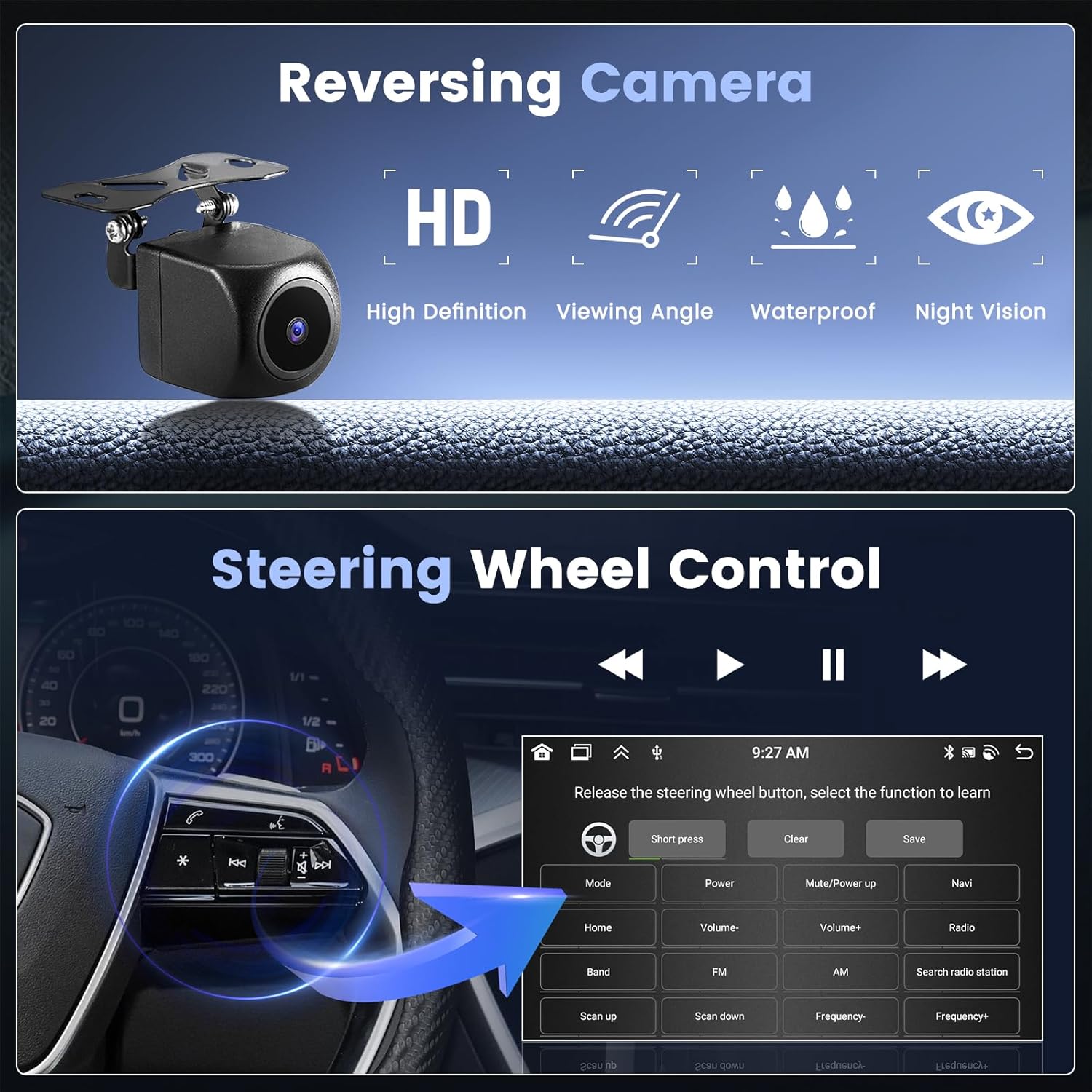
This image combines two key features: the reversing camera, showing its high-definition, wide-angle, waterproof, and night vision capabilities, and the steering wheel control interface, detailing how to program buttons for easy access to radio functions without taking hands off the wheel.
5.9 UI Interface & Wallpaper Options
Customize the look of your car radio with various user interface themes and wallpaper options to match your personal style.

This image showcases a variety of customizable user interface designs and wallpaper options, allowing users to personalize the appearance of their Roinvou car radio's display to match their preferences.
6. Maintenance
- Cleaning: Use a soft, dry cloth to clean the screen and unit. Avoid abrasive cleaners or solvents.
- Software Updates: Periodically check for software updates to ensure optimal performance and access to new features. Follow the on-screen instructions for any available updates.
- Temperature: Avoid exposing the unit to extreme temperatures, direct sunlight for prolonged periods, or high humidity.
7. Troubleshooting
- No Power:
- Check all power connections and fuses.
- Ensure the vehicle's ignition is on. - No Sound:
- Verify speaker connections.
- Check volume levels and mute settings.
- Ensure the correct audio source is selected. - GPS Signal Issues:
- Ensure the GPS antenna is properly installed and has a clear view of the sky.
- Check for obstructions that might block the signal. - Bluetooth Connection Problems:
- Ensure Bluetooth is enabled on both the car radio and your smartphone.
- Delete previous pairings and try reconnecting.
- Ensure the reverse input cable is connected, as it affects Bluetooth signal. - Backup Camera Not Displaying:
- Check camera power and video connections.
- Ensure the reverse gear is engaged.
- Verify the reverse input cable is correctly wired to the vehicle's reverse light. - Touch Screen Unresponsive:
- Restart the unit.
- If the issue persists, a factory reset may be required (refer to system settings).
8. Specifications
| Item Weight | 2.95 pounds |
| Package Dimensions | 11.02 x 8.27 x 4.13 inches |
| Display Size | 7 Inches |
| Resolution | 1280 x 720 |
| Operating System | Android |
| Connectivity Technology | Bluetooth, USB, Wi-Fi |
| Bluetooth Version | 5.0 |
| Special Features | Wireless/Wired Apple CarPlay & Android Auto, 5G WiFi, 8 Core, HD Touchscreen, 32-band EQ, 19 Backgrounds, 59 UI Themes, GPS Navigation, Mirror Link, Voice Control, SWC |
| Audio Output Mode | Stereo |
| Map Type | North America |
9. Warranty & Support
9.1 Warranty Information
This Roinvou car radio comes with a 1 Year Warranty from the date of purchase. This warranty covers manufacturing defects and malfunctions under normal use. It does not cover damage caused by improper installation, misuse, accidents, or unauthorized modifications.
9.2 Customer Support
For technical assistance, troubleshooting, or warranty claims, please contact Roinvou customer support. You can typically find contact information through the seller's page on the platform where you purchased the product.

This image provides details on how to access Roinvou customer support, including steps to contact the seller for inquiries or assistance.
Related documentsRoinvou 7-inch Touch Screen Car Radio 4+64G


Ask a question about this manual
Ask about setup, troubleshooting, compatibility, parts, safety, or missing instructions. Manuals+ will review the question and use this page’s manual context to help answer it.