
GPD GPD Win Max 2 2025
GPD Win Max 2 2025 Handheld Game Console User Manual
Model: GPD Win Max 2 2025
1. Introduction
This manual provides essential information for the setup, operation, maintenance, and troubleshooting of your GPD Win Max 2 2025 handheld game console. Please read this manual thoroughly before using the device to ensure optimal performance and longevity.
2. Product Overview
2.1 Key Features
- Display: 10.1-inch eye-care full-screen display with native landscape orientation, ultra-narrow bezel, 10-point touch, and 4096 levels of pressure sensitivity (MPP 2.0 protocol).
- Construction: Constructed with 6061 aluminum-magnesium alloy body using CNC craftsmanship, featuring an aerospace-grade ABS synthetic resin back for comfortable grip and heat management.
- Storage: Dual M.2 slots (PCIe 4.0 2280 / 2230) for storage expansion, includes a 2TB M.2 NVMe 2280 SSD.
- Camera: Integrated 2MP ultra-wide-angle camera with a 118-degree field of view and high refresh rate.
- Audio: Upgraded audio amplifier IC with built-in 4-channel smart amplifier and four ultra-linear speakers for surround sound.
2.2 Device Components
Familiarize yourself with the various components of your GPD Win Max 2 2025.

The GPD Win Max 2 2025 combines a mini laptop form factor with integrated gaming controls. The 10.1-inch display is central, with a full QWERTY keyboard below. Gamepad controls are located on either side of the keyboard, designed for ergonomic use.

This image provides an angled view, emphasizing the device's portability and the integration of gaming controls alongside a functional keyboard. The screen is shown displaying a game, indicating its primary use case.
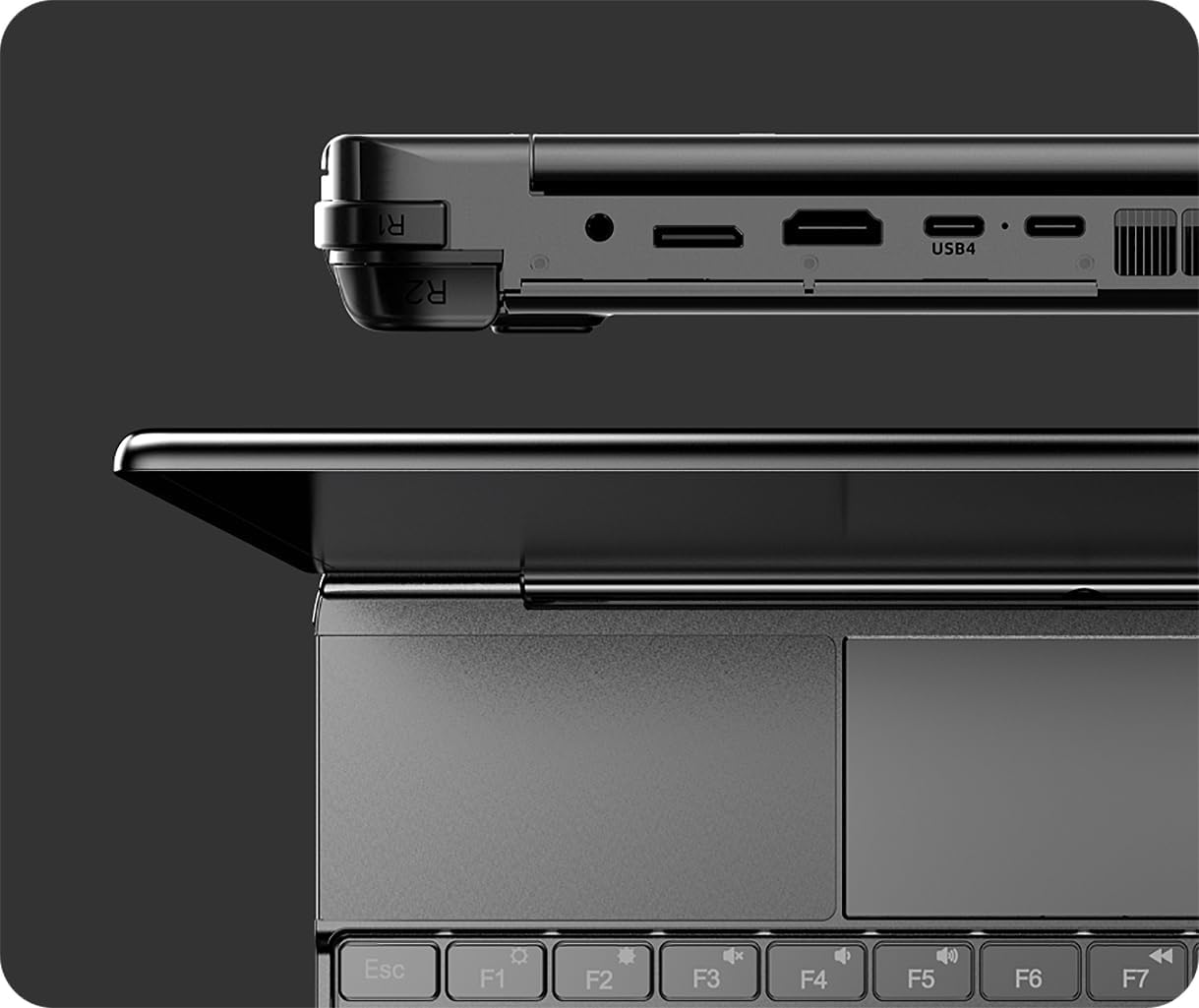
This image focuses on the rear of the device, showing the ergonomically placed mappable back buttons and the ventilation system designed for efficient heat dissipation during intensive use.

This detailed diagram labels all external ports and buttons, including the 3.5mm headset jack, Oculink port, HDMI 2.1, USB4 ports, microSD slot, SD slot, reset button, loudspeakers, power button with fingerprint sensor, and USB 3.2 Gen2 Type A ports. This is essential for understanding connectivity and control.
3. Setup
3.1 Initial Charging
Before first use, connect the provided PD Power Adapter to the device's USB-C charging port (one of the USB4 ports) and a power outlet. Allow the device to charge fully. The charging indicator light will change color or turn off when charging is complete.
3.2 Powering On and Initial Configuration
- Press and hold the Power button (located near the top right of the keyboard, often integrated with a fingerprint sensor) until the screen illuminates.
- Follow the on-screen prompts to complete the Windows 11 initial setup, including language selection, network connection, user account creation, and privacy settings.
- It is recommended to connect to a Wi-Fi network during setup to download critical updates.
3.3 Driver and Software Updates
After initial setup, ensure all drivers and system software are up to date for optimal performance and stability. Connect to the internet and perform the following:
- Windows Update: Go to Settings > Windows Update and check for updates. Install all available updates.
- Graphics Drivers: Visit the AMD website or use AMD's software to check for and install the latest graphics drivers for the Ryzen AI 9 HX 370 processor.
- GPD Utilities: Check the official GPD website for any specific utility software or driver updates for the Win Max 2 2025 model.
4. Operating Instructions
4.1 Basic Navigation
- Touchscreen: Use the 10.1-inch touchscreen for direct interaction with Windows 11.
- Keyboard: Utilize the integrated QWERTY keyboard for typing and system commands.
- Trackpad: The device includes a trackpad for cursor control.
- Gamepad Controls: The integrated joysticks, D-pad, and action buttons are primarily for gaming.
4.2 Gaming Mode
The GPD Win Max 2 2025 is designed for handheld gaming. The integrated gamepad controls are optimized for this purpose.

This image depicts the device being held in a gaming posture, illustrating how the integrated controls are accessed and used for gameplay.
- Mappable Back Buttons: The two mappable back buttons can be customized for in-game actions or software shortcuts using the WinControls tool.
- Dual Vibration Motors: The built-in vibration motors provide haptic feedback. Vibration intensity can be adjusted (Off, Weak, Strong) via software settings.
- Analog Triggers: The analog triggers support 256 levels of feedback, enhancing realism in racing and shooter games.
4.3 Display Features

The display features 450 nit brightness, 2560x1600 resolution, 90% screen ratio, LTPS technology, Delta E < 1 color accuracy, 299 PPI Retina Display, NTSC/sRGB color gamut coverage, and 1000:1 contrast ratio.
4.4 External Display Connection
Connect the GPD Win Max 2 2025 to an external monitor or TV using the HDMI 2.1 port or one of the USB4 ports (with a compatible adapter) for a larger display experience.

This image demonstrates the device's capability to connect to an external monitor and an external GPU (eGPU) enclosure, significantly enhancing its graphical performance for desktop-like gaming.
4.5 Storage Expansion
The device features dual M.2 slots (PCIe 4.0 2280 / 2230) for storage expansion. To install an additional M.2 SSD:
- Power off the device completely and disconnect all cables.
- Carefully open the back panel of the device. Refer to the official GPD service manual or support resources for precise instructions on accessing the M.2 slots.
- Insert the new M.2 SSD into the available slot and secure it.
- Close the back panel and power on the device. The new drive may need to be initialized and formatted in Windows Disk Management before use.
Note: Opening the device may void your warranty if not performed correctly. Consult GPD support if unsure.
5. Maintenance
5.1 Cleaning
- Use a soft, lint-free cloth to clean the screen and exterior. For stubborn smudges, slightly dampen the cloth with water or a screen-safe cleaner.
- Avoid spraying liquids directly onto the device.
- Use compressed air to clear dust from ventilation grilles and keyboard crevices.
5.2 Battery Care
- Avoid fully discharging the battery frequently.
- Store the device in a cool, dry place if not used for extended periods, ideally with the battery charged to around 50-70%.
- Use only the original or certified compatible charger.
5.3 Software Maintenance
- Regularly update Windows and drivers.
- Perform periodic disk cleanup and defragmentation (for HDDs, not necessary for SSDs).
- Run antivirus/anti-malware scans regularly.
6. Troubleshooting
6.1 Device Does Not Power On
- Ensure the device is fully charged. Connect the charger and wait a few minutes before attempting to power on again.
- Try holding the power button for 10-15 seconds to perform a hard reset.
- If the issue persists, contact GPD support.
6.2 Screen Remains Black or Displays No Image
Some users have reported issues with the screen remaining black. If this occurs:
- Connect the device to an external monitor via HDMI or USB4 to verify if the system is booting correctly.
- If an image appears on the external monitor, the issue may be with the internal display or its connection.
- Try updating graphics drivers.
- Perform a system restore or reinstall Windows if software corruption is suspected.
- If the problem persists, especially after a period of use, it may indicate a hardware fault. Contact GPD support for assistance.
6.3 Performance Issues / Overheating
- Ensure the ventilation grilles are not obstructed.
- Close unnecessary background applications.
- Update drivers and system software.
- Adjust power settings in Windows to a balanced or power-saving mode if high performance is not required.
6.4 Gamepad Controls Not Responding
- Check if the gamepad mode is enabled (if there's a physical switch or software toggle).
- Ensure all GPD-specific drivers and utilities (like WinControls) are installed and up to date.
- Test the controls in different applications or games.
7. Specifications
| Feature | Detail |
|---|---|
| Model Name | GPD Win Max 2 2025 |
| Processor | AMD Ryzen AI 9 HX 370 (3.3 GHz) |
| RAM | 64 GB |
| Storage | 2 TB M.2 2280 SSD (Dual M.2 slots) |
| Operating System | Windows 11 |
| Screen Size | 10.1 Inches |
| Resolution | 2560x1600 (Native) / 1920x1080 (Common Output) |
| Touchscreen | 10-point touch, 4096 levels pressure sensitivity (MPP 2.0) |
| Graphics Card | Dedicated (AMD Radeon 890M) |
| Ports | 4 Total USB Ports (USB4, USB 3.2 Gen2 Type A), HDMI 2.1, Oculink (SFF-8612), 3.5mm Headset & Microphones, microSD Slot, SD Slot |
| Camera | 2MP Ultra-wide-angle (118-degree FOV) |
| Audio | 4-channel smart amplifier, four ultra-linear speakers |
| Dimensions | 8.93 x 6.3 x 0.9 inches |
| Weight | 3.99 pounds |
| Battery | 1 Lithium Ion battery (included) |
| Color | Black |
Note: Specifications are subject to change without prior notice.
8. Warranty and Support
8.1 Warranty Information
The GPD Win Max 2 2025 comes with a standard manufacturer's warranty. Please refer to the warranty card included with your product or visit the official GPD website for detailed terms and conditions, including warranty duration and coverage.
Note: This manual does not constitute a warranty. Keep your proof of purchase for warranty claims.
8.2 Customer Support
For technical assistance, troubleshooting beyond this manual, or warranty inquiries, please contact GPD customer support through their official website. You may need your product's serial number and proof of purchase when contacting support.
GPD Official Website: www.gpd.hk
Related documentsGPD Win Max 2 2025

Ask a question about this manual
Ask about setup, troubleshooting, compatibility, parts, safety, or missing instructions. Manuals+ will review the question and use this page’s manual context to help answer it.