
1. Introduction
This manual provides essential information for the installation, operation, and maintenance of your Amazon Renewed C9300L-24T-4X-A Catalyst 9300L Network Switch. This device is a high-performance, fixed-configuration switch designed for enterprise access layer deployments, offering 24 Gigabit Ethernet ports and 4x 10 Gigabit Ethernet uplinks with Network Advantage features.
Please read this manual thoroughly before attempting to install or operate the switch to ensure proper functionality and safety.
2. Safety Information
Observe the following safety precautions to prevent injury and damage to the equipment:
- Power Source: Connect the switch only to the type of power source indicated on the marking label. Ensure the power cord is properly grounded.
- Ventilation: Do not block ventilation openings. Ensure adequate airflow around the device to prevent overheating.
- Environment: Operate the switch in a clean, dry environment within the specified temperature and humidity ranges. Avoid exposure to moisture, dust, and direct sunlight.
- Handling: Handle the switch with care. Avoid dropping or subjecting it to strong impacts.
- Servicing: Do not attempt to service this product yourself. Refer all servicing to qualified service personnel.
3. Package Contents
Verify that all items are present in the package:
- 1x C9300L-24T-4X-A Catalyst 9300L Network Switch
- 1x Console Cable
- 1x Power Cord
- 1x Rack Ears (for rack mounting)
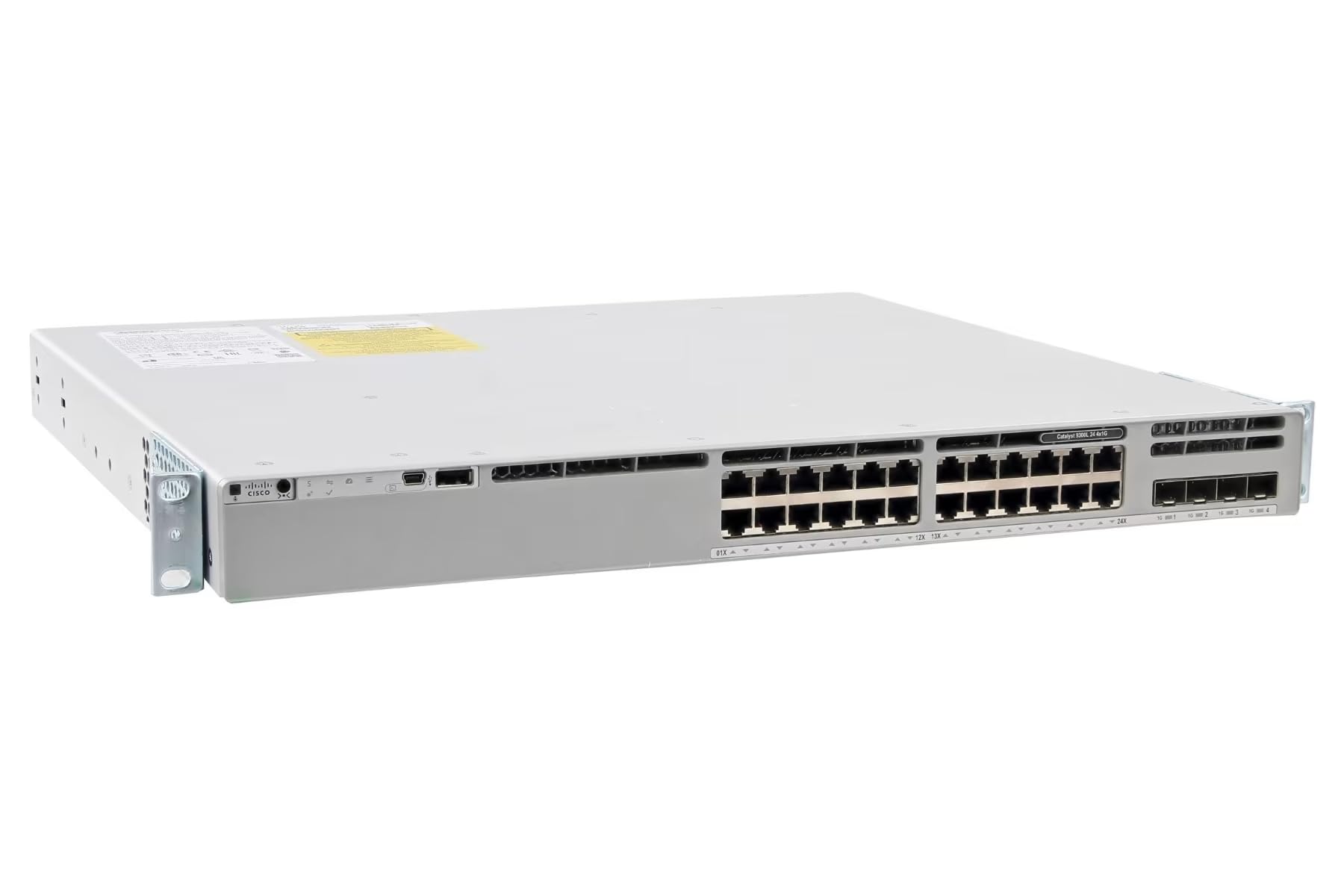
Figure 1: Front view of the C9300L-24T-4X-A Catalyst 9300L Network Switch, showing the 24 Gigabit Ethernet ports and 4x 10 Gigabit Ethernet uplink ports.
4. Setup
4.1 Physical Installation
- Rack Mounting: Attach the included rack ears to the sides of the switch using the provided screws. Secure the switch into a standard 19-inch equipment rack. Ensure sufficient space for airflow around the front, sides, and rear of the unit.
- Placement: If not rack-mounting, place the switch on a stable, flat surface away from direct heat sources, moisture, and strong electromagnetic fields.
- Cable Connections:
- Network Cables: Connect Ethernet cables from your network devices (computers, servers, access points) to the 1 Gigabit Ethernet ports (RJ-45) on the front panel.
- Uplink Cables: Connect appropriate SFP/SFP+ transceivers and fiber optic cables (or DAC cables) to the 10 Gigabit Ethernet uplink ports for connection to your core network or other switches.
- Console Cable: For initial configuration or direct management, connect the console cable (RJ-45 to DB-9 or USB) from your management workstation to the console port on the switch.
4.2 Powering On
- Connect the provided power cord to the power inlet on the rear of the switch.
- Plug the other end of the power cord into a grounded electrical outlet.
- The switch will automatically power on. Observe the system LED indicators for boot-up status. The system LED should turn green once the boot process is complete.
4.3 Initial Configuration
For initial configuration, connect to the switch via the console port using a terminal emulation program (e.g., PuTTY, Tera Term) with the following settings:
- Baud Rate: 9600
- Data Bits: 8
- Parity: None
- Stop Bits: 1
- Flow Control: None
Follow the on-screen prompts to set up basic network parameters such as IP address, subnet mask, default gateway, and administrative credentials. Refer to the official Cisco documentation for detailed configuration guides for Cisco IOS XE.
5. Operating
5.1 Basic Network Connectivity
Once configured, the switch will forward traffic between connected devices. Verify connectivity by checking the link/activity LEDs on each port. A solid green LED typically indicates a successful link, while a blinking LED indicates data activity.
5.2 Port Usage
- 1 Gigabit Ethernet Ports: Use these 24 ports for connecting end-user devices, IP phones, wireless access points, and other network peripherals requiring 1 Gbps connectivity.
- 10 Gigabit Ethernet Uplink Ports: The 4x 10G uplink ports are designed for high-bandwidth connections to distribution layer switches, servers, or other network infrastructure components. Ensure compatible SFP/SFP+ transceivers are used.
5.3 Network Advantage Features
The Network Advantage license enables advanced features such as:
- Advanced routing protocols (e.g., OSPF, EIGRP, BGP)
- Enhanced security features (e.g., TrustSec, MACsec)
- Advanced Quality of Service (QoS) capabilities
- Programmability and automation features
Detailed configuration of these features requires knowledge of Cisco IOS XE and is beyond the scope of this basic manual. Refer to Cisco's official documentation for comprehensive guides.
6. Maintenance
6.1 Cleaning
Periodically clean the exterior of the switch with a soft, dry, lint-free cloth. Do not use liquid or aerosol cleaners directly on the device. Ensure ventilation openings are free from dust and debris to maintain proper cooling.
6.2 Firmware Updates
Regularly check for and apply firmware updates to ensure optimal performance, security, and access to new features. Firmware updates typically involve downloading the new image from the manufacturer's support website and installing it via the command-line interface (CLI) or a network management system. Always back up your configuration before performing a firmware update.
6.3 Environmental Considerations
Maintain the operating environment within the specified temperature and humidity ranges to prolong the life of the device. Avoid extreme temperatures, high humidity, and rapid temperature changes.
7. Troubleshooting
This section provides solutions to common issues you might encounter.
7.1 LED Indicators
| LED | Status | Description |
|---|---|---|
| System LED | Green (Solid) | System is operating normally. |
| System LED | Amber (Solid) | System fault or error. |
| Port Status LED | Green (Solid) | Link established. |
| Port Status LED | Green (Blinking) | Activity on port. |
| Port Status LED | Off | No link or port disabled. |
7.2 Common Issues
- No Power:
- Ensure the power cord is securely connected to both the switch and the power outlet.
- Verify the power outlet is functional.
- No Link on Port:
- Check the Ethernet cable for damage and ensure it is properly seated at both ends.
- Verify the connected device is powered on and functioning correctly.
- Ensure the port is not administratively shut down in the switch configuration.
- Network Connectivity Issues:
- Verify IP addressing and subnet mask configurations on the switch and connected devices.
- Check routing tables if devices are on different subnets.
- Ensure no VLAN misconfigurations are present.
7.3 Factory Reset
Performing a factory reset will erase all configurations and restore the switch to its default settings. This procedure should only be performed as a last resort and requires console access. Refer to Cisco's official documentation for the specific steps to perform a factory reset on a Catalyst 9300L series switch.
8. Specifications
| Feature | Description |
|---|---|
| Model | C9300L-24T-4X-A |
| Ports | 24 x 1 Gigabit Ethernet (RJ-45), 4 x 10 Gigabit Ethernet Uplinks (SFP/SFP+) |
| License | Network Advantage |
| Manufacturer | Cisco (Original Equipment Manufacturer) |
| Brand (Renewed) | Amazon Renewed |
| ASIN | B0DQYCMCT4 |
| UPC | 703670828300 |
| Included Components | 1x Console Cable, 1x Power Cord, 1x Rack Ears |
9. Warranty and Support
9.1 Warranty Information
This product is an Amazon Renewed device. Amazon Renewed products are backed by the Amazon Renewed Guarantee. If your renewed product does not work as expected, you are eligible for a replacement or refund within 90 days of receipt. Please refer to the Amazon Renewed Guarantee terms and conditions for full details.
9.2 Technical Support
For technical assistance, troubleshooting, or warranty claims related to this Amazon Renewed product, please contact the seller, Refurb Rack, directly through your Amazon order history. Alternatively, you can contact Amazon Renewed customer support for assistance with the Amazon Renewed Guarantee.
For advanced configuration and detailed technical documentation, please refer to the official Cisco documentation for the Catalyst 9300L series switches.