
1. Introduction
Thank you for choosing the MIKUSO Wired Keyboard. This manual provides essential information for setting up, operating, and maintaining your new keyboard. Designed for comfort and efficiency, this full-size 104-key keyboard is a reliable companion for your laptop or PC.
What's in the Box:
- Wired Keyboard
- Original Keyboard Cover
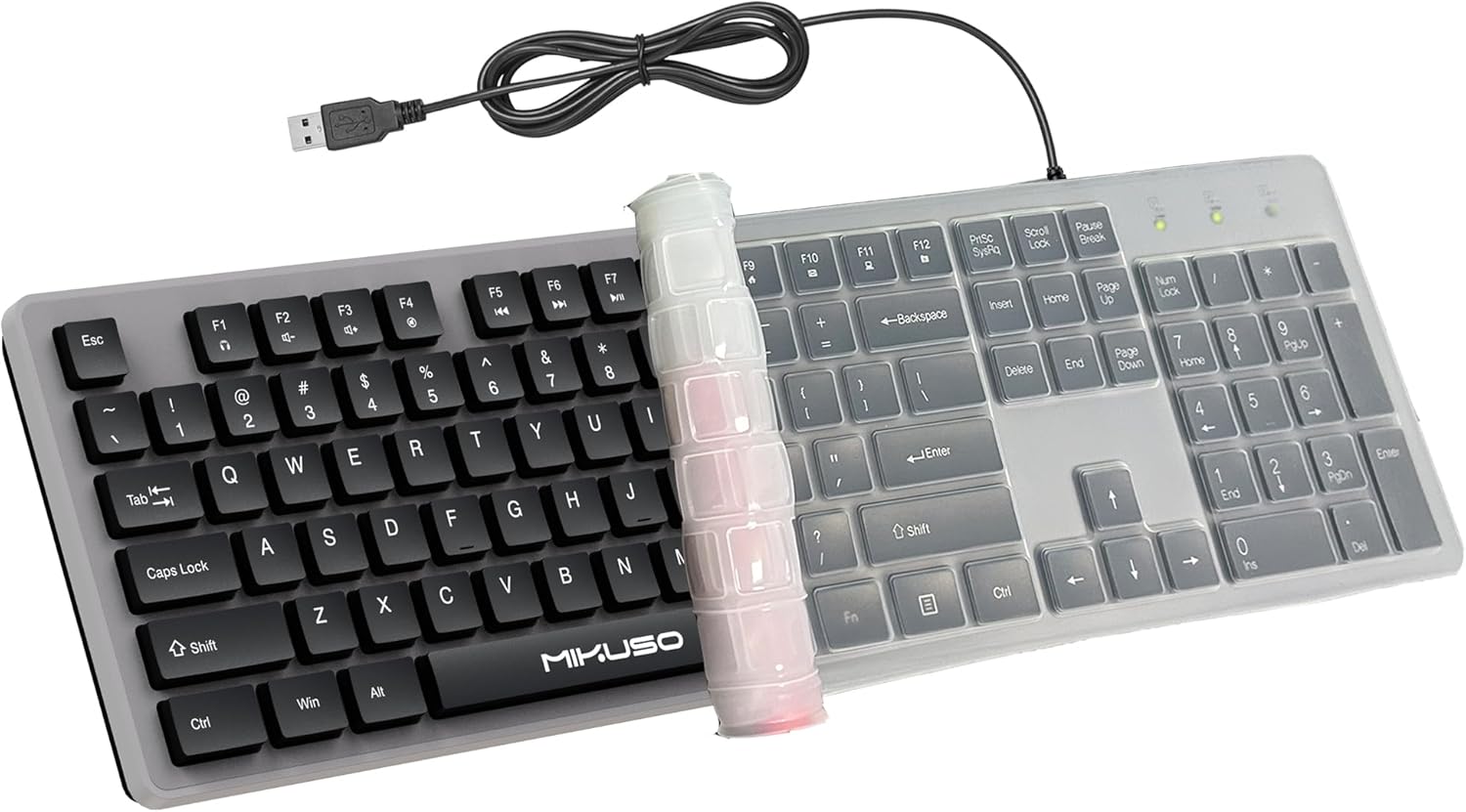
Figure 1: MIKUSO Wired Keyboard with its protective cover and USB cable.
2. Key Features
- Keyboard with Cover: Equipped with a 0.4mm thick dust-proof film to prevent spills, reduce key sound, and extend key lifespan.
- Low Noise Keystrokes: The original keyboard cover significantly reduces typing noise, making it over 90% quieter than similar keyboards.
- Laser Engraved Characters: Advanced laser engraving technology ensures characters do not fade even after long-term use, maintaining clear visibility.
- 12 Multimedia Hotkeys: Convenient access to functions like music, volume, computer, and email to improve work efficiency.
- Plug and Play: No driver installation required for immediate use. Wired connection provides stable signal input and sensitive typing.
- Ergonomic Design: Features a thickened keyboard casing with a tilt angle of approximately 5.71 degrees for comfortable hand feel and reduced fatigue.

Figure 2: Overview of the keyboard's key features.
3. Setup
The MIKUSO Wired Keyboard is designed for simple plug-and-play functionality. No complex driver installations are required.
Connecting Your Keyboard:
- Locate an available USB-A port on your computer (desktop PC or laptop).
- Insert the USB connector of the keyboard firmly into the USB-A port.
- Your operating system should automatically detect and configure the keyboard. A notification may appear indicating that the device is ready for use.

Figure 3: Simple plug-and-play connection via USB-A.
4. Operating the Keyboard
Typing Experience:
The keyboard features soft and smooth keys with a good rebound effect, designed for comfortable and efficient typing. The laser-engraved characters ensure long-lasting visibility without fading.

Figure 4: Soft and smooth key feel for comfortable typing.
Multimedia Hotkeys:
Utilize the 12 multimedia shortcut combinations (F1-F12) for quick access to various functions:
- F1-F8: Media control (play/pause, stop, previous, next, mute, volume down, volume up).
- F9-F12: Quick access to email, web browser, calculator, and media player.
These shortcuts can significantly improve your workflow and efficiency.

Figure 5: Multimedia hotkeys for quick function access.
Indicator Lights:
The upper right corner of the keyboard features LED indicator lights for:
- Caps Lock
- Num Lock
- Scroll Lock
These lights provide clear visual feedback on the status of these functions.
Video 1: Demonstrates the MIKUSO keyboard's features, including the protective cover, low noise keystrokes, and plug-and-play functionality. This video is provided by the seller.
5. Maintenance
Keyboard Cover Benefits:
The included 0.4mm thick dust-proof film is crucial for maintaining your keyboard's condition. It offers:
- Spill Protection: Prevents damage from accidental water or coffee spills.
- Dust Prevention: Keeps dust and debris from entering through key gaps.
- Noise Reduction: Dampens key sounds for a quieter typing experience.
- Extended Lifespan: Protects the keys from wear and tear.

Figure 6: The keyboard cover provides excellent protection against spills.
Cleaning:
- To clean the keyboard, gently remove the dust-proof cover.
- Wipe the keyboard surface with a soft, dry cloth. For stubborn dirt, use a slightly damp cloth and ensure the keyboard is completely dry before reattaching the cover or using.
- The keyboard cover is washable. Clean it with mild soap and water, rinse thoroughly, and allow it to air dry completely before placing it back on the keyboard.
6. Troubleshooting
Common Issues and Solutions:
- Keyboard not responding:
- Ensure the USB connector is securely plugged into a working USB port.
- Try plugging the keyboard into a different USB port on your computer.
- Restart your computer.
- Multimedia keys not working (MAC systems):
- Note that multimedia keys may not be fully compatible with MAC operating systems. This is a known limitation.
- Characters fading:
- The keyboard uses laser-engraved characters designed for durability. Ensure you are using the protective cover to prevent excessive wear from oils and friction.
7. Specifications
| Feature | Detail |
|---|---|
| Model Number | KB-088U |
| Connectivity | Wired, USB-A |
| Number of Keys | 104 (Full Size) |
| Keyboard Description | Membrane |
| Product Dimensions | 17.3 x 5 x 1.2 inches (440mm x 127mm x 30.5mm) |
| Item Weight | 1.18 pounds (0.53 kg) |
| Cable Length | 63 inches (1600mm) |
| Special Features | Waterproof (with cover), Laser engraved characters, Low-Profile Key, Hotkeys and Media Keys, Quiet |
| Compatibility | Windows 7, 8, 10 or higher versions |

Figure 7: Keyboard dimensions and layout.
8. Warranty and Support
For warranty information or technical support, please refer to the product packaging or contact MIKUSO customer service through the retailer where the product was purchased. Keep your purchase receipt for warranty claims.