1. Introduction
Thank you for choosing the Bisofice L86 Portable A4 Thermal Printer. This manual provides essential information for the safe and efficient operation of your device. Please read it thoroughly before use and retain it for future reference.
The Bisofice L86 is a compact and versatile thermal printer designed for various printing needs, including documents, notes, and images. Its inkless technology and multiple connectivity options make it suitable for both mobile and desktop use.
2. Safety Information
- Do not expose the printer to water or excessive humidity.
- Avoid dropping or subjecting the printer to strong impacts.
- Use only the provided charging cable and recommended thermal paper.
- Keep the printer away from heat sources and direct sunlight.
- Do not attempt to disassemble or repair the printer yourself. Contact customer support for assistance.
- Ensure proper ventilation during operation and charging.
3. Package Contents
Verify that all items are present in the package:
- 1 x Bisofice L86 Thermal Printer
- 3 x Thermal Paper Rolls
- 1 x Charging Cable
- 1 x Instruction Manual (this document)
4. Product Overview
The Bisofice L86 printer features a sleek, portable design with intuitive controls. Below are key components and their functions.

Figure 4.1: Bisofice L86 Portable Thermal Printer in a business setting, illustrating its key features like Bluetooth connectivity, 2600mAh battery, portability, and inkless operation.
4.1. Main Components
- Power Button: Turns the printer on/off and initiates certain functions.
- Paper Exit Slot: Where printed thermal paper exits.
- Paper Input Slot: Where thermal paper is loaded.
- USB-C Port: For charging and wired connection to a computer.
- Indicator Light: Displays printer status (e.g., power on, charging, error).
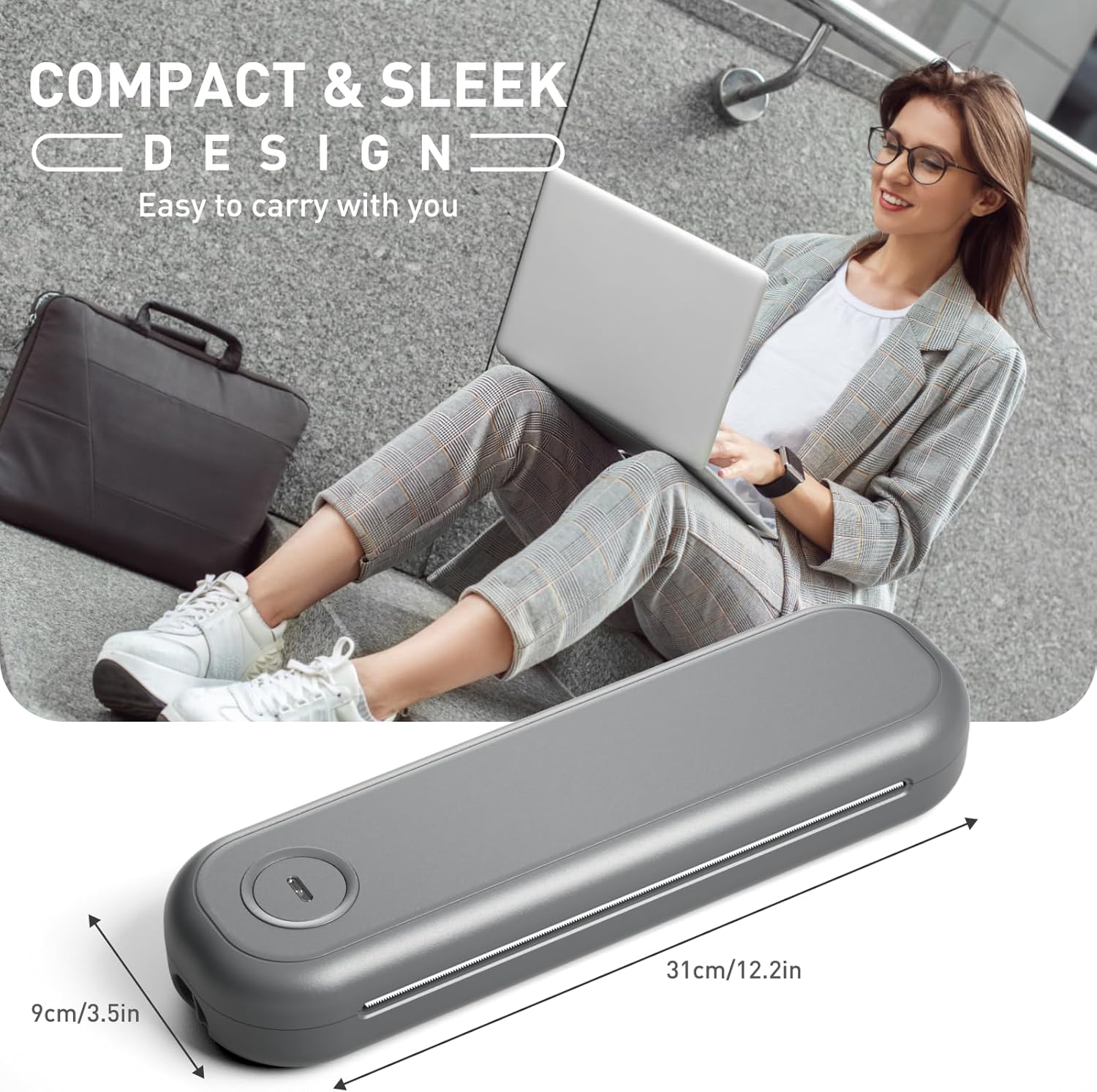
Figure 4.2: The compact and sleek design of the Bisofice L86 printer, with approximate dimensions of 31cm (12.2in) length and 9cm (3.5in) width, emphasizing its portability.
5. Setup
5.1. Charging the Printer
Before first use, fully charge the printer. Connect the provided USB-C cable to the printer's USB-C port and the other end to a compatible USB power adapter (DC-5V/2A recommended).
- The indicator light will show charging status.
- A full charge provides approximately 2.5 hours of printing or up to 400 sheets.
5.2. Loading Thermal Paper
The Bisofice L86 supports various thermal paper sizes, including folded paper and roll paper. It also features a clip to adjust paper width for sizes like 50mm, 56mm, 77mm, 107mm, 210mm, and 216mm (2in/3in/4in/8in/8.5in), including US Letter and A5.
- Open the paper cover.
- If using roll paper, place the roll into the designated compartment.
- If using folded paper, gently insert the first sheet into the paper input slot until the printer automatically feeds it.
- Adjust the paper width clip if necessary to secure the paper.
- Close the paper cover.

Figure 5.1: Illustration of loading both folded thermal paper and roll thermal paper into the Bisofice L86 printer, demonstrating its multi-size printing capability.
6. Connectivity
The printer offers both wireless (Bluetooth) and wired (USB) connectivity options.
6.1. Bluetooth Connection (Mobile Devices)
- Download the "Luck Jingle" app from the App Store (iOS) or Google Play Store (Android).
- Turn on the printer by pressing and holding the power button until the indicator light illuminates.
- Enable Bluetooth on your mobile device.
- Open the "Luck Jingle" app and follow the in-app instructions to search for and connect to your Bisofice L86 printer.
- Once connected, the indicator light may change color or status.
6.2. USB Connection (PC/Computer)
- Turn on the printer.
- Connect the printer to your PC or computer using the provided USB-C cable.
- Your computer should automatically detect the printer and install necessary drivers. If not, drivers can typically be found on the Bisofice official support website.
- Once drivers are installed, the printer will be ready for use with your computer's printing functions.

Figure 6.1: The Bisofice L86 printer demonstrating both USB connectivity for desktop computers (Windows, Mac, Linux) and Bluetooth connectivity for mobile devices (Android, iOS) via the dedicated app.
7. Operating Instructions
7.1. Printing from Mobile App
- Ensure the printer is powered on and connected via Bluetooth to your mobile device.
- Open the "Luck Jingle" app.
- Select the document, image, or template you wish to print. The app supports various file types including PDF, web pages, and images.
- Adjust print settings within the app (e.g., density, size, number of copies).
- Tap the "Print" button to initiate printing.
7.2. Printing from PC/Computer
- Ensure the printer is powered on and connected via USB to your computer.
- Open the document or file you wish to print on your computer.
- Select "Print" from the application's menu (e.g., File > Print).
- Choose "Bisofice L86" from the list of available printers.
- Adjust print settings as needed (e.g., paper size, orientation).
- Click "Print" to send the job to the printer.

Figure 7.1: A visual comparison demonstrating the clear and flat print output of the Bisofice L86 printer, emphasizing its 300DPI resolution for sharp text and images.
8. Maintenance
8.1. Cleaning the Print Head
To maintain print quality, periodically clean the print head:
- Turn off the printer and disconnect the power cable.
- Open the paper cover.
- Gently wipe the print head with a soft, lint-free cloth lightly dampened with isopropyl alcohol.
- Allow the print head to dry completely before closing the cover and resuming use.
8.2. Storage
- Store the printer in a cool, dry place away from direct sunlight and extreme temperatures.
- If storing for an extended period, ensure the battery is partially charged (around 50%) to prolong its lifespan.
- Remove any thermal paper from the printer before long-term storage.
9. Troubleshooting
| Problem | Possible Cause | Solution |
|---|---|---|
| Printer does not turn on. | Low battery or power issue. | Charge the printer using the provided cable. Ensure the power adapter is working. |
| Cannot connect via Bluetooth. | Bluetooth is off, printer not in pairing mode, or app issue. | Ensure Bluetooth is enabled on your device. Restart the printer and the app. Try re-pairing. |
| Poor print quality. | Dirty print head, incorrect paper, or low battery. | Clean the print head (Section 8.1). Ensure you are using thermal paper. Charge the printer. |
| Paper jam. | Improper paper loading or foreign object. | Turn off the printer. Carefully remove any jammed paper. Reload paper correctly. |
| Printer not recognized by PC. | Missing or incorrect drivers, faulty USB cable. | Install the correct drivers from the Bisofice support website. Try a different USB cable or port. |
10. Specifications
| Feature | Detail |
|---|---|
| Model | L86 |
| Product Dimensions | 308 x 90 x 50 mm (12.1 x 3.5 x 2 inches) |
| Product Weight | 740 g (1.63 lbs) |
| Printing Technology | Thermal Printing |
| Resolution | 304 dpi |
| Max Print Speed | 10 mm/s |
| Supported Paper Widths | 50mm, 56mm, 77mm, 107mm, 210mm, 216mm (2in/3in/4in/8in/8.5in) |
| Supported Paper Types | Thermal folding paper, thermal roll paper, thermal label/sticker paper |
| Connectivity | Bluetooth (Android/iOS), USB (Windows/Mac) |
| Battery Capacity | 2600mAh / 7.4V |
| Charging Voltage | DC-5V/2A |
| Printing Life | 30KM |
11. Warranty and Support
The Bisofice L86 Portable A4 Thermal Printer comes with a limited warranty. Please refer to the warranty card included in your package for specific terms and conditions.
For technical support, troubleshooting assistance, or warranty claims, please contact Bisofice customer service through their official website or the contact information provided with your purchase.


