
JamesDonkey J2
Contents
JamesDonkey J2 75% Wireless Mechanical Gaming Keyboard User Manual
Model: J2
Introduction
Thank you for choosing the JamesDonkey J2 75% Wireless Mechanical Gaming Keyboard. This keyboard features a compact 82-key layout, tri-mode connectivity (Bluetooth 5.1, 2.4GHz wireless, and USB-C wired), RGB backlighting, a custom knob, and QMK/VIA support for extensive customization. Designed with a gasket mount structure and PBT keycaps, it offers a comfortable and responsive typing experience. This manual provides detailed instructions for setup, operation, maintenance, and troubleshooting to ensure optimal performance of your keyboard.

Image: The JamesDonkey J2 75% Wireless Mechanical Gaming Keyboard in white, showcasing its compact layout, RGB backlighting, and a close-up of the Super Banana Switch.
Setup
Package Contents
- JamesDonkey J2 75% Wireless Mechanical Gaming Keyboard
- USB-C Cable
- 2.4GHz USB Receiver
- User Manual (this document)
- Keycap Puller (may be included)
- Switch Puller (may be included)
Connectivity Modes
The J2 keyboard supports three connection modes: 2.4GHz wireless, Bluetooth 5.1, and USB-C wired.

Image: A detailed view of the side of the keyboard showing the 2.4G/BT toggle switch, the USB-C port, and the storage slot for the 2.4GHz USB receiver.
2.4GHz Wireless Connection
- Locate the 2.4GHz USB receiver, usually stored in a dedicated slot on the keyboard.
- Plug the USB receiver into an available USB port on your computer.
- Toggle the switch on the side of the keyboard to the "2.4G" position.
- The keyboard should automatically connect. The 2.4 GHz indicator light will illuminate.
Bluetooth Connection
- Toggle the switch on the side of the keyboard to the "BT" position.
- The keyboard can store up to three Bluetooth devices. To pair, press and hold Fn + 1, Fn + 2, or Fn + 3 for 3-5 seconds until the Bluetooth indicator light flashes rapidly, indicating pairing mode.
- On your device (computer, phone, tablet), open Bluetooth settings and search for "JamesDonkey J2" or similar.
- Select the keyboard to pair. Once connected, the Bluetooth indicator light will stop flashing and remain solid.
- To switch between paired Bluetooth devices, simply press Fn + 1, Fn + 2, or Fn + 3.
USB-C Wired Connection
- Connect one end of the provided USB-C cable to the keyboard's USB-C port.
- Connect the other end of the USB-C cable to an available USB port on your computer.
- The keyboard will automatically switch to wired mode and begin charging if necessary.
Charging the Keyboard
The keyboard is equipped with a rechargeable battery. Connect the USB-C cable to the keyboard and a power source (computer USB port or USB wall adapter) to charge. The charging indicator light will show the charging status.
Operating Instructions
Indicator Lights
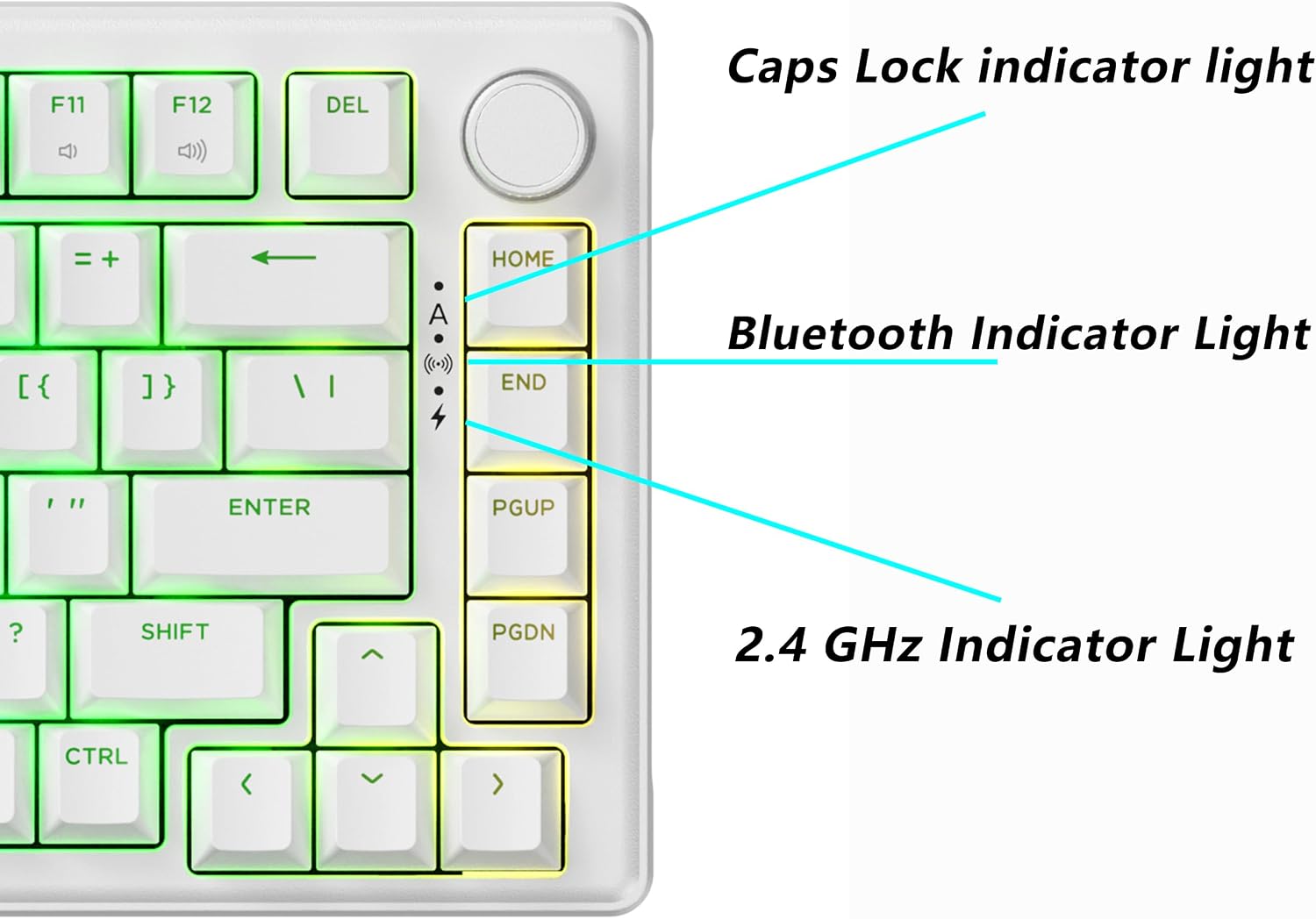
Image: A close-up of the top right section of the keyboard, highlighting the Caps Lock indicator light, Bluetooth indicator light, and 2.4 GHz indicator light.
- Caps Lock Indicator: Illuminates when Caps Lock is active.
- Bluetooth Indicator: Flashes rapidly during Bluetooth pairing, solid when connected.
- 2.4 GHz Indicator: Illuminates when connected via 2.4GHz wireless.
- Battery Indicator: (Refer to manual for specific behavior, typically flashes low battery, solid while charging, off when fully charged).
QMK/VIA Software Support
The J2 keyboard supports QMK firmware and VIA software, allowing for extensive customization of key remapping, macros, and shortcuts.

Image: A graphical representation of the QMK/VIA software interface, demonstrating its capability to customize keys, shortcuts, and macros for the keyboard, compatible with Linux, macOS, and Windows.
- Download the VIA software from the official JamesDonkey website or the QMK/VIA website.
- Connect the keyboard via USB-C wired mode for best compatibility with VIA.
- Use the software to remap keys, create complex macros, and configure lighting effects.
RGB Backlighting Control
The keyboard features customizable RGB backlighting.
- Fn + Q: Cycle through RGB lighting effects.
- Fn + W: Adjust backlight brightness (increase).
- Fn + E: Adjust backlight brightness (decrease).
- Fn + R: Adjust backlight speed (increase).
- Fn + T: Adjust backlight speed (decrease).
- Fn + A: Cycle through backlight colors.
Custom Knob Functionality
The multi-function knob located on the top right of the keyboard provides quick control over media.
- Rotate Clockwise: Increase volume.
- Rotate Counter-clockwise: Decrease volume.
- Press: Mute/Unmute audio.
- Press and Hold: (Function may be customizable via VIA software).
Adjustable Kickstands
The keyboard features adjustable kickstands on the underside, allowing you to set the typing angle for ergonomic comfort.

Image: A close-up view of the underside of the keyboard, showing one of the adjustable kickstands in an extended position.
Maintenance
Cleaning the Keyboard
- Disconnect the keyboard from all power sources and devices before cleaning.
- Use a soft, lint-free cloth slightly dampened with water or a mild cleaning solution to wipe the keycaps and case.
- For dust and debris between keycaps, use compressed air or a small brush.
- If removing keycaps for deeper cleaning, use the provided keycap puller to avoid damage.
- Ensure the keyboard is completely dry before reconnecting.
Battery Care
- Avoid exposing the keyboard to extreme temperatures.
- Do not fully discharge the battery frequently; charge it when the low battery indicator appears.
- If storing the keyboard for an extended period, charge it to about 50% to prolong battery life.
Troubleshooting
| Problem | Possible Cause | Solution |
|---|---|---|
| Keyboard not responding in wireless mode. | Low battery, incorrect mode selected, receiver not connected, out of range. | Charge the keyboard. Ensure the mode switch is set correctly (2.4G or BT). Re-insert the 2.4GHz receiver or re-pair Bluetooth. Move closer to the receiver/device. |
| Bluetooth connection unstable. | Interference, too many paired devices, low battery. | Reduce interference sources. Forget and re-pair the device. Charge the keyboard. |
| Keys not registering or double-typing. | Dust/debris under keycap/switch, switch malfunction, software issue. | Clean under keycaps. Try a different connection mode (wired). Update keyboard firmware if available. If issue persists, contact support. |
| RGB lighting not working or stuck. | Software glitch, incorrect settings. | Try cycling through lighting effects using Fn keys. Reset keyboard settings via VIA software if possible. |
| QMK/VIA software not detecting keyboard. | Not in wired mode, driver issue, software version. | Ensure keyboard is connected via USB-C. Restart computer and software. Check for updated drivers or VIA software versions. |
Specifications
| Feature | Detail |
|---|---|
| Model | J2 |
| Brand | JamesDonkey |
| Connectivity | Bluetooth 5.1, 2.4 GHz Wireless, USB-C Wired |
| Layout | 75% (82 Keys) |
| Switch Type | Tactile (Super Banana Switch variant) |
| Keycaps | Shine-through Double-shot PBT Keycaps |
| Backlighting | RGB (North-facing LED) |
| Polling Rate | 1000 Hz (in 2.4GHz and wired modes) |
| N-Key Rollover (NKRO) | Supported |
| Mounting Style | Gasket Mount |
| Software Support | QMK/VIA |
| Compatible OS | Windows, Linux, macOS |
| Battery | 1 9V battery (included) |
| Item Weight | 2.2 pounds |
| Package Dimensions | 13.78 x 5.91 x 1.97 inches |
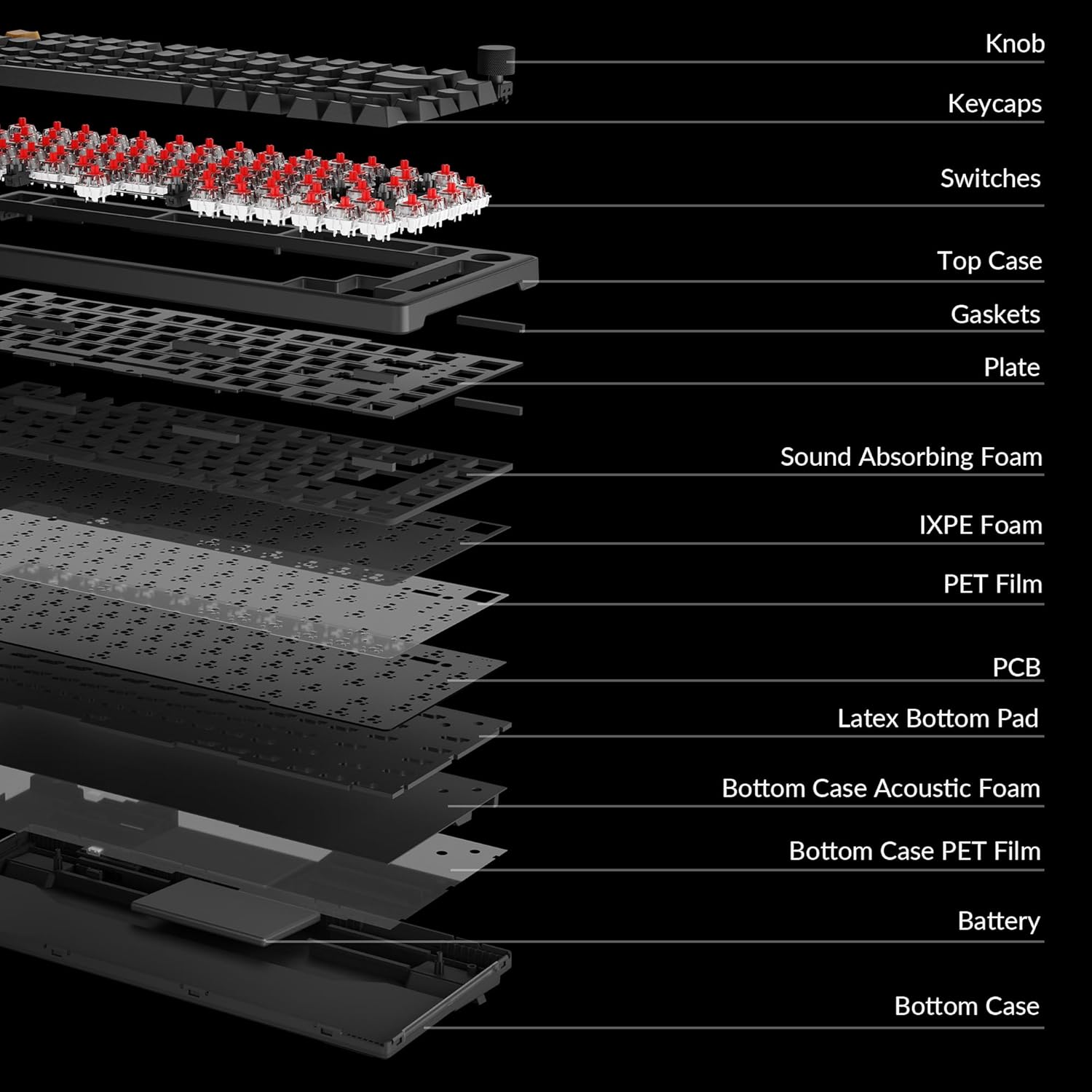
Image: An exploded diagram illustrating the various layers and components of the JamesDonkey J2 keyboard, including keycaps, switches, top case, gaskets, plate, sound absorbing foam, IXPE foam, PET film, PCB, latex bottom pad, bottom case acoustic foam, bottom case PET film, battery, and bottom case.
Warranty and Support
For warranty information and technical support, please refer to the official JamesDonkey website or contact their customer service directly. Keep your purchase receipt as proof of purchase for warranty claims.
Manufacturer: JamesDonkey
Date First Available: December 19, 2024
For further assistance, visit the JamesDonkey Store on Amazon.
Documents and downloads
Ask a question about this manual
Ask about setup, troubleshooting, compatibility, parts, safety, or missing instructions. Manuals+ will review the question and use this page’s manual context to help answer it.