
1. Introduction
Thank you for choosing the Anmite A160W03T 16-inch Portable Touch Monitor. This manual provides essential information for the safe and efficient use of your new monitor. Please read it thoroughly before operation and retain it for future reference.
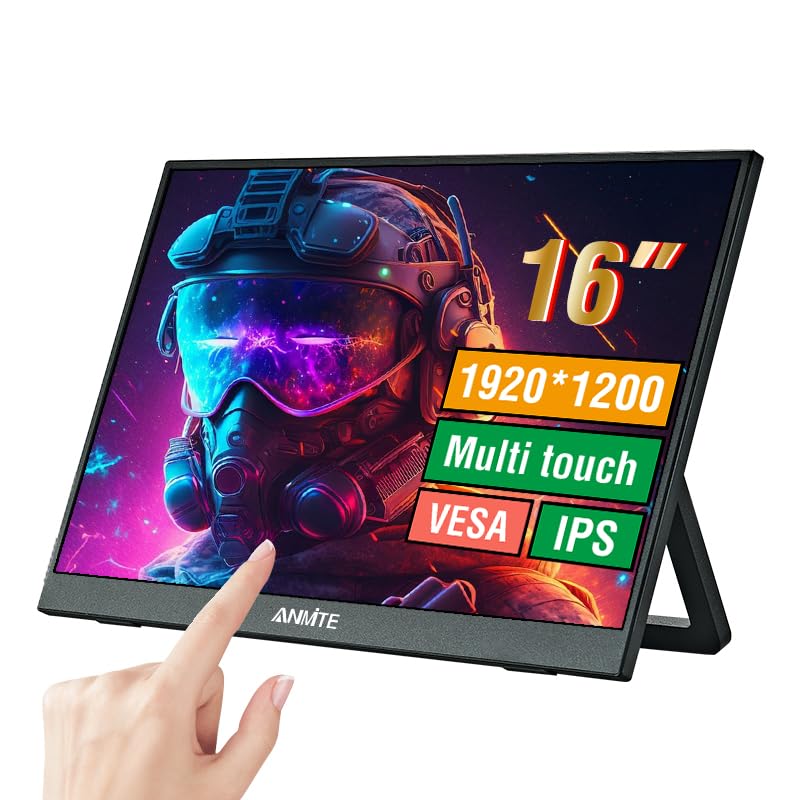
Image 1.1: Anmite 16-inch Portable Touch Monitor. This image displays the monitor's front view, highlighting its 16-inch screen, 1920x1200 resolution, 16:10 aspect ratio, 100% sRGB color gamut, VESA mount compatibility, touch functionality, 1200P resolution, and IPS panel technology. A hand is shown interacting with the touch screen.
2. Important Safety Information
- Do not expose the monitor to rain or moisture to prevent fire or electric shock.
- Avoid placing the monitor in direct sunlight or near heat sources.
- Use only the power adapter and cables provided by the manufacturer.
- Do not attempt to disassemble or modify the monitor. Refer all servicing to qualified personnel.
- Keep the monitor away from strong magnetic fields.
- Ensure proper ventilation around the monitor.
3. Package Contents
Please check the package contents upon unboxing. If any items are missing or damaged, contact customer support.
- Anmite Portable Monitor x 1
- Mini-HDMI to HDMI cable x 1
- Type-C to Type-C cable x 1
- Type-C to USB-A cable x 1
- User Guide x 1

Image 3.1: Contents of the Anmite Portable Monitor package. This image shows the monitor lying next to its retail box, which displays various product labels and certifications.
4. Product Features and Specifications
Key Features:
- 16-inch IPS Panel with 1920x1200 Resolution
- 16:10 Aspect Ratio
- Touch Screen Functionality
- Multiple Connectivity Options: Mini-HDMI, Full-Function Type-C
- Built-in Speakers (1W*2)
- Lightweight Metal Enclosure
Technical Specifications:
| Specification | Value |
|---|---|
| Net Weight | 0.81kg (28.57oz) |
| Dimensions | 355 x 237 x 5-13 mm (13.97 x 9.33 x 0.51 inches) |
| Screen Size | 16 inch |
| Panel Type | IPS |
| Aspect Ratio | 16:10 |
| Resolution | 1920 x 1200 |
| Display Color | 16.7M |
| Contrast Ratio | 1000:1 |
| Brightness | 300cd/m² |
| Color Gamut | 100% sRGB |
| Refresh Rate | 60Hz |
| Response Time | 5 Milliseconds |
| Input Interface | Mini-HDMI, Type-C (Full Function), Type-C (Power) |
| Output Interface | 3.5mm audio interface |
| Speakers | Built-in (1W*2) |
| Voltage | 5 Volts (DC) |

Image 4.1: Product dimensions. This diagram illustrates the physical measurements of the monitor, including width, height, and thickness, in both centimeters and inches.
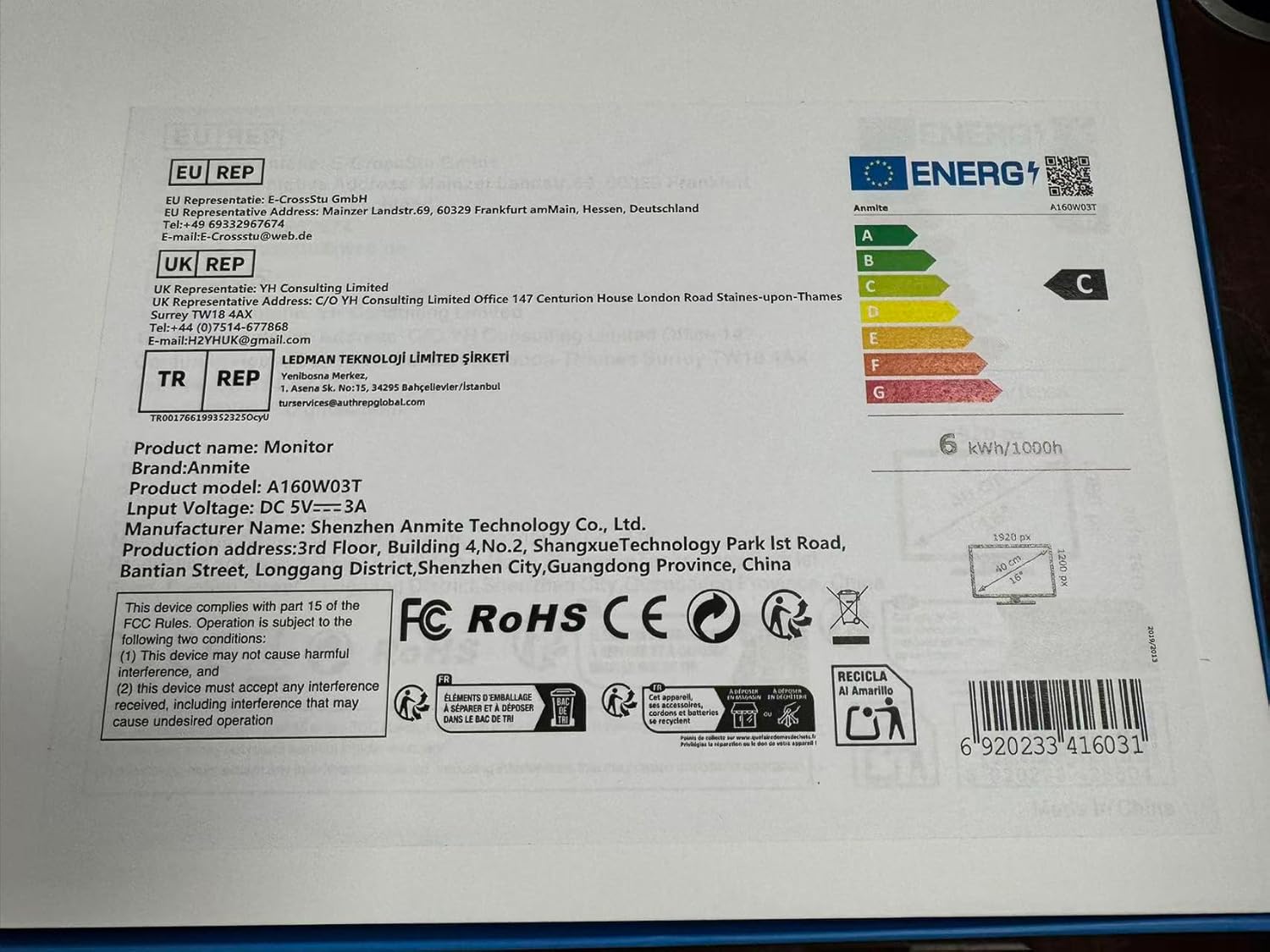
Image 4.2: Product label details. This close-up shows the product name, brand, model number (A160W03T), input voltage (DC 5V-3A), manufacturer information, and various compliance logos.
5. Setup
5.1 Connecting to a Device
The Anmite A160W03T monitor supports connectivity via Type-C (Full Function) and Mini-HDMI.
- Power Connection: Connect the monitor to a power source using the provided Type-C to USB-A cable and a compatible power adapter (not always included, typically 5V/3A). Alternatively, if your device provides sufficient power via a full-function Type-C port, a separate power connection may not be needed.
- Type-C Connection (Full Function):
- Ensure your device's Type-C port supports video output (DisplayPort Alternate Mode) and power delivery.
- Connect one end of the Type-C to Type-C cable to your device's full-function Type-C port and the other end to the monitor's full-function Type-C port.
- This single cable can transmit video, audio, touch signals, and power.
- Mini-HDMI Connection:
- Connect one end of the Mini-HDMI to HDMI cable to the monitor's Mini-HDMI port and the other end to your device's HDMI port.
- For power, use the Type-C to USB-A cable connected to the monitor's dedicated power Type-C port and a power adapter.
- For touch functionality with HDMI, an additional USB-A to Type-C cable (provided) must be connected from your device's USB-A port to the monitor's full-function Type-C port.

Image 5.1: Rear view of the monitor. This image shows the integrated stand and the location of the various input/output ports on the side and back of the monitor.
5.2 Stand Adjustment
The monitor features an integrated stand. Gently pull out the stand from the back of the monitor to adjust it to your desired viewing angle. Ensure the stand is stable on a flat surface.
6. Operating Instructions
6.1 Power On/Off
- To power on the monitor, press the power button located on the side or back of the monitor.
- To power off, press and hold the power button for a few seconds until the screen turns off.
6.2 On-Screen Display (OSD) Menu
The monitor includes an OSD menu for adjusting settings such as brightness, contrast, color, and input source. Use the control buttons (typically located on the side or back) to navigate the menu:
- Press the Menu button to open the OSD.
- Use the navigation buttons (up/down or +/-) to select options.
- Press the Enter button to confirm selections.
- Press the Exit button to close the OSD.
6.3 Touch Screen Functionality
The monitor features a 10-point capacitive touch screen. When connected via a full-function Type-C cable or an HDMI + USB-A to Type-C cable, the touch function will be enabled automatically. Ensure your operating system supports touch input.
6.4 Audio Output
The monitor has built-in speakers. You can also connect external headphones or speakers to the 3.5mm audio output interface for private listening or higher quality audio.
7. Maintenance
7.1 Cleaning the Monitor
- Always power off the monitor and unplug all cables before cleaning.
- Use a soft, lint-free cloth lightly dampened with water or a non-abrasive screen cleaner.
- Do not spray cleaner directly onto the screen.
- Avoid using harsh chemicals, alcohol, or abrasive materials.
7.2 Storage
When not in use for extended periods, store the monitor in a cool, dry place, preferably in its original packaging, to protect it from dust and physical damage.
8. Troubleshooting
If you encounter issues with your monitor, refer to the following common problems and solutions:
- No Signal:
- Ensure all cables (video and power) are securely connected.
- Verify that your device's Type-C port supports video output if using Type-C.
- Try a different cable or port on your device.
- Select the correct input source in the monitor's OSD menu.
- No Power:
- Check if the power adapter is properly connected and the power outlet is functional.
- Ensure the Type-C power cable is connected to the correct power input port on the monitor.
- Touch Function Not Working:
- For Type-C connection, ensure it's a full-function Type-C port on your device.
- For HDMI connection, ensure the additional USB-A to Type-C cable is connected from your device to the monitor's full-function Type-C port for touch data.
- Restart your connected device.
- No Sound:
- Check the volume settings on both the monitor and your connected device.
- Ensure the correct audio output device is selected on your computer.
- If using HDMI, ensure the HDMI cable supports audio transmission.
9. Warranty and Support
This Anmite portable monitor is manufactured by Shenzhen Anmite Technology Co., Ltd. For warranty information and technical support, please refer to the documentation provided with your purchase or contact your retailer. Please have your model number (A160W03T) and UPC (6920233416031) available when seeking support.


