
1. Introduction
Thank you for choosing the Bettdow Keyboard Case. This manual provides detailed instructions for the proper setup, operation, and maintenance of your new keyboard case, designed to enhance your iPad experience with a responsive keyboard, precise trackpad, and protective cover.
2. Compatibility
This premium thin keyboard case is compatible only with the following iPad models:
- iPad Air 13 inch M4 2026 (Models: A3461, A3462, A3464)
- iPad Air 13 inch M3 2025 (Models: A3268, A3269, A3271)
- iPad Air 13 inch M2 2024 (Models: A2898, A2899, A2900)
- iPad Pro 12.9 inch 6th Generation 2022 (Models: A2436, A2437, A2764, A2766)
- iPad Pro 12.9 inch 5th Generation 2021 (Models: A2378, A2379, A2461, A2462)
- iPad Pro 12.9 inch 4th Generation 2020 (Models: A2229, A2069, A2232, A2233)
- iPad Pro 12.9 inch 3rd Generation 2018 (Models: A1876, A2014, A1895, A1983)
Note: This keyboard case is not compatible with any other device. Please verify your iPad model number on the back of your device before use.

Figure 2.1: Locate your iPad model number on the back of the device for compatibility verification.
3. Setup
3.1 Physical Installation
The Bettdow Keyboard Case features an easy-set floating cantilever stand with strong magnetic suction to securely hold your iPad. This design allows for optimal viewing angles.
- Open the keyboard case.
- Align your iPad with the magnetic back panel of the case. The magnets will automatically secure the iPad in place.
- Adjust the iPad to your desired viewing angle. The cantilever design allows for flexible positioning.
- You can also attach your Apple Pencil to the top of the iPad while it's in the case.
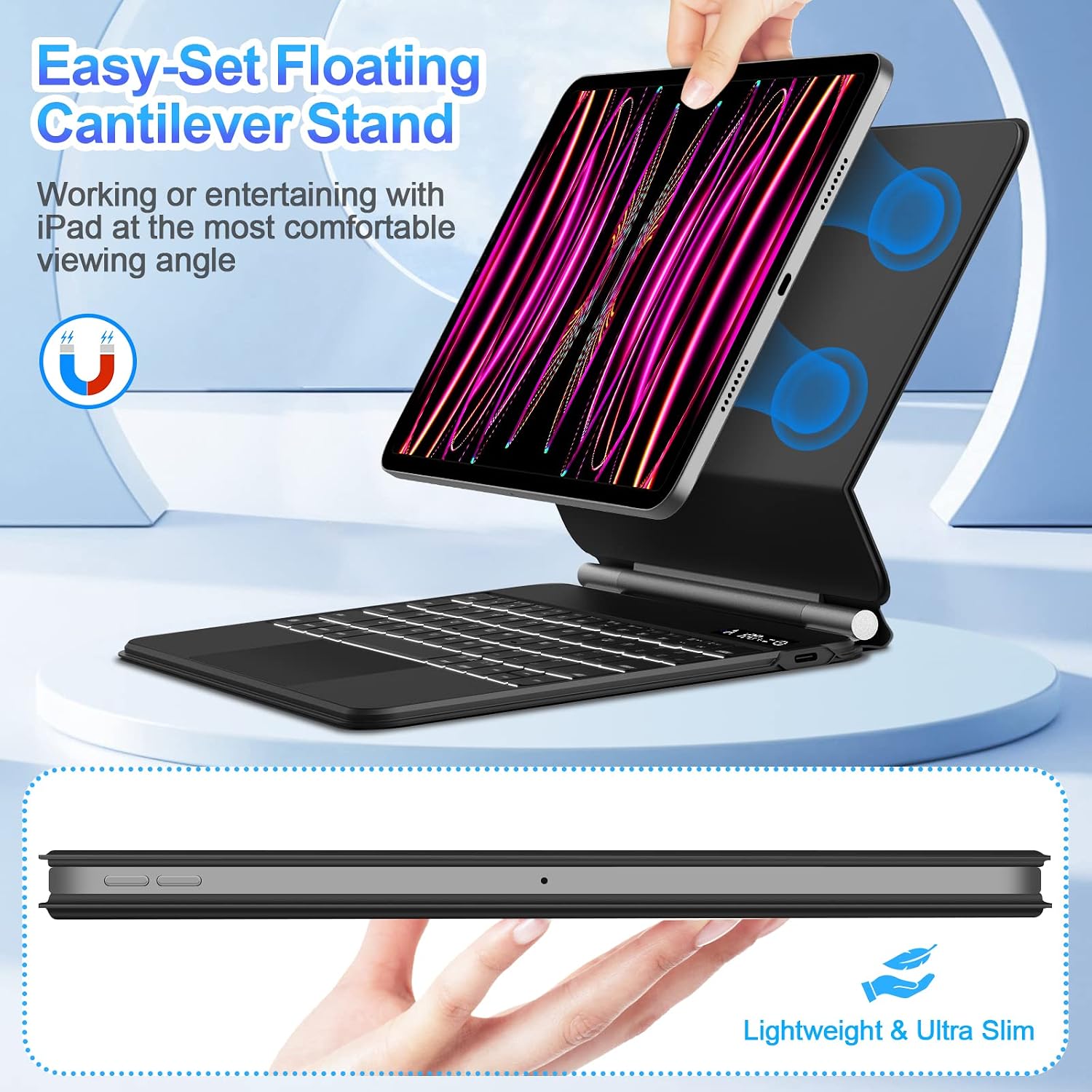
Figure 3.1: Attaching the iPad to the magnetic floating cantilever stand.
3.2 Bluetooth Pairing
To connect your keyboard case to your iPad via Bluetooth:
- Ensure your keyboard case is charged.
- Turn on the keyboard using the power key. The LCD digital display will show the power status.
- On your iPad, go to Settings > Bluetooth and turn Bluetooth on.
- The iPad will search for available devices. Select "Bettdow Keyboard" (or similar name) from the list.
- Follow any on-screen prompts to complete the pairing process. The Bluetooth status light on the LCD display will indicate a successful connection.

Figure 3.2: Charging the keyboard and viewing the LCD digital display for status indicators.
4. Operating Instructions
4.1 Keyboard Functions
The keyboard features a 7-color LED backlight and smart shortcuts for enhanced productivity.
- Backlight: Press the Fn key and the light bulb icon key to cycle through 7 backlight colors. Press Fn + brightness up/down keys to adjust between 3 brightness levels.
- Smart Shortcuts: A dedicated row of function keys allows quick access to iPad features. Press the Fn key along with the corresponding function key to control audio, brightness, search, virtual keyboard, Siri, track control, and more.

Figure 4.1: The 7-color LED backlit keyboard provides comfortable typing in various lighting conditions.

Figure 4.2: Utilize the dedicated shortcut keys for quick access to iPad functions.
4.2 Trackpad Functions
The large, precise "Click-Anywhere" trackpad allows for intuitive navigation of your iPad. The entire surface of the trackpad is clickable and pressable.
- Basic Gestures: Scroll, swipe, click, and press as you would on a laptop trackpad.
- Palm Rejection: The trackpad features palm rejection technology to prevent accidental touches while typing.

Figure 4.3: The responsive trackpad supports various gestures for efficient iPad navigation.

Figure 4.4: Palm rejection ensures comfortable typing without unintended trackpad activation.

Figure 4.5: Advanced trackpad gestures for enhanced control.
4.3 LCD Digital Display
The convenient LCD digital display provides real-time status updates for your keyboard case:
- Power Status: Indicates if the keyboard is on or off.
- Caps Lock Indicator: Shows when Caps Lock is active.
- Charging Status: Displays when the keyboard is charging.
- Bluetooth Connection Status: Confirms successful Bluetooth pairing.
- Residual Power: Shows the remaining battery level.

Figure 4.6: Understanding the LCD digital display indicators.
5. Maintenance
To ensure the longevity and optimal performance of your Bettdow Keyboard Case:
- Cleaning: Use a soft, damp cloth to wipe the exterior of the case. For the keyboard keys, use a soft, dry brush or compressed air to remove dust and debris. Avoid using harsh chemicals or abrasive materials.
- Storage: When not in use for extended periods, store the keyboard case in a cool, dry place. Ensure the iPad is removed or the case is closed to protect the screen and keyboard.
- Charging: Charge the keyboard regularly to maintain battery health. Avoid fully depleting the battery frequently.
6. Troubleshooting
If you encounter issues with your Bettdow Keyboard Case, please refer to the following common solutions:
- Keyboard not connecting via Bluetooth:
- Ensure the keyboard is powered on and fully charged.
- Turn off and on your iPad's Bluetooth.
- Forget the device in your iPad's Bluetooth settings and attempt to re-pair.
- Restart your iPad.
- Keys not responding or incorrect characters:
- Check the keyboard layout settings on your iPad. Go to Settings > General > Keyboard > Hardware Keyboard > Layout. Select the appropriate language (e.g., "Portuguese" if using a Portuguese layout, rather than ABNT2, which might cause character mismatches).
- Ensure the keyboard is clean and free of debris that might obstruct key presses.
- Trackpad not responding:
- Ensure the keyboard is connected via Bluetooth.
- Check iPad settings for trackpad functionality.
- Clean the trackpad surface.
- Backlight not working:
- Ensure the keyboard is powered on.
- Press Fn + light bulb icon to activate or change backlight settings.
7. Specifications
| Brand | Bettdow |
| Model Number | A1895-13 |
| Compatible Devices | iPad Air 13 inch (M4 2026/M3 2025/M2 2024), iPad Pro 12.9 inch (6th/5th/4th/3rd Gen) |
| Connectivity Technology | Bluetooth |
| Keyboard Description | Flexible, Backlit |
| Special Features | Portable, Trackpad, LCD Digital Display, Floating Cantilever Stand |
| Power Source | AC/DC (Rechargeable Battery) |
| Keyboard Layout | QWERTY |
| Material | Polycarbonate |
| Operating System Family | iPadOS |
8. Warranty and Support
8.1 Warranty Information
This Bettdow Keyboard Case comes with a 6-month warranty from the date of purchase, covering manufacturing defects. Please retain your proof of purchase for warranty claims.
8.2 Customer Support
For further assistance, technical support, or warranty inquiries, please contact Bettdow customer service through the retailer where you purchased the product or visit the official Bettdow store page on Amazon.
Online Support: Bettdow Amazon Store