
Womier Q75
Womier Q75 75% Wireless Mechanical Keyboard User Manual
Model: Q75
1. Introduction
This manual provides detailed instructions for the Womier Q75 75% Wireless Mechanical Keyboard. It covers setup, operation, maintenance, and troubleshooting to ensure optimal performance and user experience. Please read this manual thoroughly before using your keyboard.

Image 1.1: Womier Q75 75% Wireless Mechanical Keyboard with topographic design, showing the keyboard, wrist strap, and 2.4Ghz dongle.
2. Package Contents
Upon opening the package, please verify that all the following items are included:
- Womier Q75 75% Wireless Mechanical Keyboard
- USB-C Cable
- 2.4GHz Wireless Receiver (USB Dongle)
- Keycap Puller
- Switch Puller
- User Manual
- Additional Keyboard Strap (if applicable)
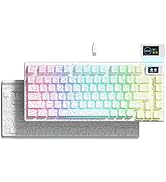
Image 2.1: Contents of the Womier Q75 keyboard package, including the keyboard, USB cable, wireless dongle, and tools.
3. Setup
3.1 Initial Charging
Before first use, it is recommended to fully charge the keyboard. Connect the provided USB-C cable to the keyboard's USB-C port and the other end to a powered USB port (e.g., computer, wall adapter). The keyboard features a 5000mAh battery for extended use.
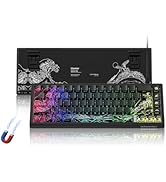
Image 3.1: Graphic illustrating the 5000mAh battery capacity of the Womier Q75 keyboard.
3.2 Connectivity Modes
The Womier Q75 keyboard supports three connection modes: USB-C wired, Bluetooth (BT 3.0/5.0), and 2.4GHz wireless. A switch on the back of the keyboard allows you to select the desired mode.
- USB-C Wired Mode: Connect the keyboard directly to your computer using the provided USB-C cable. This mode also charges the keyboard.
- 2.4GHz Wireless Mode: Insert the 2.4GHz USB receiver into an available USB port on your computer. Slide the switch on the back of the keyboard to the '2.4G' position. The keyboard should connect automatically.
- Bluetooth Mode: Slide the switch on the back of the keyboard to the 'BT' position. The keyboard will enter pairing mode. On your device (computer, tablet, etc.), search for Bluetooth devices and select 'Womier Q75' to pair. The keyboard can connect to up to 3 Bluetooth devices, allowing for quick switching.

Image 3.2: The Womier Q75 keyboard connected to various devices via its 3-mode connection options (USB-C, 2.4Ghz, Bluetooth).
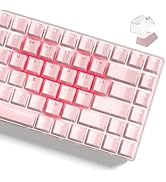
Image 3.3: Close-up view of the Womier Q75's mode switch (2.4G, BT) and USB-C port located on the back of the keyboard.
4. Operating Instructions
4.1 Basic Key Functions
The Womier Q75 features a compact 75% layout. Standard alphanumeric keys function as labeled. Function keys (F1-F12) are typically accessed by pressing the Fn key in combination with the corresponding number row key.
4.2 RGB Backlighting Control
The keyboard features customizable RGB backlighting. Use the following Fn key combinations to adjust the lighting effects:
- Fn + ↑ / ↓: Adjust backlight brightness.
- Fn + ← / →: Adjust backlight speed.
- Fn + \: Switch backlight colors.
- Fn + Tab: Set all keys to white backlight.
- Fn + Enter: Switch backlight effects.
- Fn + Back: Turn off backlight.

Image 4.1: Visual guide to Fn key combinations for controlling RGB backlight brightness, speed, color, and effects on the Womier Q75 keyboard.
4.3 QMK/VIA Programmability
The Womier Q75 supports QMK/VIA open-source software, allowing for extensive customization of key layouts, macros, and lighting effects. You can remap any key to suit your preferences across macOS, Windows, or Linux systems. Note that key remapping must be performed in wired mode; once configured, the keymap will function in both wireless and wired modes.
To use QMK/VIA, download the software from the official QMK/VIA website and connect your keyboard via USB-C. Follow the software's instructions for customization.

Image 4.2: Screenshot of the VIA software interface demonstrating key remapping and customization options for the Womier Q75 keyboard.
4.4 Metal Knob Functionality
The metal knob located on the top right of the keyboard provides convenient volume control. Rotate the knob clockwise to increase volume and counter-clockwise to decrease volume. Pressing the knob typically mutes or unmutes audio.

Image 4.3: Close-up view of the Womier Q75's metal knob for volume control and the detachable topographic wrist strap.
5. Maintenance
5.1 Cleaning
To clean your keyboard, first disconnect it from all power sources. Use a soft, lint-free cloth slightly dampened with water or a mild cleaning solution. Avoid spraying liquids directly onto the keyboard. For cleaning between keycaps, use compressed air or a small brush.
5.2 Hot-Swappable Switches
The Womier Q75 features hot-swappable sockets, allowing you to easily change mechanical switches without soldering. This keyboard is compatible with both 3-pin and 5-pin switches.
- Using the provided keycap puller, carefully remove the desired keycap.
- Using the provided switch puller, gently grip the top and bottom clips of the switch and pull upwards to remove it from the PCB.
- Align the pins of the new switch with the holes on the PCB. Ensure the pins are straight to avoid bending.
- Press the new switch firmly into place until it clicks.
- Reattach the keycap.

Image 5.1: Illustration of the hot-swappable feature, showing a switch being removed, alongside a force curve diagram for Womier POM Linear Switches.
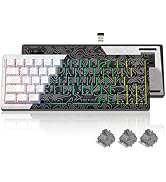
Image 5.2: A switch puller tool being used to carefully remove a mechanical switch from the keyboard's PCB.
5.3 Keycap Replacement
The Womier Q75 comes with durable PBT keycaps. You can replace them with other Cherry profile keycaps if desired.
- Use the keycap puller to gently remove the existing keycap by hooking it onto the keycap and pulling upwards.
- Align the new keycap with the switch stem and press down firmly until it is securely seated.
6. Troubleshooting
- Keyboard not responding:
- Ensure the keyboard is charged.
- Check the connection mode switch (2.4G, BT, USB-C) on the back of the keyboard matches your intended connection.
- For 2.4GHz, ensure the USB dongle is securely inserted.
- For Bluetooth, ensure the keyboard is paired correctly with your device and selected as the input device. Try re-pairing.
- Try connecting via USB-C cable to rule out wireless issues.
- RGB backlight not working or stuck:
- Ensure the backlight is not turned off (Fn + Back).
- Try adjusting brightness (Fn + ↑ / ↓).
- Cycle through effects (Fn + Enter) or colors (Fn + \).
- A factory reset (if available via QMK/VIA) might resolve persistent issues.
- Keys not registering or double-typing:
- This could indicate a faulty switch. Utilize the hot-swappable feature to replace the affected switch.
- Ensure the switch is fully seated in its socket.
- QMK/VIA software not detecting keyboard:
- Ensure the keyboard is connected via USB-C cable. QMK/VIA programming typically requires a wired connection.
- Verify that the correct firmware is loaded or that the software is up to date.
7. Specifications
| Feature | Specification |
|---|---|
| Brand | Womier |
| Model Number | Q75-Topographic |
| Layout | 75% |
| Connectivity Technology | 2.4G Wireless, Bluetooth (BT 3.0/5.0), USB-C Wired |
| Switches | POM Linear Switches (Hot-Swappable) |
| Keycaps | Dye-Sublimation PBT, Cherry Profile |
| Backlight | South-Facing RGB |
| Battery Capacity | 5000mAh Lithium Polymer |
| Programmability | QMK/VIA Support |
| Item Weight | 2.38 pounds |
| Package Dimensions | 15.16 x 7.95 x 2.05 inches |
| Compatible Devices | PC (Windows, macOS, Linux) |
8. Warranty and Support
Womier products are designed for reliability and performance. For information regarding product warranty, please refer to the warranty card included in your package or visit the official Womier website.
For technical support, troubleshooting assistance, or general inquiries, please contact Womier customer service through their official channels. You can find more information and contact options on the Womier Brand Store.
Related documentsQ75


Ask a question about this manual
Ask about setup, troubleshooting, compatibility, parts, safety, or missing instructions. Manuals+ will review the question and use this page’s manual context to help answer it.