
CAIWEI B0DQTN74RH
CAIWEI 2400 ANSI 4K Smart Projector User Manual
Model: B0DQTN74RH
Brand: CAIWEI
1. Introduction
This manual provides essential information for the setup, operation, and maintenance of your CAIWEI 2400 ANSI 4K Smart Projector. Please read it thoroughly before using the product to ensure proper function and longevity.
The CAIWEI 4K Smart Projector features official Netflix and Google TV certification, delivering access to over 10,000 applications. With 2400 ANSI lumens, it provides clear 4K images even in well-lit environments. It supports true 4K UHD decoding, HDR10+, and a 98.9% DCI-P3 wide color gamut for vivid visuals. Integrated dual Hi-Fi Dolby speakers offer immersive audio. Advanced features include ToF laser focus, CMOS camera for auto-focus, short-throw design, and NFC one-tap casting for convenient setup and use.

Image: Key features of the CAIWEI 4K Smart Projector.
2. Package Contents
Verify that all items listed below are included in your package:
- Remote Control
- Power Cord
- HDMI Cable
- User Manual
3. Setup
3.1 Projector Placement
Position the projector on a stable, flat surface or mount it securely. The short-throw lens allows for large screen sizes from shorter distances. Refer to the table below for recommended projection distances based on desired screen size.
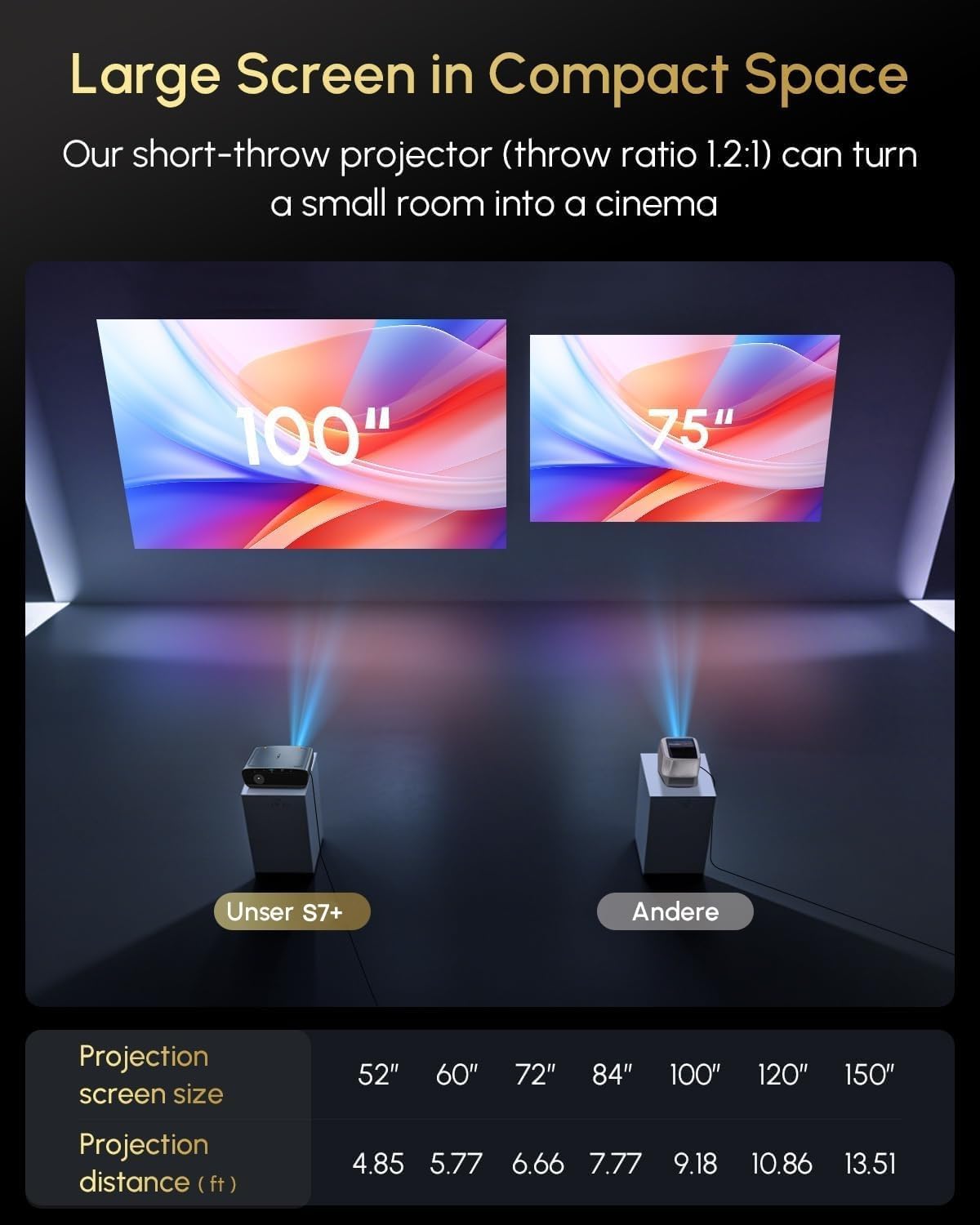
Image: Short-throw capability demonstrating screen size vs. projection distance.
| Projection Screen Size | Projection Distance (ft) |
|---|---|
| 52" | 4.85 |
| 60" | 5.77 |
| 72" | 6.66 |
| 84" | 7.77 |
| 100" | 9.18 |
| 120" | 10.86 |
| 150" | 13.51 |
3.2 Power Connection
Connect the provided power cord to the projector's power input and then to a suitable electrical outlet.
3.3 Initial Power On and Automatic Adjustments
Upon powering on, the projector will automatically perform focus, keystone correction, and obstacle avoidance using its ToF laser focus and CMOS camera system. This ensures a clear and properly aligned image without manual intervention.

Image: Real-time adaptive system with auto-focus, keystone correction, and obstacle avoidance.
4. Operating Instructions
4.1 Google TV Interface and Streaming
Your projector is equipped with official Google TV, providing access to over 10,000 applications including Netflix, YouTube, Prime Video, Hulu, and Disney+. Navigate the interface using the remote control.

Image: Google TV interface with popular streaming applications.
4.2 Voice Control
Utilize the built-in Google Assistant for voice commands. Press the dedicated voice button on your remote control and speak your command, such as "Open Netflix" or "What's the weather?"

Image: Using Google Assistant for voice control.
4.3 Brightness Modes
The projector offers 2400 ANSI lumens for bright, clear images in various lighting conditions. Multiple brightness modes, including 'High Bright' and 'Economic Mode', allow you to optimize the display for daytime viewing, dim lighting, or dark rooms.

Image: Brightness modes for different ambient light conditions.
4.4 Connectivity
- Wi-Fi 6: Connect to your home network for seamless streaming and online access.
- Bluetooth 5.4: Connect external audio devices or use the projector as a Bluetooth speaker.
- HDMI ARC: Connect to external sources like gaming consoles or Blu-ray players.
- USB: Play media directly from USB storage devices or connect peripherals.
- NFC One-Tap Casting: Tap your NFC-enabled smartphone to the projector for instant screen mirroring of videos and photos.
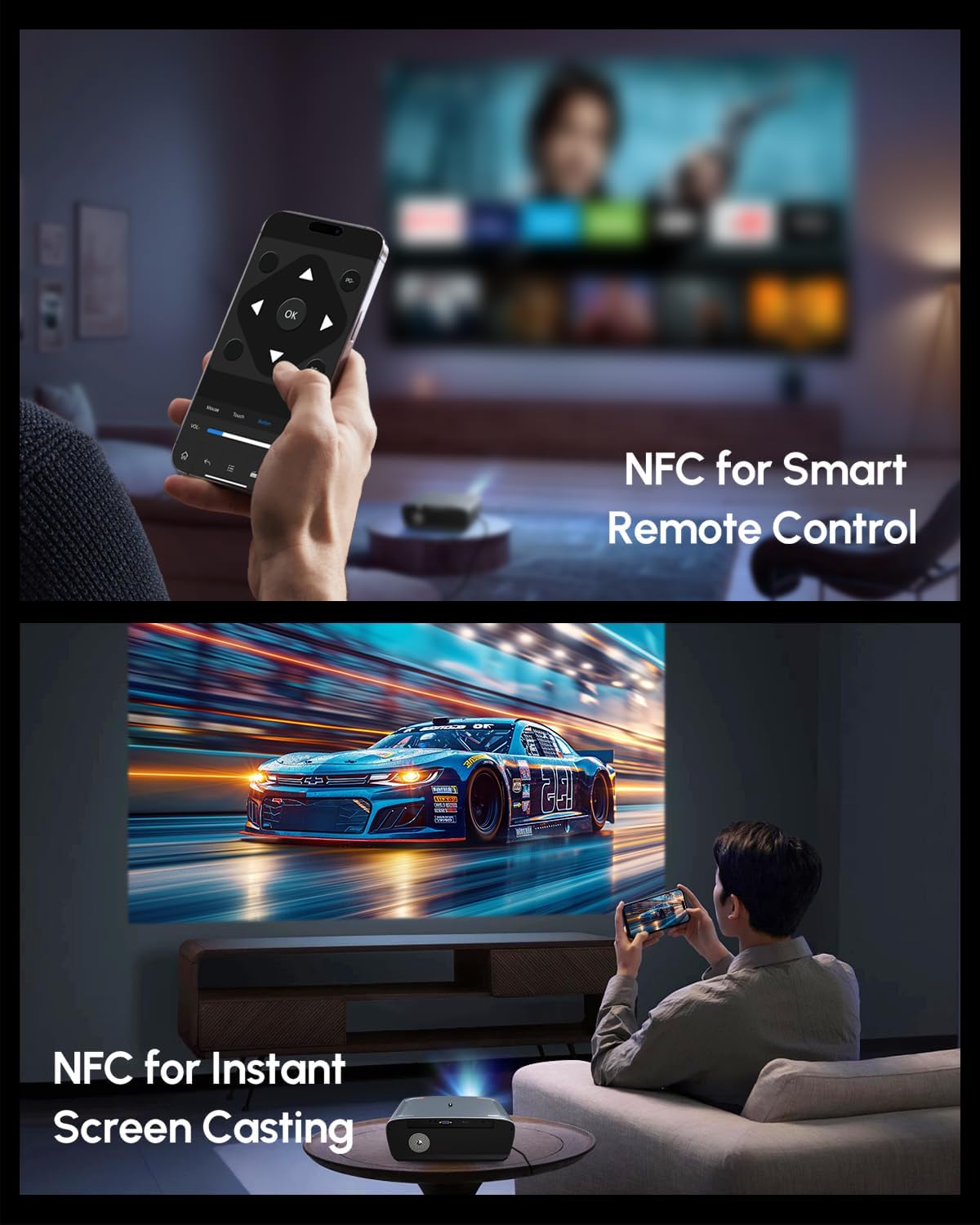
Image: NFC for smart remote control and instant screen casting.
4.5 Audio
The projector features dual Hi-Fi Dolby speakers, providing immersive cinematic sound with deep bass and clear dialogue. The 38W speakers are enhanced with DSP technology for high-fidelity audio.

Image: Immersive stereo sound with Dolby Audio and 38W speakers.
4.6 Image Quality
Experience true 4K UHD clarity with native 4K decoding and HDR10+ support. The projector reproduces realistic colors with a 98.9% DCI-P3 wide color gamut and an innovative 6-color vivid light source, ensuring sharp details and vibrant visuals.

Image: 4K UHD resolution reproducing realistic colors with HDR10+.
5. Specifications
| Feature | Detail |
|---|---|
| Brand | CAIWEI |
| Model | B0DQTN74RH |
| Brightness | 2400 ANSI Lumens |
| Display Resolution | 1920 x 1080 (Native), 4K UHD Decoding |
| Special Features | Google TV 14.0, Netflix Certified, HDR10+ Support, Dolby Audio Speakers, ToF+CMOS Auto Focus, Short Throw Lens, WiFi6 & Bluetooth 5.2, NFC One-Tap Casting |
| Connectivity Technology | 3.5mm Jack, Bluetooth, HDMI, USB, NFC, Wi-Fi |
| Item Weight | 8.51 pounds |
| Product Dimensions | 12.4 x 9.33 x 5.31 inches |
| Color | Blue |
| Recommended Uses | Home Theater, Daytime Viewing, Bright Room Projector, Outdoor Movie, Gaming, Office Presentation, Short Throw Setup, Small Apartment, Business & Education, Golf Simulator |
6. Maintenance
6.1 Cleaning
- Lens: Use a soft, lint-free cloth specifically designed for optical lenses. Avoid abrasive materials or harsh chemicals.
- Exterior: Wipe the projector's exterior with a soft, dry cloth. For stubborn marks, a slightly damp cloth can be used, followed by a dry wipe.
- Ventilation: Ensure the ventilation openings are clear of dust and debris to prevent overheating. Use a soft brush or compressed air to gently clean the vents.
6.2 Storage
When not in use for extended periods, store the projector in a cool, dry place, away from direct sunlight and extreme temperatures. Cover the lens with its cap to protect it from dust.
7. Troubleshooting
7.1 No Image Displayed
- Ensure the projector is powered on and the power cord is securely connected.
- Check the input source. Verify that the correct HDMI or other input is selected.
- Confirm that the connected device (e.g., laptop, streaming stick) is powered on and outputting a signal.
7.2 Blurry Image
- Allow the automatic focus system to complete its adjustment after powering on or moving the projector.
- Ensure the projector lens is clean.
- Verify the projection distance is within the recommended range.
7.3 No Sound
- Check the volume settings on both the projector and the connected source device.
- Ensure no external Bluetooth audio device is connected if you intend to use the internal speakers.
- Verify that audio cables (if used) are securely connected.
7.4 Remote Control Not Responding
- Replace the batteries in the remote control.
- Ensure there are no obstructions between the remote and the projector's IR receiver.
8. Warranty and Support
Your CAIWEI projector comes with a 2-year warranty. CAIWEI also provides lifetime technical support and 24/7 customer support for any inquiries or assistance you may need.
For additional protection, optional protection plans are available:
- 3-Year Protection Plan: One-time payment of $64.99.
- Complete Protect: Monthly plan at $16.99/month, covering all eligible past and future purchases.
For support, please contact CAIWEI-Projector, the seller, or refer to the contact information provided in your product documentation.
Image: CAIWEI customer support and warranty details.
Related documentsB0DQTN74RH


Ask a question about this manual
Ask about setup, troubleshooting, compatibility, parts, safety, or missing instructions. Manuals+ will review the question and use this page’s manual context to help answer it.