
1. Introduction
This manual provides detailed instructions for the installation, operation, and maintenance of your Roinvou Single Din Car Radio. This device integrates advanced features such as wireless Apple CarPlay, Android Auto, Bluetooth 5.2, FM/RDS radio, and a 6.9-inch IPS touchscreen display. Please read this manual thoroughly before use to ensure proper functionality and safety.
2. Package Contents
Verify that all items listed below are included in your package:
- Single Din Car Stereo
- Power Cable
- Horn Cable
- Key Adaptor Cable
- External Microphone
- Remote Control
- Steering Wheel Control
- Backup Camera
- User Manual (this document)

Image: Overview of the Roinvou Single Din Car Radio and its included accessories, such as the main unit, power cables, remote control, external microphone, steering wheel control, and backup camera.
3. Product Overview
3.1 Key Features
- 6.9-inch IPS Touchscreen: High-definition 1024x600 resolution display with responsive touch and a physical volume knob.
- Wireless Apple CarPlay & Android Auto: Seamless integration with your smartphone for navigation, calls, messages, and music.
- HD Touchscreen and MirrorLink: Supports mirroring your smartphone screen (iOS/Android) for apps, music, and videos.
- FM/RDS Radio: High-quality stereo radio with automatic and semi-automatic channel search, providing real-time traffic and news.
- EQ Sound Effect Function: Customizable equalizer settings for enhanced audio output.
- Multi-function Interface: Dual USB input, Type-C port for charging and media access.
- 12 Colorful Backlight Settings: Customizable button lighting to match your vehicle's interior.
- Backup Camera Support: Automatic display of reverse image when backing up.
- Steering Wheel Control (SWC): Compatible with existing steering wheel controls for convenient operation.
3.2 Front Panel and Ports
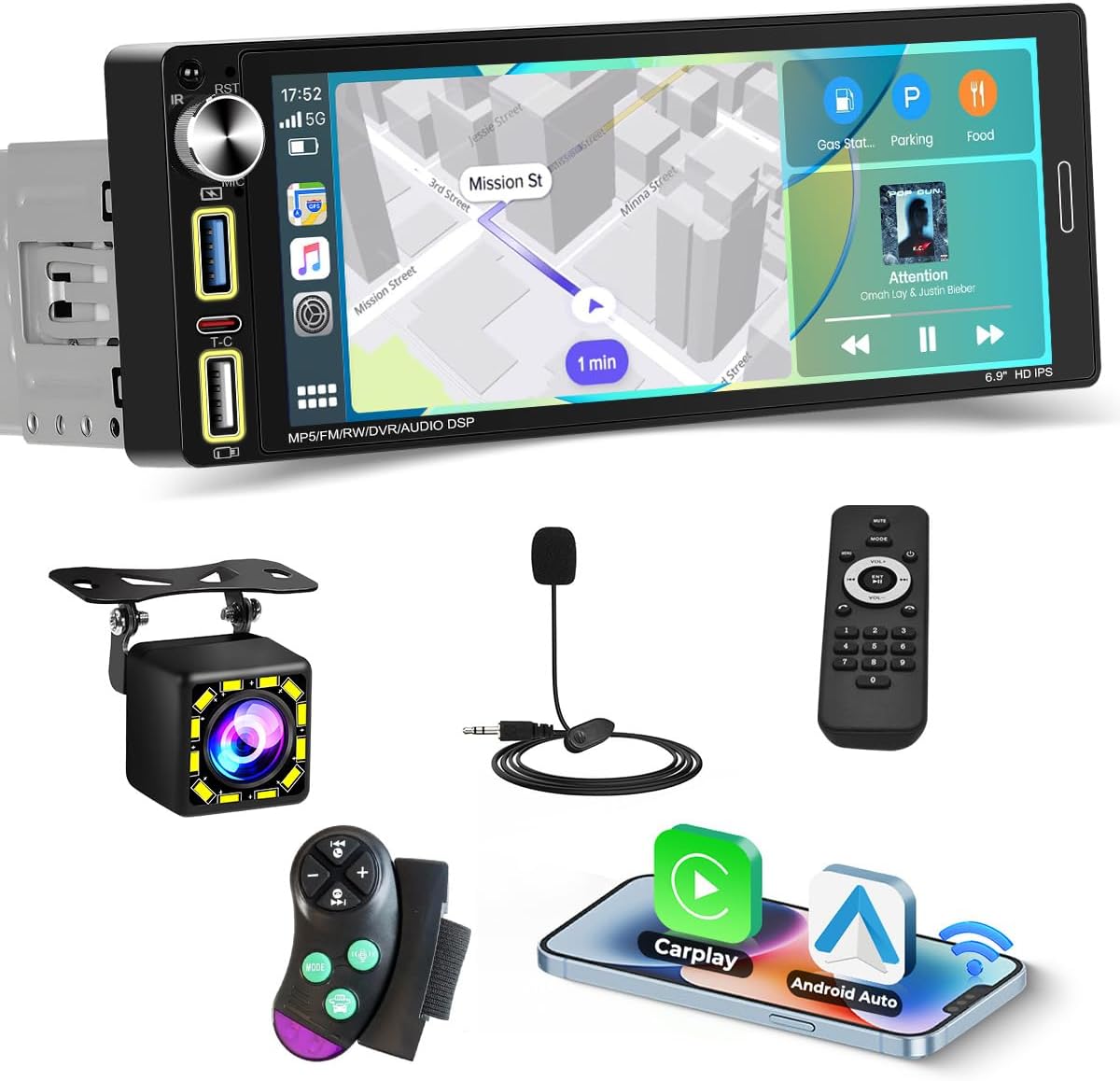
Image: Front view of the Roinvou Single Din Car Radio, showing the 6.9-inch touchscreen, physical volume knob, USB ports, and Type-C port on the left side.
The front panel features the 6.9-inch IPS touchscreen, a physical knob for volume control, and various input ports including dual USB and a Type-C port for connectivity and charging.
3.3 Rear Panel Connections
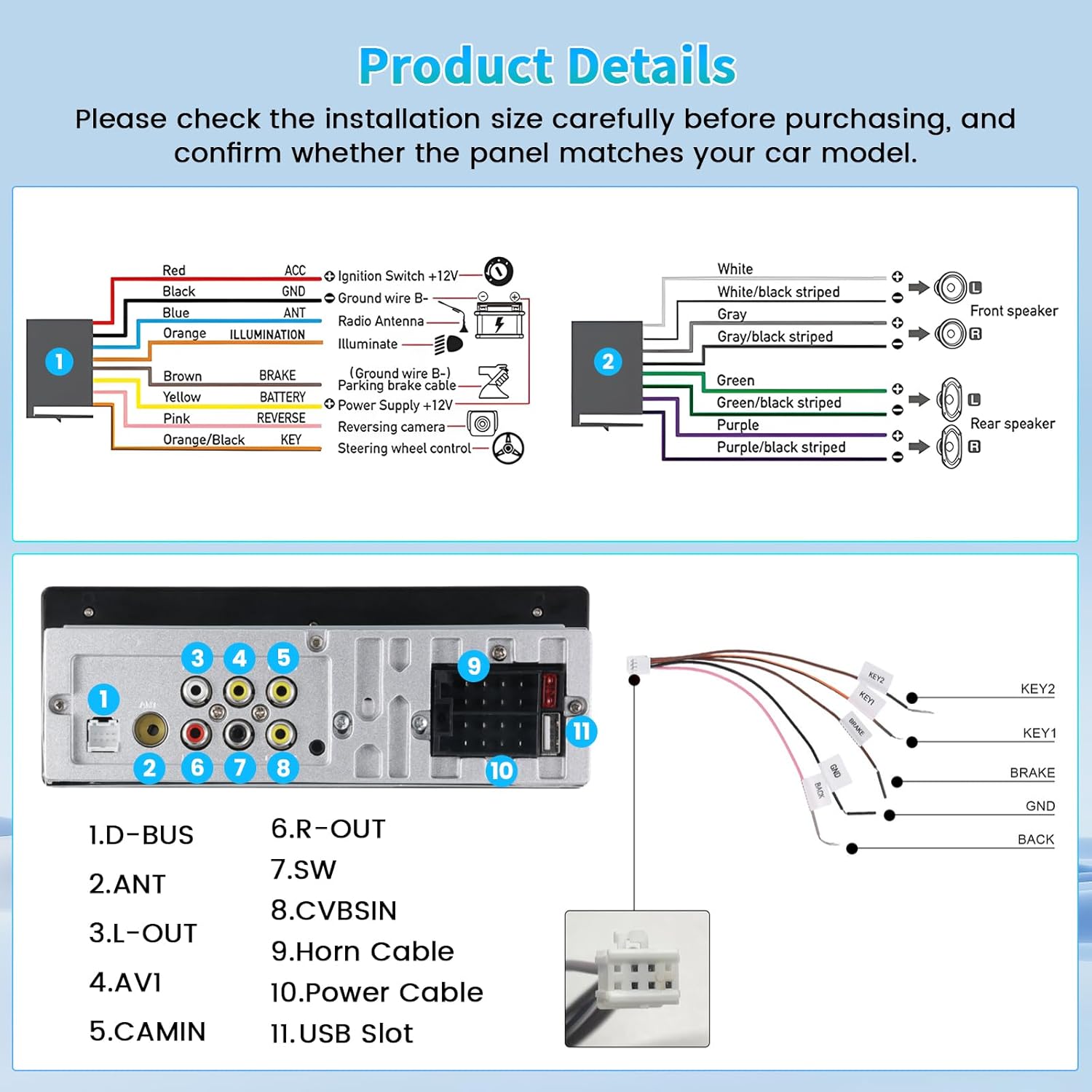
Image: Rear view of the Roinvou Single Din Car Radio, detailing the various RCA ports (1.D-BUS, 2.ANT, 3.L-OUT, 4.AVI, 5.CAMIN, 6.R-OUT, 7.SW, 8.CVBSIN), power cable connector (10), and USB slot (11).
The rear panel provides connections for power, speakers, antenna, auxiliary input/output, and the backup camera. Refer to the installation section for detailed wiring diagrams.
4. Installation
Before installation, ensure the unit's dimensions (17.7cm x 5.0cm x 10.1cm) are compatible with your vehicle's single DIN slot. Disconnect the vehicle's battery before beginning any wiring.
4.1 Wiring Diagram
Image: Detailed wiring diagram showing connections for power (ACC, Ignition Switch, Ground, Battery), antenna, illumination, brake, reverse camera, and steering wheel control. Speaker connections for front and rear are also illustrated.
- Red (ACC): Connect to the ignition switch (+12V).
- Yellow (BATTERY): Connect to constant +12V power supply.
- Black (GND): Connect to vehicle chassis ground.
- Blue (ANT): Connect to antenna control wire.
- Orange (ILLUMINATION): Connect to vehicle's illumination wire.
- Brown (BRAKE): Connect to parking brake wire.
- Pink (REVERSE): Connect to reversing camera trigger wire.
- Speaker Wires: Connect to corresponding vehicle speakers (White/White-Black for Front Left, Gray/Gray-Black for Front Right, Green/Green-Black for Rear Left, Purple/Purple-Black for Rear Right).
- Steering Wheel Control (KEY1, KEY2): Connect to vehicle's steering wheel control wires.
4.2 Backup Camera Connection

Image: Diagram illustrating the connection of the backup camera. The red cable (1) connects to the positive pole of the car reversing light, the black cable (2) to the negative pole. The pink wire (4) from the head unit connects to the red cable (3) which is an extension of the video input wire.
- Connect the red cable (1) of the camera to the positive pole of your car's reversing light.
- Connect the black cable (2) of the camera to the negative pole of your car's reversing light.
- Connect the pink wire (4) from the head unit to the red cable (3), which is an extension of the video input wire.
- Connect the video RCA cable from the camera to the "CAMIN" port on the head unit.
5. Setup
5.1 Initial Power On
After completing all wiring connections, reconnect the vehicle's battery. The unit should power on automatically or by pressing the power button. Follow any on-screen prompts for initial setup, such as language selection.
5.2 Basic Settings
Navigate through the main menu to access settings for time, date, display brightness, and audio preferences. Adjust these to your preference.
6. Operating Instructions
6.1 Wireless Apple CarPlay and Android Auto
This unit supports both wireless Apple CarPlay and Android Auto. Connect your smartphone via Bluetooth or USB to activate these features.
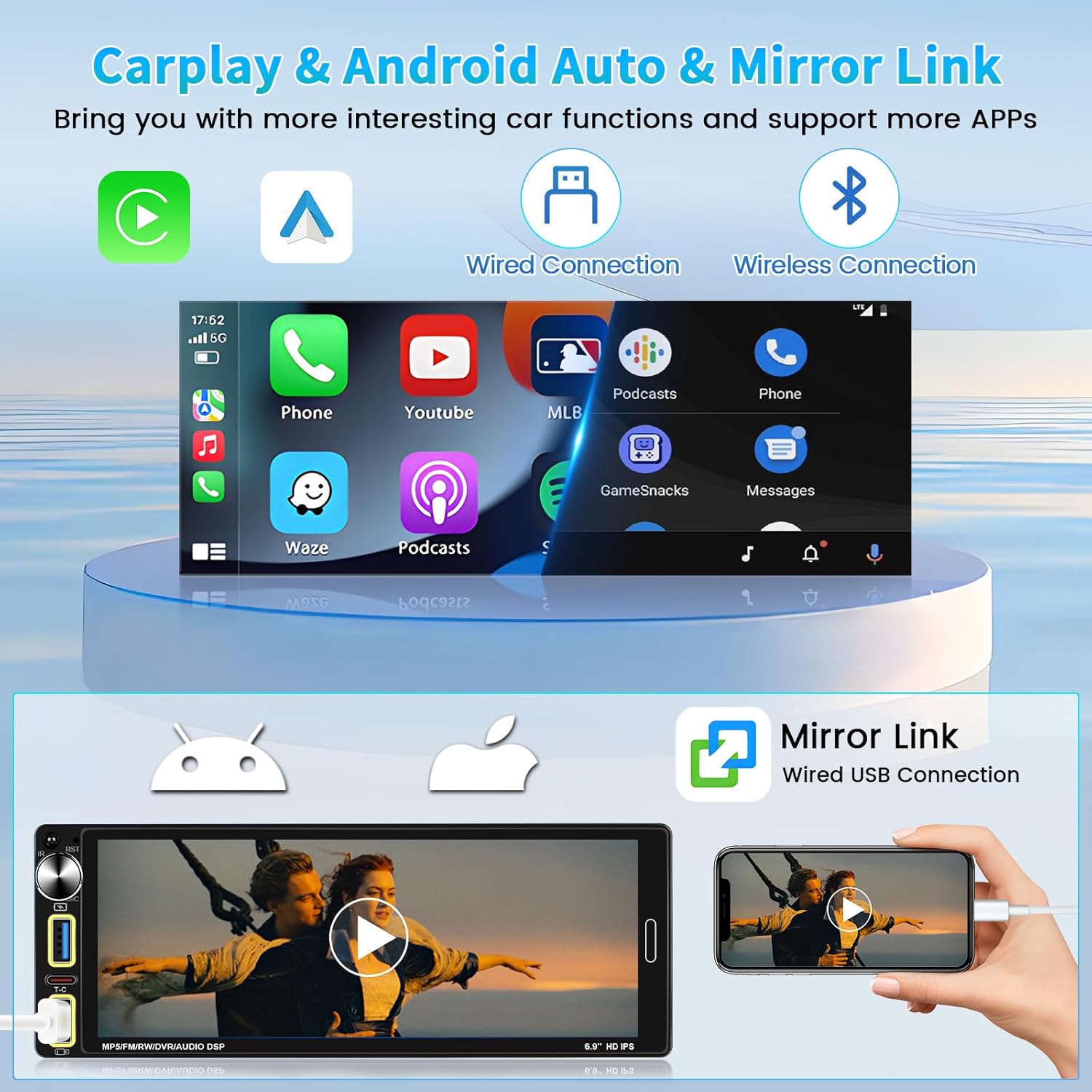
Image: Display showing the CarPlay and Android Auto interfaces, with icons for phone, YouTube, MLB, Podcasts, Waze, GameSnacks, and Messages. It also illustrates wired and wireless connection options.
- Wireless Connection: Enable Bluetooth and Wi-Fi on your smartphone. Pair your phone with the car radio via Bluetooth. Once paired, the system will prompt you to enable CarPlay or Android Auto wirelessly.
- Wired Connection: Connect your smartphone to one of the USB ports using a certified USB cable. The system will automatically detect and launch CarPlay or Android Auto.
- Use voice commands (Siri or Google Assistant) for navigation, calls, messages, and music playback.
6.2 Bluetooth 5.2
Connect your mobile phone via Bluetooth for hands-free calling and audio streaming.

Image: Screenshot of the Bluetooth pairing interface on the car radio, showing options for connecting a mobile phone and downloading the phone book.
- Go to the Bluetooth menu on the car radio.
- Enable Bluetooth on your smartphone and search for available devices.
- Select "Roinvou" (or similar device name) from the list on your phone and confirm the pairing code.
- Once connected, you can make/receive calls and play music wirelessly.
6.3 FM/RDS Radio
Access the FM/RDS function to listen to radio broadcasts.

Image: Screenshot of the FM radio interface, displaying frequency, signal strength, and controls for scanning and saving stations. RDS information is also shown.
- Select the "Radio" icon from the main menu.
- Use the search functions (full-automatic, semi-automatic, or manual adjustment) to find stations.
- RDS (Radio Data System) provides additional information like station name, program type, and traffic announcements where available.
6.4 EQ Function
Customize your audio experience using the Equalizer (EQ) settings.

Image: Screenshot of the EQ settings interface, showing adjustable frequency bands, bass setup, tune region, and preset options like Jazz, Classic, Pop, and Rock.
- Access the "EQ" or "Sound Settings" menu.
- Adjust frequency bands manually or select from preset equalizer modes (e.g., Jazz, Classic, Pop, Rock).
6.5 MirrorLink
Mirror your smartphone screen onto the car radio display via a wired USB connection.
Image: Illustration of the MirrorLink function, showing a smartphone screen being mirrored onto the car radio display via a wired USB connection, allowing mobile apps and content to be viewed on the larger screen.
- Connect your iOS or Android phone to the unit's USB port using a data cable.
- Select the "MirrorLink" option on the car radio.
- Follow any on-screen instructions on both the car radio and your phone to establish the connection.
6.6 Backup Camera Display
When the vehicle is shifted into reverse, the backup camera feed will automatically display on the screen.
- Ensure the backup camera is correctly installed and wired as per Section 4.2.
- The display will automatically switch to the camera view when the reverse gear is engaged.
6.7 Steering Wheel Control (SWC)
Program your vehicle's steering wheel buttons to control the car radio functions.

Image: Screenshot of the steering wheel control learning interface, showing options to assign functions like call, hang up, previous track, next track, volume up, volume down, and mute to physical steering wheel buttons.
- Go to the "Settings" menu on the car radio.
- Locate the "Steering Wheel Control" or "SWC Learning" option.
- Follow the on-screen instructions to program each button by pressing the desired function on the screen and then pressing the corresponding button on your steering wheel.
7. Maintenance
- Cleaning the Screen: Use a soft, lint-free cloth to gently wipe the touchscreen. Do not use abrasive cleaners or solvents.
- General Cleaning: Keep the unit free from dust and debris. Use a dry cloth for the exterior.
- Avoid Extreme Temperatures: Do not expose the unit to extreme heat or cold, as this can affect performance and lifespan.
8. Troubleshooting
- No Power:
- Check all power connections (ACC, Battery, Ground) for secure contact.
- Verify the vehicle's fuse for the radio is not blown.
- No Sound:
- Ensure speaker wires are correctly connected and not short-circuited.
- Check volume levels and mute settings.
- Verify audio source selection.
- CarPlay/Android Auto Not Connecting:
- For wireless, ensure Bluetooth and Wi-Fi are enabled on your phone and paired correctly.
- For wired, try a different USB cable (ensure it's a data cable, not just charging).
- Restart both the car radio and your smartphone.
- Backup Camera Not Displaying:
- Check the camera's power and video signal connections.
- Ensure the reverse trigger wire (Pink) is correctly connected to the vehicle's reverse light circuit.
- Steering Wheel Controls Not Working:
- Ensure KEY1 and KEY2 wires are correctly connected.
- Perform the SWC learning process again as described in Section 6.7.
9. Specifications
| Feature | Specification |
|---|---|
| Item Weight | 1.89 pounds |
| Package Dimensions | 8.82 x 5.12 x 4.06 inches |
| Display Size | 6.9 Inches |
| Screen Resolution | 1024 x 600 |
| Connectivity Technology | Bluetooth, USB, Wi-Fi |
| Bluetooth Version | 5.2 |
| Special Features | FM/RDS, EQ, Mirror Link, HD Video PlayBack, Wireless Apple CarPlay and Android Auto, USB Charging, Dual USB Input, Type C Input, IPS Screen, Twelve Color Button Light, Physical Knob |
| Audio Output Mode | Stereo |
| Mounting Type | Dashboard Mount |
10. Warranty and Support
This Roinvou product comes with a 1 Year Warranty from the date of purchase.
For technical support, warranty claims, or any questions regarding your Roinvou Single Din Car Radio, please contact the seller directly through your purchase platform or refer to the contact information provided with your product.
You can also visit the Roinvou Store on Amazon for more information and support resources.
