
Makayuron B302
Makayuron Smart Lock B302 User Manual
Model: B302
1. Introduction
This manual provides detailed instructions for the installation, setup, and operation of your Makayuron Smart Lock B302. This smart lock offers multiple secure entry methods, including fingerprint, password, NFC card, remote access via the Tuya app, and traditional mechanical key. Please read this manual thoroughly before installation and use to ensure proper functionality and security.
Important Reminder: Before permanently installing the smart door lock onto your door, please connect it to your mobile phone first to ensure all functions are working properly. We recommend completing the pairing and testing process before proceeding with permanent installation.
2. Package Contents
Verify that all the following components are included in your package:
- Makayuron Smart Lock Unit (Front and Rear Panels)
- 4585 Mortise Lock Body
- Mounting Hardware and Screws
- 4 x AA Batteries
- NFC Cards (Quantity as specified on packaging)
- Mechanical Keys (Quantity as specified on packaging)
- User Manual (This document)

Image: All components included with the Makayuron Smart Lock B302.
3. Product Features
The Makayuron Smart Lock B302 is designed for enhanced security and convenience, offering multiple unlocking methods and smart functionalities.
3.1 Multiple Unlock Methods
- Fingerprint: Quick and secure biometric identification.
- Password: Customizable numeric codes with anti-peep functionality.
- NFC Card: Convenient tap-to-unlock access.
- Tuya App (Remote): Control and monitor your lock from anywhere via your smartphone.
- Mechanical Key: Traditional backup for emergency access.

Image: Overview of the multiple unlocking methods available.
3.2 Tuya App Integration
Manage your smart lock remotely with the Tuya app. Features include:
- Remote unlocking for guests or family.
- Access to door lock opening and closing records.
- Real-time image data from the doorbell (if integrated).
- Two-way communication with visitors at the door.
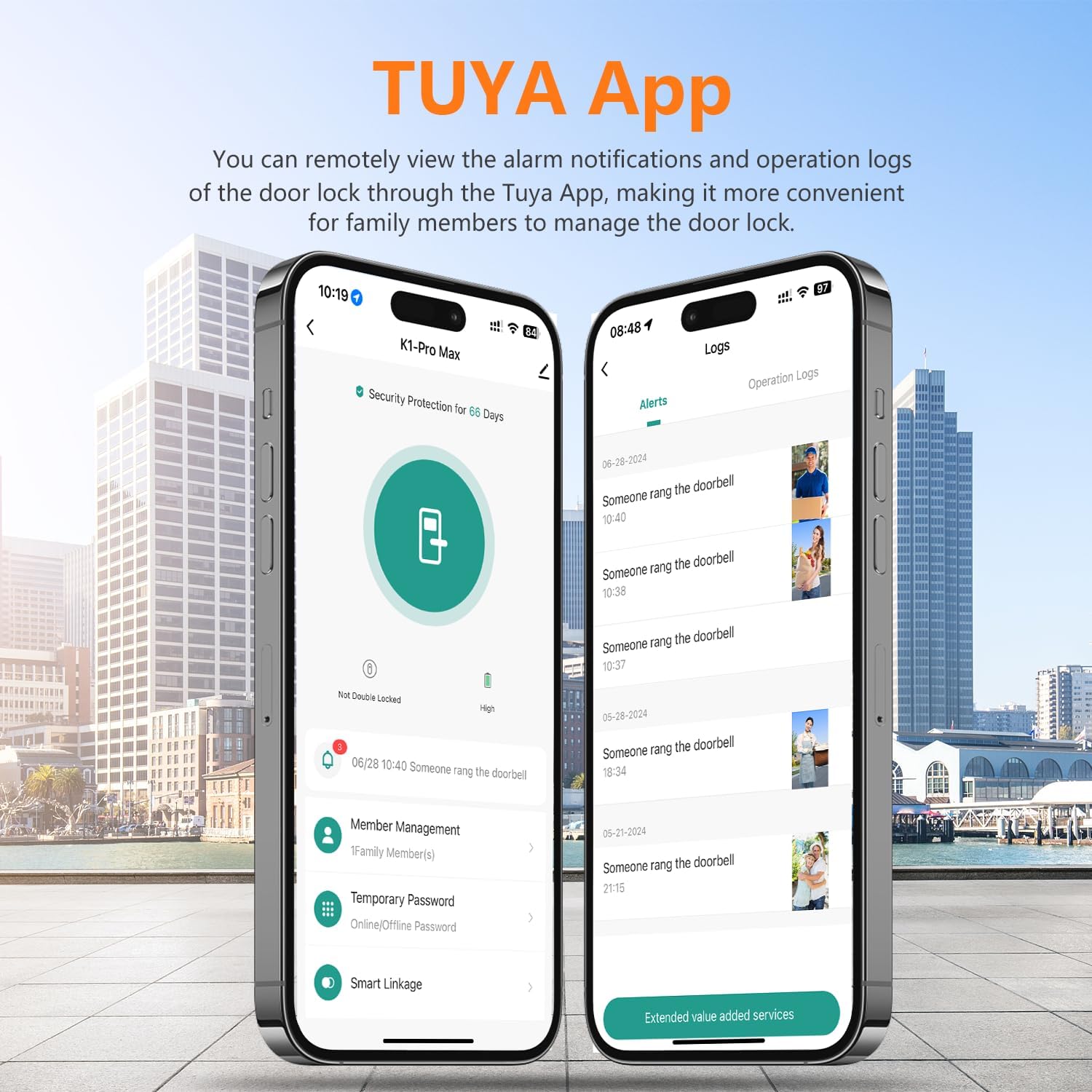
Image: Tuya App interface for remote management and activity logs.
3.3 Durable Construction
Constructed from aluminum alloy and tempered glass for environmental adaptability and durability. The design incorporates a large-capacity battery box and energy-saving module for extended standby time.
3.4 Multi-Language Support
The smart lock supports 9 languages, including Arabic, Chinese, Russian, English, Spanish, Thai, Portuguese, Vietnamese, and Indonesian. Language selection is performed during initialization.
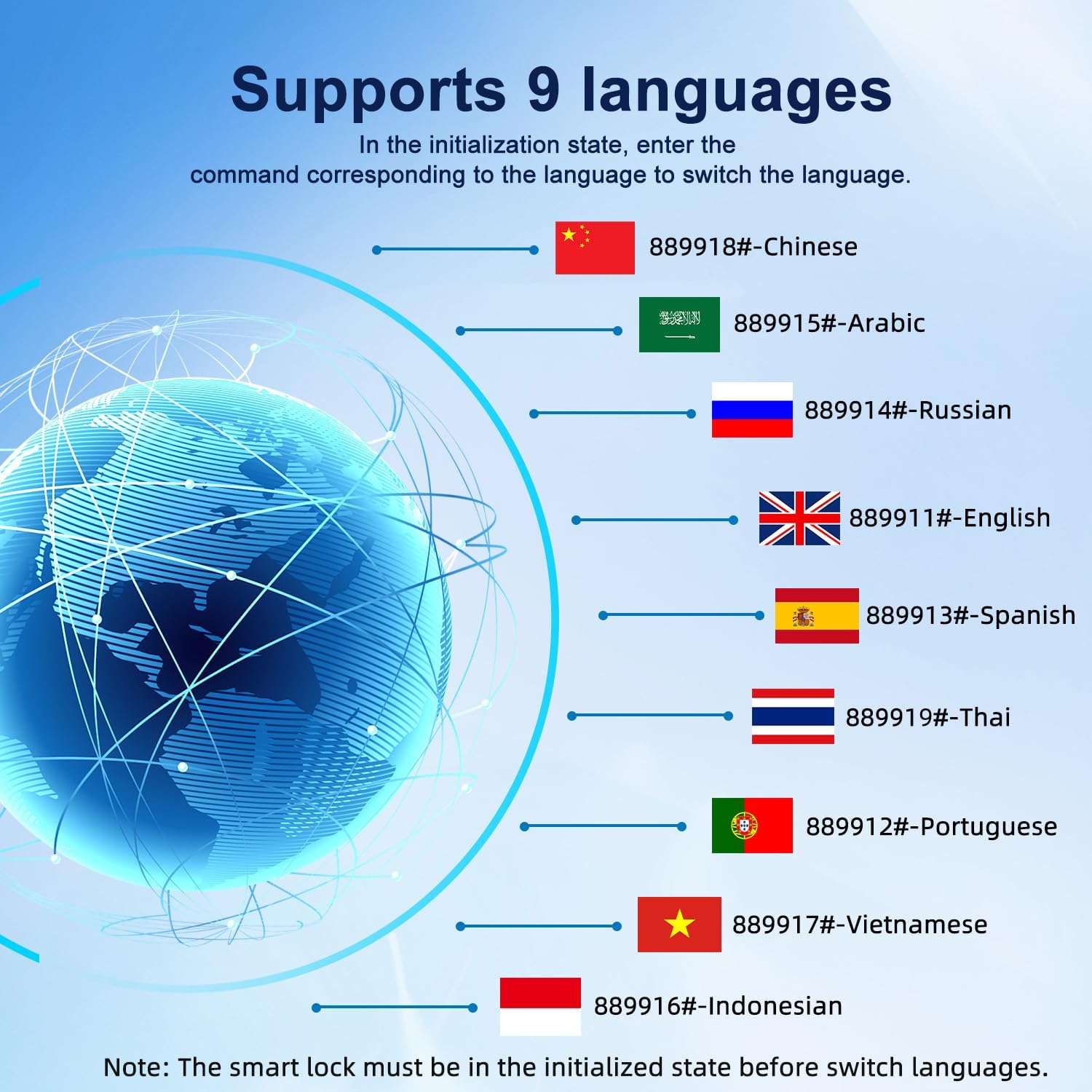
Image: Visual representation of the 9 supported languages.
4. Installation
The Makayuron Smart Lock B302 is designed for doors with a thickness between 45mm and 100mm and is compatible with a 4585 mortise. The package includes the 4585 mortise and a matching buckle box for installation on the door frame.
4.1 Pre-Installation Check
- Ensure your door meets the thickness requirements (45mm-100mm).
- Confirm the existing mortise type is compatible or prepare for installation of the included 4585 mortise.
- Gather necessary tools: screwdriver, drilling machine (if new holes are required).

Image: Illustration of door preparation for installation.
4.2 Installation Steps
- Remove your existing lock and mortise.
- Install the provided 4585 mortise into the door edge.
- Mount the exterior panel of the smart lock, ensuring cables are routed correctly.
- Connect the cables to the interior panel.
- Secure the interior panel to the door.
- Install the strike plate and buckle box on the door frame.
- Insert the 4 AA batteries into the battery compartment.
- Perform the initial setup and testing as described in Section 5.
5. Setup
After physical installation, configure your smart lock for optimal use.
5.1 Initializing the Lock and Language Selection
Upon first power-up or after a factory reset, the lock will be in an initialization state. Follow the on-screen prompts or voice guidance to select your preferred language. Refer to the language codes provided in Section 3.4.
5.2 Tuya App Pairing
- Download the Tuya Smart app from your device's app store.
- Create an account or log in.
- Add a new device and select 'Smart Lock' or 'Door Lock'.
- Follow the in-app instructions to pair your lock via Wi-Fi.

Image: Tuya App pairing process.
5.3 Adding Fingerprints
- Access the fingerprint management menu on the lock or via the Tuya app.
- Place your finger on the sensor multiple times as instructed until the fingerprint is successfully registered.
- Repeat for all desired users.

Image: Fingerprint registration process.
5.4 Setting Passcodes
- Navigate to the password management section on the lock or in the Tuya app.
- Enter your desired passcode, ensuring it meets security requirements.
- Confirm the passcode.
- You can also generate one-time passwords for temporary access.

Image: Setting a passcode on the smart lock.
5.5 Pairing NFC Cards
- Enter the NFC card management menu.
- Present the NFC card to the designated area on the lock until it is successfully paired.
- Repeat for all desired NFC cards.
6. Operation
Operating your Makayuron Smart Lock B302 is straightforward with its multiple access options.
6.1 Unlocking Methods
- Fingerprint: Place your registered finger on the sensor. The lock will unlock in approximately 0.3 seconds.
- Passcode: Enter your numerical passcode on the keypad. For enhanced security, the lock features an anti-peep function allowing you to enter random digits before or after your actual code.
- NFC Card: Tap your registered NFC card against the designated reader area on the lock.
- Tuya App: Open the Tuya app on your smartphone and select the unlock function for your smart lock.
- Mechanical Key: Insert the mechanical key into the keyhole and turn to unlock. This method is primarily for emergency use.

Image: Using the anti-peep tactile keypad for secure entry.
6.2 Locking Methods
- Automatic Locking: The lock can be configured to automatically lock after a set period once the door is closed.
- One-Touch Locking: Press the '#' key on the keypad to engage the lock.
- Remote Locking: Use the Tuya app to lock the door remotely.

Image: Automated entry features for convenience.
7. Maintenance
Regular maintenance ensures the longevity and optimal performance of your smart lock.
7.1 Battery Replacement
The lock is powered by 4 AA batteries. When the battery level is low, the lock will provide warning signals. Replace all 4 batteries promptly to avoid interruption of service.

Image: Illustration of the AA battery power source.
7.2 Emergency Charging
In case the batteries completely drain, an emergency charging port (typically USB-C or Micro-USB) is available. Connect an external power bank to this port to temporarily power the lock for unlocking. This port is for emergency power only, not for charging the internal batteries.

Image: Using the emergency charging port with a power bank.
7.3 General Care
Clean the lock's exterior with a soft, dry cloth. Avoid using abrasive cleaners or solvents that could damage the finish or electronic components. Ensure the fingerprint sensor and keypad are free from dirt and debris.
8. Troubleshooting
This section addresses common issues you might encounter with your Makayuron Smart Lock B302.
8.1 Lock Not Responding
- Check battery level and replace if necessary.
- Use the emergency charging port with a power bank.
- Try unlocking with the mechanical key.
8.2 Fingerprint Not Recognized
- Ensure your finger is clean and dry.
- Try repositioning your finger on the sensor.
- Re-register your fingerprint if the issue persists.
8.3 Tuya App Connectivity Issues
- Ensure your Wi-Fi network is stable and the lock is within range.
- Restart your Wi-Fi router and the smart lock.
- Check for app updates.
- Re-pair the lock with the Tuya app if necessary.
8.4 Abnormal Alarms / Break-in Detection
The lock is equipped with break-in detection and will send real-time push notifications to your phone via the Tuya app if anomalies are detected. Review the app's alert history for details.

Image: Real-time alarm notification during a potential break-in attempt.
9. Specifications
| Feature | Specification |
|---|---|
| Brand | Makayuron |
| Model Number | B302 |
| Unlock Methods | Fingerprint, Password, NFC, Remote (Tuya App), Mechanical Key |
| Mortise Type | 4585 Mortise |
| Door Thickness Compatibility | 45mm - 100mm |
| Material | Aluminum Alloy, Tempered Glass |
| Power Source | 4 x AA Batteries (included) |
| Emergency Power | USB Port for external power bank |
| Special Features | Break-in Detection, One-Touch Lock, Password Unlock |
| Product Dimensions | 6.8 x 7.2 x 28 cm |
| Item Weight | 2.12 Kilograms |
| Supported Languages | 9 languages (Arabic, Chinese, Russian, English, Spanish, Thai, Portuguese, Vietnamese, Indonesian) |
10. Warranty and Support
Your Makayuron Smart Lock B302 comes with a one-year warranty from the date of purchase. This warranty covers manufacturing defects and malfunctions under normal use.
If you encounter any problems during use or require technical assistance, please contact Makayuron customer support. Refer to the contact information provided on the product packaging or the official Makayuron website for assistance.
Ask a question about this manual
Ask about setup, troubleshooting, compatibility, parts, safety, or missing instructions. Manuals+ will review the question and use this page’s manual context to help answer it.