
1. Introduction
This manual provides essential information for the setup, operation, maintenance, and troubleshooting of your NEC VersaPro VKT12SGG5 2-in-1 Tablet PC. This device is a versatile computing solution, featuring a 7th generation Intel Core i5 7Y54 processor, 8GB of DDR4 memory, and a 256GB Solid State Drive (SSD). It comes with a 12.5-inch Full HD touch panel display and Windows 11 pre-installed, offering both laptop and tablet functionalities. Please read this manual thoroughly to ensure proper use and to maximize your device's performance and longevity.
2. Product Overview
The NEC VersaPro VKT12SGG5 is designed for flexibility and performance, adapting to various work and entertainment needs. Its 2-in-1 convertible design allows seamless transition between a traditional laptop and a portable tablet.
2.1 Key Features
- Processor: 7th Generation Intel Core i5 7Y54 (1.2 GHz)
- Memory: 8GB DDR4 SDRAM
- Storage: 256GB SSD for fast boot times and application loading
- Display: 12.5-inch Full HD (1920x1080) Touch Panel
- Operating System: Windows 11
- Connectivity: Integrated Wi-Fi (802.11ac), Bluetooth, USB 3.0 ports, HDMI output
- Integrated Web Camera: For video conferencing and online communication
- Form Factor: Convertible 2-in-1 design with a kickstand
2.2 Device Components

Figure 1: Front view of the NEC VersaPro VKT12SGG5, showcasing its display with Windows 11 interface and key features like SSD and warranty.

Figure 2: Rear view of the device, illustrating the integrated kickstand for stable positioning in various modes.
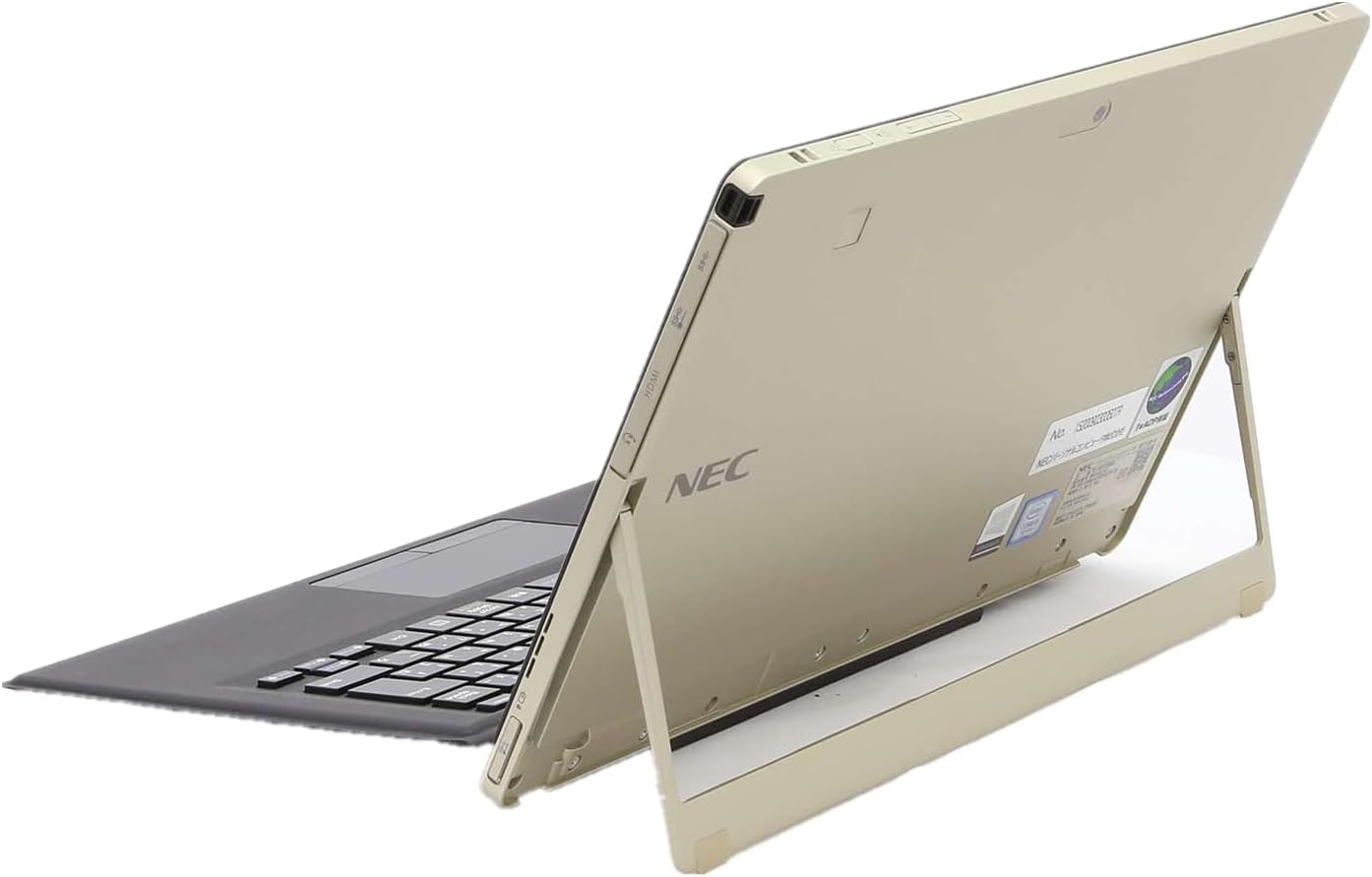
Figure 3: Side profile of the device, highlighting the various connectivity ports including USB and HDMI.
3. Setup
Your NEC VersaPro VKT12SGG5 is designed for immediate use upon arrival. The operating system and all initial settings are pre-configured, eliminating the need for complicated setup procedures.
3.1 Initial Power-On
- Unpack the Device: Carefully remove the tablet PC and any accessories from its packaging.
- Connect Power: Plug the AC adapter into the device's power port and then into a wall outlet.
- Power On: Press and hold the power button (typically located on the side or top edge) until the screen illuminates.
- Keyboard Attachment (if applicable): If your model includes a detachable keyboard, align the connectors and attach it securely to the tablet.

Figure 4: Illustration of the unboxing and initial connection process, emphasizing ease of setup.
Once powered on, the device will boot directly into Windows 11. You can begin using it immediately without further configuration.
4. Operating Instructions
This section covers basic operations of your NEC VersaPro VKT12SGG5.
4.1 Windows 11 Basics

Figure 5: The Windows 11 operating system interface, designed for ease of use and productivity.
- Start Menu: Click the Windows icon in the center of the taskbar to access applications, settings, and power options.
- Taskbar: The bar at the bottom of the screen displays open applications and quick access icons.
- Action Center: Swipe in from the right edge of the screen (or click the notification icon) to access quick settings and notifications.
4.2 Using the Touch Screen
The 12.5-inch display supports multi-touch gestures:
- Tap: Equivalent to a mouse click.
- Tap and Hold: Equivalent to a right-click.
- Pinch-to-Zoom: Use two fingers to zoom in or out.
- Swipe: Move content or navigate through pages.
4.3 Switching Between Modes (2-in-1 Functionality)
The device can be used in various configurations:
- Laptop Mode: Attach the keyboard and use the device like a traditional laptop.
- Tablet Mode: Detach the keyboard or fold it back completely. The operating system will automatically prompt you to switch to tablet mode for an optimized touch experience.
- Stand Mode: Use the integrated kickstand to prop up the display for viewing media or presentations without the keyboard.
4.4 Connectivity
- Wi-Fi: To connect to a wireless network, click the Wi-Fi icon in the taskbar, select your network, and enter the password.
- Bluetooth: To pair Bluetooth devices (e.g., headphones, mouse), go to Settings > Bluetooth & devices, turn on Bluetooth, and select your device to pair.
- USB 3.0: Connect external devices such as USB drives, external hard drives, or peripherals to the USB 3.0 ports for high-speed data transfer.
- HDMI: Use the HDMI port to connect to an external monitor or TV for extended display options.
5. Maintenance
Proper maintenance ensures the longevity and optimal performance of your device.
- Cleaning: Use a soft, lint-free cloth slightly dampened with water or a screen cleaner to wipe the display. For the body, use a dry or slightly damp cloth. Avoid harsh chemicals.
- Software Updates: Regularly check for and install Windows updates to ensure your system has the latest security patches and performance improvements. Go to Settings > Windows Update.
- Battery Care: While this is a refurbished unit, general battery care practices are recommended. Avoid consistently draining the battery to 0% or keeping it at 100% for extended periods. For optimal battery health, try to keep the charge between 20% and 80% when possible.
- Storage Management: Periodically delete unnecessary files and uninstall unused applications to free up storage space and maintain system speed.
6. Troubleshooting
This section addresses common issues you might encounter.
6.1 Power Issues
- Device not turning on: Ensure the AC adapter is securely connected to both the device and a working power outlet. Try a different outlet. If the battery is completely drained, it may take a few minutes to show signs of life after plugging in.
- Device not charging: Check the power adapter and cable for damage. Ensure the charging port on the device is clean and free of debris.
6.2 Display Issues
- Screen is blank: Ensure the device is powered on. Try connecting to an external monitor via HDMI to check if the issue is with the internal display.
- Touch screen unresponsive: Restart the device. Ensure the screen is clean. If the issue persists, check for driver updates in Device Manager.
6.3 Connectivity Issues
- Wi-Fi not connecting: Verify your Wi-Fi password. Restart your router and the device. Check Wi-Fi settings in Windows to ensure the adapter is enabled.
- Bluetooth device not pairing: Ensure the Bluetooth device is in pairing mode and within range. Restart Bluetooth on your PC and the device.
6.4 General Troubleshooting Steps
- Restart: A simple restart can resolve many minor software glitches.
- Check Drivers: Ensure all device drivers are up to date via Windows Update or Device Manager.
- System Restore: If a recent change caused an issue, consider using System Restore to revert to a previous state.
7. Specifications
Detailed technical specifications for the NEC VersaPro VKT12SGG5.
| Feature | Specification |
|---|---|
| Brand | NEC |
| Series | VersaPro |
| Model Number | VKT12SGG5 |
| Form Factor | Convertible (2-in-1) |
| Screen Size | 12.5 inches |
| Resolution | 1920x1080 pixels (Full HD) |
| CPU Brand | Intel |
| CPU Type | Core i5 7Y54 |
| CPU Speed | 1.2 GHz |
| Processor Count | 1 |
| RAM Type | DDR4 SDRAM |
| Installed RAM | 8 GB |
| Storage Capacity | 256 GB SSD |
| GPU Brand | Intel (Integrated) |
| Wireless Type | 802.11ac (Wi-Fi) |
| Operating System | Windows 11 |
| Features | Web Camera, USB 3.0, Bluetooth, HDMI |
8. Warranty and Support
This refurbished product includes a 180-day peace of mind warranty service. For any issues or inquiries not covered in this manual, please refer to the warranty documentation provided with your purchase or contact your vendor's customer support.
For general Windows 11 support, visit the official Microsoft support website.


