
Cradlepoint TB03-0700C4D-NN
Ericsson Cradlepoint S700 LTE Router User Manual
Model: TB03-0700C4D-NN | Brand: Cradlepoint
Introduction
This manual provides comprehensive instructions for the setup, operation, maintenance, and troubleshooting of your Cradlepoint S700 LTE Router. The S700 is a semi-rugged device designed for demanding environments, offering multi-WAN connectivity, advanced security features, and seamless integration with Cradlepoint's NetCloud Service for cloud-based management.
Key features include:
- Semi-rugged design for demanding conditions.
- Multi-WAN connectivity supporting LTE and WAN for high availability.
- Robust security features for secure networking.
- Seamless integration with Cradlepoint’s NetCloud Service for advanced cloud-based management.
- Includes a 3-year NetCloud IoT Essentials plan, AC power supply, and antennas.
What's in the Box
Verify that all items are present in the package:
- Cradlepoint S700 LTE Router
- Antennas (Quantity may vary based on model variant)
- AC Power Supply

Image: The Cradlepoint S700 LTE Router, showing its compact, semi-rugged design from a side angle.
Setup
Follow these steps to set up your Cradlepoint S700 LTE Router:
- Insert SIM Card: Locate the SIM card slot on the side of the router. Insert your activated LTE SIM card into the slot until it clicks into place. Ensure the SIM card is correctly oriented.
- Attach Antennas: Screw the provided antennas onto the corresponding connectors on the back of the router. Ensure they are finger-tight. The router typically has multiple antenna ports for LTE and Wi-Fi.
- Connect Power: Connect the AC power supply to the router's power input port and then plug the power adapter into a standard electrical outlet. The router will begin to power on.
- Initial Boot-up: Allow the router a few minutes to boot up. Observe the LED indicators on the device for status. Refer to the LED indicator section for details.
- Network Connection:
- Wi-Fi: On your computer or mobile device, search for available Wi-Fi networks. Select the network name (SSID) broadcast by the S700 router (usually printed on a label on the device) and enter the Wi-Fi password (also on the label).
- Ethernet: Connect an Ethernet cable from one of the router's LAN ports to your computer's Ethernet port.
- Access Management Interface: Open a web browser and navigate to the router's default IP address (e.g., 192.168.0.1 or 192.168.1.1). Log in using the default credentials (usually 'admin' for username and a password printed on the device or 'password'). Change default credentials immediately for security.

Image: Side view of the S700 router, highlighting the SIM card slot cover.

Image: Rear view of the S700 router, showing the multiple gold-colored antenna connectors and a GPS port.
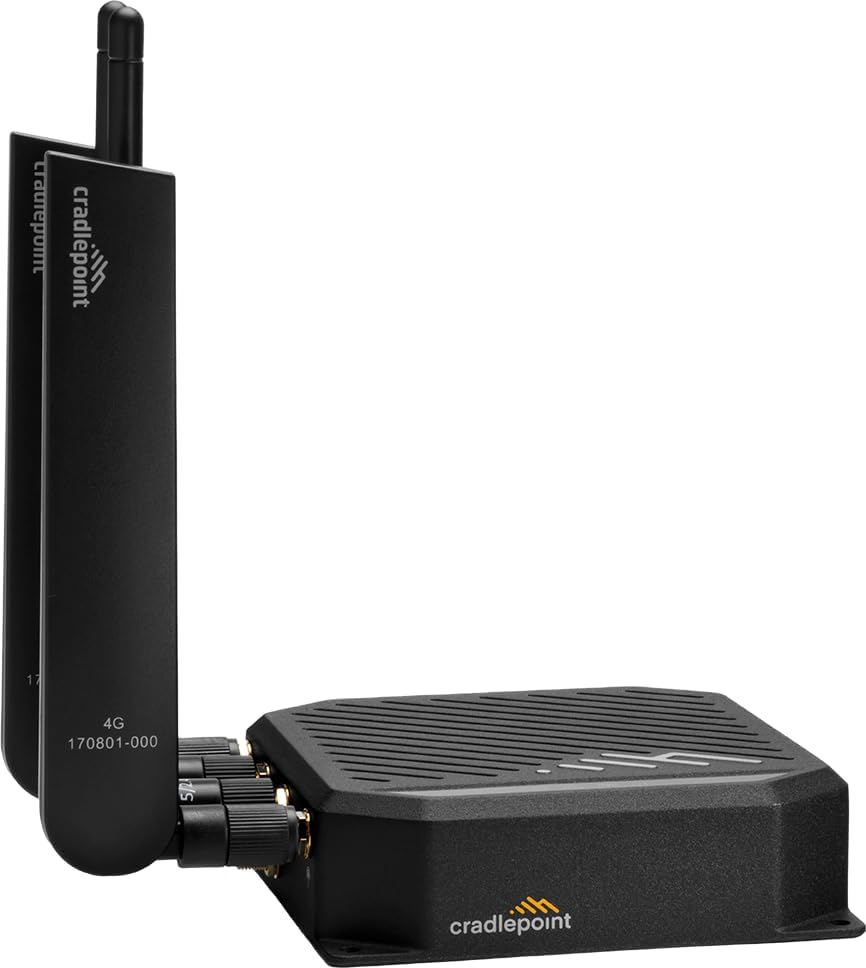
Image: The Cradlepoint S700 router with its antennas fully attached and upright, ready for operation.
Operating the Router
LED Indicators
The S700 router features several LED indicators to provide status information:
- Power LED: Indicates power status (On/Off).
- LTE Signal Strength LEDs: Multiple LEDs indicate the strength of the cellular signal. More lit LEDs mean a stronger signal.
- Wi-Fi LED: Indicates Wi-Fi activity.
- Ethernet LEDs: Indicate connection and activity on Ethernet ports.
NetCloud Management
Your S700 router is designed for seamless integration with Cradlepoint NetCloud. NetCloud provides cloud-based management, monitoring, and troubleshooting capabilities. To utilize NetCloud, ensure your router is registered and connected to your NetCloud account.
- Remote Configuration: Configure router settings from anywhere via the NetCloud Portal.
- Firmware Updates: Manage and deploy firmware updates remotely.
- Monitoring & Alerts: Monitor device status, data usage, and receive alerts for critical events.
- Troubleshooting Tools: Access diagnostic tools for remote troubleshooting.
For detailed NetCloud operations, refer to the NetCloud documentation available on the Cradlepoint support website.
Maintenance
Proper maintenance ensures the longevity and optimal performance of your S700 router:
- Keep Ventilated: Ensure the router is placed in a location with adequate airflow to prevent overheating. Do not block ventilation slots.
- Clean Regularly: Gently wipe the exterior of the router with a soft, dry cloth. Avoid using liquid cleaners or aerosols.
- Firmware Updates: Regularly check for and apply firmware updates through the NetCloud Portal or the router's local administration page. Updates often include security patches and performance improvements.
- Secure Location: Place the router in a secure, stable location away from direct sunlight, extreme temperatures, and moisture.
- Antenna Care: Ensure antennas are securely attached and not bent or damaged.
Troubleshooting
This section addresses common issues you might encounter with your S700 router.
| Problem | Possible Cause | Solution |
|---|---|---|
| No Power LED / Router not powering on. | Power adapter not connected, faulty outlet, or faulty adapter. | Check power connections. Try a different outlet. Ensure the power adapter is the correct one for the router. |
| No Internet Connection (LTE). | No SIM card, inactive SIM, poor signal, incorrect APN settings, or data cap reached. | Verify SIM card insertion and activation. Check signal strength LEDs. Confirm APN settings in the router's interface. Contact your cellular provider. |
| Wi-Fi not visible or unable to connect. | Wi-Fi disabled, incorrect password, or interference. | Ensure Wi-Fi is enabled in router settings. Double-check Wi-Fi password. Try changing Wi-Fi channel or location. |
| Slow Internet Speed. | Poor signal strength, network congestion, or router placement. | Relocate router for better signal. Check for network congestion with your cellular provider. Ensure antennas are properly oriented. |
| Cannot access router's web interface. | Incorrect IP address, network configuration issue, or router frozen. | Verify router's IP address. Ensure your device is on the same network segment. Try restarting the router. Reset to factory defaults if necessary (Note: This will erase all configurations). |
For more advanced troubleshooting, consult the comprehensive documentation available on the Cradlepoint support website or contact technical support.
Specifications
| Feature | Detail |
|---|---|
| Brand | Cradlepoint |
| Model Name | S700 |
| Item Model Number | TB03-0700C4D-NN |
| Connectivity Technology | LTE |
| Wireless Communication Standard | 802.11ax (Wi-Fi 6) |
| Frequency Band Class | Dual-Band |
| Frequency | 5 GHz |
| Throughput | Up to 480 Mbps (Router), 150 Mbps (Modem) |
| Special Feature | WPS |
| Compatible Devices | Personal Computer |
| Recommended Uses | Business |
| Included Components | AC Power Supply, Antennas, Router |
| Manufacturer | CradlePoint |
| First Available Date | July 26, 2023 |
Warranty and Support
The Cradlepoint S700 LTE Router typically comes with a manufacturer's warranty. Specific warranty terms and duration may vary based on region and purchase agreement. Please refer to the warranty information provided with your product packaging or visit the official Cradlepoint website for detailed warranty policies.
Technical Support:
For technical assistance, troubleshooting beyond this manual, or inquiries regarding your NetCloud IoT Essentials plan, please contact Cradlepoint Support:
- Online Support: Visit the official Cradlepoint Support Portal for knowledge base articles, FAQs, and support ticket submission.
- Phone Support: Contact numbers are typically available on the Cradlepoint website under the 'Support' section.
- NetCloud Portal: Utilize the NetCloud Portal for remote diagnostics and management, which can often resolve issues without direct support contact.
Please have your router's serial number and NetCloud account details ready when contacting support.
Related documentsTB03-0700C4D-NN


Ask a question about this manual
Ask about setup, troubleshooting, compatibility, parts, safety, or missing instructions. Manuals+ will review the question and use this page’s manual context to help answer it.