
RadioShack Y998
Contents
RadioShack Y998 Bluetooth Sound Bar Instruction Manual
Model: Y998
1. Introduction
This manual provides detailed instructions for the setup, operation, and maintenance of your RadioShack Y998 Bluetooth Sound Bar. Please read this manual thoroughly before using the product to ensure proper function and to prevent damage.
2. Safety Information
- Do not expose the sound bar to rain, moisture, or extreme temperatures.
- Do not open the casing. Refer all servicing to qualified personnel.
- Ensure proper ventilation around the unit.
- Use only the provided power adapter.
- Keep out of reach of children.
- Unplug the device during lightning storms or when unused for long periods.
3. Package Contents
Verify that all items listed below are included in the package:
- RadioShack Y998 Bluetooth Sound Bar
- Remote Control
- Power Adapter
- AUX Cable (3.5mm)
- AV Cable (RCA)
- Instruction Manual (this document)
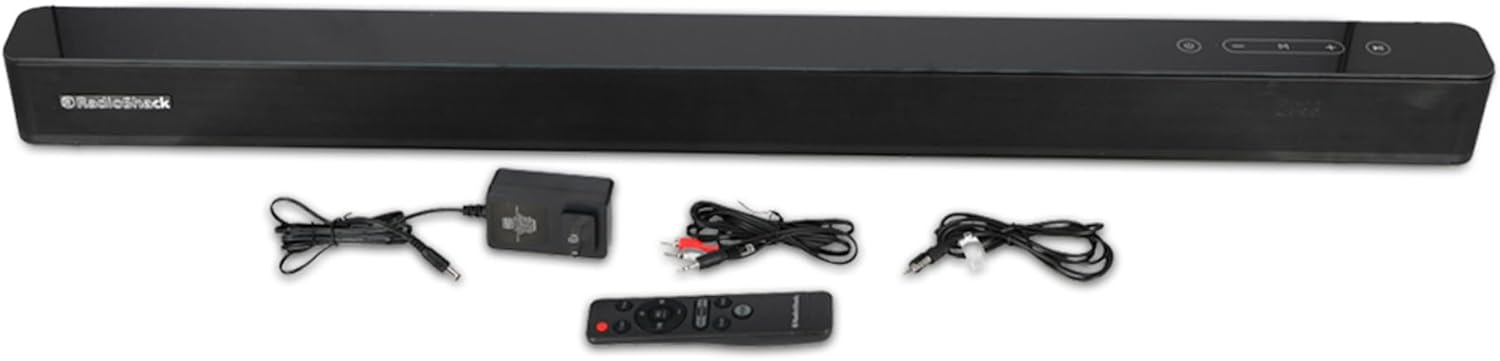
Image 3.1: RadioShack Y998 Sound Bar with remote control, power adapter, AUX cable, and AV cable.
4. Product Overview
4.1 Front View

Image 4.1: The front panel of the sound bar, featuring the RadioShack logo on the left side.
4.2 Top Panel Controls

Image 4.2: Close-up of the top panel buttons, including Power, Volume Down, Mode, Volume Up, and Play/Pause.
- Power Button (⑂): Press to turn the sound bar on or off.
- Volume Down Button (-): Press to decrease the volume.
- Mode Button (M): Press to cycle through input sources (Bluetooth, AUX, AV, Optical, Coaxial, HDMI ARC).
- Volume Up Button (+): Press to increase the volume.
- Play/Pause Button (⏸): In Bluetooth mode, press to play or pause audio.
4.3 Rear Panel Connections

Image 4.3: Close-up of the rear panel showing DC IN, OPTICAL, COAXIAL, AUX IN, and HDMI ARC ports.
- DC IN: Connect the power adapter here.
- OPTICAL: Digital audio input for connecting to TVs or other devices with an optical output.
- COAXIAL: Digital audio input for connecting to TVs or other devices with a coaxial output.
- AUX IN: 3.5mm analog audio input for connecting to devices with a headphone jack.
- HDMI ARC: HDMI Audio Return Channel input for connecting to compatible TVs.
4.4 Remote Control

Image 4.4: The sound bar positioned next to its remote control.
The remote control provides full functionality for the sound bar. Insert two AAA batteries (not included) into the remote control before use. Point the remote control towards the front of the sound bar for optimal response.
5. Setup
5.1 Placement
Place the sound bar on a stable, flat surface, preferably directly below your television. Ensure there is adequate space around the sound bar for proper ventilation and to avoid obstructing the sound output.
5.2 Connecting Power
- Connect the power adapter cable to the DC IN port on the rear of the sound bar.
- Plug the other end of the power adapter into a wall outlet.
- The sound bar will enter standby mode.
5.3 Connecting Audio Sources
Choose one of the following methods to connect your audio source:
5.3.1 Bluetooth Connection
- Power on the sound bar.
- Press the 'M' (Mode) button on the sound bar or the remote control until "BT" (Bluetooth) mode is selected. The indicator light will flash.
- Enable Bluetooth on your device (smartphone, tablet, computer).
- Search for "RadioShack Y998" in your device's Bluetooth settings and select it to pair.
- Once paired, the indicator light on the sound bar will stop flashing and remain solid. You can now play audio from your device.
5.3.2 AUX Connection
- Connect one end of the provided 3.5mm AUX cable to the AUX IN port on the sound bar.
- Connect the other end of the AUX cable to the headphone jack or AUX output of your audio device.
- Press the 'M' (Mode) button on the sound bar or remote control until "AUX" mode is selected.
5.3.3 AV (RCA) Connection
- Connect the provided AV (RCA) cable to the corresponding RCA input ports on the sound bar.
- Connect the other end of the AV cable to the RCA audio output ports of your television or audio device.
- Press the 'M' (Mode) button on the sound bar or remote control until "AV" mode is selected.
5.3.4 Optical/Coaxial/HDMI ARC Connection
For digital audio connections, use an optical, coaxial, or HDMI ARC cable (not included) to connect your TV or other compatible device to the respective port on the sound bar. Select the corresponding input mode using the 'M' (Mode) button on the sound bar or remote control.
6. Operating Instructions
6.1 Power On/Off
Press the Power button (⑂) on the sound bar or the remote control to turn the unit on or off.
6.2 Mode Selection
Press the 'M' (Mode) button on the sound bar or the remote control repeatedly to cycle through the available input sources: Bluetooth, AUX, AV, Optical, Coaxial, and HDMI ARC.
6.3 Volume Control
Use the Volume Up (+) and Volume Down (-) buttons on the sound bar or the remote control to adjust the audio volume.
6.4 Bluetooth Playback
Once connected via Bluetooth, use the Play/Pause button (⏸) on the sound bar or remote control to control audio playback. You can also control playback directly from your paired device.
7. Maintenance
- Cleaning: Disconnect the power before cleaning. Use a soft, dry cloth to wipe the surface of the sound bar. Do not use liquid cleaners or abrasive materials.
- Storage: If storing the sound bar for an extended period, unplug it from the power outlet and store it in a cool, dry place, away from direct sunlight and extreme temperatures.
8. Troubleshooting
| Problem | Possible Cause | Solution |
|---|---|---|
| No power | Power adapter not connected or outlet not working. | Ensure the power adapter is securely connected to the sound bar and a working power outlet. |
| No sound | Incorrect input source selected, volume too low, or audio cable not connected properly. | Select the correct input mode. Increase the volume. Check all audio cable connections. |
| Bluetooth pairing fails | Sound bar not in pairing mode, device too far, or previously paired with another device. | Ensure the sound bar is in Bluetooth pairing mode. Move your device closer. Disconnect from other Bluetooth devices. |
| Remote control not working | Batteries are dead or inserted incorrectly, or obstruction between remote and sound bar. | Replace batteries. Ensure correct polarity. Remove any obstructions. Point remote directly at the sound bar. |
9. Specifications
| Model Name | Y998 |
| Brand | RadioShack |
| Output Power | 80W |
| Number of Speakers | 4 |
| Bluetooth Version | 5.0 |
| Bluetooth Range | Up to 10 meters (33 feet) |
| Connectivity Technology | Bluetooth, AUX, AV (RCA), Optical, Coaxial, HDMI ARC |
| Control Method | Remote Control, On-unit buttons |
| Power Source | Cable Electric (AC Adapter) |
| Dimensions (approx.) | 40cm (D) x 40cm (W) x 40cm (H) (Note: Original data indicates identical depth, width, and height, which is unusual for a soundbar. Dimensions are listed as provided.) |
| Color | Black |
10. Warranty and Support
Specific warranty information for the RadioShack Y998 Bluetooth Sound Bar is not available in the provided product data. Please refer to the warranty card included with your purchase or contact RadioShack customer support for details regarding warranty coverage and technical assistance.
Ask a question about this manual
Ask about setup, troubleshooting, compatibility, parts, safety, or missing instructions. Manuals+ will review the question and use this page’s manual context to help answer it.