
1. Introduction
This manual provides detailed instructions for the INFILAND Keyboard Case, designed to enhance the functionality and protection of your iPad 10.2 inch (9th, 8th, 7th Generation). This versatile accessory transforms your tablet into a portable workstation, offering a comfortable typing experience and precise navigation.
2. Compatibility
The INFILAND Keyboard Case is specifically designed for the following iPad models:
- iPad 9th Generation (2021): Model Numbers A2602, A2603, A2604, A2605
- iPad 8th Generation (2020): Model Numbers A2270, A2428, A2429, A2430
- iPad 7th Generation (2019): Model Numbers A2197, A2200, A2198
Please verify your iPad's model number on the back of the device or in Settings > General > About to ensure compatibility.

Figure 2.1: Compatibility details for the INFILAND Keyboard Case. This image illustrates the specific iPad models compatible with the case and provides instructions on how to locate your iPad's model number for verification.
3. Key Features
- Detachable Keyboard: The wireless keyboard can be easily attached or removed from the case, allowing flexible use as a laptop or tablet.
- High-Precision Trackpad: Supports multi-finger gestures for intuitive navigation, mimicking a mouse experience.
- 7-Color Backlight & 3 Brightness Levels: Customize your typing environment and reduce eye strain in low-light conditions.
- Folder-Style Design: Slim and lightweight for easy portability, ideal for work, study, or entertainment on the go.
- Secure Pencil Holder: Integrated holder keeps your Apple Pencil safe and accessible.
- Full Protection: Durable construction from Polycarbonate and Thermoplastic Polyurethane (TPU) provides comprehensive protection for your iPad.

Figure 3.1: The high-precision trackpad supports multi-gesture controls for sensitive and delay-free navigation.

Figure 3.2: Detailed view of the case's precise cutouts for ports and buttons, the secure pencil holder, the durable TPU material, and the elastic band for secure closure.

Figure 3.3: The case offers full protection with a streamlined transport design, showcasing its universal utility from various perspectives.
4. Setup Instructions
4.1 Installing Your iPad
- Gently align your iPad with the case's frame, ensuring all ports and buttons match the precise cutouts.
- Press firmly around the edges of the iPad until it is securely seated within the case.
4.2 Connecting the Keyboard via Bluetooth
- Turn on the keyboard: Locate the power switch on the keyboard and slide it to the 'ON' position. The indicator light will flash.
- Enable Bluetooth on your iPad: Go to iPad Settings > Bluetooth and toggle Bluetooth 'On'.
- Pair the keyboard: On the keyboard, press the 'Fn' key and the 'C' key simultaneously. The Bluetooth indicator light on the keyboard will start blinking rapidly, indicating it's in pairing mode.
- Select 'Bluetooth Keyboard': On your iPad's Bluetooth device list, 'Bluetooth Keyboard' will appear. Tap on it to connect.
- Confirm pairing: A pairing request pop-up may appear. Tap 'Pair' to confirm the connection. The keyboard's indicator light will turn solid, indicating a successful connection.
Video 4.1: This official INFILAND video demonstrates the process of connecting the keyboard to your iPad via Bluetooth. It shows how to turn on the keyboard, enable Bluetooth on the iPad, initiate pairing mode on the keyboard, and confirm the connection on the iPad.
4.3 Enabling Trackpad Functionality
For optimal trackpad experience, ensure 'Tap to Click' is enabled on your iPad:
- Go to iPad Settings > General.
- Scroll down and tap on Trackpad.
- Toggle 'Tap to Click' to the 'On' position.
4.4 Charging the Keyboard
The keyboard is powered by a built-in battery. To charge:
- Connect the provided USB-C charging cable to the charging port on the keyboard.
- Connect the other end of the cable to a USB power adapter (not included) or a computer's USB port.
- The charging indicator light will illuminate during charging and turn off when fully charged. A full charge typically takes 2-3 hours.
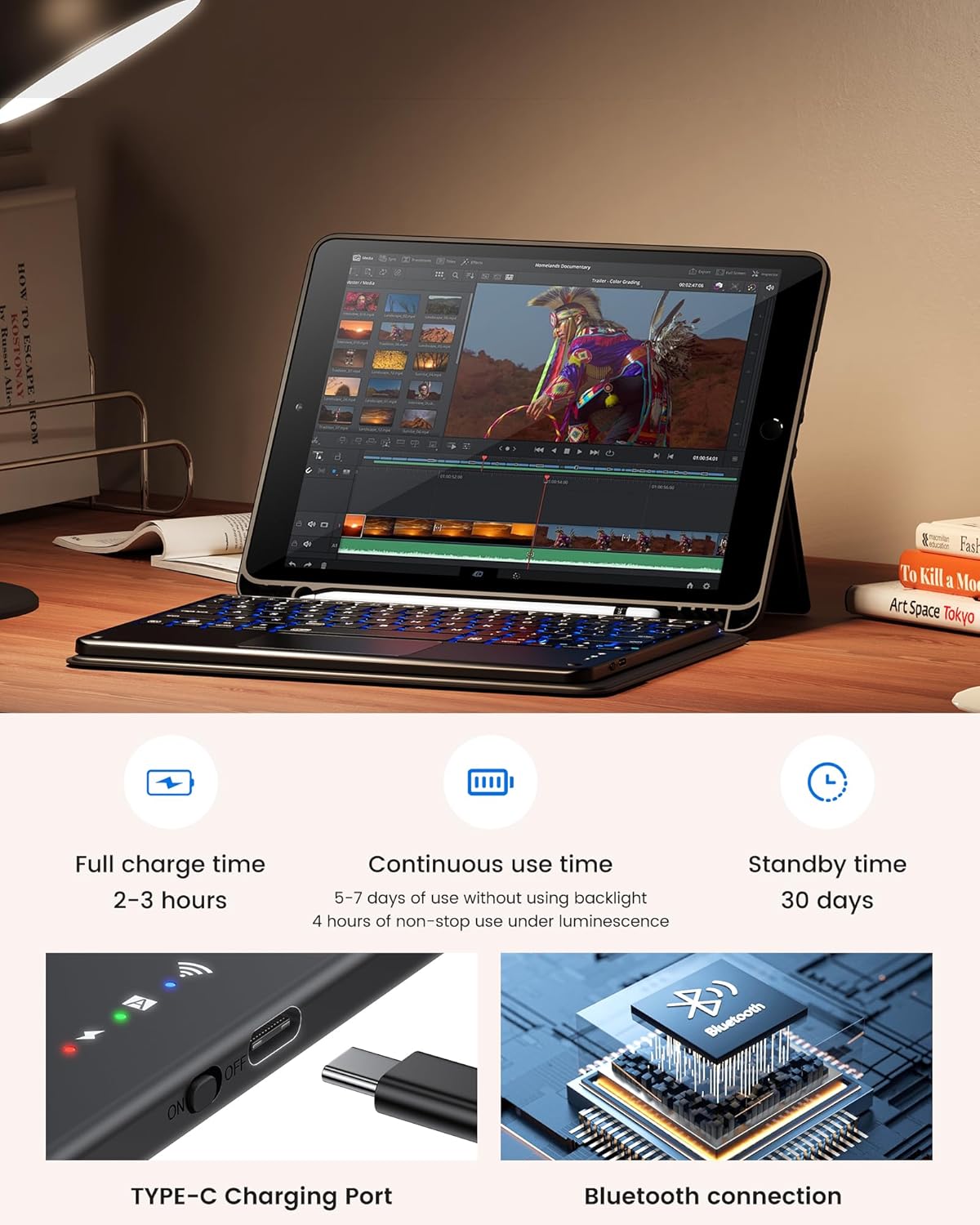
Figure 4.1: This image highlights the keyboard's battery performance (2-3 hours full charge, 5-7 days continuous use without backlight, 30 days standby) and shows the Type-C charging port and Bluetooth connection icon.
5. Operating Instructions
5.1 Using the Detachable Keyboard
The keyboard attaches magnetically to the case. Simply place it on the designated area within the case. To remove, gently lift the keyboard from the case.
5.2 Adjusting Backlight
The keyboard features 7 backlight colors and 3 brightness levels:
- Press the light bulb icon key to cycle through brightness levels.
- Press Fn + light bulb icon key to cycle through the 7 backlight colors.
5.3 Using the High-Precision Trackpad
The trackpad supports various multi-finger gestures for enhanced control:
- Single-finger tap: Left-click.
- Two-finger tap: Right-click (secondary click).
- Two-finger scroll: Scroll up/down or left/right.
- Pinch-to-zoom: Zoom in/out on content.
- Refer to your iPad's settings for additional trackpad gestures.
5.4 Using the Integrated Stand
The case features a built-in stand for comfortable viewing and typing angles. Simply fold the back panel of the case to prop up your iPad.
5.5 Utilizing the Pencil Holder
The integrated pencil holder is designed to securely store your Apple Pencil. Insert your Apple Pencil into the designated slot to prevent loss or damage.

Figure 5.1: The keyboard case supports various usage scenarios, demonstrating its adaptability for work, entertainment, and portability.
6. Maintenance
- Cleaning the Case: Wipe the case with a soft, damp cloth. Avoid harsh chemicals or abrasive cleaners.
- Cleaning the Keyboard: Use a soft, dry cloth to clean the keyboard. For stubborn dirt, a slightly damp cloth can be used, ensuring no moisture enters the keys or ports.
- Storage: When not in use for extended periods, store the keyboard case in a cool, dry place. Ensure the keyboard is fully charged before long-term storage.
7. Troubleshooting
- Keyboard not connecting: Ensure the keyboard is powered on and fully charged. Verify Bluetooth is enabled on your iPad and the keyboard is in pairing mode. Try restarting both the iPad and the keyboard.
- Trackpad not responding: Check iPad settings to ensure 'Tap to Click' is enabled under Settings > General > Trackpad. Ensure the keyboard is properly connected via Bluetooth.
- Keys not responding: Check keyboard battery level. If low, charge the keyboard. Ensure the keyboard is securely connected via Bluetooth.
- Backlight not working: Press the light bulb icon key to adjust brightness. Ensure the keyboard is powered on.
8. Specifications
| Brand | INFILAND |
| Compatible Devices | iPad 10.2 9th Gen 2021 (A2602, A2603, A2604, A2605), 8th Gen 2020 (A2270, A2428, A2429, A2430), 7th Gen 2019 (A2197, A2200, A2198) |
| Connectivity Technology | Bluetooth |
| Keyboard Description | Accessible |
| Special Feature | Trackpad |
| Material | Polycarbonate, Thermoplastic Polyurethane (TPU) |
| Included Components | Keyboard |
| Power Source | Battery Powered |
| Number of Keys | 78 |
| Keyboard Layout | QWERTY |
9. Warranty & Support
This INFILAND Keyboard Case comes with a one-year warranty from the date of purchase. For warranty claims, technical support, or any inquiries, please contact INFILAND customer service through the retailer's platform or visit the official INFILAND website for contact information.