1. Introduction
This manual provides instructions for the INFILAND Keyboard Case, designed to enhance the functionality and protection of your compatible iPad. It covers product features, setup, operation, maintenance, and technical specifications.

Image 1.1: INFILAND Keyboard Case with iPad.
2. Product Overview
2.1 Key Features
- Detachable Keyboard: Allows for flexible use, switching between laptop and tablet modes.
- High-Precision Trackpad: Supports multi-finger gestures for precise navigation.
- 7-Color Backlight: Adjustable backlight with 3 brightness levels for various lighting conditions.
- Secure Pencil Holder: Integrated holder to store and protect your Apple Pencil.
- Folder-Style Design: Slim and lightweight for portability.
- Full Protection: Durable case material (Polycarbonate, TPU) provides comprehensive device protection.
2.2 Package Contents
- INFILAND Keyboard Case
- Detachable Bluetooth Keyboard
- USB-C Charging Cable (for keyboard)
- User Manual
3. Compatibility
This keyboard case is specifically designed for the following iPad 10.2 inch models:
- iPad 9th Generation (2021): Model Numbers A2602, A2603, A2604, A2605
- iPad 8th Generation (2020): Model Numbers A2270, A2428, A2429, A2430
- iPad 7th Generation (2019): Model Numbers A2197, A2200, A2198
To verify your iPad model number, check the back of your iPad or go to Settings > General > About and tap the 'M' part number to reveal the model number.

Image 3.1: iPad model compatibility guide.
4. Setup
4.1 Inserting the iPad into the Case
- Align your iPad with the case, ensuring the camera cutout and ports match.
- Gently press the iPad into the case, starting from one corner, until it is securely seated.
- Ensure all edges of the iPad are protected by the case.
4.2 Charging the Keyboard
Before first use, fully charge the keyboard.
- Locate the USB-C charging port on the keyboard.
- Connect the provided USB-C cable to the keyboard and the other end to a USB power adapter (not included).
- The charging indicator light will illuminate. A full charge typically takes 2-3 hours.
- When fully charged, the indicator light will change or turn off.
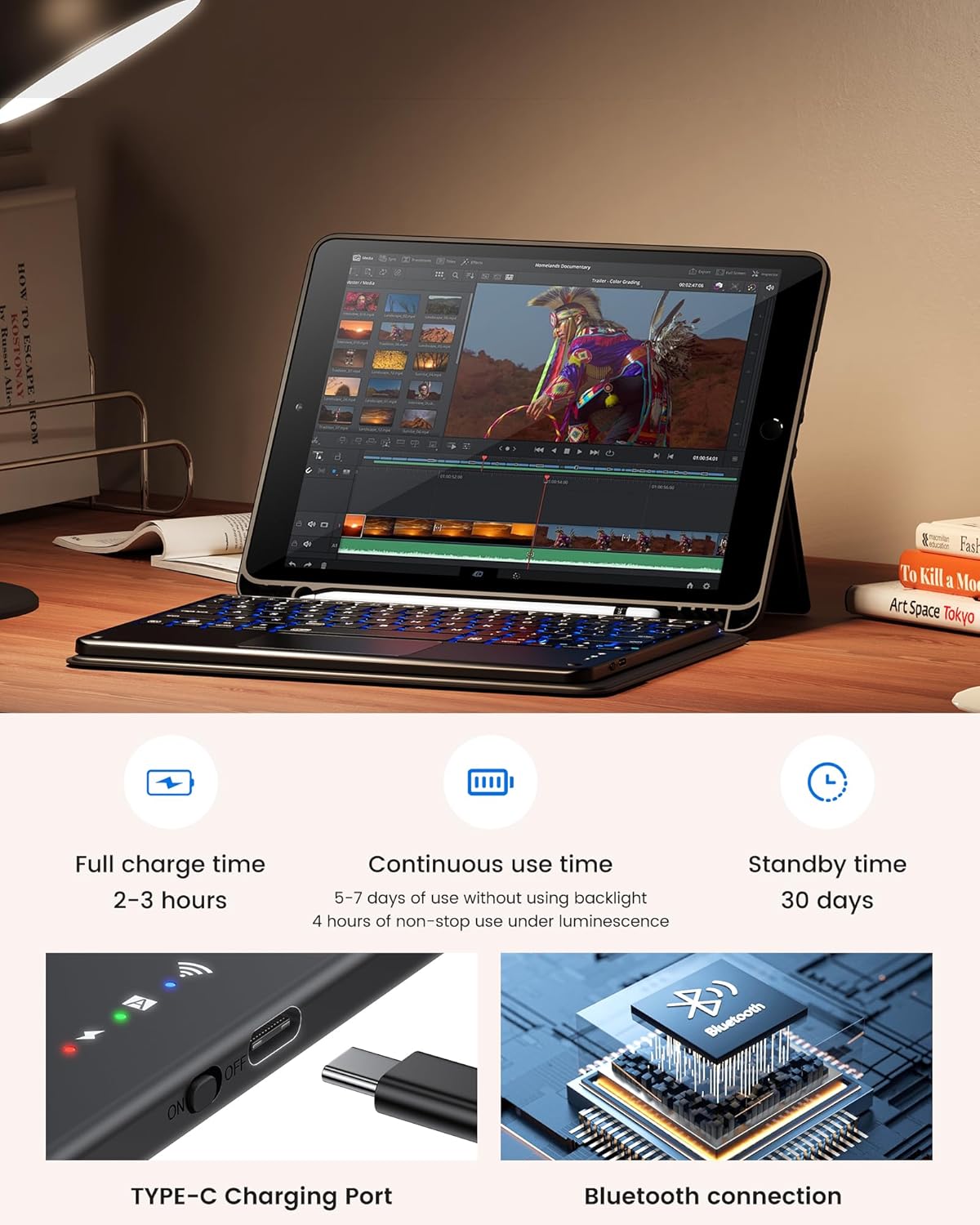
Image 4.1: Keyboard charging port and Bluetooth connection details.
4.3 Bluetooth Pairing
- Ensure the keyboard is charged.
- Turn on the keyboard using the power switch. The Bluetooth indicator light will flash.
- On your iPad, go to Settings > Bluetooth.
- Turn on Bluetooth. Your iPad will search for nearby devices.
- Select "INFILAND Keyboard" (or similar name) from the list of available devices.
- If prompted, enter the pairing code displayed on your iPad using the keyboard, then press Enter.
- Once paired, the Bluetooth indicator light on the keyboard will stop flashing and remain solid or turn off, and your iPad will show the keyboard as "Connected."
5. Operating Instructions
5.1 Keyboard Functions
- Backlight Control: Press the Light Bulb key (often near the spacebar or function row) to cycle through 7 backlight colors. Press it again with the Fn key to adjust brightness levels (3 levels).
- Function Keys: The top row of keys provides quick access to iPad functions such as Home, Search, Volume, and Media Playback.
5.2 Trackpad Usage
The integrated trackpad supports various multi-finger gestures for efficient navigation:
- Single Finger Tap: Left-click.
- Two Finger Tap: Right-click (context menu).
- Two Finger Scroll: Scroll up/down or left/right.
- Pinch to Zoom: Use two fingers to zoom in or out.
- Swipe with Three Fingers: Swipe up to open the App Switcher, swipe down to return to the Home screen, swipe left/right to switch between open apps.

Image 5.1: High-precision trackpad demonstrating multi-gesture controls.
5.3 Pencil Holder Usage
The integrated pencil holder is designed to securely store your Apple Pencil when not in use, preventing loss or damage.
- Simply snap your Apple Pencil into the designated slot on the case.
- Ensure it is firmly seated to prevent it from falling out.

Image 5.2: Secure pencil holder and case material details.
6. Charging and Battery Life
- Battery Type: 1 Lithium Ion battery (included)
- Full Charge Time: Approximately 2-3 hours
- Continuous Use Time (without backlight): 5-7 days
- Continuous Use Time (with backlight): Approximately 4 hours
- Standby Time: Up to 30 days
Battery life may vary based on usage patterns and backlight intensity.
7. Maintenance
- Cleaning the Case: Wipe the case with a soft, damp cloth. Avoid harsh chemicals or abrasive cleaners.
- Cleaning the Keyboard: Use a soft, dry cloth or a can of compressed air to clean between keys. Do not immerse the keyboard in water.
- Storage: When not in use for extended periods, store the keyboard case in a cool, dry place. Ensure the keyboard is turned off to preserve battery life.
8. Troubleshooting
8.1 Keyboard Not Connecting/Pairing
- Check Battery: Ensure the keyboard is fully charged.
- Power Cycle: Turn the keyboard off and then on again.
- iPad Bluetooth: Ensure Bluetooth is enabled on your iPad.
- Forget Device: On your iPad, go to Bluetooth settings, tap the 'i' icon next to the keyboard name, and select "Forget This Device." Then, attempt to pair again.
- Restart iPad: Restart your iPad and try pairing again.
8.2 Trackpad Not Responding
- Ensure Connection: Verify the keyboard is properly connected via Bluetooth.
- Clean Trackpad: Ensure the trackpad surface is clean and free of debris.
- iPad Settings: Check iPad settings for any accessibility features that might interfere with trackpad input.
8.3 Keys Not Responding
- Check Battery: A low battery can cause intermittent key response.
- Re-pair Keyboard: Disconnect and re-pair the keyboard with your iPad.
9. Specifications
| Brand | INFILAND |
| Model Number | B0DQQ75YMR |
| Compatible Devices | iPad 10.2 inch (9th, 8th, 7th Generation) |
| Connectivity Technology | Bluetooth |
| Special Features | Trackpad, Backlight, Detachable Keyboard, Pencil Holder |
| Material | Polycarbonate, Thermoplastic Polyurethane (TPU) |
| Battery Type | 1 Lithium Ion battery (included) |
| Item Weight | 1.5 pounds |
| Package Dimensions | 10.87 x 8.08 x 1.14 inches |
10. Warranty and Support
For warranty information or technical support, please refer to the product packaging or contact INFILAND customer service directly. Contact details can typically be found on the manufacturer's official website or through your purchase platform.


