
1. Introduction
This manual provides detailed instructions for the installation, operation, maintenance, and troubleshooting of your MekedeTech Android Car Radio Stereo GPS Navigation system. This unit is specifically designed for Audi A4 B6 B7 S4 B7 B6 RS4 models manufactured between 2000 and 2009. Please read this manual thoroughly before installation and use to ensure proper functionality and safety.
2. Setup and Installation
The MekedeTech Android Car Radio Stereo is designed for a plug-and-play installation, integrating seamlessly with your vehicle's existing systems, including steering wheel controls. Professional installation is recommended for optimal results.
2.1 Package Contents
Verify that all components are present in the package:
- MekedeTech Android Head Unit (8-Core 4+32G)
- Vehicle-specific frame kit
- Plug-and-play wiring harness
- GPS antenna
- USB cables
- External microphone (if included)
- User Manual
2.2 Installation Steps
- Preparation: Ensure the vehicle's ignition is off and the battery is disconnected to prevent electrical damage.
- Remove Original Unit: Carefully remove the existing car radio and trim panels from your Audi A4/S4 dashboard. Refer to your vehicle's service manual for specific instructions on panel removal.
- Connect Wiring: Connect the provided plug-and-play wiring harness to the vehicle's factory harness. Ensure all connections are secure. Connect the GPS antenna and any other external accessories (e.g., USB cables, external microphone).
- Install Head Unit: Mount the MekedeTech head unit into the dashboard using the provided frame kit. Secure it firmly.
- Reconnect Battery: Reconnect the vehicle's battery.
- Initial Power-On: Turn on the vehicle's ignition and power on the head unit. Follow any on-screen prompts for initial setup.

Image: Comparison of the Audi A4 dashboard before and after the installation of the MekedeTech Android car stereo, showing the integrated display.
2.3 Cooling Fan Setup
The unit includes a cooling fan to manage internal temperatures during extended use. Ensure the cooling fan is properly connected and configured.
- Connect Fan: Locate the cooling fan connector on the back of the head unit and ensure it is securely plugged in.
- Software Configuration: Access the device settings. Navigate to 'Device' > 'Sound' or 'Factory Settings' (password may be required, consult support if unknown) to ensure the cooling fan function is enabled.

Image: Visual guide detailing the physical connection of the cooling fan and the corresponding software settings to activate it, illustrating temperature regulation.
3. Operating Instructions
This section covers the basic operation of your MekedeTech Android Car Radio Stereo.
3.1 Touch Screen Interface
The unit features a 9-inch 1280x720 IPS touch screen. Navigate through menus and applications by tapping, swiping, and pinching gestures, similar to a smartphone or tablet.

Image: The main display of the MekedeTech Android car stereo, featuring a split-screen view with GPS navigation on one side and media controls and application shortcuts on the other.
3.2 Wireless CarPlay and Android Auto
The unit supports wireless CarPlay for iOS devices and wired Android Auto for Android devices, allowing seamless integration of your smartphone's features.
- Wireless CarPlay (iOS):
- Enable Bluetooth on your iPhone and pair it with the head unit.
- Open the 'Car Link' or 'CarPlay' application on the head unit.
- Confirm the connection on your iPhone.
- Wired Android Auto (Android):
- Ensure Android Auto is installed on your Android phone.
- Connect your Android phone to the head unit via a USB cable.
- Follow the on-screen prompts to initiate Android Auto.
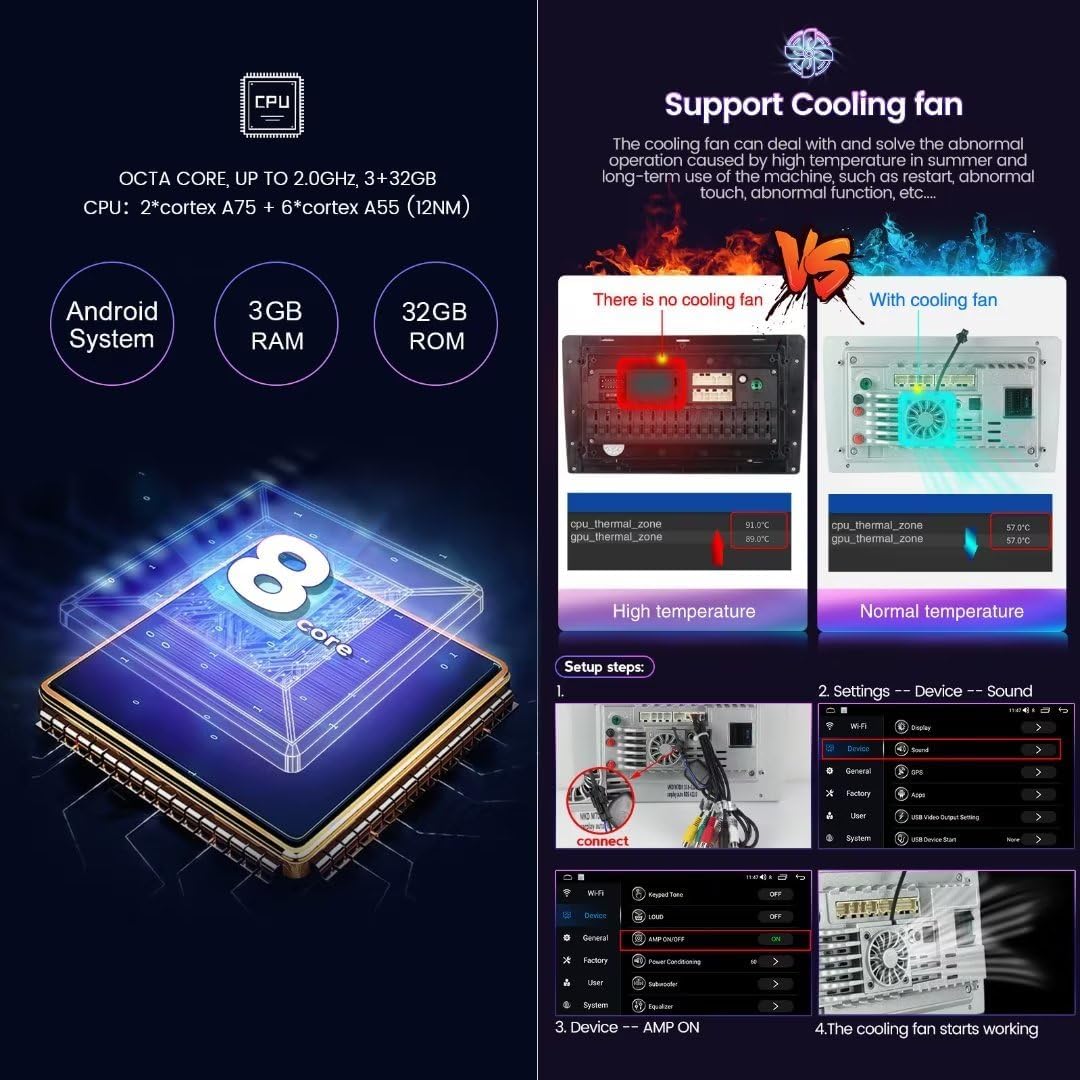
Image: A visual guide illustrating the connection steps for both Wireless CarPlay (iOS) and Wired Android Auto (Android) on the car stereo display, showing the respective interfaces.
3.3 GPS Navigation
The unit comes with built-in GPS navigation and supports various mapping applications. Ensure the GPS antenna is properly installed for accurate positioning.
3.4 4G LTE and Wi-Fi Connectivity
The head unit supports 4G LTE connectivity via a SIM card and Wi-Fi for internet access.
- 4G LTE: Insert a compatible 4G SIM card into the designated slot. The unit will automatically connect to the cellular network.
- Wi-Fi: Navigate to 'Settings' > 'Network & Internet' > 'Wi-Fi' to connect to available Wi-Fi networks or use your phone's hotspot.

Image: An illustration highlighting the built-in 4G LTE functionality with a SIM card slot and the integrated DSP (Digital Signal Processor) for enhanced audio quality.
3.5 Steering Wheel Controls
The unit retains the original steering wheel control functions, allowing you to adjust volume, change tracks, and manage calls without taking your hands off the wheel.
4. Maintenance
Proper maintenance ensures the longevity and optimal performance of your car stereo.
- Screen Cleaning: Use a soft, lint-free cloth slightly dampened with a screen cleaner (not abrasive chemicals) to clean the touch screen.
- Software Updates: Periodically check for software updates through the unit's settings or the manufacturer's website to ensure you have the latest features and bug fixes.
- Cooling System: Ensure the cooling fan is free from obstructions to maintain proper airflow and prevent overheating.
5. Troubleshooting
This section addresses common issues you might encounter with your MekedeTech car stereo.
5.1 No Power
- Check all power connections and fuses.
- Ensure the vehicle's battery is properly connected and charged.
5.2 No Sound
- Verify volume settings are not muted or set too low.
- Check speaker connections.
- Ensure the correct audio source is selected.
5.3 GPS Signal Issues
- Ensure the GPS antenna is properly installed and has a clear view of the sky.
- Check GPS settings within the unit to ensure it is enabled.
5.4 Connectivity Problems (Wi-Fi/4G/Bluetooth)
- Wi-Fi: Verify Wi-Fi is enabled and you are connecting to the correct network with the correct password.
- 4G LTE: Ensure the SIM card is correctly inserted and active with a data plan. Check network coverage in your area.
- Bluetooth: Ensure Bluetooth is enabled on both the head unit and your device, and that they are paired correctly.
5.5 Touch Screen Unresponsive
- Perform a soft reset by pressing the reset button (if available) or by turning the vehicle's ignition off and on.
- Ensure the screen is clean and free from debris.
6. Specifications
Key technical specifications for the MekedeTech Android Car Radio Stereo (Model: 8-Core 4+32G):
| Feature | Specification |
|---|---|
| Operating System | Android 13 OS |
| CPU | 8-Core A53 1.8GHz |
| Memory | 4GB RAM + 32GB ROM |
| Display Size | 9 Inches |
| Display Resolution | 1280x720 IPS |
| Touch Screen Type | Capacitive |
| Power Output | 4*50W |
| Connectivity | 4G LTE, Wi-Fi, Bluetooth 5.0 |
| Special Features | Wireless CarPlay, Wired Android Auto, Built-in GPS, DSP Sound System |
| Audio Formats | APE/FLAC/WAV/MP3/WMA etc. |
| Video Formats | MKV/RMVB/AVI/MP4/MDV etc. |
| Picture Formats | PNG/JPEG/JPG/GIF/WBMP/BNP etc. |
7. Warranty Information
This MekedeTech product comes with a 1-Year Warranty from the date of purchase. This warranty covers manufacturing defects and malfunctions under normal use. It does not cover damage caused by improper installation, misuse, accidents, or unauthorized modifications.
Please retain your proof of purchase for warranty claims.
8. Support
For further assistance, technical support, or warranty inquiries, please contact MekedeTech customer service through the retailer where the product was purchased or visit the official MekedeTech website for contact information and support resources.
