
1. Setup
1.1. Unboxing and Package Contents
Carefully unpack your new BETTDOW AC1060 Projector and ensure all items are present:
- Projector Unit
- Adapter
- HDMI Cable
- Remote Control
- User Manual
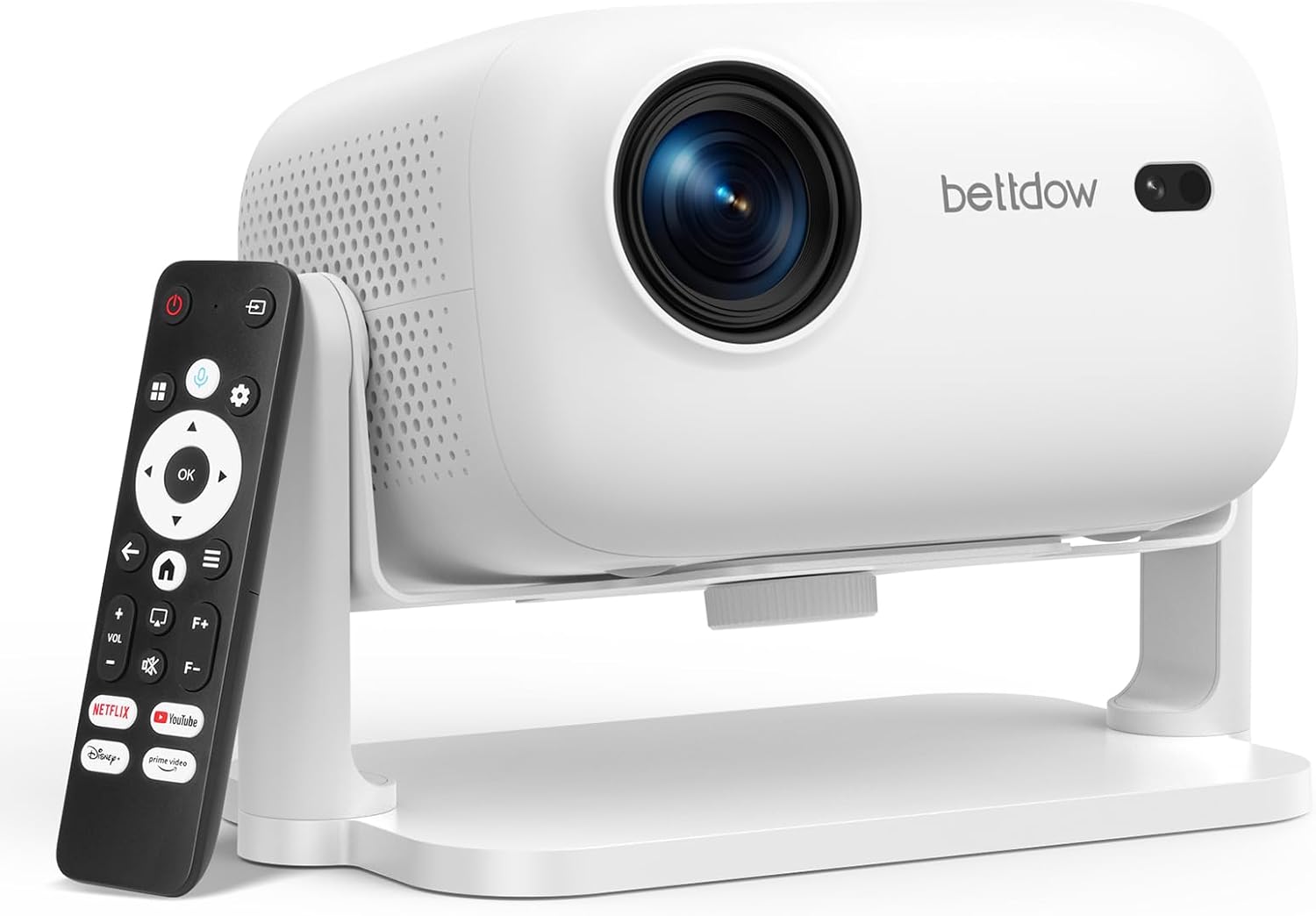
Image: The BETTDOW AC1060 Projector in white, shown with its remote control. The projector features a sleek, closed-design body with a lens on the front and ventilation on the sides.
1.2. Physical Placement and Power Connection
Place the projector on a stable, flat surface. The integrated 90° rotatable stand allows for flexible projection angles, including ceiling projection. Connect the power adapter to the projector and plug it into a power outlet.

Image: A person relaxing while the BETTDOW AC1060 Projector, positioned on a side table, projects an image onto the ceiling, demonstrating its 90° rotatable stand.
1.3. Remote Control Setup
Insert 2*AAA batteries (not included) into the remote control. The remote is Netflix-certified and provides quick access buttons for popular streaming services.

Image: The remote control for the BETTDOW AC1060 Projector, with its battery compartment open, indicating the need for 2 AAA batteries.
1.4. Initial Configuration and Intelligent Features
Upon first power-on, follow the on-screen prompts to select your language and region. Connect to your Wi-Fi network (supports 2.4/5GHz Wi-Fi 6 for higher speeds and lower latency) and pair Bluetooth devices (Bluetooth 5.2).
The AC1060 features automatic adjustments for optimal viewing:
- Auto Focus: Automatically detects and adjusts focus for a clear picture without manual intervention.
- Auto Screen Fit: Recognizes screen edges to ensure a perfect fit and corrects the picture to be square, even on irregular surfaces.
- Automatic Obstacle Avoidance: Built-in sensors detect obstacles and adjust the projection angle to prevent blockage.
- Digital Keystone Correction: Supports up to 30 degrees of correction (up, down, left, right) and manual four-point adjustment for aligned images.

Image: The BETTDOW AC1060 Projector projecting an image onto a wall, with visual overlays illustrating its Auto Obstacle Avoidance, Auto Keystone Correction, and Auto Focus capabilities.
2. Operating
2.1. Navigation and Streaming
Use the remote control to navigate the user interface. The projector is officially licensed by Netflix, providing one-click access to Netflix, Prime Video, YouTube, and Disney+ without an additional TV stick.

Image: The BETTDOW AC1060 Projector displaying the Netflix login screen on a wall, with the remote control showing dedicated buttons for Netflix, YouTube, Disney+, and Prime Video.
2.2. Intelligent Voice Assistant
The built-in ChatGPT voice assistant allows you to control the projector using natural language. Commands include switching on/off, adjusting volume, and changing input sources. Multiple languages are supported.
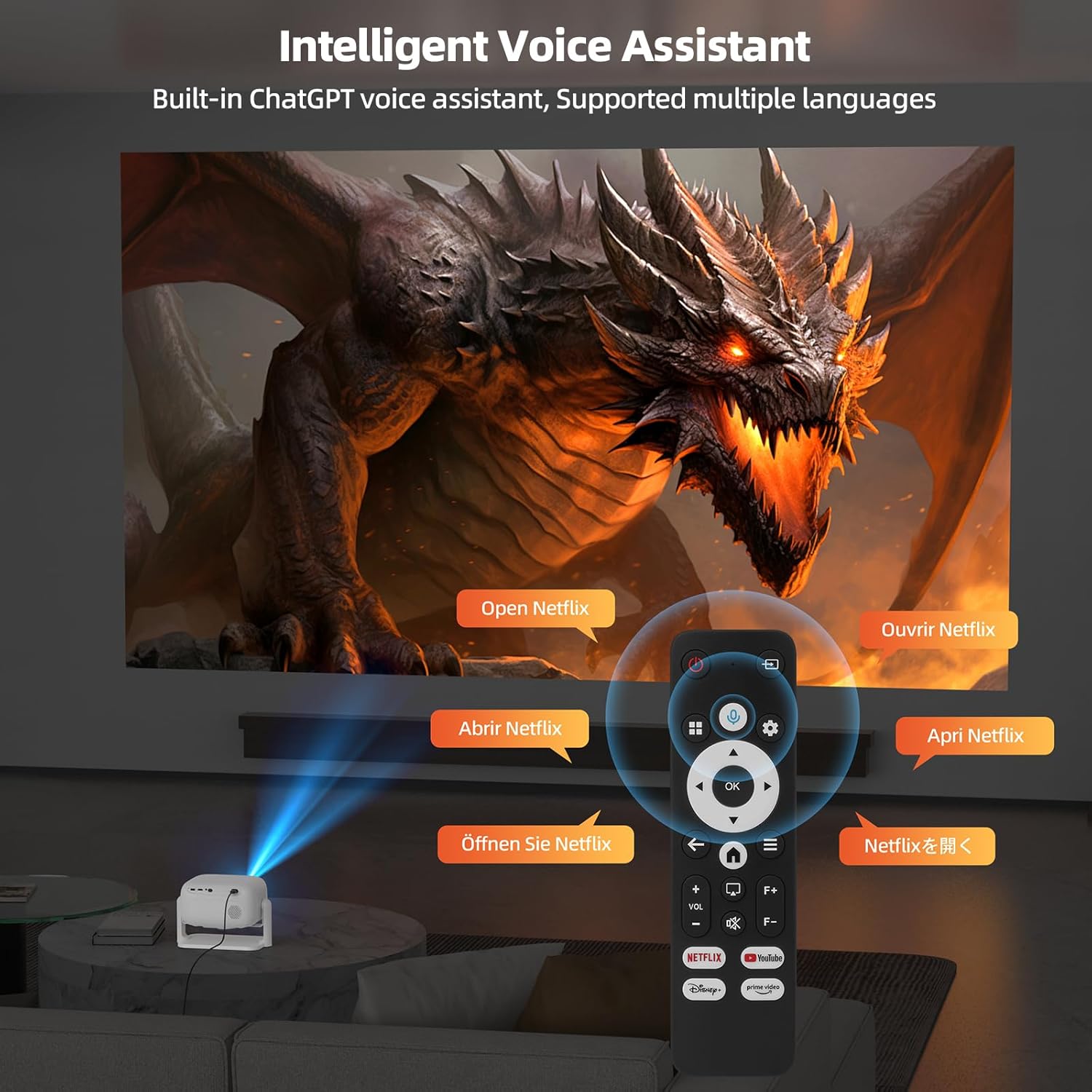
Image: The BETTDOW AC1060 Projector displaying a movie scene with a remote control in the foreground, showing various voice commands in different languages like 'Open Netflix', 'Ouvrir Netflix', 'Abrir Netflix', 'Öffnen Sie Netflix', and 'Netflixを開く'.
2.3. Input Sources and Connectivity
Connect external devices via the HDMI 2.1 port for high-speed, delay-free video transmission, or use the USB 2.0 port for media playback. Bluetooth 5.2 allows for wireless audio connections to external speakers or headphones. Wireless screen mirroring is also supported to turn your phone into a huge screen.

Image: The rear view of the BETTDOW AC1060 Projector, highlighting its connectivity options including HDMI In 2.1*1, USB 2.0*1, 3.5mm Audio Out*1, and AC*1.
2.4. Video Playback and Quality
The projector supports native 1080P resolution and is compatible with 4K signal input. HDR10+ ensures natural transitions between light and dark scenes and realistic skin tones. The closed-design projector provides 10000 lumens for bright, clear images.

Image: A vibrant image of flowers with text overlays emphasizing the BETTDOW AC1060 Projector's features: Native 1080P, 4K Support, HDR10/10+, and 10000 Lumens.
Video: A seller-provided overview of the Netflix Officially Licensed Projector with AI Voice Assistant, demonstrating its features and ease of use.
3. Maintenance
3.1. Cleaning and Care
The BETTDOW AC1060 features a fully-sealed engine design that effectively prevents dust from entering the interior. This extends the life of the projector, reduces fan noise, and makes it easier to clean. For external cleaning, use a soft, dry cloth. Avoid abrasive cleaners or solvents.
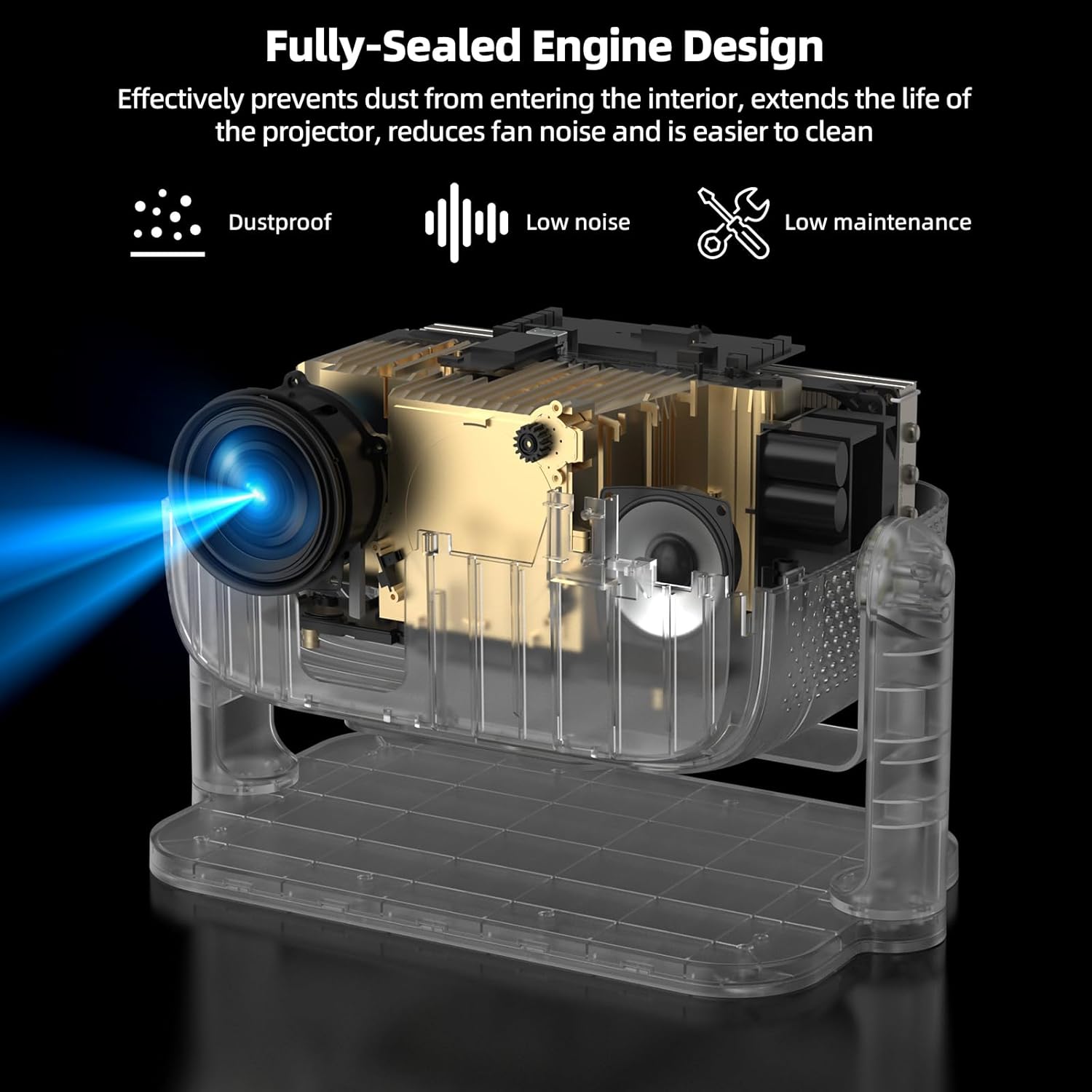
Image: An exploded view of the BETTDOW AC1060 Projector, illustrating its fully-sealed engine design and highlighting benefits such as dustproof, low noise, and low maintenance.
4. Troubleshooting
4.1. Common Issues and Solutions
- No Picture: Ensure the power cable is securely connected and the projector is turned on. Check the input source (HDMI, USB) is correctly selected and the external device is powered on.
- Blurry Image: The projector features Auto Focus. If the image remains blurry, try moving the projector slightly or manually adjusting the focus via the settings menu.
- Distorted Image: Utilize the Auto Screen Fit and Automatic Keystone Correction features. If needed, manually adjust the keystone correction in the settings to square the image.
- No Sound: Check the volume level on the projector and any connected external audio devices. Ensure Bluetooth audio is correctly paired or the 3.5mm audio cable is securely connected.
- Remote Not Responding: Ensure batteries are correctly inserted and have sufficient charge. Point the remote directly at the projector.
5. Specifications
| Feature | Specification |
|---|---|
| Brand | Bettdow |
| Model Number | AC1060 |
| Display Resolution | Native 1920 x 1080P (4K Compatible) |
| Special Features | Auto Focus, Auto Obstacle Avoidance, Digital Keystone Correction, Intelligent Voice Assistant, Netflix Officially Licensed |
| Connectivity Technology | Bluetooth 5.2, HDMI 2.1, USB 2.0, Wi-Fi 6 (2.4/5GHz) |
| Product Dimensions | 10.63 x 7.87 x 5.9 inches |
| Item Weight | 5.29 pounds |
| Recommended Uses | Indoor/Outdoor |
6. Warranty
Please refer to the product packaging or the official Bettdow website for detailed warranty information. Warranty terms and conditions may vary.
7. Support
For further assistance, technical support, or customer service inquiries, please visit the official Bettdow website or contact their customer support team directly. Contact information can typically be found in the product packaging or on the manufacturer's website.
