
YOTMS G2000Max
Contents
YOTMS G2000Max Wireless Gaming Headset User Manual
Model: G2000Max | Brand: YOTMS
Introduction
The YOTMS G2000Max Wireless Gaming Headset is designed to provide an immersive and lag-free audio experience for gamers across multiple platforms. Featuring 2.4GHz wireless technology and a 3.5mm wired option, this headset offers versatility and high-fidelity sound. Its ergonomic design ensures comfort during extended gaming sessions, while the detachable noise-cancelling microphone enables clear communication.
Safety Information
Please read this section carefully before using the headset to ensure safe and proper operation.
- Hearing Protection: Avoid using the headset at high volume for extended periods to prevent hearing damage. Prolonged exposure to loud sounds can cause permanent hearing loss.
- Cleaning: Use a soft, dry cloth for cleaning. Do not use liquid cleaners or aerosols.
- Water Exposure: Do not expose the headset to water or excessive moisture.
- Disassembly: Do not attempt to disassemble or modify the headset. This will void the warranty and may cause damage.
- Temperature: Store and operate the headset within recommended temperature ranges. Avoid extreme heat or cold.

Package Contents
Ensure all items are present in the package:
- YOTMS G2000Max Wireless Gaming Headset
- 2.4GHz USB Wireless Dongle
- 3.5mm Audio Cable
- USB Charging Cable (Type-C)
- User Manual (this document)

Product Overview
Familiarize yourself with the key features and components of your headset.
Key Features:
- Dual Mode Connectivity: Supports 2.4GHz wireless connection via USB dongle and wired connection via 3.5mm audio cable.
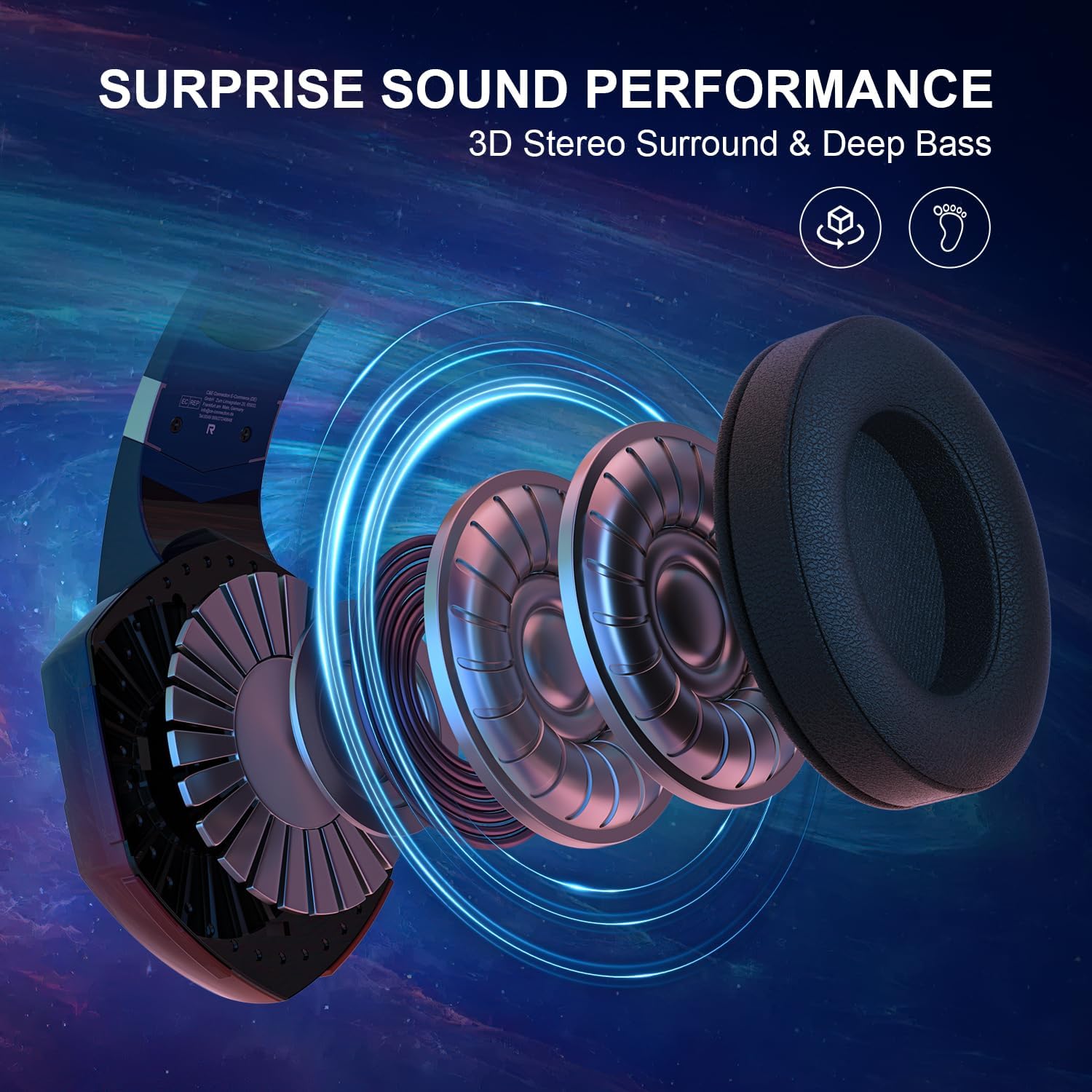
- Immersive 7.1 Surround Sound: Equipped with 50mm drivers for rich, detailed audio.
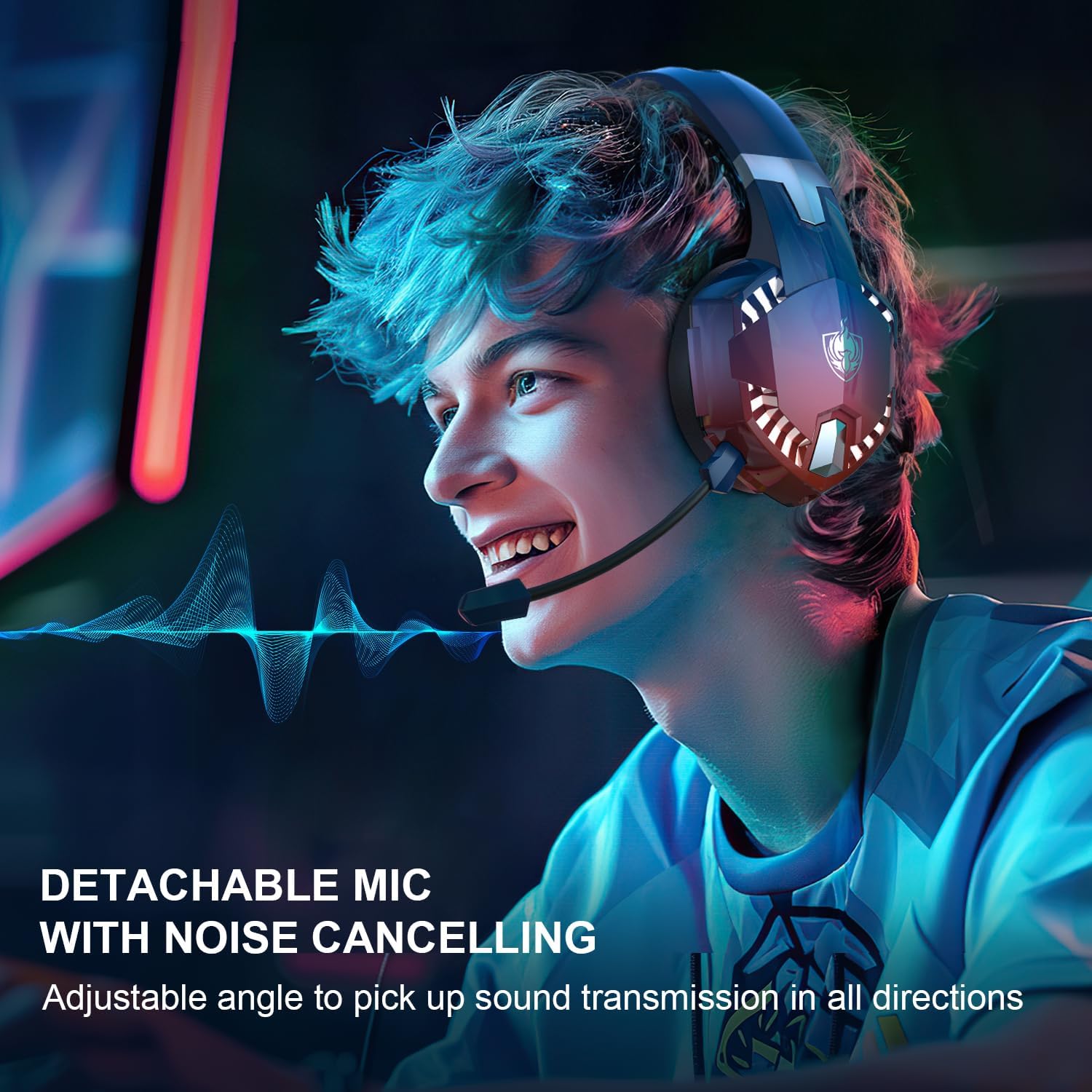
- Detachable Noise-Cancelling Microphone: Ensures clear voice communication and can be removed when not needed.
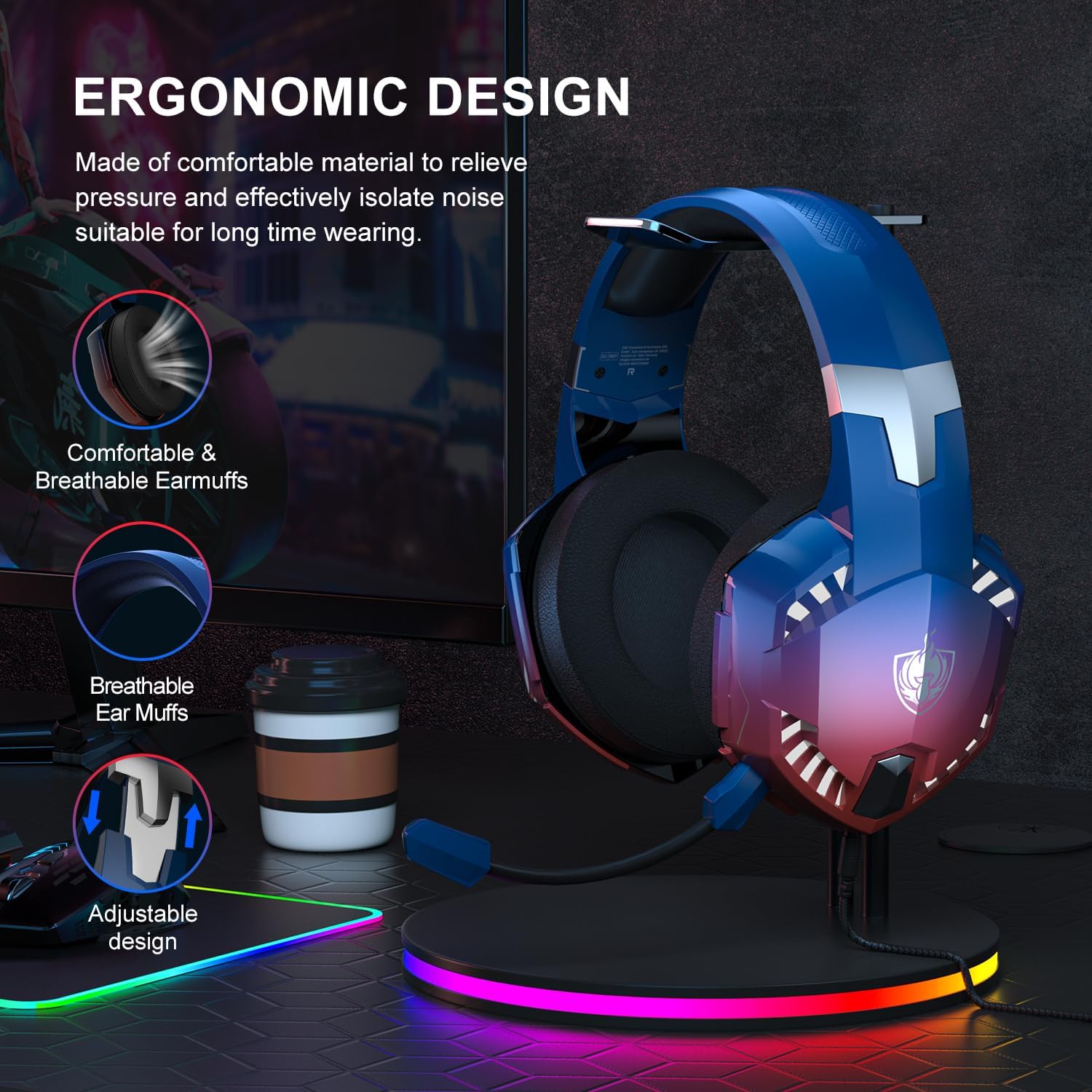
- Ergonomic Design: Features an adjustable headband and breathable ear cups for comfort during long gaming sessions.
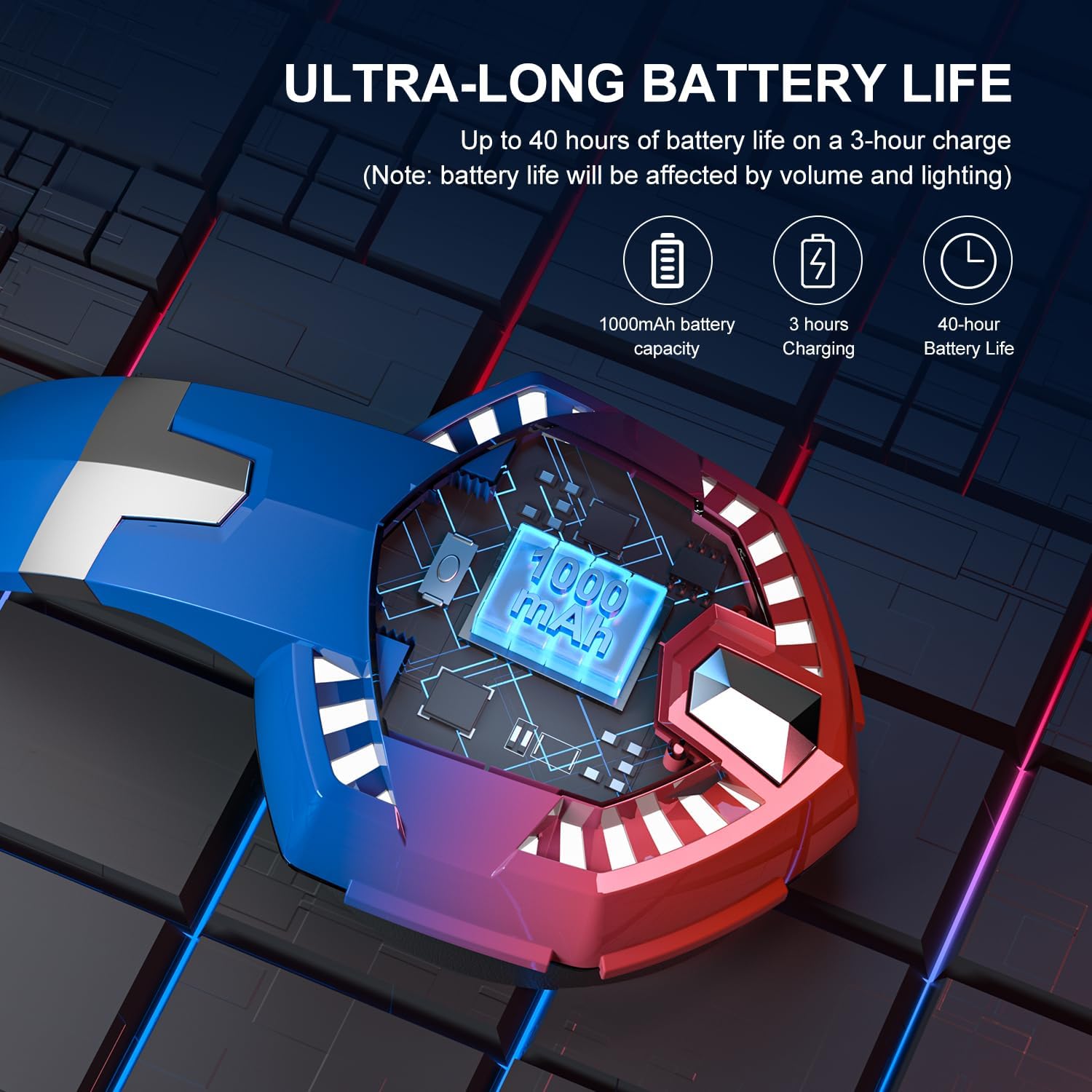
- Long Battery Life: Up to 40 hours of playtime on a single charge (battery life may vary with volume and lighting).
Setup
1. Wireless Connection (2.4GHz)
This mode offers low-latency audio for PC, PS4, PS5, and compatible laptops/mobile phones.
- Charge the Headset: Before first use, fully charge the headset using the provided USB charging cable. The LED indicator will show charging status.
- Insert USB Dongle: Plug the 2.4GHz USB wireless dongle into an available USB port on your PC, PS4, PS5, or compatible device.
- Power On Headset: Press and hold the power button on the headset until the LED indicator lights up, indicating it's powered on.
- Automatic Pairing: The headset and dongle should automatically pair. The LED on the headset will indicate a successful connection (e.g., solid blue light).
- System Audio Settings: On your device, navigate to audio settings and ensure the "YOTMS G2000Max" or similar is selected as the default audio output and input device.
2. Wired Connection (3.5mm Audio Cable)
Use this mode for devices like Xbox Series X/S, Nintendo Switch (audio only), PC, Mac, PS4, PS5, and laptops where wireless is not preferred or supported.
- Connect Cable: Plug one end of the 3.5mm audio cable into the headset's 3.5mm port and the other end into the audio jack of your device.
- Microphone Note: The microphone function is generally not supported when connected via 3.5mm cable on Nintendo Switch. For Xbox Series X/S, only wired connection is supported.
- System Audio Settings: Ensure your device recognizes the headset as the audio output and input.
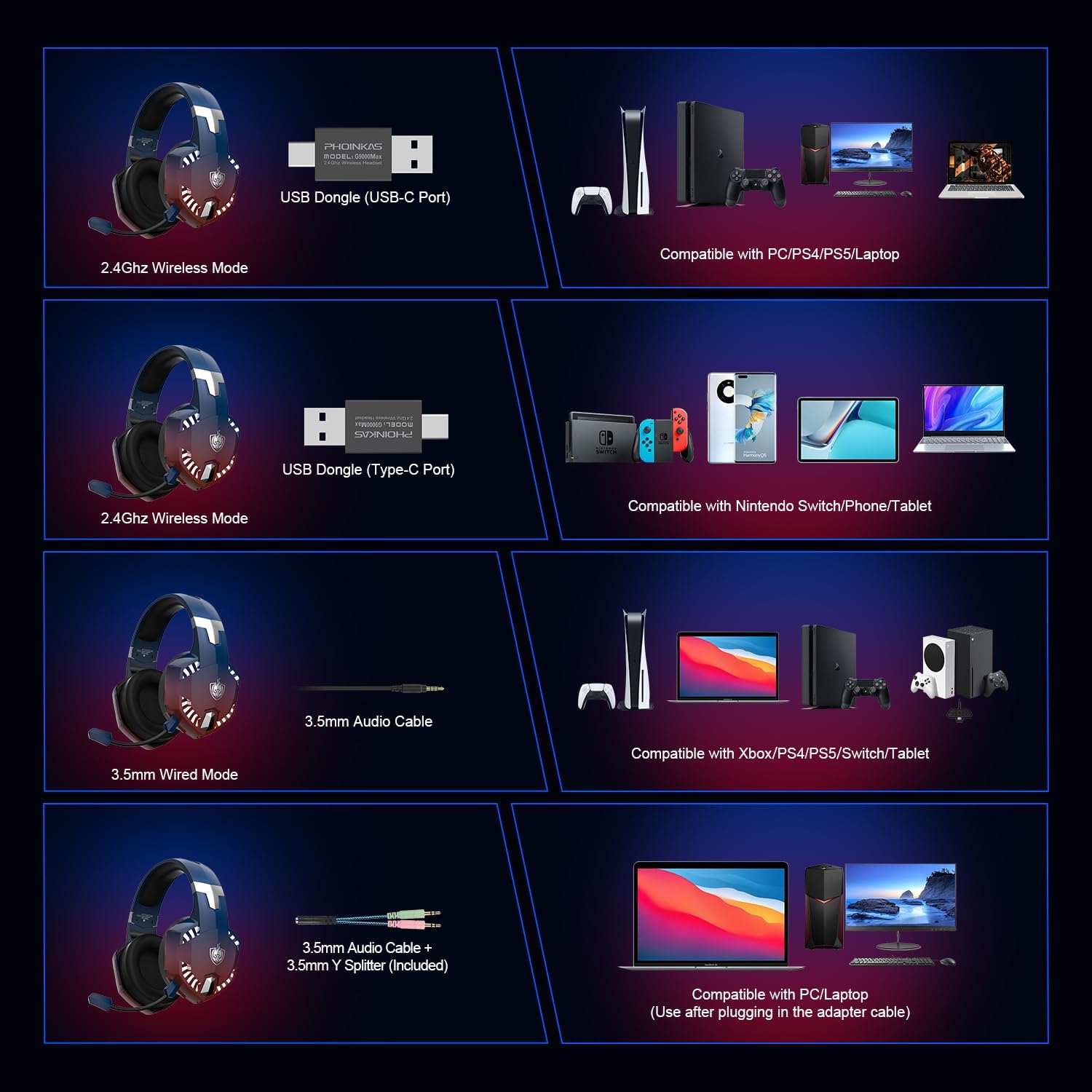
Operating Instructions
Power On/Off
- To Power On: Press and hold the power button for approximately 3 seconds until the LED indicator lights up.
- To Power Off: Press and hold the power button for approximately 3 seconds until the LED indicator turns off.
Volume Control
- Use the volume roller on the left earcup to adjust the audio output level. Roll up to increase volume, roll down to decrease.
Microphone Usage
- Attaching the Microphone: Insert the detachable microphone into the designated port on the left earcup. Ensure it clicks into place.
- Adjusting the Microphone: Bend the flexible microphone arm to position it optimally for clear voice pickup, typically 1-2 inches from your mouth.
- Mute/Unmute: Use the microphone mute button on the headset to toggle the microphone on or off. The LED indicator on the microphone or headset may change color to show mute status.
- Note: The microphone is not compatible with Nintendo Switch when connected via 3.5mm cable.
7.1 Surround Sound Activation
- Press the dedicated 7.1 surround sound button (if available, or refer to software instructions) to activate or deactivate the virtual 7.1 surround sound feature for an immersive audio experience.
Charging the Headset
- Connect the USB charging cable to the headset's charging port and the other end to a USB power source (e.g., computer USB port, wall adapter).
- A full charge takes approximately 3 hours. The headset can be used while charging.
Maintenance
Proper care will extend the life of your YOTMS G2000Max headset.
- Cleaning: Wipe the headset regularly with a soft, dry, lint-free cloth. Do not use harsh chemicals, cleaning solvents, or strong detergents.
- Storage: Store the headset in a cool, dry place away from direct sunlight and extreme temperatures.
- Cable Care: Avoid sharp bends or kinks in the cables. Disconnect cables by pulling the plug, not the cord.
- Battery Care: For optimal battery longevity, avoid fully discharging the battery frequently. Charge the headset regularly, even if not in use for extended periods.
Troubleshooting
| Problem | Possible Cause | Solution |
|---|---|---|
| No sound from headset (Wireless) | Headset not powered on; Not paired; Low battery; Incorrect audio output selected. | Ensure headset is powered on and charged. Re-pair the headset with the USB dongle. Check device's audio settings to ensure YOTMS G2000Max is selected as output. |
| No sound from headset (Wired) | 3.5mm cable not fully inserted; Incorrect audio output selected. | Ensure the 3.5mm cable is securely plugged into both the headset and the device. Check device's audio settings. |
| Microphone not working | Microphone muted; Not properly attached; Incorrect audio input selected; Compatibility issue (e.g., Switch wired mode). | Unmute the microphone. Ensure it is securely attached. Check device's audio settings to select YOTMS G2000Max as input. Note microphone limitations on certain platforms/modes. |
| Poor audio quality / Static | Interference (wireless); Loose connection (wired); Low battery. | Move closer to the wireless dongle. Check for other 2.4GHz devices causing interference. Ensure cables are secure. Charge the headset. |
| Headset not charging | Faulty cable/port; Power source issue. | Try a different USB charging cable and/or USB port/power adapter. Ensure the charging port on the headset is clean and undamaged. |
Specifications
| Feature | Detail |
|---|---|
| Model Name | G2000Max |
| Brand | YOTMS |
| Connectivity | 2.4GHz Wireless (USB Dongle), 3.5mm Wired |
| Headphone Form Factor | Over Ear |
| Driver Diameter | 50mm |
| Surround Sound | 7.1 Virtual Surround Sound |
| Microphone | Detachable, Noise-Cancelling |
| Wireless Range | Up to 15 meters (49 feet) |
| Latency | ≤ 20ms |
| Battery Capacity | 1000mAh |
| Charging Time | Approx. 3 hours |
| Battery Life | Up to 40 hours (varies with volume/lighting) |
| Compatibility | PC, PS4, PS5, Switch (audio only for mic in wired), Laptop, Mobile Phone, Mac, Xbox Series X/S (wired only) |
| Color | Gradient Blue |
Warranty and Support
For warranty information and technical support, please refer to the official YOTMS website or contact their customer service directly. Details are typically provided on the product packaging or a separate warranty card included with your purchase.
Please retain your proof of purchase for any warranty claims.
Documents and downloads
Ask a question about this manual
Ask about setup, troubleshooting, compatibility, parts, safety, or missing instructions. Manuals+ will review the question and use this page’s manual context to help answer it.