
Introduction
This manual provides comprehensive instructions for the setup, operation, and maintenance of your BETTDOW AC1060 Netflix Officially Licensed Smart Projector. Please read this manual thoroughly before using the product to ensure proper function and to maximize your viewing experience.
What's in the Box
Verify that all items listed below are included in your package:
- BETTDOW AC1060 Projector
- Power Adapter
- HDMI Cable
- Remote Control
- User Manual (this document)

Image: The BETTDOW AC1060 projector in black, shown with its remote control. The projector features a sleek, closed-design body and a lens on the front. The remote control has standard navigation buttons and dedicated buttons for Netflix, YouTube, and Disney+.
Setup Instructions
- Power Connection: Connect the power adapter to the projector's AC input port and then plug it into a power outlet.
- Remote Control Batteries: Open the battery compartment on the back of the remote control and insert two AAA batteries (not included), ensuring correct polarity.
- Placement: Place the projector on a stable, flat surface. The integrated 90° rotatable stand allows for flexible projection angles, including ceiling projection. Ensure the projection path is clear of obstructions.
- Initial Power On: Press the power button on the projector or the remote control to turn on the device.
- Network Connection: Follow the on-screen prompts to connect the projector to your Wi-Fi network (2.4GHz or 5GHz).
- Source Selection: If connecting external devices, use the HDMI cable to connect to the HDMI 2.1 port. Select the appropriate input source from the projector's menu.

Image: A BETTDOW projector positioned on a nightstand, projecting an image onto the ceiling. This demonstrates the flexibility of the 90° rotatable stand for various projection needs.

Image: A close-up of the remote control for the BETTDOW projector, showing the open battery compartment where two AAA batteries are to be inserted. Text indicates that batteries are not included.
Operating Instructions
Netflix Officially Licensed Streaming
The BETTDOW AC1060 projector is officially licensed by Netflix, providing direct access to Netflix, Prime Video, YouTube, and Disney+ without external devices. Use the dedicated buttons on the remote control for one-click access to these platforms.

Image: A BETTDOW projector projecting the Netflix login screen onto a wall. The remote control is shown with dedicated buttons for Netflix, YouTube, Prime Video, and Disney+ highlighted, indicating direct access to these streaming services.
Intelligent Voice Assistant
The projector features a built-in ChatGPT voice assistant. Press the voice assistant button on your remote and speak commands to control the projector. Supported commands include:
- "Turn on/off the projector"
- "Adjust volume up/down"
- "Switch to HDMI input"
- "Open Netflix" (or other installed apps)
Multiple languages are supported for voice commands.

Image: A BETTDOW projector displaying a dragon image, with the remote control shown. Speech bubbles in multiple languages (English, French, German, Japanese) demonstrate voice commands like "Open Netflix" being recognized by the intelligent voice assistant.
Automatic Adjustments (Focus, Screen Fit, Obstacle Avoidance, Keystone)
The AC1060 projector is equipped with advanced automatic adjustment features:
- Auto Focus: The projector automatically detects and adjusts the focus to ensure a clear image at all times, eliminating the need for manual adjustments.
- Auto Screen Fit: It automatically recognizes the edges of the projection surface to ensure the picture fits perfectly. This corrects the image to be square even on irregular walls or curtains.
- Automatic Obstacle Avoidance: Built-in sensors detect obstacles in front of the projector (e.g., furniture, decorations) and automatically adjust the projection angle to prevent the image from being blocked.
- Automatic Keystone Correction: Supports up to 30 degrees of automatic keystone correction (up, down, left, right) and manual four-point keystone correction, ensuring aligned and clear images.
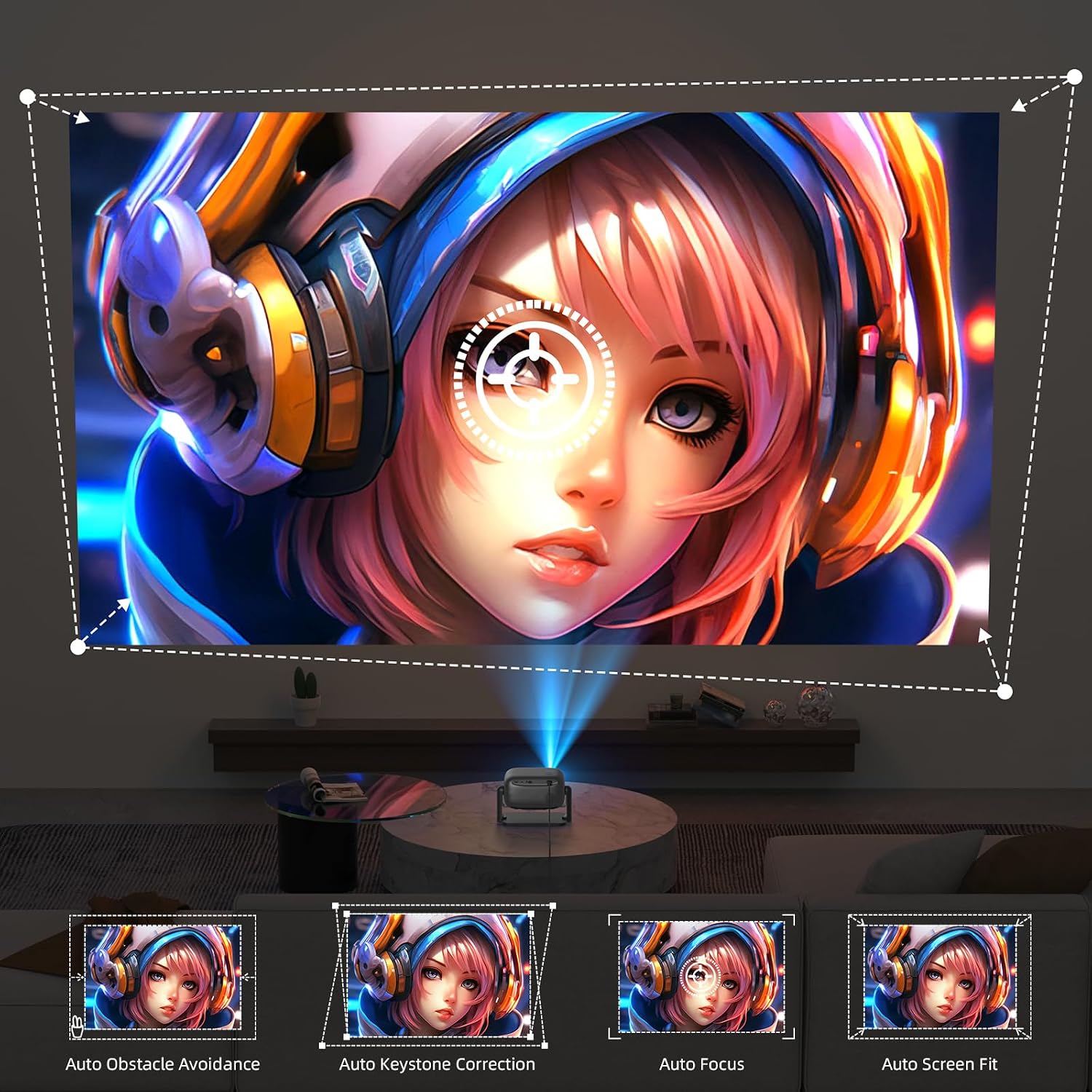
Image: A series of four smaller images demonstrating the projector's automatic features: Auto Obstacle Avoidance, Auto Keystone Correction, Auto Focus, and Auto Screen Fit. The main image shows a projected scene with a character, illustrating how these features maintain a perfect display.
Connectivity (Wi-Fi 6 & Bluetooth 5.2)
The projector supports the latest wireless standards for seamless connectivity:
- Wi-Fi 6 (2.4/5GHz): Provides higher transmission speeds, lower latency, and improved network stability for smooth streaming and online activities.
- Bluetooth 5.2: Connect external audio devices such as Bluetooth speakers or headphones for an enhanced audio experience.

Image: A BETTDOW projector projecting a dynamic car scene, with a smartphone mirroring content to the projector via Wi-Fi. Icons for Wi-Fi 6 and Bluetooth 5.2 are displayed, emphasizing the projector's advanced wireless connectivity.
Maintenance
- Cleaning the Lens: Use a soft, lint-free cloth specifically designed for optical lenses to gently wipe the projector lens. Avoid abrasive materials or harsh chemicals.
- Cleaning the Exterior: Wipe the projector's exterior with a soft, dry cloth. For stubborn marks, slightly dampen the cloth with water. Do not use solvents or abrasive cleaners.
- Dust Prevention: The projector features a fully-sealed engine design to prevent dust from entering the interior. This design reduces maintenance needs and extends the product's lifespan.
- Storage: When not in use for extended periods, store the projector in a cool, dry place, away from direct sunlight and extreme temperatures.

Image: An exploded view diagram of the BETTDOW projector, highlighting its fully-sealed engine design. Icons indicate benefits such as dustproof, low noise, and low maintenance, explaining how this design protects internal components.
Troubleshooting
- No Power:
- Ensure the power adapter is securely connected to both the projector and a working power outlet. Check if the power outlet is functional.
- No Image/Blurry Image:
- Verify the projector is powered on.
- Check the input source selection.
- Allow the Auto Focus feature to adjust. If still blurry, ensure the lens is clean and there are no obstructions.
- For keystone issues, allow Auto Keystone Correction to function or manually adjust via settings.
- No Sound:
- Increase the volume on the projector and any connected external audio devices.
- If using Bluetooth, ensure the device is properly paired and connected.
- If using HDMI, check the audio settings on the connected source device.
- Wi-Fi/Bluetooth Connection Issues:
- Ensure the projector is within range of your Wi-Fi router or Bluetooth device.
- Restart the projector and your router/Bluetooth device.
- Verify the Wi-Fi password is entered correctly.
- Remote Control Not Responding:
- Replace the batteries in the remote control.
- Ensure there are no obstructions between the remote and the projector's IR receiver.
Specifications
| Feature | Detail |
|---|---|
| Model Number | AC1060 |
| Brand | Bettdow |
| Display Resolution | Native 1920 x 1080P (4K Supported) |
| Connectivity | HDMI 2.1, USB 2.0, 3.5mm Audio Out, AC Power |
| Wireless Connectivity | Wi-Fi 6 (2.4/5GHz), Bluetooth 5.2 |
| Special Features | Netflix Officially Licensed, Intelligent Voice Assistant, Auto Focus, Auto Screen Alignment, Automatic Obstacle Avoidance, Automatic Keystone Correction |
| Product Dimensions | 10.63 x 7.87 x 5.9 inches |
| Item Weight | 5.29 pounds |
| Recommended Use | Indoor/Outdoor |
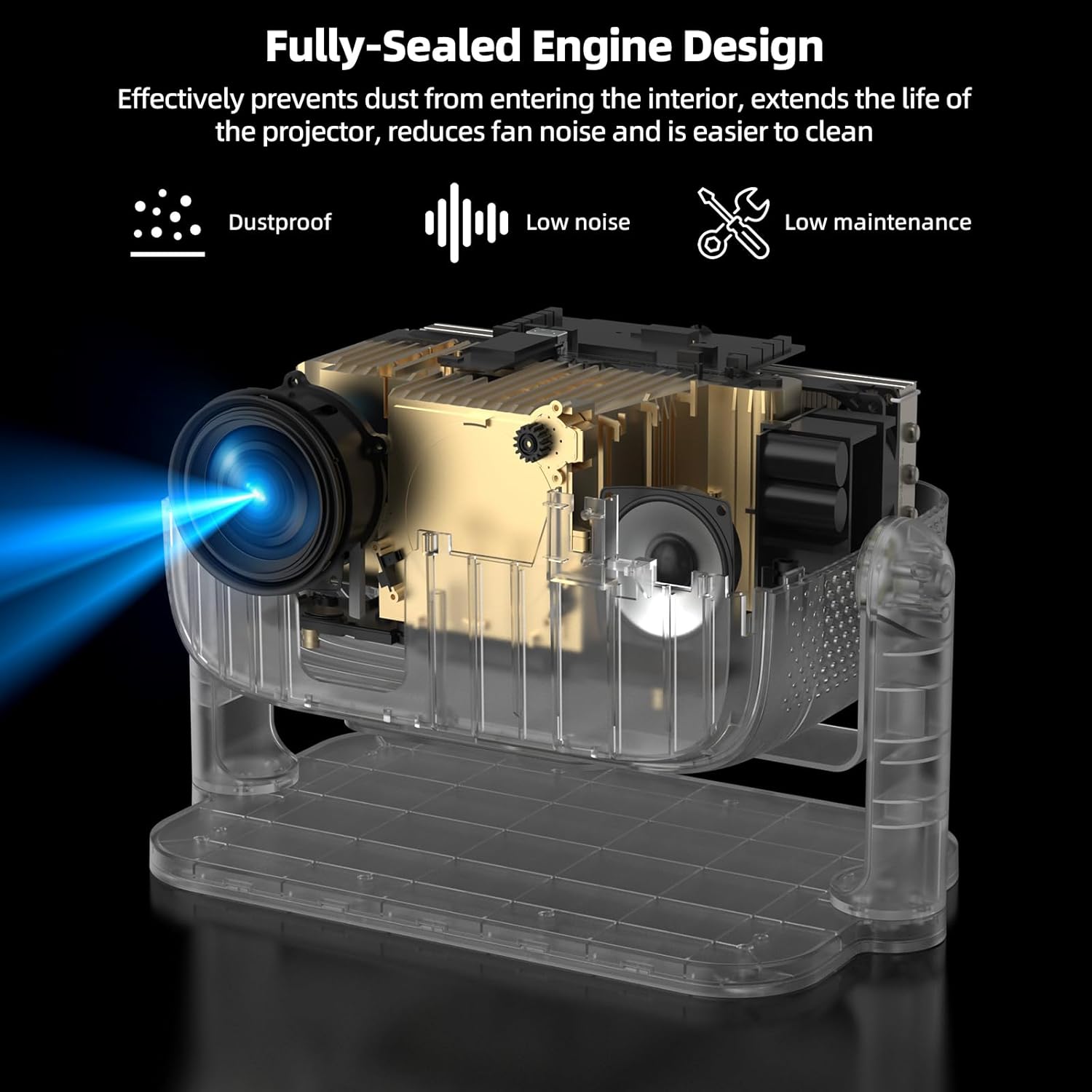
Image: The rear panel of the BETTDOW projector, showing various connectivity ports including HDMI In 2.1, USB 2.0, 3.5mm Audio Out, and AC power input. This illustrates the wide compatibility of the device.
Warranty and Support
For warranty information and technical support, please refer to the official Bettdow website or contact their customer service. Details can typically be found on the product packaging or the official brand website.
Online Resources: Visit the Bettdow Store on Amazon for additional product information and support.
