
Taiahiro Bundle-2
Taiahiro Dual Wireless Gaming Headset User Manual
Model: Bundle-2
Introduction
Thank you for choosing the Taiahiro Dual Wireless Gaming Headset. This manual provides detailed instructions for setting up, operating, and maintaining your new headset. Please read this manual thoroughly before use to ensure optimal performance and longevity of your device.
This headset offers versatile connectivity options including 2.4GHz wireless, Bluetooth 5.2, and 3.5mm wired modes, making it compatible with a wide range of platforms such as PS5, PS4, PC, Switch, Xbox, Mac, Phone, and Tablet.
Safety Information
- Do not expose the headset to extreme temperatures, humidity, or liquids.
- Avoid dropping or subjecting the headset to strong impacts.
- Do not attempt to disassemble or modify the headset. This will void the warranty.
- Listen at moderate volume levels to prevent hearing damage. Prolonged exposure to loud sounds can cause permanent hearing loss.
- Keep the headset and its accessories out of reach of children and pets.
- Use only the provided charging cable or a certified equivalent.
Package Contents
Please check the package for the following items:
- Taiahiro Dual Wireless Gaming Headset (Black & White)
- 2.4GHz USB Wireless Dongle
- Detachable Noise-Cancelling Microphone
- USB-C Charging Cable
- 3.5mm Audio Cable
- User Manual (this document)
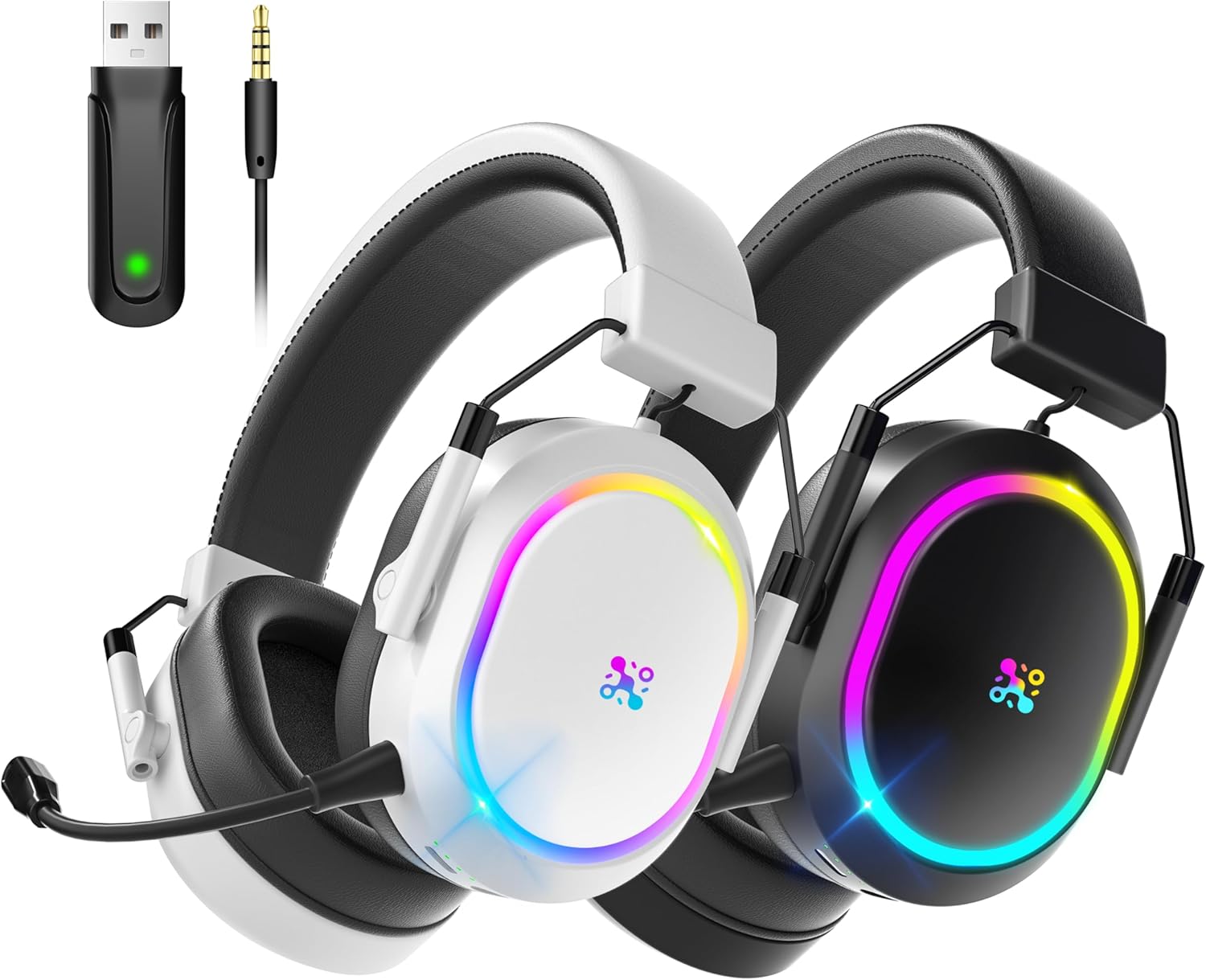
Image: The Taiahiro Dual Wireless Gaming Headset in both black and white, alongside its 2.4GHz USB wireless dongle and 3.5mm audio cable, illustrating the complete package contents.
Product Overview
Familiarize yourself with the various components and controls of your Taiahiro Gaming Headset.

Image: A detailed diagram highlighting the various control points on the headset, including the Status Light, M Button, Power Button, Volume Control, 3.5mm Port, Battery Level Indicator Light, Charging Port, and Mic Port.
- Power Button: Used to power the headset on/off and switch modes.
- M Button: Multi-function button for various controls depending on the mode.
- Volume Control: Rotary dial to adjust audio volume.
- 3.5mm Port: For wired connection.
- Mic Port: For attaching the detachable microphone.
- Charging Port (USB-C): For charging the headset.
- Status Light: Indicates power, connection status, and charging.
- Battery Level Indicator Light: Shows current battery charge.
- Detachable Microphone: Flexible, omnidirectional microphone with noise cancellation.
- Adjustable Headband: For comfortable fit.
- Soft Breathable Earmuffs: Designed for comfort during long gaming sessions.
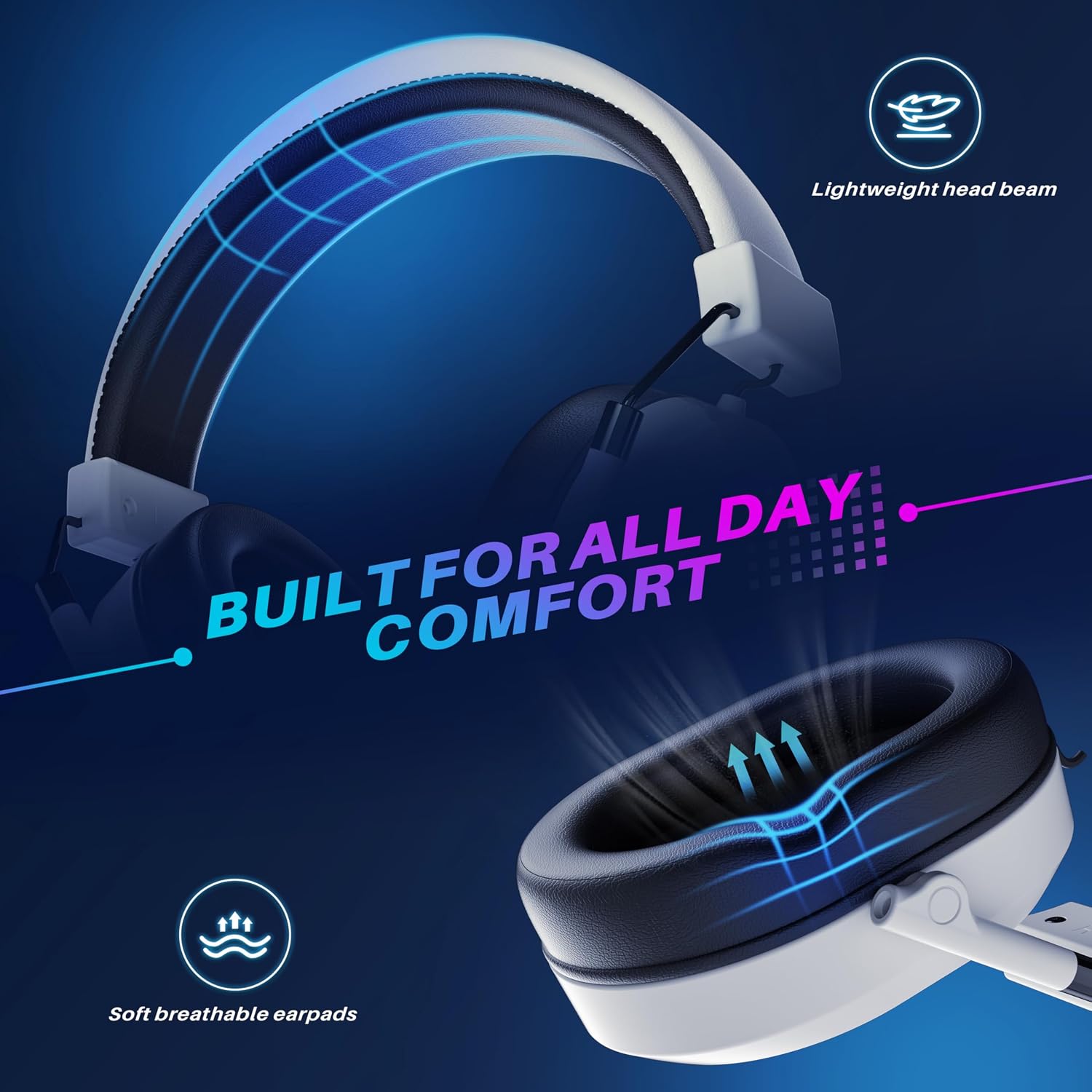
Image: The headset highlighting its comfortable design features, including a lightweight head beam and soft, breathable earpads, engineered for extended wear.

Image: An exploded view of the headset's internal components, specifically showcasing the 50mm audio drivers responsible for sound production.
Setup
1. Charging the Headset
Before first use, fully charge the headset. A full charge takes approximately 2.5 hours.
- Connect the USB-C charging cable to the headset's charging port.
- Connect the other end of the cable to a USB power source (e.g., computer USB port, USB wall adapter).
- The Battery Level Indicator Light will show charging status. It will turn solid when fully charged.
Note: The headset offers over 50 hours of battery life with lights off, and over 25 hours with lights on.

Image: The headset positioned on a charging platform, visually representing its impressive battery life of over 50 hours and the quick 2.5-hour full charging time.
2. Connecting via 2.4GHz Wireless (USB Dongle)
This mode provides ultra-low latency connection for gaming.
- Insert the 2.4GHz USB wireless dongle into an available USB port on your PS5, PS4, PC, Switch (docked mode), or Mac.
- Power on the headset by pressing and holding the Power Button until the Status Light illuminates.
- The headset will automatically attempt to connect to the dongle. The Status Light will indicate a successful connection (e.g., solid blue).
- On your device, ensure the audio output is set to "Taiahiro Headset" or similar.

Image: A visual representation of the headset's low-latency 2.4GHz wireless technology, featuring the USB dongle and highlighting an ultra-low latency of less than 25ms for stable wireless range up to 33ft.
3. Connecting via Bluetooth 5.2
Ideal for mobile devices, tablets, and other Bluetooth-enabled systems.
- Ensure the headset is powered on.
- Press the Power Button briefly to cycle through modes until the Status Light blinks blue rapidly, indicating Bluetooth pairing mode.
- On your device (Phone, Tablet, PC, Mac), go to Bluetooth settings and search for "Taiahiro Headset".
- Select "Taiahiro Headset" to pair. The Status Light will turn solid blue upon successful connection.
4. Connecting via 3.5mm Wired
For devices without wireless capabilities or when battery is low.
- Insert the 3.5mm audio cable into the headset's 3.5mm port.
- Connect the other end of the cable to the 3.5mm audio jack on your device (PS5 controller, PS4 controller, Xbox controller, PC, Switch, Phone, Tablet).
- The headset will automatically switch to wired mode. The headset does not need to be powered on for wired audio, but power is required for microphone functionality in some cases.
5. Attaching the Microphone
The detachable microphone provides clear voice communication.
- Locate the microphone port on the left earcup of the headset.
- Align the microphone's connector with the port and gently push it in until it clicks into place.
- Adjust the flexible microphone boom to position it optimally near your mouth for clear voice pickup.

Image: The headset featuring its detachable noise-cancelling microphone, illustrating its 360-degree adjustability for optimal voice pickup and a 95% reduction in ambient noise.
Operating Instructions
Power On/Off
- Power On: Press and hold the Power Button for 3 seconds until the Status Light illuminates.
- Power Off: Press and hold the Power Button for 3 seconds until the Status Light turns off.
Volume Control
- Rotate the Volume Control dial up to increase volume.
- Rotate the Volume Control dial down to decrease volume.
Microphone Mute/Unmute
- Press the M Button once to mute the microphone. The Status Light may change color or blink to indicate mute status.
- Press the M Button again to unmute the microphone.
Mode Switching
- Briefly press the Power Button to cycle between 2.4GHz wireless mode and Bluetooth mode. The Status Light will indicate the active mode.
- Wired mode (3.5mm) is automatically activated when the audio cable is plugged in.
3D Surround Sound
The headset features 3D surround sound for an immersive gaming experience.

Image: The headset displayed with a graphic overlay illustrating the concept of 3D stereo surround sound, emphasizing its design for immersive gaming.
This feature is automatically enabled when using the headset in wireless modes. Ensure your game or system audio settings are configured for stereo or surround sound output for the best experience.
Maintenance
- Cleaning: Use a soft, dry cloth to wipe the headset. For stubborn dirt, slightly dampen the cloth with water. Do not use harsh chemicals or abrasive cleaners.
- Storage: Store the headset in a cool, dry place away from direct sunlight and extreme temperatures. When not in use for extended periods, it is recommended to store it in its original packaging or a protective case.
- Battery Care: To prolong battery life, avoid fully discharging the headset frequently. If storing for a long time, charge it to about 50% every few months.
- Microphone Care: Handle the detachable microphone gently. Avoid bending it excessively or forcing it into the port.
Troubleshooting
| Problem | Possible Cause | Solution |
|---|---|---|
| No sound from headset |
|
|
| Microphone not working |
|
|
| Connection issues (wireless) |
|
|
Specifications
| Feature | Detail |
|---|---|
| Model Name | Bundle-2 |
| Connectivity Technology | 2.4GHz Wireless, Bluetooth 5.2, 3.5mm Wired |
| Compatible Devices | PS5, PS4, PC, Switch, Xbox, Mac, Phone, Tablet |
| Audio Drivers | 50mm Dynamic Drivers |
| Frequency Range | 20Hz - 20,000Hz |
| Microphone | Detachable, 360° Noise Cancelling |
| Battery Life | 50+ hours (lights off), 25+ hours (lights on) |
| Charging Time | Approx. 2.5 hours (via USB-C) |
| Wireless Latency | <25ms (2.4GHz) |
| Wireless Range | Up to 33ft (10m) |
| Earpiece Shape | Over-ear |
| Material | Fabric, Plastic |
Warranty and Support
Taiahiro products are designed and manufactured to the highest quality standards. This product is covered by a limited warranty from the date of purchase. Please refer to the warranty card included in your package for specific terms and conditions.
For technical support, troubleshooting assistance, or warranty claims, please contact Taiahiro Customer Service:
- Email: support@taiahiro.com (Example email, replace if actual is known)
- Website: Visit the Taiahiro Store on Amazon
Please have your product model number (Bundle-2) and purchase date ready when contacting support.
Ask a question about this manual
Ask about setup, troubleshooting, compatibility, parts, safety, or missing instructions. Manuals+ will review the question and use this page’s manual context to help answer it.