1. Introduction
This manual provides detailed instructions for the UGREEN DisplayPort Cable 2.1 and the accompanying 4K DisplayPort to HDMI Adapter. Please read this manual thoroughly before use to ensure proper installation and operation. This product is designed to facilitate high-quality audio and video transmission between DisplayPort-enabled devices and HDMI-enabled displays.

Image: UGREEN DisplayPort Cable 2.1 and 4K DisplayPort to HDMI Adapter components.
2. Key Features
- Advanced DisplayPort 2.1 Connectivity: Supports resolutions up to 16K@30Hz (with DSC 1.2a), 8K@240Hz, and 4K@240Hz. Backward compatible with DisplayPort 1.4, 1.3, and 1.2 standards.
- High Bandwidth: Features an unprecedented 40Gbps bandwidth, ensuring stable and high-speed data transmission without signal loss.
- VESA Certified: Meets VESA standards for reliable performance and quality assurance.
- Enhanced Visuals and Audio: Supports HDR (High Dynamic Range), HDCP 2.2, FEC (Forward Error Correction), UHBR10, 3D, Dolby, and eARC for an immersive audio-visual experience.
- 4K DisplayPort to HDMI Adapter: Converts a DisplayPort output to an HDMI port, enabling connection to HDMI monitors, projectors, or HDTVs. Supports 4K resolution.
- Unidirectional Signal Transfer: The adapter transmits signals only from DisplayPort source devices to HDMI displays.
- Robust Durability: Constructed with 28AWG tinned copper and tinplate, featuring triple shielding for EMI resistance. Aluminum alloy housing accelerates heat dissipation. The nylon braided jacket provides 10X greater durability than standard PVC.
- No Buckle Design: DisplayPort cable connectors feature a no-buckle design to prevent accidental damage during connection or disconnection.
- 20-Pin Disabled: The 20-pin on the DisplayPort cable is disabled to prevent potential power issues and ensure stable operation.

Image: Visual comparison of 16K@30Hz and 4K@60Hz resolutions.

Image: High refresh rate display showing 240Hz and 60Hz for gaming.

Image: Comparison of DP2.1 40Gbps bandwidth versus older DisplayPort versions.
3. Setup and Installation
The UGREEN DisplayPort Cable and Adapter are designed for plug-and-play functionality. Follow these steps for a successful connection:
- Connect the DisplayPort Cable: Insert one end of the UGREEN DisplayPort 2.1 cable into the DisplayPort output of your source device (e.g., PC, laptop, graphics card).
- Connect to Display: Insert the other end of the DisplayPort cable into the DisplayPort input of your monitor or display.
- Using the DP to HDMI Adapter: If your display only has an HDMI input, first plug the DisplayPort Male end of the adapter into your source device's DisplayPort output.
- Connect HDMI Cable to Adapter: Then, connect a standard HDMI cable from your HDMI display to the HDMI Female port on the UGREEN adapter.
- Power On Devices: Ensure both your source device and display are powered on.
- Select Input: On your display, select the correct input source (DisplayPort or HDMI, depending on your connection).

Image: Diagram illustrating the unidirectional connection from DisplayPort source to HDMI display via adapter.


Image: Three-step visual guide for connecting the DP to HDMI adapter.
4. Operating Instructions
Once connected, your system should automatically detect the display. You can configure display settings through your operating system.
4.1 Multi-Screen Setup
The adapter allows for multi-screen configurations, enhancing productivity or entertainment.
- Extend Mode: Displays different content on each screen, expanding your desktop workspace.
- Mirror Mode: Duplicates the content of your primary screen onto the secondary display.
To configure these modes, access your operating system's display settings (e.g., Windows Display Settings, macOS System Preferences > Displays).

Image: Example of a multi-screen setup using the adapter for increased efficiency.
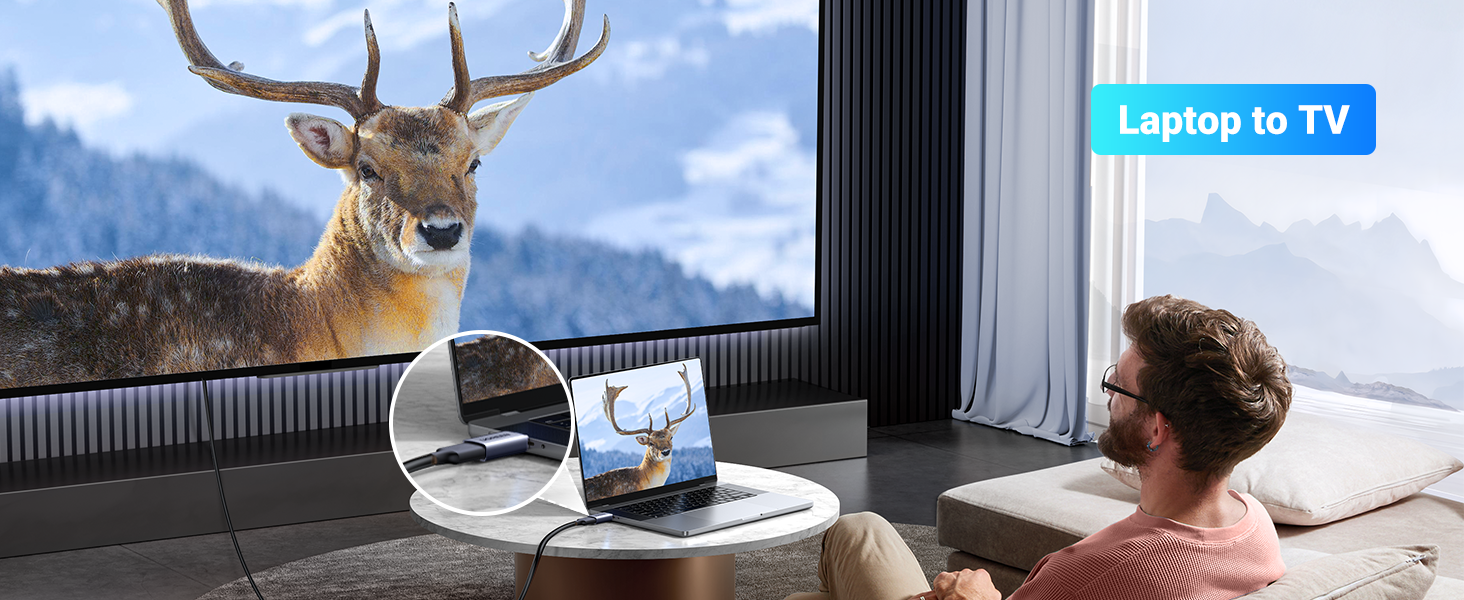
Image: Illustration of mirror mode and extend mode for displays.
4.2 Video Playback
For optimal video quality, ensure your source device and display support the desired resolution and refresh rate. The DisplayPort 2.1 cable supports up to 16K@30Hz, 8K@240Hz, and 4K@240Hz. The DP to HDMI adapter supports up to 4K@30Hz.
Video: An overview of the UGREEN DisplayPort Cable 2.1 features and compatibility.
5. Troubleshooting
- No Signal/Black Screen:
- Ensure all cables are securely connected to both the source device and the display.
- Verify that the correct input source is selected on your display.
- Test with a different cable or adapter if available to rule out a faulty component.
- Restart your source device and display.
- Incorrect Resolution or Refresh Rate:
- Check your operating system's display settings to ensure the desired resolution and refresh rate are selected.
- Confirm that both your source device (graphics card) and display support the desired resolution and refresh rate.
- Note that the DP to HDMI adapter supports up to 4K@30Hz. Higher refresh rates or resolutions may require a direct DisplayPort connection.
- Audio Issues:
- Ensure audio output is correctly configured in your operating system's sound settings.
- Verify that your display or connected audio system is not muted and volume is adequate.
- Flickering or Intermittent Signal:
- Check for loose connections.
- Ensure the cable is not excessively bent or damaged.
- Reduce the resolution or refresh rate to see if the issue persists, which might indicate a bandwidth limitation or compatibility issue.
6. Specifications
| Brand | UGREEN |
| Cable Type | DisplayPort to HDMI (Adapter), DisplayPort 2.1 (Cable) |
| Compatible Devices | Gaming Console, Laptop, Personal Computer, Smartphone, Tablet (with appropriate adapters) |
| Connector Gender | Male-to-Female (Adapter) |
| Data Transfer Rate | 40 Gigabits Per Second (DisplayPort 2.1 Cable) |
| Number of Pins | 20 (DisplayPort, disabled for power) |
| Frequency (DP to HDMI Adapter) | 30 Hz (at 4K resolution) |
| Specification Met | VESA |
| Indoor/Outdoor Usage | Indoor |
7. Safety Information
- Do not expose the product to water or excessive moisture.
- Avoid extreme temperatures.
- Do not attempt to disassemble or repair the product.
- Keep out of reach of children.
- Handle cables and adapters gently to prevent damage to connectors.
8. Warranty and Support
UGREEN products typically come with a manufacturer's warranty. For specific warranty details, product support, or technical assistance, please refer to the official UGREEN website or contact their customer service directly. You may also find additional information on the product's purchase page.
For further information, visit the product detail page on Amazon.