
1. Introduction
This manual provides detailed instructions for the installation, configuration, and operation of your GIGABYTE B850 GAMING WIFI6 Motherboard. Please read this manual thoroughly before beginning the installation process to ensure proper setup and to prevent damage to your components.
2. Safety Information
- Always disconnect the power cord from the wall outlet before touching any component.
- Wear an anti-static wrist strap when handling components to prevent electrostatic discharge (ESD) damage.
- Ensure proper ventilation within your PC case to prevent overheating.
- Keep the motherboard away from moisture and extreme temperatures.
- Refer to the component manufacturer's instructions for specific installation details.
3. Package Contents
Verify that all items listed below are present in your motherboard package:
- GIGABYTE B850 GAMING WIFI6 Motherboard
- User Manual
- Driver CD/USB (may vary by region)
- SATA Cables
- Wi-Fi Antenna
- M.2 Screws and Stand-offs

Image 1: The GIGABYTE B850 GAMING WIFI6 Motherboard shown alongside its retail packaging, including the Wi-Fi antenna.
4. Motherboard Layout
Familiarize yourself with the various components and connectors on your motherboard.

Image 2: A top-down view of the GIGABYTE B850 GAMING WIFI6 Motherboard, highlighting the CPU socket, DDR5 DIMM slots, PCIe slots, and M.2 slots.
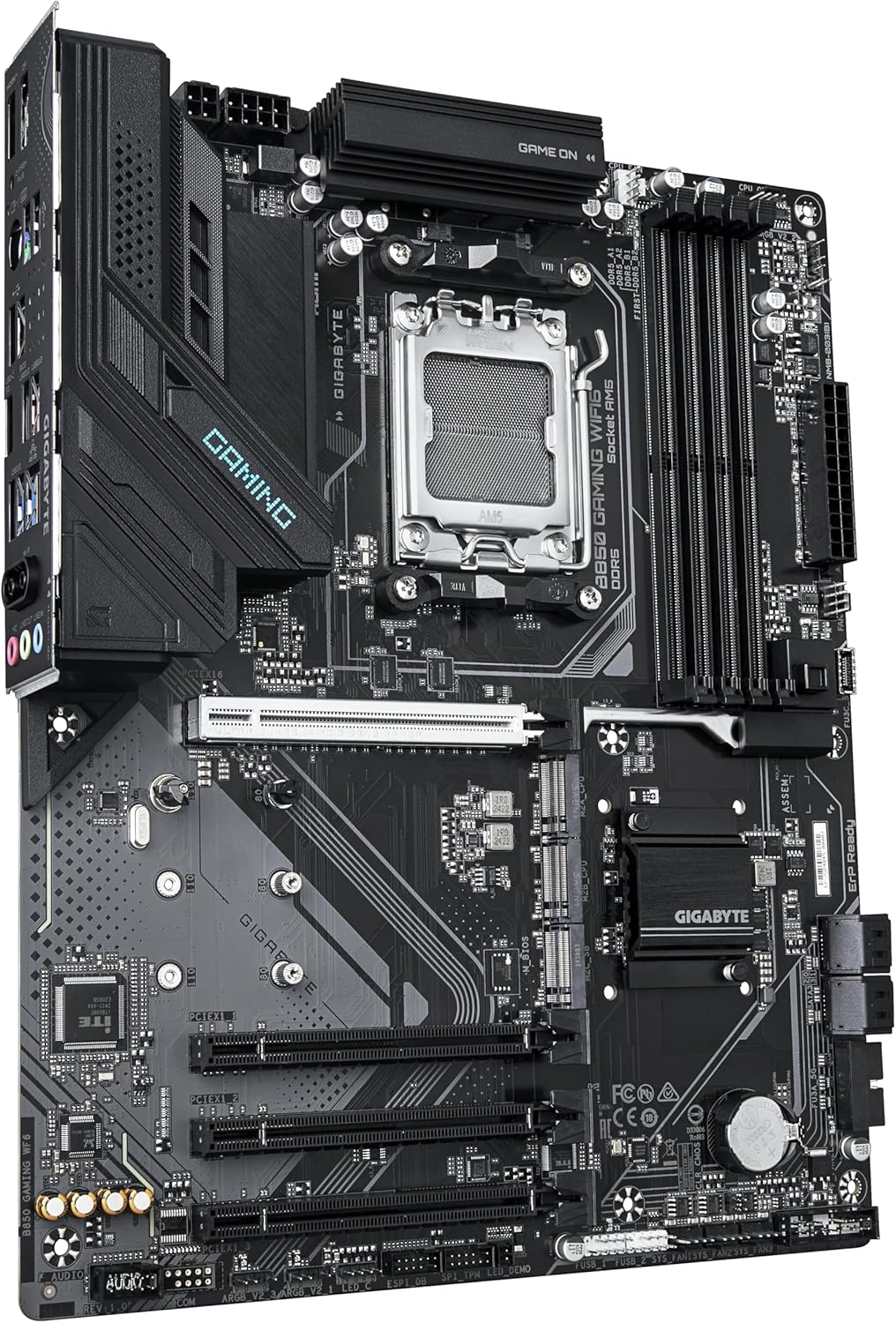
Image 3: An angled view of the GIGABYTE B850 GAMING WIFI6 Motherboard, showing the VRM heatsinks, CPU socket, and various expansion slots.
Rear I/O Panel

Image 4: A close-up view of the rear I/O panel of the GIGABYTE B850 GAMING WIFI6 Motherboard, displaying USB ports, Ethernet, Wi-Fi antenna connectors, and audio jacks.
- CPU Socket (Socket AM5): For AMD Ryzen 7000/8000/9000 Series Processors.
- DDR5 DIMM Slots: Four slots supporting Dual Channel DDR5 memory up to 8200MHz (OC).
- PCIe Slots: One PCIe Gen5 x16 slot with PCIe UD Slot and EZ-Latch Plus, and two PCIe 4.0 M.2 slots.
- M.2 Connectors: Multiple M.2 slots for NVMe SSDs, including Gen5 with EZ-Latch Plus.
- SATA Ports: Six SATA 6Gb/s ports for storage devices.
- USB Ports: Various USB 3.2 Gen 2 and other USB ports on the rear I/O and internal headers.
- LAN Port: Gigabit Ethernet LAN.
- Wi-Fi 6: Integrated Wi-Fi 6 module with WIFI EZ-Plug.
- Audio Jacks: Standard audio input/output.
- Q-Flash Plus Button: For BIOS updates without CPU, memory, or graphics card installed.
5. Setup
5.1 CPU Installation
- Open the CPU socket lever.
- Carefully align the CPU with the socket, ensuring the triangular mark on the CPU matches the mark on the socket.
- Gently place the CPU into the socket without forcing it.
- Close the CPU socket lever to secure the CPU.
- Install the CPU cooler according to its manufacturer's instructions.
5.2 Memory (RAM) Installation
- Open the clips on both ends of the DDR5 DIMM slots.
- Align the notch on the memory module with the key in the DIMM slot.
- Insert the memory module firmly into the slot until the clips snap into place.
- For dual-channel configuration, refer to the motherboard manual for recommended slot pairings.
5.3 Storage Installation
M.2 SSD Installation
- Locate the M.2 slot(s) on the motherboard.
- Remove the M.2 heatsink (if present) and the stand-off/screw from the desired M.2 slot.
- Insert the M.2 SSD into the slot at a 30-degree angle.
- Push down the M.2 SSD and secure it with the stand-off and screw (or use EZ-Latch Plus mechanism).
- Reinstall the M.2 heatsink if applicable.
SATA Drive Installation
- Connect one end of a SATA data cable to a SATA port on the motherboard.
- Connect the other end of the SATA data cable to your SATA storage device (HDD/SSD).
- Connect a SATA power cable from your power supply to the SATA storage device.
5.4 Graphics Card (PCIe) Installation
- Open the retention clip on the PCIe x16 slot.
- Align your graphics card with the PCIe x16 slot.
- Press down firmly until the card is seated and the retention clip snaps into place.
- Secure the graphics card to the PC case with screws.
- Connect any necessary PCIe power cables from your power supply to the graphics card.
5.5 Power Supply Connection
- Connect the 24-pin ATX main power connector from your power supply to the motherboard.
- Connect the 8-pin (or 4+4-pin) ATX 12V CPU power connector(s) to the motherboard.
5.6 Front Panel Connectors
Connect the cables from your PC case's front panel (power button, reset button, USB ports, audio jacks, LED indicators) to the corresponding headers on the motherboard. Refer to the detailed motherboard diagram in the full manual for exact pin assignments.
5.7 Wi-Fi Antenna Installation
Screw the included Wi-Fi antenna onto the antenna connectors on the rear I/O panel of the motherboard. Ensure they are securely tightened for optimal signal reception.
6. Operating
6.1 First Boot
After assembling all components and connecting power, press the power button on your PC case. The system should power on and display the BIOS/UEFI screen or begin the operating system installation process.
6.2 BIOS/UEFI Configuration
To enter the BIOS/UEFI setup, press the DEL key during the Power-On Self-Test (POST). Here you can configure system settings, boot order, and enable features like X3D Turbo Mode for compatible CPUs.
6.3 Driver Installation
After installing your operating system, install the necessary drivers for the motherboard chipset, audio, LAN, and Wi-Fi. These can be found on the included driver CD/USB or downloaded from the GIGABYTE official website.
6.4 Operating System Installation
Insert your operating system installation media (USB drive or DVD) and follow the on-screen prompts to install your preferred operating system (e.g., Windows 10, Windows 11).
Video 1: An overview of GIGABYTE B850 Motherboards, showcasing key features and design elements. This video provides a general introduction to the B850 series.
7. Maintenance
7.1 Cleaning
Regularly clean your PC case and motherboard components to prevent dust buildup, which can lead to overheating. Use compressed air to remove dust from heatsinks and fans. Ensure the system is powered off and unplugged before cleaning.
7.2 BIOS Updates (Q-Flash Plus)
GIGABYTE's Q-Flash Plus feature allows you to update the BIOS without installing a CPU, memory, or graphics card. Download the latest BIOS file from the GIGABYTE website, rename it as instructed, and place it on a USB flash drive. Insert the USB drive into the designated Q-Flash Plus USB port and press the Q-Flash Plus button. Refer to the GIGABYTE website for detailed instructions on using Q-Flash Plus.
8. Troubleshooting
- No Power: Check all power connections (24-pin ATX, 8-pin CPU, GPU power). Ensure the power supply switch is on.
- No Display: Verify the graphics card is properly seated and connected to the monitor. Check if the monitor is on and set to the correct input.
- System Instability/Crashes: This can be caused by incompatible memory, unstable overclocks, or outdated drivers. Try resetting BIOS settings to default, updating drivers, or testing memory modules individually.
- Boot Device Not Found: Check SATA/M.2 cable connections. Verify boot order in BIOS/UEFI. Ensure the operating system is properly installed on the drive.
- Wi-Fi/LAN Issues: Ensure antennas are connected. Install the latest network drivers. Check network cable connections for LAN.
9. Specifications
| Feature | Specification |
|---|---|
| Brand | GIGABYTE |
| Model Name | B850 GAMING WIFI6 |
| CPU Socket | Socket AM5 |
| Compatible Processors | AMD Ryzen 7000 Series, AMD Ryzen 8000 Series, AMD Ryzen 9000 Series |
| Chipset Type | AMD B850 |
| RAM Memory Technology | DDR5 |
| Memory Clock Speed | Up to 8200 MHz (OC) |
| PCIe Slots | 1x PCIe Gen5 x16, 2x PCIe 4.0 M.2 |
| M.2 Slots | Multiple, including Gen5 with EZ-Latch Plus |
| SATA Ports | 6x SATA 6Gb/s |
| LAN | Gigabit Ethernet |
| Wireless Connectivity | Wi-Fi 6 |
| USB Ports | USB 3.2 Gen 2, various others |
| VRM | 6+2+2 Phase Digital VRM with DrMOS |
| Dimensions | 9.61 x 12.01 x 1.38 inches |
| Item Weight | 3.33 pounds |
| Platform | Windows 10, Windows 11 |
10. Warranty and Support
For warranty information, please refer to the warranty card included in your product packaging or visit the official GIGABYTE website. Technical support, driver downloads, and BIOS updates are available on the GIGABYTE support page.
GIGABYTE Support Website: https://www.gigabyte.com/support


