Introduction
This manual provides comprehensive instructions for the installation, operation, and maintenance of your GIGABYTE B850 GAMING X WIFI6E Motherboard. Designed for AMD Ryzen 9000 Series CPUs, this motherboard features advanced power delivery, high-speed DDR5 memory support, PCIe 5.0, M.2 Gen5, Wi-Fi 7, and 2.5GbE LAN. Please read this manual thoroughly before proceeding with installation to ensure proper setup and optimal performance.

Image: The GIGABYTE B850 GAMING X WIFI6E Motherboard displayed alongside its retail packaging.
1. Setup
1.1 CPU Installation (Socket AM5)
Ensure the motherboard is placed on a non-conductive surface. Locate the AM5 CPU socket. Lift the retention lever to open the socket. Carefully align the triangular mark on the CPU with the corresponding mark on the socket. Gently place the CPU into the socket without applying force. Lower the retention lever until it clicks into place, securing the CPU.
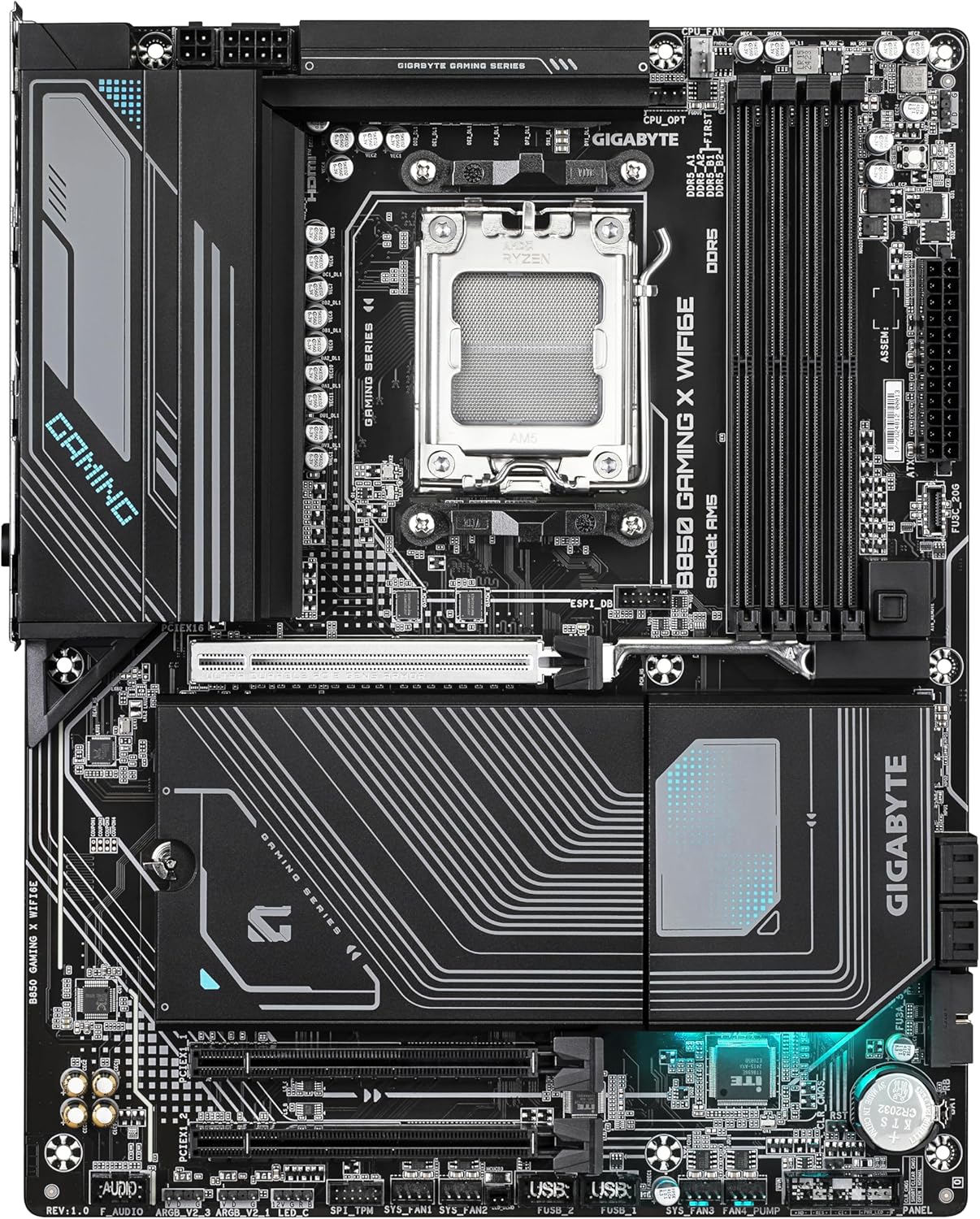
Image: Top-down view of the GIGABYTE B850 GAMING X WIFI6E Motherboard, highlighting the CPU socket and surrounding components.
1.2 RAM Installation (DDR5)
The motherboard supports Dual Channel DDR5 memory. Open the clips on both ends of the DIMM slots. Align the notch on the DDR5 memory module with the key in the DIMM slot. Insert the memory module firmly into the slot until the clips snap into place. For optimal dual-channel performance, refer to the motherboard manual for recommended slot configurations (typically slots A2 and B2 first).
1.3 M.2 SSD Installation
This motherboard features M.2 Gen5 and Gen4 slots with EZ-Latch Plus for tool-less installation. Unscrew and remove the M.2 heatsink. Insert the M.2 SSD into the slot at an angle. Push down the EZ-Latch Plus mechanism to secure the SSD. Reattach the M.2 heatsink to ensure proper cooling.

Image: Angled view of the GIGABYTE B850 GAMING X WIFI6E Motherboard, illustrating the M.2 slots and their heatsinks.
1.4 PCIe Card Installation
The motherboard includes a PCIe Gen5 x16 slot with PCIe UD Slot and EZ-Latch Plus. Open the retention clip on the PCIe slot. Align your expansion card (e.g., graphics card) with the slot and press down firmly until it is fully seated and the retention clip locks into place. Secure the card with a screw to the chassis.
1.5 Power Connections
Connect the 24-pin ATX main power connector and the 8-pin (or 4+4 pin) ATX 12V CPU power connector from your power supply unit (PSU) to the corresponding sockets on the motherboard. Ensure all connections are secure.
1.6 Front Panel and Rear I/O Connections
Connect the front panel headers (power switch, reset switch, HDD LED, power LED, USB ports, audio jacks) to their respective pins on the motherboard. Refer to the motherboard manual for exact pin layouts. Connect peripherals such as monitor, keyboard, mouse, and network cable to the rear I/O panel.

Image: Detailed view of the rear I/O panel, displaying USB ports, HDMI, DisplayPort, 2.5GbE LAN, Wi-Fi antenna connectors, and audio jacks.
1.7 Q-Flash Plus (BIOS Update without CPU/RAM)
Q-Flash Plus allows you to update the BIOS without installing the CPU, memory, or graphics card. Download the latest BIOS file from the GIGABYTE website, rename it to GIGABYTE.bin, and save it to the root directory of a USB flash drive (FAT32 format). Insert the USB drive into the designated Q-Flash Plus USB port on the rear I/O panel. Connect the 24-pin ATX power connector and the 8-pin CPU power connector to the motherboard. Press the Q-Flash Plus button. The LED will flash during the update process and stop when complete.
2. Operating Instructions
2.1 Initial Boot-up and BIOS/UEFI Navigation
After completing all hardware installations, connect your display and power on the system. Press the DEL key during startup to enter the BIOS/UEFI setup utility. Use the arrow keys to navigate and Enter to select options. The BIOS provides settings for CPU, memory, storage, boot order, and integrated peripherals.
2.2 Driver Installation
After installing your operating system (Windows 10/11), install the necessary drivers from the GIGABYTE support website or the provided driver disk. Essential drivers include chipset, LAN, Wi-Fi, and audio drivers to ensure full functionality of the motherboard's features.
2.3 Wi-Fi 7 and 2.5GbE LAN Setup
For Wi-Fi 7 connectivity, attach the included directional antenna to the rear I/O panel connectors. Install the Wi-Fi driver. For 2.5GbE LAN, connect an Ethernet cable to the LAN port and install the LAN driver. Ensure your router and network infrastructure support these speeds for optimal performance.
2.4 XMP/EXPO Profile Activation for DDR5
To achieve the rated speeds of your DDR5 memory (up to 8200MHz OC), enable the Extreme Memory Profile (XMP) or EXPO profile in the BIOS/UEFI settings. Navigate to the memory settings, select the appropriate profile, save changes, and exit. This will configure your RAM to its advertised performance specifications.
3. Maintenance
3.1 BIOS Updates
Regularly check the GIGABYTE website for the latest BIOS updates. BIOS updates can improve system stability, add support for new CPUs or features, and resolve known issues. Use the Q-Flash or Q-Flash Plus utility for safe BIOS updates.
3.2 Cleaning
Periodically clean dust from the motherboard and components using compressed air. Ensure the system is powered off and unplugged before cleaning. Pay attention to heatsinks and fan areas to maintain optimal cooling performance.
3.3 Component Checks
Occasionally inspect all cable connections (power, data, front panel) to ensure they are secure. Verify that all expansion cards and memory modules are properly seated.
4. Troubleshooting
- No Power/No POST:
- Verify all power cables (24-pin ATX, 8-pin CPU) are securely connected.
- Ensure the CPU, RAM, and graphics card are properly seated.
- Test with a single RAM stick in the recommended slot.
- Clear CMOS by removing the battery for 5-10 minutes or using the CLR_CMOS jumper.
- Utilize Q-Flash Plus to update BIOS if the CPU is not supported by the current BIOS version.
- System Instability/Crashes:
- Check CPU and GPU temperatures. Ensure adequate cooling.
- Verify RAM stability using memory diagnostic tools.
- Ensure all drivers are up to date.
- Disable XMP/EXPO profiles to test memory at default speeds.
- Peripheral Not Detected:
- Ensure the peripheral is correctly connected.
- Check BIOS settings to ensure the port/controller is enabled.
- Install the latest drivers for the peripheral and motherboard.
- Network Connectivity Issues:
- Ensure LAN cable is properly connected or Wi-Fi antenna is attached.
- Install the latest LAN/Wi-Fi drivers.
- Check network settings in the operating system.
- Restart your router/modem.
For further assistance, please visit the official GIGABYTE support website or contact their customer service.
5. Specifications
| Feature | Detail |
|---|---|
| Brand | GIGABYTE |
| Model Name | B850 GAMING X WIFI6E |
| CPU Socket | Socket AM5 |
| Compatible Processors | AMD Ryzen 7000 Series, AMD Ryzen 8000 Series, AMD Ryzen 9000 Series |
| Chipset Type | AMD B650 or AMD X670 (Note: Product title specifies B850, but specifications list B650/X670. Please refer to official GIGABYTE documentation for precise chipset information.) |
| RAM Memory Technology | DDR5 |
| Memory Clock Speed (OC) | Up to 8200 MHz |
| VRM Design | Twin 12+2+2 Phases Digital VRM with DrMOS |
| PCIe Slots | 1x PCIe 5.0 x16, other PCIe slots |
| M.2 Slots | 1x M.2 Gen5, 2x M.2 Gen4 (with EZ-Latch Plus) |
| LAN | 2.5GbE LAN |
| Wireless Connectivity | Wi-Fi 7 with WIFI EZ Plug and Directional Antenna, Bluetooth 5.3 |
| USB Ports | USB 3.2 Gen 2x2, USB 3.2 Gen 2, USB 3.2 Gen 1, USB 2.0 (various types) |
| Form Factor | ATX (implied by dimensions) |
| Dimensions | 9.61 x 12.01 x 1.38 inches |
| Operating System Support | Windows 10, Windows 11 |
6. Warranty and Support
GIGABYTE products are covered by a limited warranty. For detailed warranty information, terms, and conditions, please refer to the warranty card included with your product or visit the official GIGABYTE website. For technical support, driver downloads, BIOS updates, and FAQs, please visit the GIGABYTE support portal: