
Introduction
This manual provides detailed instructions for the installation, operation, and maintenance of your GIGABYTE B860M GAMING X WIFI6E Motherboard. Please read this manual thoroughly before installing or using the product to ensure correct operation and to prevent damage.
The GIGABYTE B860M GAMING X WIFI6E Motherboard is designed to support Intel Core Ultra Series CPUs, featuring a robust power delivery system, DDR5 memory support, and advanced connectivity options including PCIe 5.0, M.2, 2.5GbE LAN, WIFI 6E, and USB 4.
Setup Guide
1. Unpacking and Inspection
Carefully remove the motherboard from its packaging. Inspect for any signs of damage during transit. Ensure all accessories listed in the package contents are present.
- GIGABYTE B860M GAMING X WIFI6E Motherboard
- SATA Cables
- Wi-Fi Antenna
- User Manual (this document)
- Driver CD/USB (if included)
2. Motherboard Layout Overview
Familiarize yourself with the key components and connectors on the motherboard.
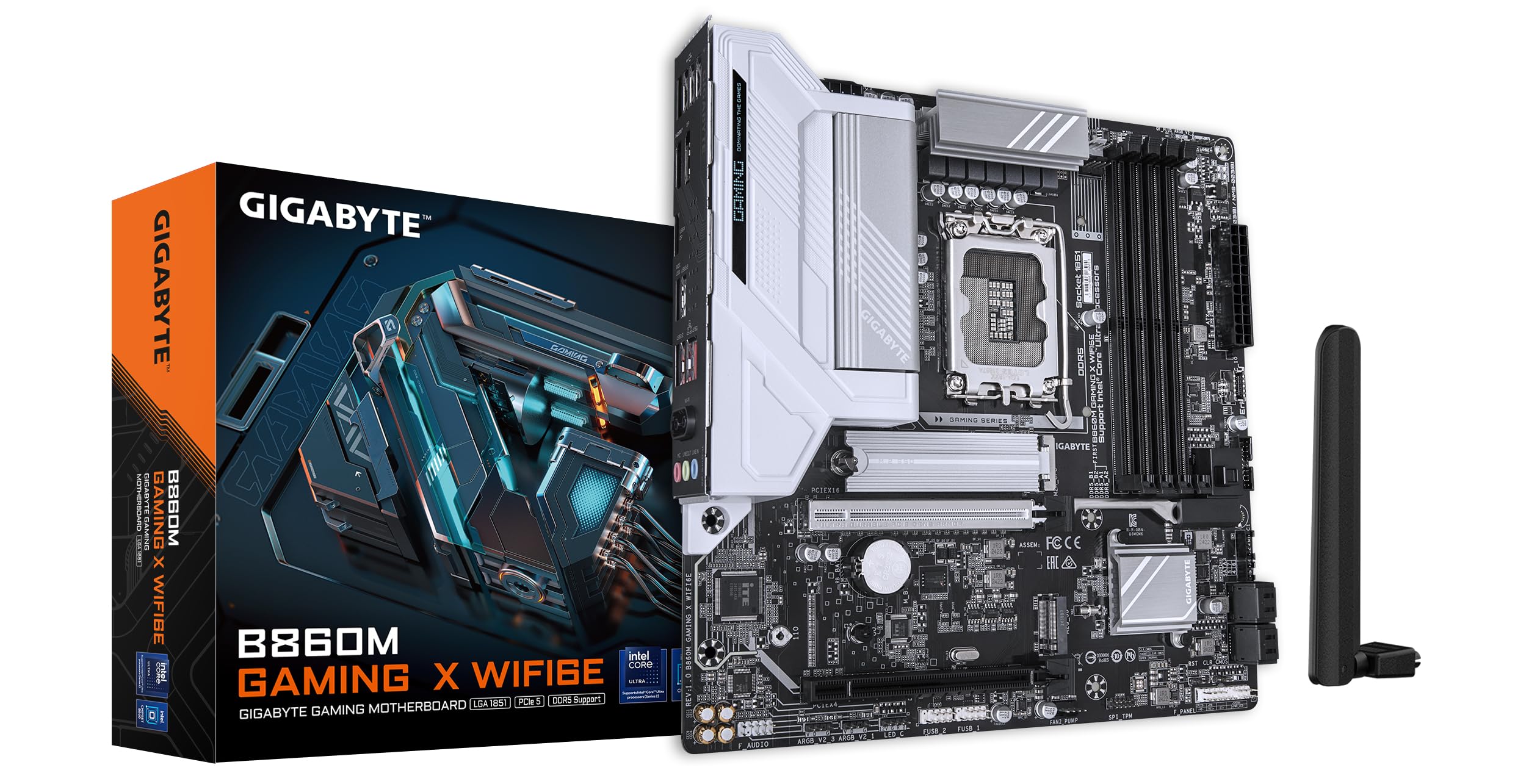
Image: Top-down view of the GIGABYTE B860M GAMING X WIFI6E Motherboard, highlighting the CPU socket, DDR5 DIMM slots, PCIe slots, and M.2 slots.

Image: Angled view of the GIGABYTE B860M GAMING X WIFI6E Motherboard, showing the heatsinks and overall board design.
3. CPU Installation (LGA 1851)
- Open the CPU socket lever.
- Align the CPU with the socket, ensuring the triangular mark on the CPU matches the mark on the socket.
- Gently place the CPU into the socket without forcing it.
- Close the socket lever to secure the CPU.
4. Memory (DDR5) Installation
- Open the clips at both ends of the DIMM slot.
- Align the memory module with the slot, ensuring the notch on the module matches the key in the slot.
- Press down firmly on both ends of the memory module until the clips snap into place.
- For dual-channel operation, install modules in the recommended slots (refer to motherboard diagram for specific slots).
5. Storage Device Installation (M.2 SSDs)
- Locate the M.2 slots on the motherboard.
- Remove the M.2 heatsink and stand-off screw.
- Insert the M.2 SSD into the slot at an angle.
- Push down the SSD and secure it with the stand-off screw.
- Reattach the M.2 heatsink for thermal protection.
6. Graphics Card (PCIe 5.0) Installation
- Open the latch on the PCIe 5.0 x16 slot.
- Align your graphics card with the slot and press down firmly until it is fully seated and the latch closes.
- Secure the graphics card to your PC case with screws.
7. Connecting Peripherals and Power
Connect the 24-pin ATX power connector and the 8-pin CPU power connector from your power supply to the motherboard. Connect front panel headers (power button, reset, USB, audio) according to the motherboard manual diagram. Install the Wi-Fi antenna to the rear I/O panel.

Image: Rear I/O panel of the GIGABYTE B860M GAMING X WIFI6E Motherboard, showing USB ports, HDMI, DisplayPort, 2.5GbE LAN, Wi-Fi antenna connectors, and audio jacks.
Operating Instructions
1. First Boot and BIOS Setup
After assembling your system, power it on. Press the DEL key during startup to enter the BIOS/UEFI setup utility. Here you can configure boot order, system time, and other advanced settings.
2. Driver Installation
Once the operating system is installed, install the necessary drivers for the motherboard components (chipset, LAN, Wi-Fi, audio, etc.). These can be found on the included driver disk/USB or downloaded from the official GIGABYTE website.
3. Wi-Fi 6E Connectivity
Ensure the Wi-Fi antenna is securely connected. In your operating system's network settings, select the appropriate Wi-Fi 6E network and enter the password to connect.
4. Q-Flash Plus
The Q-Flash Plus feature allows you to update the BIOS without installing a CPU, memory, or graphics card. Download the latest BIOS file from the GIGABYTE website, rename it as instructed, and save it to a USB flash drive. Insert the USB drive into the designated Q-Flash Plus USB port on the rear I/O panel and press the Q-Flash Plus button.
Maintenance
1. BIOS Updates
Regularly check the GIGABYTE website for the latest BIOS updates. BIOS updates can improve system stability, performance, and add support for new hardware. Follow the instructions provided by GIGABYTE carefully when performing a BIOS update.
2. Driver Updates
Keep your motherboard drivers updated to ensure optimal performance and compatibility. Download drivers only from the official GIGABYTE support page.
3. Cleaning
Periodically clean dust from the motherboard and components using compressed air. Ensure the system is powered off and unplugged before cleaning. Avoid using liquids or abrasive materials.
Troubleshooting
1. System Does Not Power On
- Check all power connections (24-pin ATX, 8-pin CPU) are securely seated.
- Verify the power supply is functioning correctly.
- Ensure the front panel power button header is correctly connected.
2. No Display Output
- Confirm the graphics card is properly seated in the PCIe slot and connected to the power supply (if required).
- Check that the monitor cable is securely connected to both the graphics card and the monitor.
- If using integrated graphics, ensure the monitor is connected to the motherboard's video output (HDMI/DisplayPort).
3. System Instability or Crashes
- Verify that all components (CPU, RAM, GPU) are correctly installed.
- Check for overheating issues; ensure CPU cooler and case fans are working.
- Update BIOS and all drivers to the latest versions.
- Test memory modules individually if you suspect RAM issues.
4. Wi-Fi Connectivity Issues
- Ensure the Wi-Fi antenna is securely attached to the rear I/O panel.
- Check if Wi-Fi drivers are installed correctly.
- Verify that the Wi-Fi module is enabled in the BIOS.
Specifications
| Feature | Detail |
|---|---|
| Model Name | B860M GAMING X WIFI6E |
| CPU Socket | LGA 1851 |
| Compatible Processors | Intel Core Ultra Series CPUs |
| Chipset | Intel B860M |
| RAM Memory Technology | DDR5, Dual Channel (4 x DIMMs) |
| Max Memory Clock Speed | Up to 6400MHz (OC) |
| PCIe Slots | 1x PCIe 5.0 x16, 1x PCIe 4.0 |
| M.2 Slots | Multiple M.2 slots with Thermal Protection |
| LAN | 2.5GbE LAN |
| Wireless Connectivity | Realtek 2x2 Wi-Fi 6E |
| USB Ports | USB 4.0 Type-C, USB 3.2 Gen 2 Type-C, various USB 3.2/2.0 |
| VRM | Hybrid Digital 8+1+2+2 Phase 60A DrMOS |
| Dimensions | 9.61 x 9.61 x 1.38 inches |
| Item Weight | 2.65 pounds |
Warranty and Support
GIGABYTE motherboards come with a limited warranty. Please refer to the official GIGABYTE website or your product packaging for specific warranty terms and conditions applicable to your region.
For technical support, driver downloads, BIOS updates, and further product information, please visit the official GIGABYTE support website:
https://www.gigabyte.com/support
When contacting support, please have your motherboard model name (B860M GAMING X WIFI6E) and serial number ready.


