
1. Introduction
The TECKNET Wireless Keyboard and Mouse Combo (Model TK-KM006) provides a reliable and efficient solution for your computing needs. This mini cordless set features 2.4GHz wireless technology for stable connectivity, a silent mouse with adjustable DPI, and a compact keyboard with multimedia hotkeys. Designed for comfort and portability, it enhances your productivity whether at home, in the office, or on the go.

Image: The TECKNET TK-KM006 Wireless Keyboard and Mouse Combo in blue and white.
2. Package Contents
Please ensure all items are present in your package:
- 1 x TECKNET Wireless Keyboard
- 1 x TECKNET Wireless Mouse
- 1 x USB Nano Receiver (stored inside the mouse)
- 1 x User Manual

Image: Rear view of the keyboard and mouse, highlighting the battery compartments and the USB receiver slot within the mouse.
3. Setup Instructions
- Install Batteries: The wireless keyboard requires two AAA batteries, and the wireless mouse requires two AAA batteries (batteries are not included). Open the battery compartment on the underside of each device and insert the batteries, ensuring correct polarity.
- Locate USB Nano Receiver: The USB Nano receiver is conveniently stored inside the mouse's battery compartment. Gently remove it.
- Connect Receiver: Plug the USB Nano receiver into an available USB port on your computer or laptop.
- Power On Devices: Locate the ON/OFF switch on the underside of both the keyboard and the mouse. Slide the switch to the 'ON' position.
- Automatic Connection: The keyboard and mouse are designed for plug-and-play functionality. Your computer should automatically detect and connect to the devices within a few seconds. No additional drivers are typically required.
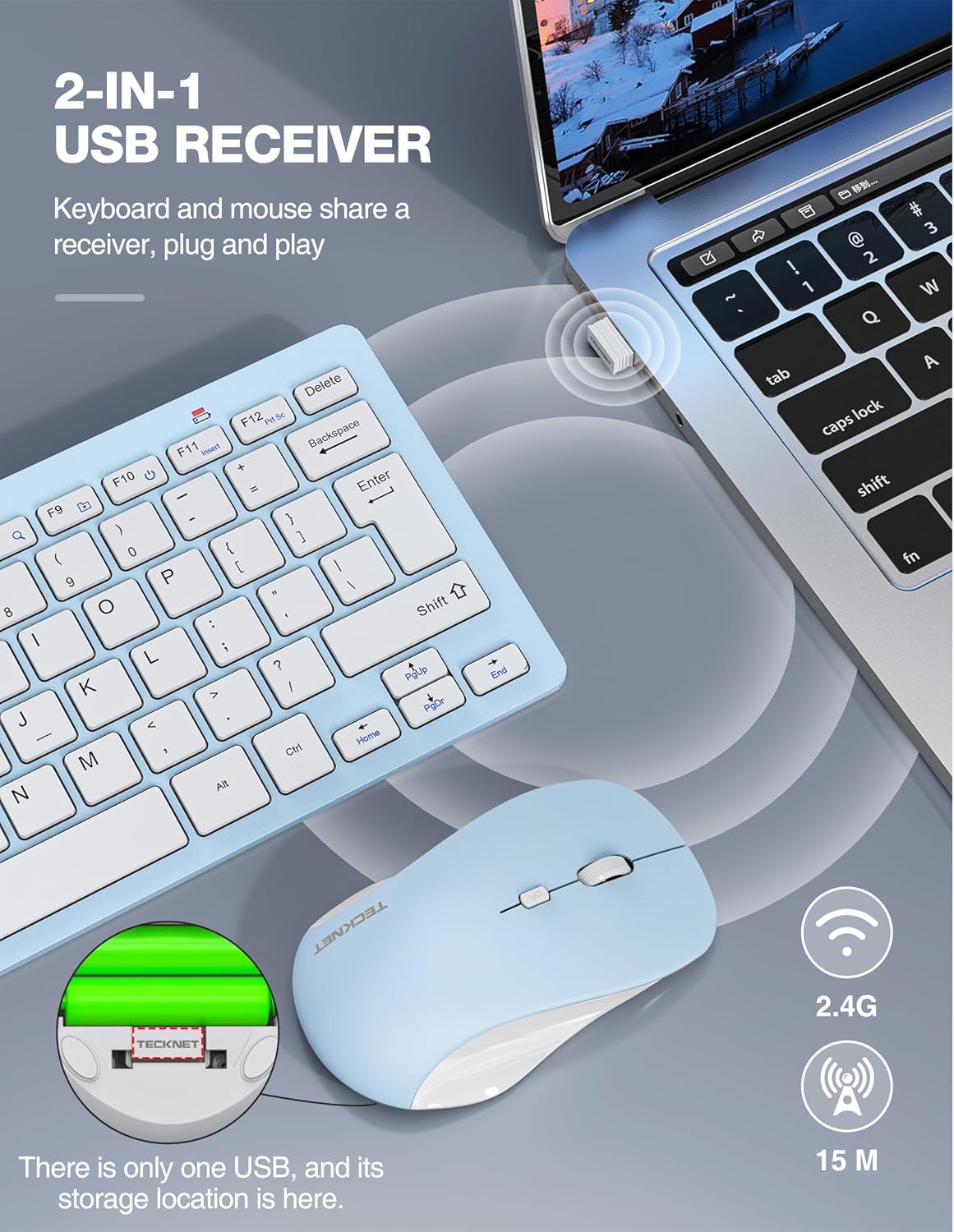
Image: A visual guide demonstrating the placement of the USB receiver and AAA batteries within the mouse, and the receiver plugged into a laptop.
Setup Video Guide
Video: An official TECKNET video demonstrating the setup process for the wireless keyboard and mouse combo, including battery installation and USB receiver connection.
4. Operating Instructions
4.1 Keyboard Usage
The TECKNET wireless keyboard features a comfortable scissor-key design for quiet and efficient typing. It includes 12 multimedia hotkeys for quick access to common functions:
- FN+F1: Play/Pause
- FN+F2: Previous Track
- FN+F3: Next Track
- FN+F4: Volume Up
- FN+F5: Volume Down
- FN+F6: Mute/Unmute
- FN+F7: Homepage
- FN+F8: Search
- FN+F9: Browser Favorites
- FN+F10: Hibernate
- FN+F11: Insert
- FN+F12: Print Screen

Image: The TECKNET keyboard with a visual overlay indicating the 12 multimedia hotkey functions.
4.2 Mouse Usage
The wireless mouse is designed for ultra-quiet clicking, ensuring a disturbance-free environment. It offers adjustable DPI settings for personalized sensitivity:
- DPI Adjustment: Cycle through 800, 1200, and 1600 DPI settings by pressing the DPI button located below the scroll wheel. This allows you to adjust cursor speed and precision to suit your tasks.
- Quiet Click: Both left and right clicks are engineered to be silent.

Image: A graphic illustrating the three adjustable DPI levels (800, 1200, 1600) for the TECKNET wireless mouse.
5. Power Management
Both the keyboard and mouse are designed with energy-saving features:
- Automatic Sleep Mode: When the keyboard and mouse are not in use for a period, they will automatically enter an energy-saving sleep mode to conserve battery life.
- Wake-up: To wake the devices from sleep mode, simply press any key on the keyboard or move the mouse.
- ON/OFF Switch: For extended periods of non-use, it is recommended to manually turn off the devices using their respective ON/OFF switches to further prolong battery life.

Image: A visual representation of the long battery life features, including 10-minute auto-sleep and an ON/OFF switch for the TECKNET keyboard and mouse.
6. Maintenance
- Keep the devices clean by wiping them with a soft, dry cloth.
- Avoid exposing the devices to liquids, excessive moisture, or extreme temperatures.
- Do not disassemble the devices. Any repairs should be performed by qualified personnel.
- Store the devices in a cool, dry place when not in use for extended periods.
7. Troubleshooting
If you encounter any issues with your TECKNET Wireless Keyboard and Mouse Combo, please refer to the following common solutions:
- No Connection/Unresponsive Devices:
- Ensure batteries are correctly installed and not depleted. Replace if necessary.
- Verify that both the keyboard and mouse are switched to the 'ON' position.
- Confirm the USB Nano receiver is securely plugged into a working USB port on your computer. Try a different USB port if needed.
- Restart your computer.
- Lag or Intermittent Connection:
- Reduce the distance between the devices and the USB receiver. The optimal range is up to 15 meters (49 feet).
- Avoid placing the receiver near other wireless devices or large metal objects that may cause interference.
- Mouse Cursor Jumps or is Inaccurate:
- Adjust the DPI setting using the DPI button on the mouse.
- Ensure the mouse is used on a clean, non-reflective surface.
8. Specifications
| Feature | Detail |
|---|---|
| Model Number | TK-KM006 |
| Brand | TECKNET |
| Color | Blue & White |
| Connectivity Technology | Radio Frequency (2.4GHz) |
| Wireless Range | Up to 15 meters (49 feet) |
| Mouse DPI Levels | 800 / 1200 / 1600 |
| Keyboard Dimensions | 292 x 125 x 19mm |
| Keyboard Weight | 300g |
| Mouse Dimensions | 110 x 65 x 30mm |
| Mouse Weight | 58g |
| Power Source | 2 x AAA batteries (Keyboard), 2 x AAA batteries (Mouse) |
9. Compatibility
The TECKNET TK-KM006 Wireless Keyboard and Mouse Combo is compatible with a wide range of operating systems and devices, including:
- Windows 11 / 10 / 8 / 7 / 2000 / ME / XP / Vista
- Mac OS
- Chrome OS
- Android Smart TVs
- Laptops and PCs with a USB port
10. Warranty & Support
TECKNET offers a 36-month warranty for this product (registration may be required). For any product issues, technical assistance, or warranty claims, please contact our professional customer service team. Refer to the contact information provided in the included user manual or visit the official TECKNET website for support details.


