
Introduction
This manual provides essential information for setting up, operating, and maintaining your Samsung Galaxy Tab S10 Ultra. Please read this guide thoroughly to ensure optimal performance and longevity of your device.
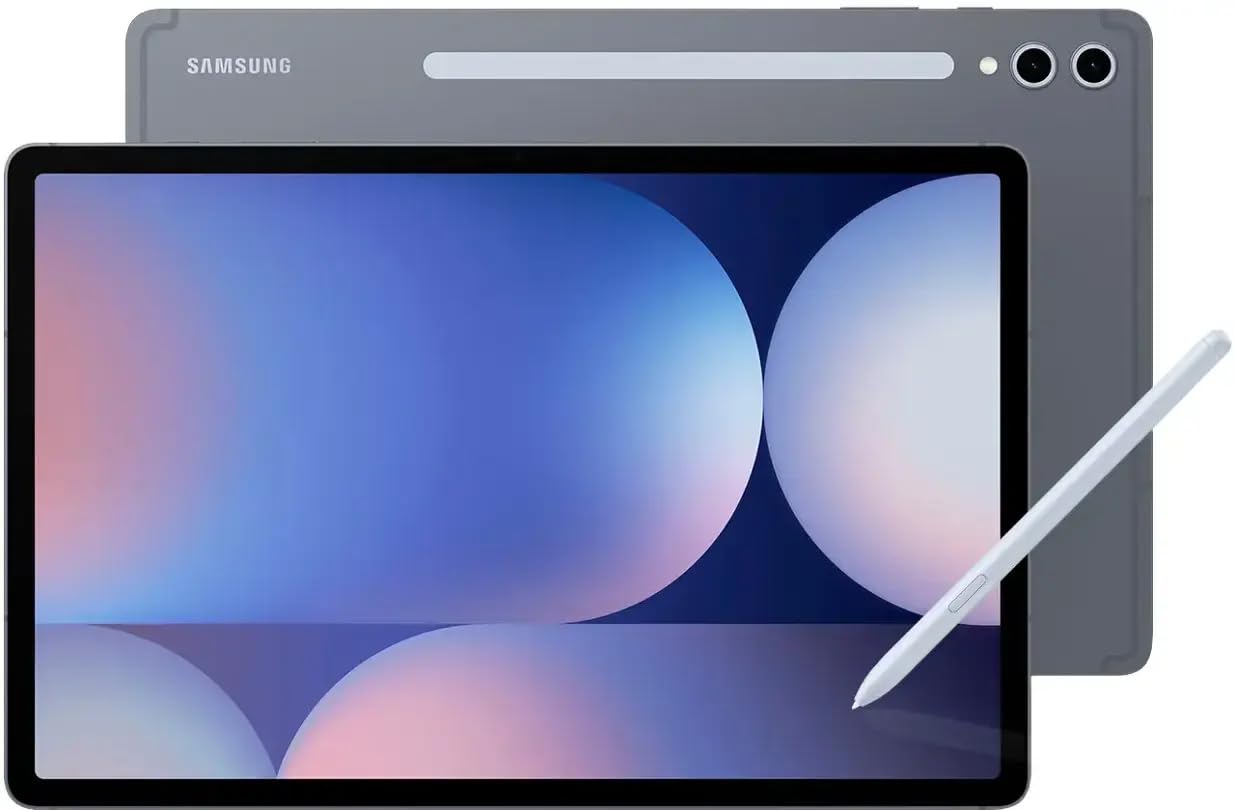
Image: Front and back view of the Samsung Galaxy Tab S10 Ultra, showcasing its sleek design and the included S-Pen.
Setup
1. Unboxing and Initial Inspection
Carefully remove all items from the packaging. Verify that the following components are present:
- Samsung Galaxy Tab S10 Ultra tablet
- S-Pen
- Charging Cable
Inspect the tablet for any visible damage. If any components are missing or damaged, contact customer support immediately.
2. Charging the Device
Before first use, fully charge your Galaxy Tab S10 Ultra using the provided charging cable and a compatible power adapter (not always included). Connect the charging cable to the tablet's USB-C port and the other end to the power adapter, then plug into a wall outlet.
3. Powering On and Initial Configuration
Press and hold the Power button located on the side of the tablet until the Samsung logo appears. Follow the on-screen prompts to complete the initial setup, including:
- Language selection
- Wi-Fi network connection
- Google account sign-in
- Setting up the fingerprint reader for secure access
4. S-Pen Setup
The S-Pen is included and ready for use. It magnetically attaches to the back of the tablet for charging and storage. Ensure it is properly attached to maintain charge and functionality.

Image: Rear view of the Samsung Galaxy Tab S10 Ultra, showing the S-Pen magnetically attached to the back for charging and storage.
Operating Your Tablet
1. Touchscreen Navigation
The 14.6-inch AMOLED touchscreen offers intuitive navigation. Use standard gestures such as tapping, swiping, pinching to zoom, and long-pressing to interact with the interface and applications.
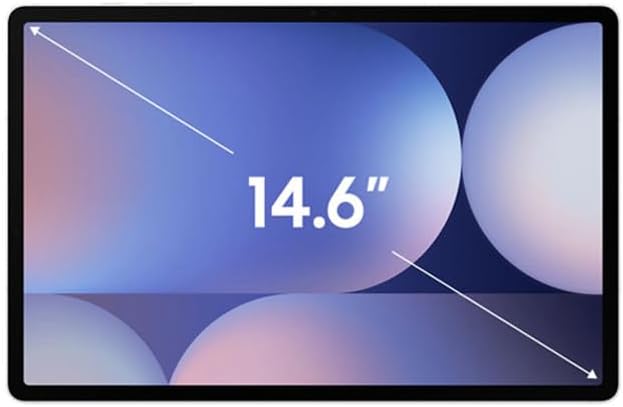
Image: The Samsung Galaxy Tab S10 Ultra screen, highlighting its 14.6-inch display size.
2. Using the S-Pen
The S-Pen enhances productivity and creativity. Use it for precise input, drawing, note-taking, and navigating the tablet. Air actions allow for remote control of certain functions without touching the screen.
3. Multitasking
The Galaxy Tab S10 Ultra is designed for efficient multitasking. You can run multiple applications simultaneously using split-screen view or pop-up windows. The powerful 3.3GHz MediaTek MT6989 (8-Core) processor and 12GB RAM ensure smooth performance even with demanding tasks.
4. Connectivity
Your tablet supports Wi-Fi, Bluetooth 5.3, and GPS. Connect to available Wi-Fi networks for internet access, pair with Bluetooth accessories like headphones or keyboards, and use GPS for location-based services.
5. Camera Functions
The tablet features a 12.0 MP front camera and a 13.0 MP rear camera. These are suitable for video calls, casual photography, and scanning documents. Access the camera app from the home screen or app drawer.
Maintenance
1. Cleaning Your Device
To clean your tablet, power it off and gently wipe the screen and body with a soft, lint-free cloth. For stubborn smudges, slightly dampen the cloth with water or a screen-safe cleaner. Avoid using harsh chemicals or abrasive materials.
2. Battery Care
The Galaxy Tab S10 Ultra has a 11200 Milliamp Hours battery, providing approximately 16 hours of average use. To prolong battery life:
- Avoid extreme temperatures.
- Do not let the battery completely drain frequently.
- Use the provided charging cable.
3. Storage Management
Your tablet comes with 256GB of SSD storage. If you require more space, you can expand it up to 1.5TB using a MicroSD card (sold separately).
4. Device Protection
The Galaxy Tab S10 Ultra is built to protect against bumps, dust, and splashes. However, it is recommended to use a protective case and screen protector for added durability, especially during travel or heavy use.
Troubleshooting
1. Device Unresponsive
If your tablet becomes unresponsive, press and hold the Power button for approximately 10-15 seconds to perform a forced restart.
2. Connectivity Issues
If you experience issues with Wi-Fi or Bluetooth, try turning the respective feature off and on again. If the problem persists, restart the tablet and/or the router/Bluetooth accessory.
3. App Malfunction
If an application is not working correctly, try closing and reopening it. If the issue continues, clear the app's cache or reinstall the application.
Specifications
| Feature | Detail |
|---|---|
| Brand | Samsung |
| Model Name | Galaxy Tab S10 Ultra |
| Model Number | X920 |
| Screen Size | 14.6 Inches |
| Display Type | AMOLED (Dynamic AMOLED 2X Technology) |
| Display Resolution | 2960 x 1848 Pixels (WQXGA+) |
| Display Refresh Rate | 120 Hz |
| Processor | MediaTek MT6989 (8-Core, 3.3 GHz) |
| RAM Memory | 12 GB |
| Storage Capacity | 256 GB SSD |
| MicroSD Expansion | Up to 1.5 TB |
| Operating System | Android 14 OS |
| Battery Capacity | 11200 Milliamp Hours (approx. 16 hours average life) |
| Front Camera | 12.0 MP |
| Rear Camera | 13.0 MP |
| Connectivity | Wi-Fi, Bluetooth 5.3, GPS |
| Special Features | S-Pen Support, Fingerprint Reader |
| Item Weight | 1.58 Pounds |
| Color | Moonstone Gray |
Warranty Information
Your Samsung Galaxy Tab S10 Ultra comes with a 90 days limited warranty. This warranty covers manufacturing defects under normal use. For detailed terms and conditions, please refer to the warranty documentation included with your product or visit the official Samsung support website.
Support
For further assistance, technical support, or service inquiries, please visit the official Samsung support website or contact Samsung customer service directly. You can find contact information and FAQs on their website.