
Lexibook NTL4000
Lexibook Quicktionary NTL4000 User Manual
Instant Talking Scanner Translator
1. Introduction
Welcome to the user manual for your Lexibook Quicktionary NTL4000. This device is designed to provide instant translation capabilities, supporting text scanning, photo translation, and voice translation across multiple languages. Please read this manual carefully to ensure proper use and optimal performance of your device.

Image 1.1: The Lexibook Quicktionary NTL4000 device, displaying its main interface with options for recording, photo translation, and text translation.
2. Package Contents
Ensure all items are present in the package:
- Lexibook Quicktionary NTL4000 device
- USB Type-C Charging Cable
- User Manual (this document)
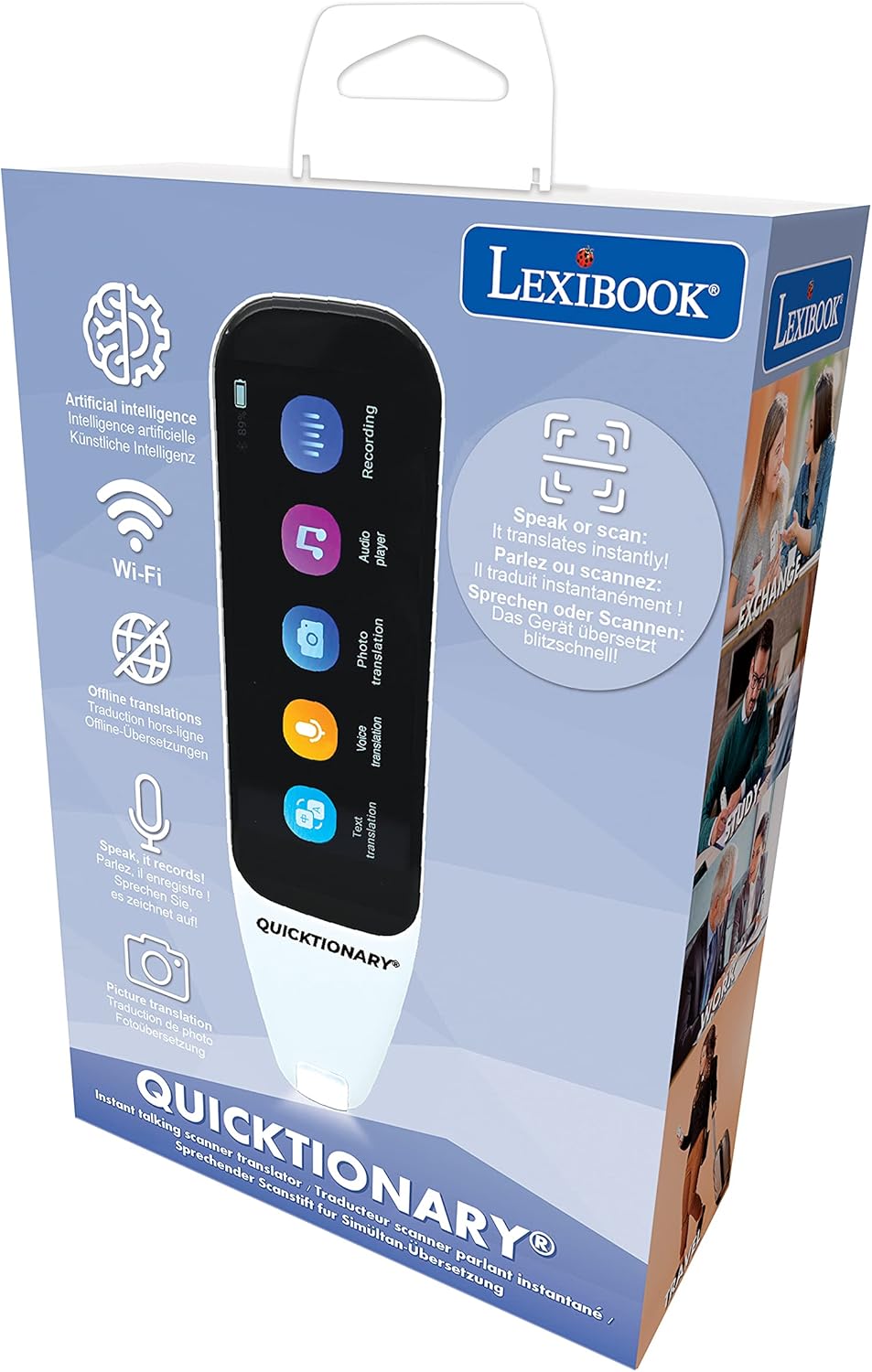
Image 2.1: The retail packaging for the Lexibook Quicktionary NTL4000, highlighting key features and the device itself.
3. Setup
3.1. Charging the Device
Before first use, fully charge your Quicktionary NTL4000. Use the included USB Type-C cable to connect the device to a compatible power adapter (not included) or a computer's USB port.
- Charging Time: Approximately 2.5 hours for a full charge.
- Usage Time: 3-4 hours on a full charge.
- Standby Time: Up to 120 hours.
3.2. Powering On/Off
- To Power On: Press and hold the power button located on the side of the device until the screen illuminates.
- To Power Off: Press and hold the power button, then select 'Power Off' on the screen.
3.3. Wi-Fi Connection
For online translation features and software updates, connect your device to a Wi-Fi network.
- From the main menu, navigate to Settings.
- Select Wi-Fi and turn it on.
- Choose your desired network from the list and enter the password if prompted.
3.4. Software Updates
It is recommended to regularly check for and install software updates to ensure the best performance and access to the latest translation features.
- Ensure the device is connected to Wi-Fi.
- Navigate to Settings > About Device > System Update.
- Follow the on-screen instructions to download and install any available updates.
4. Operating the Device
The Lexibook Quicktionary NTL4000 offers several translation modes:
4.1. Text Scanning Translation
This mode allows you to scan printed text and receive an instant translation.
- Select Text Translation from the main menu.
- Choose your source and target languages.
- Position the scanner tip over the text you wish to translate.
- Gently glide the scanner across the text. The translated text will appear on the screen and can be read aloud.

Image 4.1: A hand demonstrating the scanning function of the Lexibook Quicktionary NTL4000 on a printed document.

Image 4.2: A person using the Lexibook Quicktionary NTL4000 to scan text from a document in a professional setting.
4.2. Photo Translation
Translate text from images using the built-in 5-megapixel camera.
- Select Photo Translation from the main menu.
- Choose your source and target languages.
- Point the camera at the text you want to translate and take a picture.
- The device will process the image and display the translation.
4.3. Voice Translation
Engage in real-time spoken conversations with voice translation.
- Select Voice Translation from the main menu.
- Set the two languages for the conversation.
- Press and hold the microphone button, speak clearly, then release. The device will translate and speak the phrase in the target language.

Image 4.3: Two individuals in a business meeting, one holding the Lexibook Quicktionary NTL4000, suggesting its use for facilitating communication.
4.4. Offline Translation
The device supports offline translation for 14 languages without a Wi-Fi connection:
- Simplified Chinese, Traditional Chinese, English (AU, UK, US), German, Spanish, French, Italian, Japanese, Korean, Dutch, Portuguese, Russian.
For other languages (up to 112), an active Wi-Fi connection is required.
4.5. Dictaphone Function
The Quicktionary NTL4000 includes a dictaphone feature for recording audio.
- Select Recording from the main menu.
- Press the record button to start and stop recording.
- Recordings can be played back or managed within the application.
5. Maintenance
5.1. Cleaning
To clean your device, use a soft, dry, lint-free cloth. Do not use abrasive cleaners, solvents, or aerosol sprays directly on the device.
5.2. Battery Care
To prolong battery life:
- Avoid fully discharging the battery frequently.
- Charge the device regularly, even if not in use for extended periods, to prevent deep discharge.
- Store the device in a cool, dry place when not in use.
6. Troubleshooting
6.1. Device Not Powering On
- Ensure the battery is charged. Connect the device to a power source using the USB Type-C cable and allow it to charge for at least 30 minutes before attempting to power on again.
- If the device displays unusual characters or is unresponsive, try a forced restart by holding the power button for an extended period (e.g., 10-15 seconds).
6.2. Charging Issues
- Verify that the USB Type-C cable is securely connected to both the device and the power source.
- Try using a different USB Type-C cable and power adapter to rule out faulty accessories.
- Ensure the charging port on the device is clean and free of debris.
6.3. Wi-Fi Connection Errors
- Check if other devices can connect to the same Wi-Fi network.
- Ensure you have entered the correct Wi-Fi password.
- Restart your Wi-Fi router and the Quicktionary device.
- Move closer to the Wi-Fi router to improve signal strength.
6.4. Translation Inaccuracies
- Ensure the correct source and target languages are selected.
- For scanning, ensure the text is clear, well-lit, and you are scanning smoothly and evenly.
- For voice translation, speak clearly and at a moderate pace.
- Ensure the device has the latest software updates installed, as these often include improvements to translation algorithms.
7. Specifications
| Feature | Detail |
|---|---|
| Model Number | NTL4000 |
| Dimensions (L x W x H) | 15.5 x 4.3 x 1.4 cm (6.1 x 1.7 x 0.55 inches) |
| Weight | 108.86 grams (approx. 3.84 oz) |
| Screen | 3.46 inch (8.8 cm) Color Touchscreen |
| Camera | 5 Megapixels |
| Battery | 1200 mAh Rechargeable Lithium-ion |
| Usage Time | 3-4 hours |
| Charging Time | 2.5 hours |
| Standby Time | 120 hours |
| Operating System | Android 8.1 |
| Online Translation Languages | Up to 112 languages (via Wi-Fi) |
| Offline Translation Languages | 14 languages (Simplified Chinese, Traditional Chinese, English (AU, UK, US), German, Spanish, French, Italian, Japanese, Korean, Dutch, Portuguese, Russian) |
| Connectivity | Wi-Fi, USB Type-C |
8. Warranty Information
The Lexibook Quicktionary NTL4000 comes with a 2-year warranty from the date of purchase. Please retain your proof of purchase and original packaging for any warranty claims. The warranty covers manufacturing defects and malfunctions under normal use. It does not cover damage caused by misuse, accidents, unauthorized repairs, or normal wear and tear.
9. Support
For further assistance, technical support, or warranty inquiries, please visit the official Lexibook website or contact their customer service department. Contact details can typically be found on the product packaging or the Lexibook official website.
Website: www.lexibook.com
Ask a question about this manual
Ask about setup, troubleshooting, compatibility, parts, safety, or missing instructions. Manuals+ will review the question and use this page’s manual context to help answer it.