
1. Introduction
This manual provides essential information for setting up, operating, and maintaining your new HONOR Magic7 Pro smartphone. Please read this guide thoroughly to ensure optimal performance and longevity of your device.
The HONOR Magic7 Pro is a powerful 5G smartphone featuring a 4.32 GHz Octa-core processor, 12GB of RAM, and 512GB of internal storage. It operates on Android 15 with MagicOS 7.1 and is equipped with a 5850mAh non-removable battery. It supports Dual SIM functionality (SIM + eSIM) and is compatible with 2G, 3G, 4G LTE, and 5G SA/NSA networks.
2. What's in the Box
Verify that all items are present upon unboxing:
- HONOR Magic7 Pro Smartphone
- USB Cable (Type-A to Type-C)
- 66W SuperCharge Charger
- SIM Ejector Tool
- Quick Start Guide
- Warranty Card
3. Device Overview
Familiarize yourself with the physical components of your HONOR Magic7 Pro.

Figure 3.1: Front and Back View of HONOR Magic7 Pro. The device features a large display on the front and a distinctive circular camera module on the back.

Figure 3.2: Side View of HONOR Magic7 Pro. The right side of the device houses the power button and volume rocker for easy access.

Figure 3.3: Rear Camera Module. The back of the phone features a prominent circular camera module with multiple lenses, designed for advanced photography.
Physical Features:
- Display: 6.8-inch LTPO OLED, 1B colors, 1280 x 2800 pixels.
- Buttons: Power button and volume rocker located on the side.
- Ports: USB Type-C port for charging and data transfer.
- Camera Module: Unique 'Dual Ring Axymmetric' design on the rear.
- Fingerprint Sensor: In-display optical fingerprint reader.
4. Setup
4.1. Installing SIM Cards
- Locate the SIM card tray on the side of your device.
- Insert the SIM ejector tool into the small hole on the SIM card tray and push gently until the tray pops out.
- Place your Nano-SIM cards into the designated slots on the tray. The HONOR Magic7 Pro supports two 5G SIMs simultaneously.
- Carefully reinsert the SIM card tray into the device. Ensure it is fully seated to maintain water resistance.
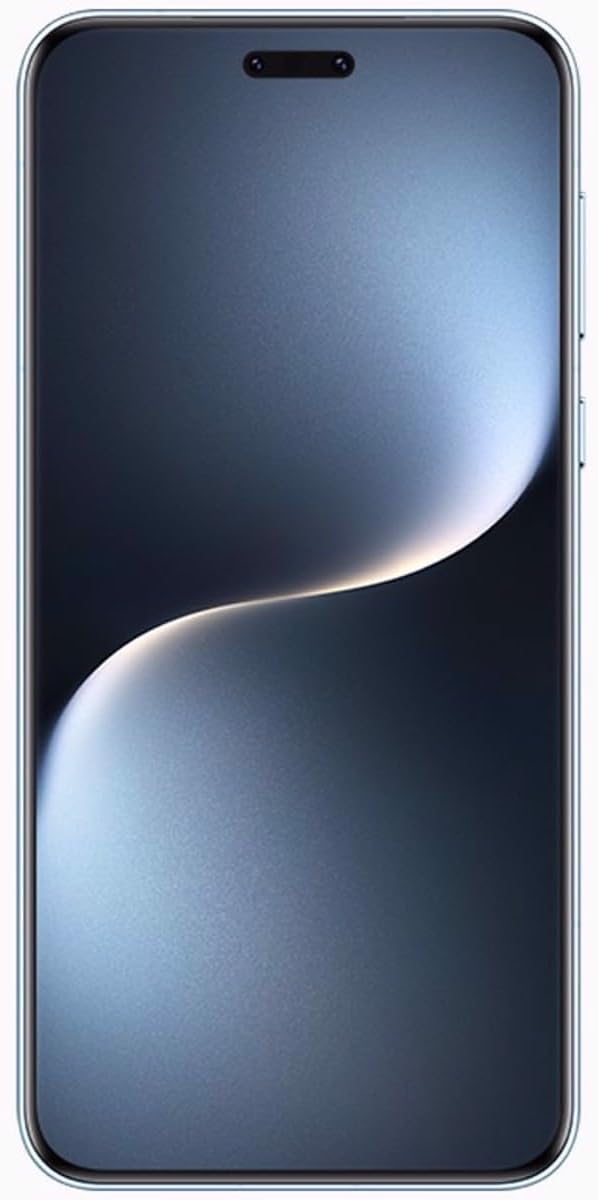
Figure 4.1: Front view of the HONOR Magic7 Pro. The device features a curved display with minimal bezels.
4.2. Initial Power On and Configuration
- Press and hold the Power button until the HONOR logo appears.
- Follow the on-screen instructions to select your language, connect to a Wi-Fi network, and set up your Google account.
- Configure your preferred security methods, including the in-display optical fingerprint reader.
5. Operating Your Device
5.1. Display Features
The 6.8-inch LTPO OLED display offers vibrant colors and a peak brightness of 1600 nits, ensuring excellent visibility even in bright conditions. The screen is curved on all four sides for an immersive viewing experience.
5.2. Software and User Interface
Your HONOR Magic7 Pro runs on Android 15 with HONOR's custom MagicOS 7.1 interface. This combination provides a user-friendly experience with various customization options and enhanced privacy features.
5.3. Charging
Utilize the included 66W SuperCharge charger and USB Type-A to Type-C cable for rapid charging. Ensure you use HONOR-approved accessories to prevent damage and maintain battery health.
6. Camera Features
The HONOR Magic7 Pro is equipped with an advanced camera system designed to capture high-quality photos and videos.
6.1. Rear Camera System
- Primary Camera: 50 MP, f/1.4-2.0, 24mm (wide), 1/1.3", 1.2µm, multi-directional PDAF, OIS.
- Periscope Telephoto: 200 MP, f/2.6, 72mm, 1/1.4", 0.56µm, multi-directional PDAF, OIS, 3x optical zoom.
- Ultrawide Camera: 50 MP, f/2.0, 12mm, 122˚, 1/2.88", 0.61µm, PDAF.
The primary camera utilizes 16-in-1 pixel binning for improved light capture, especially in low-light conditions. The ultrawide lens also functions as a super macro lens for detailed close-up shots.
6.2. Front Camera
- Selfie Camera: 50 MP, f/2.0, 21mm (wide), 1/2.93", 0.6µm, PDAF, TOF 3D (depth/biometrics sensor).
6.3. Video Recording
The device supports video recording up to 4K resolution at 30 frames per second, offering clear and stable footage.
7. Specifications
| Feature | Detail |
|---|---|
| Model Name | HONOR Magic7 Pro |
| Model Number | 5109BQHH |
| Operating System | Android 15, MagicOS 7.1 |
| Processor | Qualcomm SM8750-AB Snapdragon 8 Elite (3 nm), Octa-core (2x4.32 GHz Oryon V2 Phoenix L + 6x3.53 GHz Oryon V2 Phoenix M) |
| Display | 6.8 inches, LTPO OLED, 1B colors, 1280 x 2800 pixels, 1600 nits (peak) |
| RAM | 12GB |
| Internal Storage | 512GB (non-expandable) |
| Rear Camera | 50 MP (wide) + 200 MP (periscope telephoto) + 50 MP (ultrawide) |
| Front Camera | 50 MP (wide) + TOF 3D |
| Battery | 5850mAh (non-removable) |
| Charging | 66W SuperCharge |
| SIM Support | Dual SIM (SIM + eSIM) |
| Network Compatibility | 2G, 3G, 4G LTE, 5G SA/NSA |
| Dimensions | 162.7 x 77.1 x 8.8 mm (6.41 x 3.04 x 0.35 in) |
| Weight | 223 g (7.87 oz) |
| Color | Breeze Blue |
8. Maintenance
8.1. Cleaning Your Device
Use a soft, lint-free cloth to clean the screen and body of your smartphone. Avoid using harsh chemicals or abrasive materials that could damage the finish or screen coating.
8.2. Software Updates
Regularly check for and install software updates to ensure your device has the latest security patches, features, and performance improvements. Navigate to Settings > System & updates > Software update to check for available updates.
8.3. Battery Care
To prolong battery life, avoid exposing your device to extreme temperatures. It is recommended to keep the battery charge between 20% and 80% for optimal long-term health.
9. Troubleshooting
9.1. Device Not Powering On
- Ensure the battery is charged. Connect the device to the charger and wait a few minutes before attempting to power on again.
- Press and hold the Power button for at least 10-15 seconds to perform a forced restart.
9.2. Network Connectivity Issues
- Check if your SIM cards are correctly inserted and activated.
- Verify that mobile data is enabled in your device settings.
- Restart your device.
- Contact your network provider to confirm service availability in your area.
9.3. Fingerprint Sensor Not Working
- Ensure your finger and the screen are clean and dry.
- Re-register your fingerprints in the device settings.
9.4. Device Overheating
If your device feels excessively warm, close any demanding applications, reduce screen brightness, and avoid direct sunlight. If the issue persists, contact customer support.
10. Warranty and Support
Your HONOR Magic7 Pro is covered by a manufacturer's warranty. Please refer to the warranty card included in your product packaging for detailed terms and conditions, including coverage period and service procedures.
For technical assistance, troubleshooting beyond this manual, or warranty claims, please contact HONOR customer support through their official website or authorized service centers. Keep your proof of purchase and device serial number readily available when seeking support.


