1. Product Overview
The GIGABYTE B850 Gaming WIFI6 motherboard is designed to support AMD AM5 Processors, including Ryzen 9000, Ryzen 8000, and Ryzen 7000 Series. It offers robust performance with an upgraded power design, high-grade storage standards, and extensive connectivity options to optimize your system's capabilities.
Key features include:
- AMD Socket AM5 for the latest Ryzen processors.
- DDR5 compatibility with 4 DIMM slots.
- Robust 6+2+2 power design.
- Fully covered MOSFET heatsinks for enhanced thermal management.
- Advanced connectivity: PCIe 5.0, three M.2 slots, and USB-C.
- Integrated WIFI6E and 1GbE LAN for high-speed networking.
- EZ-Latch features for hassle-free component installation.

Figure 1.1: GIGABYTE B850 Gaming WIFI6 Motherboard and retail packaging.
2. Setup Guide
This section provides step-by-step instructions for installing your GIGABYTE B850 Gaming WIFI6 motherboard and its components.
2.1. Pre-Installation Checklist
- Ensure your power supply is compatible and has sufficient wattage.
- Verify your CPU (AMD Ryzen 7000/8000/9000 series) and DDR5 RAM are compatible with the AM5 socket and motherboard.
- Prepare your PC case with appropriate standoffs for ATX form factor.
- Gather necessary tools: Phillips-head screwdriver, anti-static wrist strap (recommended).
2.2. Motherboard Installation
- Carefully place the motherboard into your PC case, aligning the screw holes with the standoffs.
- Secure the motherboard with screws. Do not overtighten.
2.3. CPU Installation (AMD Socket AM5)
The GIGABYTE B850 Gaming WIFI6 motherboard features an AMD Socket AM5. Handle the CPU by its edges to avoid touching the pins or contacts.
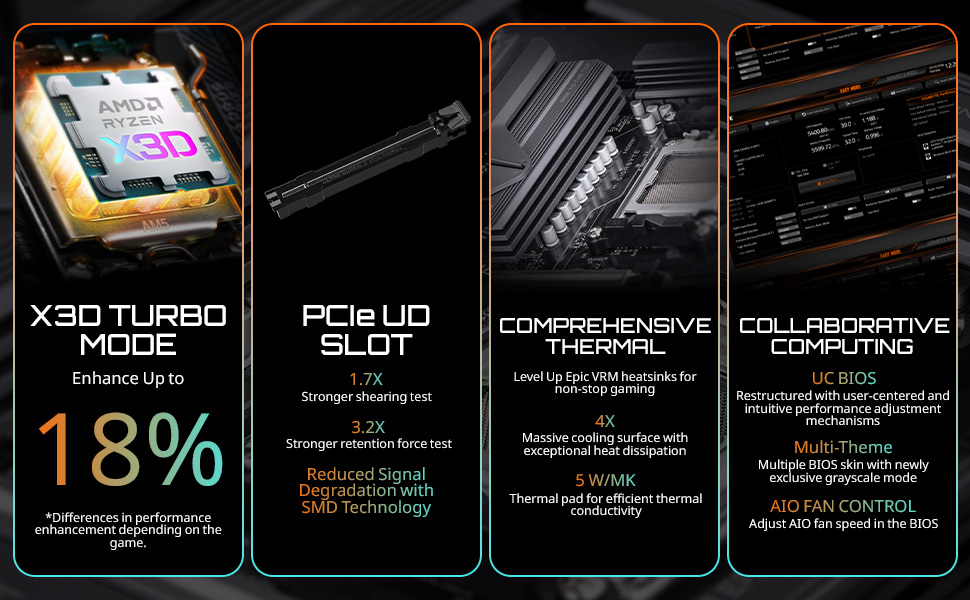
Figure 2.1: AMD Socket AM5 for Ryzen 7000/8000/9000 Series Processors.
- Lift the CPU retention lever on the socket.
- Align the triangular marker on the CPU with the corresponding marker on the socket.
- Gently lower the CPU into the socket. Do not force it.
- Close the retention lever to secure the CPU.
- Install your CPU cooler according to its manufacturer's instructions.
2.4. RAM Installation (DDR5)
This motherboard supports DDR5 memory. Ensure your RAM modules are DDR5 compatible.
- Open the clips on both ends of the DIMM slots.
- Align the notch on the DDR5 RAM module with the notch in the DIMM slot.
- Press down firmly on both ends of the RAM module until the clips snap into place.
2.5. M.2 SSD Installation
The motherboard features three M.2 slots for high-speed NVMe SSDs, with EZ-Latch for tool-less installation.

Figure 2.2: M.2 EZ-Latch for easy SSD installation.
- Locate an available M.2 slot.
- Insert the M.2 SSD into the slot at an angle.
- Push down the M.2 SSD until it is flat, and secure it using the EZ-Latch mechanism.
2.6. PCIe Card Installation
Install your graphics card or other PCIe expansion cards into the appropriate PCIe slots. The motherboard supports PCIe 5.0.

Figure 2.3: PCIe EZ-Latch for convenient graphics card removal.
- Open the retention clip on the PCIe slot.
- Align the card with the slot and press down firmly until it is seated and the clip snaps into place.
- Secure the card to the case with a screw.
2.7. Power Connections
Connect the main 24-pin ATX power connector and the 8-pin CPU power connector from your power supply to the motherboard.
2.8. Front Panel and I/O Connections
Connect your case's front panel headers (power button, reset button, USB ports, audio jacks) to the corresponding pins on the motherboard. Refer to the motherboard's silkscreen labels for correct orientation.

Figure 2.4: Rear I/O Panel with various ports including USB, LAN, Wi-Fi antenna connectors, and audio jacks.
Install the included Wi-Fi antenna to the rear I/O panel connectors for optimal wireless performance.
3. Operating Instructions
3.1. First Boot and BIOS/UEFI Access
After assembling your system, connect a monitor, keyboard, and mouse. Power on the system. To enter the BIOS/UEFI setup, repeatedly press the DEL key during startup. The BIOS/UEFI interface allows you to configure system settings, boot order, and enable features like EXPO for memory optimization.
3.2. BIOS/UEFI Update (Q-Flash Plus)
It is highly recommended to update your motherboard's BIOS/UEFI to the latest version for improved compatibility, stability, and performance, especially for DDR5 memory and new CPU releases. The GIGABYTE B850 Gaming WIFI6 features Q-Flash Plus, allowing BIOS updates without a CPU, RAM, or graphics card installed.

Figure 3.1: Q-Flash Plus button and indicator lights for BIOS updates.
- Download the latest BIOS file from the official GIGABYTE website for your specific motherboard model.
- Rename the downloaded BIOS file to GIGABYTE.bin (or as specified in the BIOS update instructions).
- Copy the renamed BIOS file to the root directory of a USB flash drive (FAT32 format).
- With the system powered off, insert the USB flash drive into the designated Q-Flash Plus USB port on the rear I/O panel.
- Press the Q-Flash Plus button. The Q-Flash Plus LED will blink, indicating the update process has started.
- Wait for the LED to stop blinking, indicating the update is complete. Do not power off or interrupt the process.
3.3. Driver Installation
After installing your operating system, install the necessary drivers for optimal performance. Drivers can be found on the GIGABYTE support website for your motherboard model.
- Chipset Drivers
- LAN Drivers
- Wi-Fi/Bluetooth Drivers
- Audio Drivers
- SATA/NVMe Drivers
3.4. Memory Profile Configuration (EXPO/DOCP)
To achieve the advertised speeds of your DDR5 memory, enable the EXPO (Extended Profiles for Overclocking) or DOCP (D.O.C.P.) profile in the BIOS/UEFI. This will automatically configure the memory timings and voltage for optimal performance.
4. Maintenance
Regular maintenance helps ensure the longevity and stable operation of your motherboard and system.
- Dust Removal: Periodically clean dust from the motherboard, heatsinks, and fan blades using compressed air. Ensure the system is powered off and unplugged before cleaning.
- BIOS/UEFI Updates: Regularly check the GIGABYTE website for new BIOS/UEFI versions. Updates can provide performance improvements, bug fixes, and support for new hardware.
- Driver Updates: Keep your system drivers updated. This includes chipset, graphics, audio, and network drivers, which can be found on the GIGABYTE support page or component manufacturer websites.
- Cable Management: Ensure all cables are neatly routed and not obstructing airflow within the case.
- Connection Checks: Occasionally check that all power cables, data cables, and expansion cards are securely seated.
5. Troubleshooting
This section addresses common issues you might encounter and provides potential solutions.
5.1. No Power / No POST (Power-On Self-Test)
- Check Power Connections: Ensure the 24-pin ATX and 8-pin CPU power cables are securely connected to the motherboard and power supply.
- Verify Components: Ensure CPU, RAM, and graphics card are properly seated. Try reseating them.
- Clear CMOS: Refer to your motherboard manual for instructions on how to clear the CMOS (Complementary Metal-Oxide-Semiconductor) settings, which can resolve boot issues.
- Q-Flash Plus Indicator Lights: The motherboard has indicator LEDs (CPU, DRAM, VGA, BOOT) that light up during POST. If one stays lit, it indicates a problem with that specific component.
5.2. System Instability / Crashes
- Check Temperatures: Ensure CPU and GPU temperatures are within safe operating limits. Overheating can cause instability.
- RAM Issues: If you experience frequent crashes, test your RAM modules. Ensure EXPO/DOCP profiles are stable or try running RAM at default speeds.
- Driver Conflicts: Ensure all drivers are up-to-date and there are no conflicting drivers.
- Power Supply: An insufficient or failing power supply can lead to instability.
5.3. No Display Output
- Graphics Card: Ensure your graphics card is properly seated in the PCIe slot and has all necessary power cables connected.
- Monitor Connection: Verify the display cable is securely connected to both the graphics card (or motherboard if using integrated graphics) and the monitor.
- Integrated Graphics: If your CPU has integrated graphics, try connecting the monitor to the motherboard's display outputs (HDMI, DisplayPort) to rule out a dedicated graphics card issue.
5.4. Network Connectivity Issues
- Wi-Fi: Ensure the Wi-Fi antenna is securely connected to the rear I/O panel. Check Wi-Fi drivers.
- LAN: Verify the Ethernet cable is properly connected to the LAN port and your router/modem. Check LAN drivers.
6. Specifications
Detailed technical specifications for the GIGABYTE B850 Gaming WIFI6 Motherboard.
| Feature | Specification |
|---|---|
| Brand | GIGABYTE |
| Model Name | B850 GAMING WF6 |
| CPU Socket | Socket AM5 |
| Compatible Processors | AMD Ryzen 7000 Series, AMD Ryzen 8000 Series, AMD Ryzen 9000 Series |
| Chipset Type | AMD B850 |
| RAM Memory Technology | DDR5 |
| RAM Memory Maximum Size | 256 GB |
| Memory Speed | 5200 MHz (Base) |
| Product Dimensions (LxWxH) | 12 x 9.6 x 1 inches |
| Item Weight | 3.25 pounds |
| Platform | Windows 11 |
| Connectivity | PCIe 5.0, 3x M.2 Slots, USB-C, WIFI6E, 1GbE LAN |
7. Warranty and Support
7.1. Warranty Information
The GIGABYTE B850 Gaming WIFI6 Motherboard comes with a 5-Year Warranty. Please retain your proof of purchase for warranty claims. The warranty covers defects in materials and workmanship under normal use.
7.2. Technical Support
For technical assistance, driver downloads, BIOS updates, and further product information, please visit the official GIGABYTE support website:
You may also find helpful resources and community forums on the GIGABYTE brand store on Amazon: GIGABYTE Store.


